
When the C: drive is getting full in Windows 10/11, it is better to extend the C: drive than start from scratch. If you do not want to use any software, diskpart is an option. However, this native tool has many disadvantages. To use it, your disk partition configuration must meet the requirements. This article introduces how to extend the C: drive with diskpart in Windows 10/11, and the disadvantages of the Diskpart command when extending the C: drive in a Windows 10/11 computer.
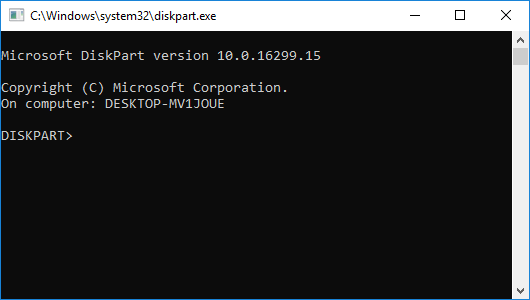
What Is the Diskpart Command?
Diskpart is a command-line utility used to manipulate disk partitions in all versions of Windows clients and Windows Server beginning with Windows XP and Windows Server 2003. This utility adds capability to the Windows Disk Management snap-in. Users can type Diskpart commands directly to configure storage, or script Diskpart to perform multiple commands via a text file script, such as creating, deleting, and formatting partitions, or converting a basic disk to dynamic.
How to Run Diskpart in Windows 10/11
There are two ways to run the diskpart command in a Windows 10/11 laptop, desktop, or tablet computer:
From cmd
- Press Windows and R on the keyboard to open Run.
- Type diskpart and press Enter.
Locate the file
- Open C:\Windows\System32
- Double-click diskpart.exe
Preconditions to Extend a Partition with Diskpart
To extend a partition with the diskpart command in Windows 10/11, your disk partition configuration must meet the requirements:
- This partition must be formatted with the NTFS file system.
- There must be adjacent unallocated space on the right of this partition.
Although diskpart has a shrink command, it can only generate unallocated space on the right side when shrinking a partition. After shrinking the D: drive, the unallocated space is on the right of D instead of C. When you increase the C: drive with the extend command, you will receive the error message 'There is not enough usable free space on specified disk(s) to extend the volume.'
To extend the C: drive in Windows 10/11 with the diskpart command, you must delete the adjacent D: drive in advance. Only when there is adjacent unallocated space on the right of the C: drive is the diskpart extend command valid.
If you installed programs or any services to the adjacent partition D, do not delete it. If you decide to delete it, remember to transfer files in advance.
How to Extend the C Drive with Diskpart in Windows 10/11:
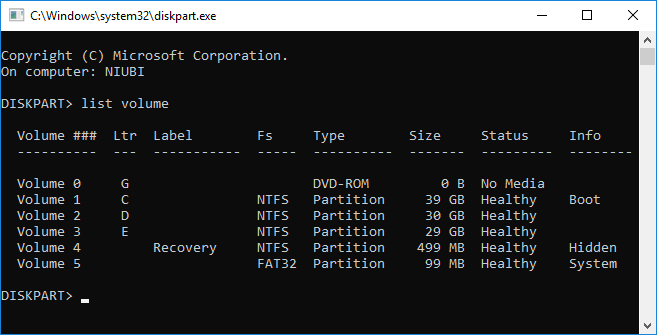
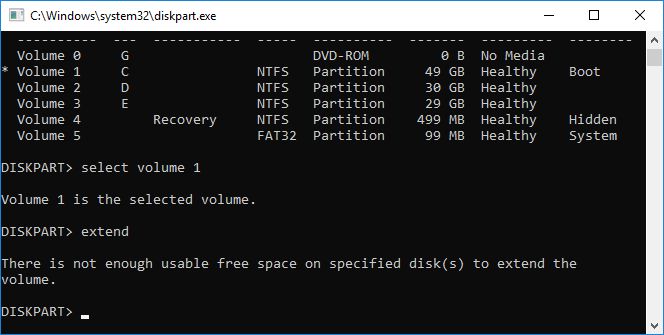
Step 1: Type list volume in the diskpart command prompt window and press Enter; you will see all partitions but no unallocated space.
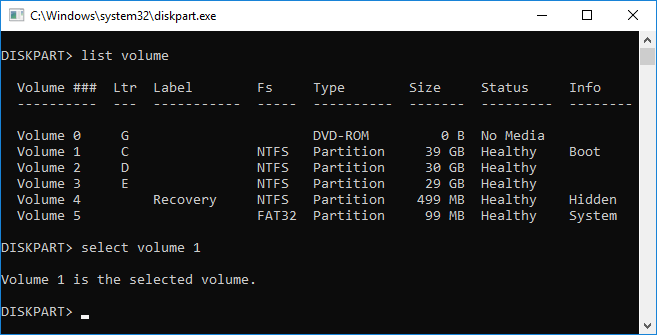
Step 2: Type select volume 1 to give focus to the system C: drive.
Step 3: Type extend to proceed with extending.
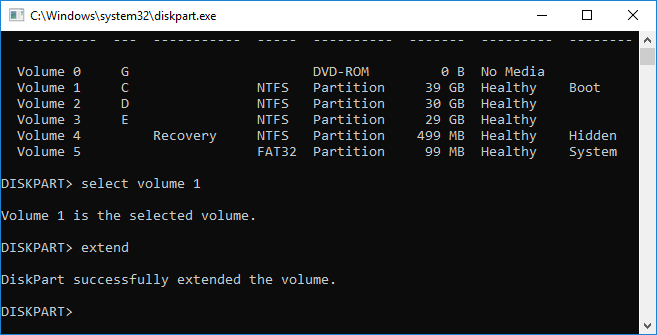
If you extend the C: drive again, you will receive the error message 'There is not enough usable free space on specified disk(s) to extend the volume.' This is because there is no adjacent unallocated space this time.
Limitations of Diskpart to Extend the C Drive in Windows 10/11
- Only when there is adjacent unallocated space on the right is the extend command valid. Diskpart cannot generate such space when shrinking another volume.
- Only an NTFS partition is supported for shrinking and extending.
- Unallocated space is not displayed in the command window, so you do not know if there is any or where it is.
- Volumes are shown as a list without a structure.
- Operations cannot be undone; incorrect operations could cause data loss.
To enlarge the C: drive space, NIUBI Partition Editor is a better choice. It has a free edition for Windows 11/10/8/7/Vista/XP home computer users. To resize and extend a partition, you just need to drag and drop on the disk map.
Download this program, and you will see all disks with the partition structure on the right; available operations are listed on the left and upon right-clicking.
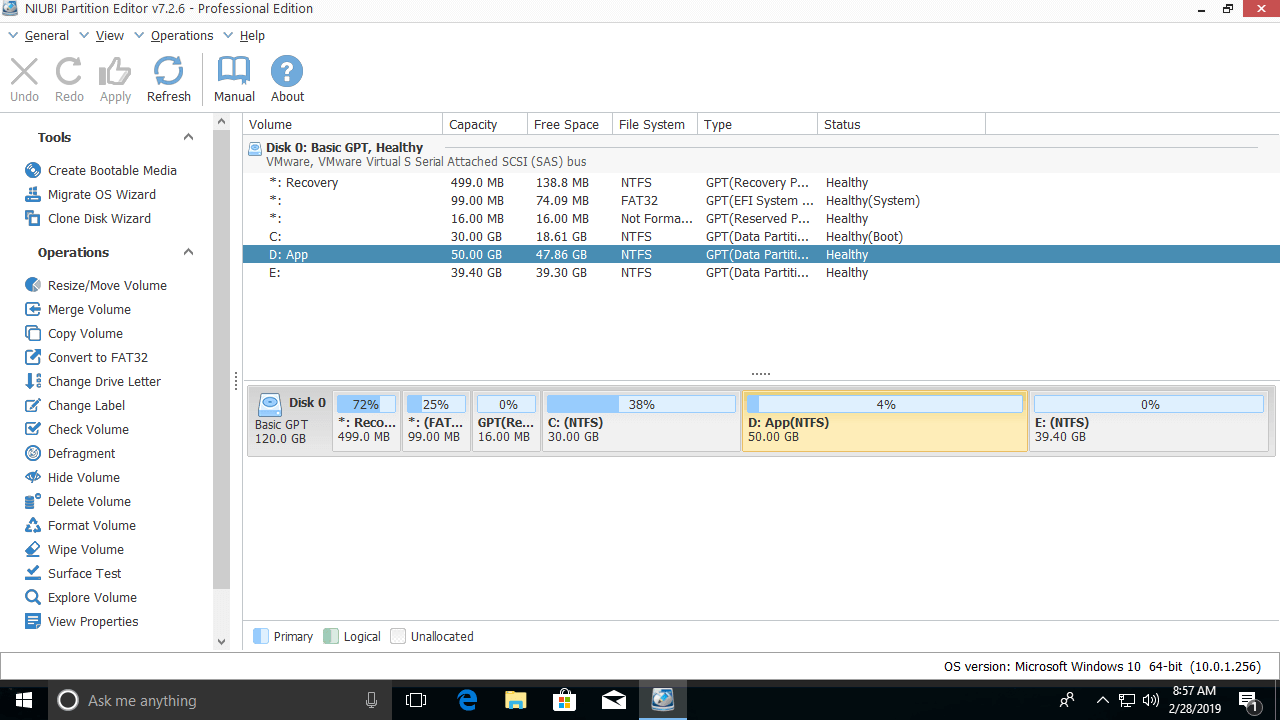
Step 1: Right-click the D: drive and select "Resize/Move Volume", then drag the left border to the right in the pop-up window.
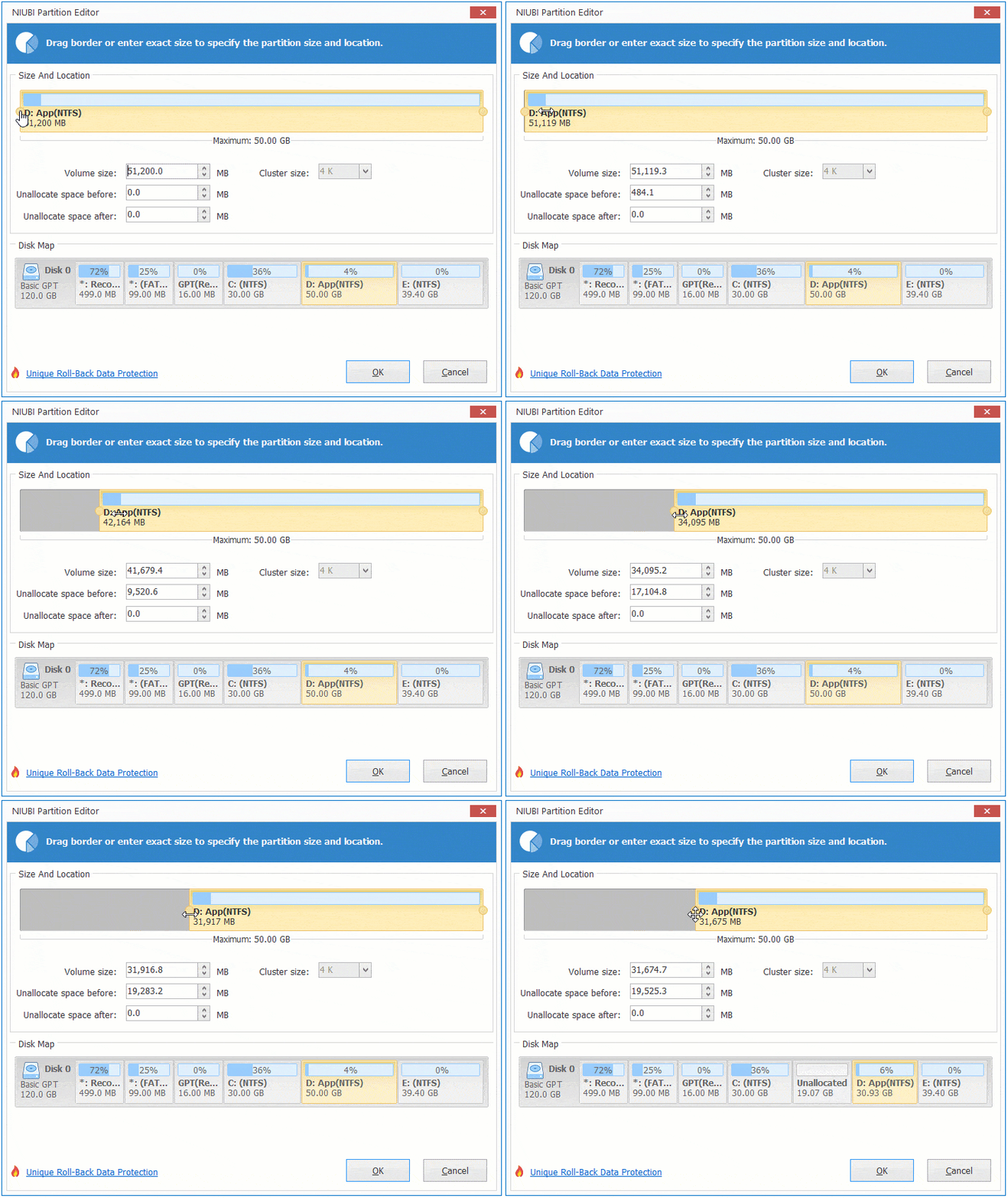
Then, a portion of the free space is converted into unallocated space on the left side of D.
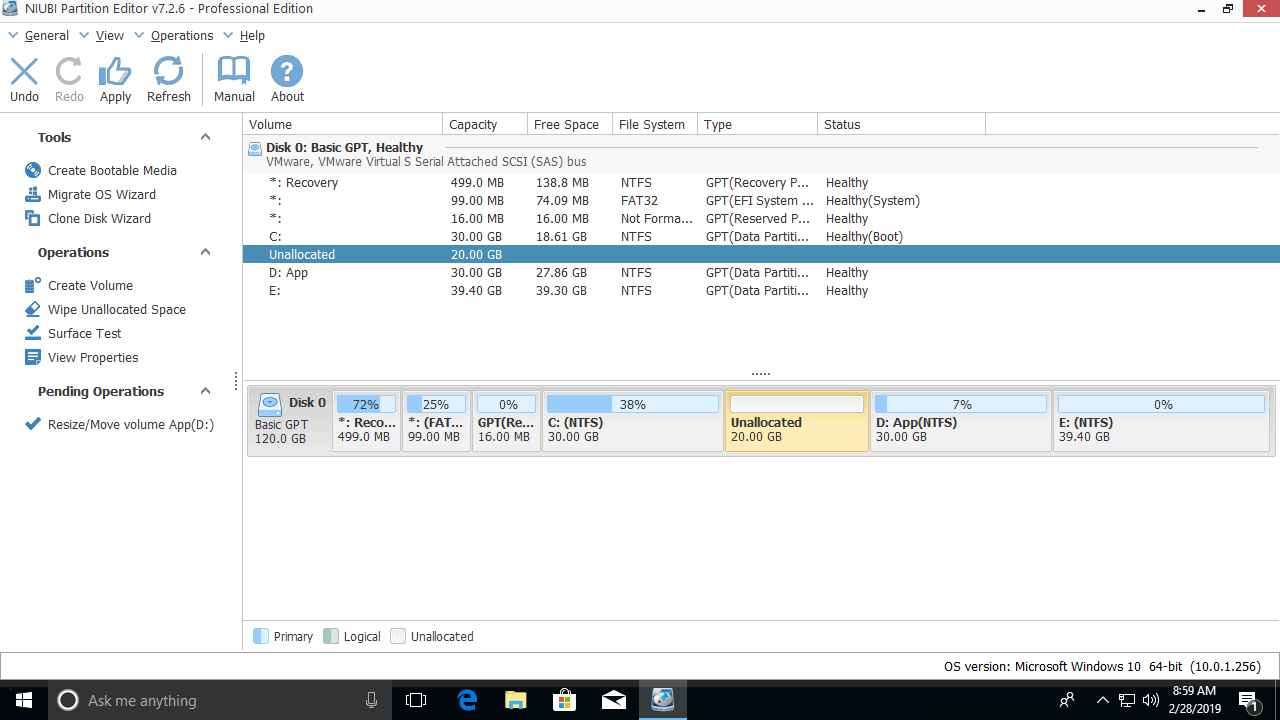
Step 2: Right-click drive C: and select "Resize/Move Volume" again, then drag the right border to the right in the pop-up window.
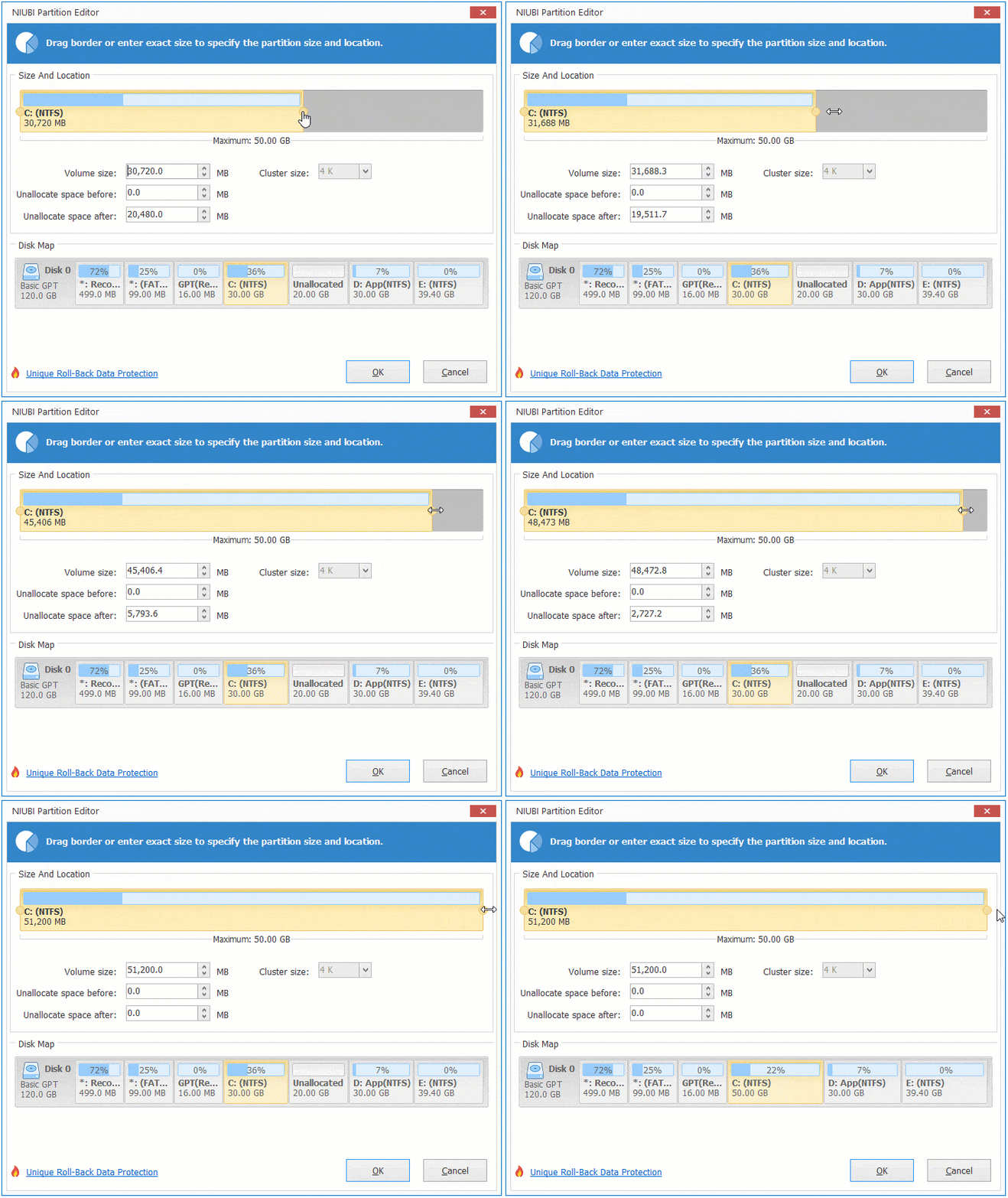
Then, the C: drive is extended by merging the unallocated space.
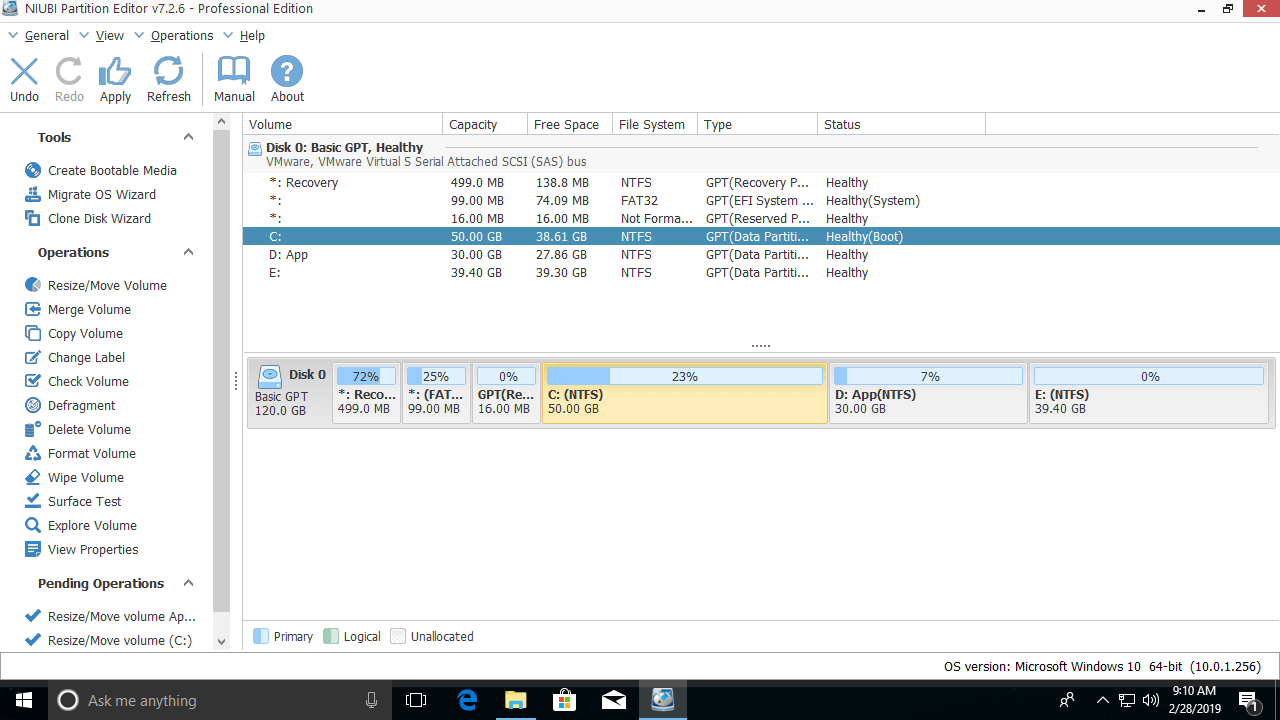
This software is designed to work in its virtual mode, and all the operations you perform will be listed as pending for preview. So if you did something wrong, simply click Undo to cancel. To change the real disk partitions, click Apply to execute.
Watch the video guide on how to extend the C: drive in a Windows 10/11 computer:
Besides resizing and extending disk partitions, NIUBI Partition Editor can help you perform many other disk/partition management operations, such as merging, copying, converting, defragging, wiping, repairing, scanning, and setting Active partitions, etc.
 © 2009 - NIUBI Technology All Rights Reserved. |