
The C: drive low disk space is a common issue in a Windows 10/11 computer. Many types of system, download, and program files are saved to this partition continuously, so it will become full sooner or later. When it happens, nobody likes to reinstall the operating system and all programs. To solve this problem faster and more easily, you can extend the C: drive. Because the size of an SSD/HDD is fixed, before extending a partition, there must be unallocated space on the same disk. To get this kind of space, you may delete or shrink a partition. Many users report that they cannot extend the C: drive with unallocated space after shrinking or even deleting another volume. This article introduces how to extend the C: drive with unallocated space in a Windows 10/11 computer using free tools.
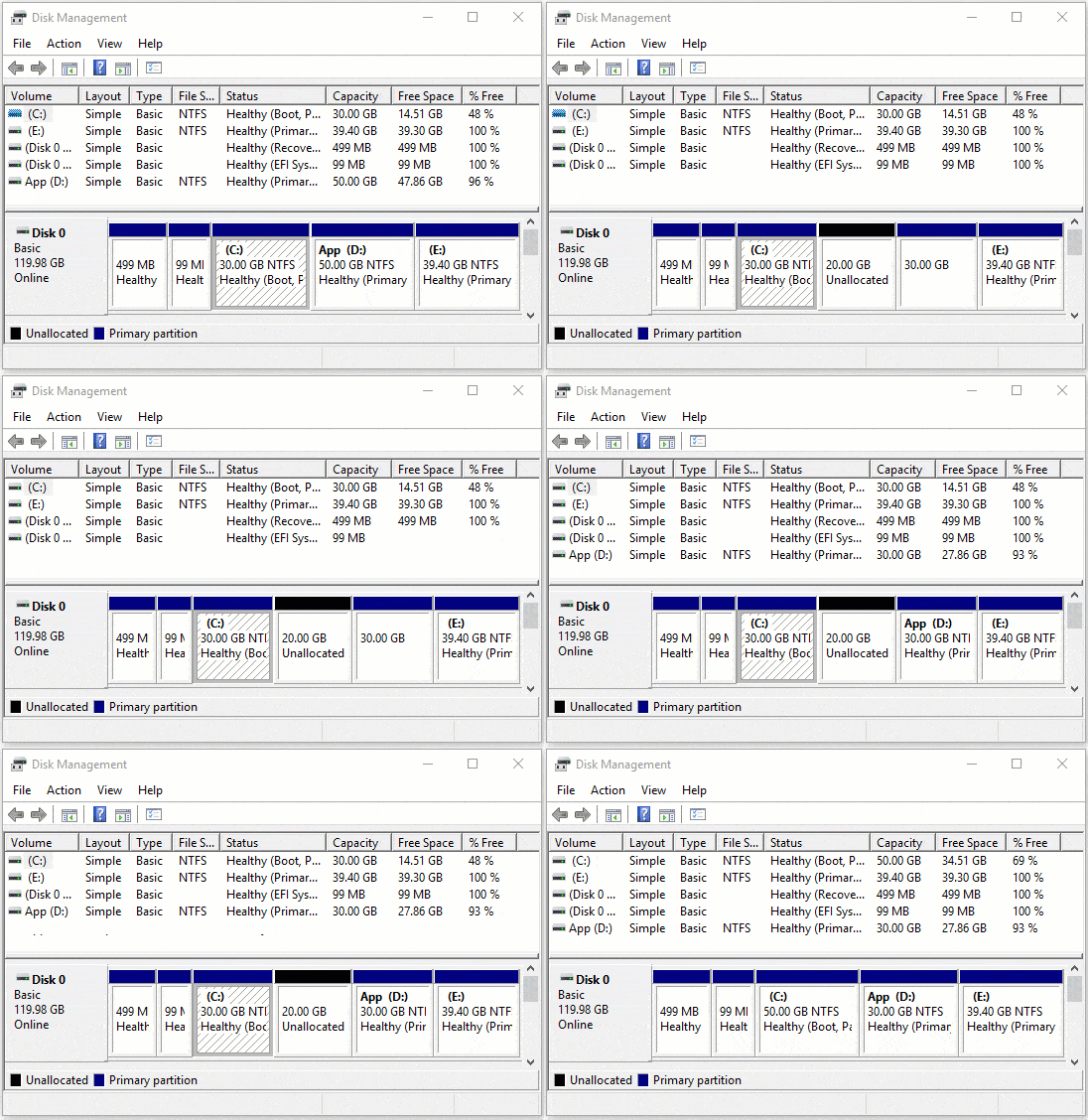
Free Tool to Extend the C Drive with Unallocated Space in Windows 10/11
In Windows 10/11 Disk Management, there are "Shrink Volume" and "Extend Volume" functions to help resize a partition. However, this native tool cannot help you extend a partition by shrinking another one. This is because the Extend Volume function only works when there is contiguous unallocated space on the right side. "Shrink Volume" cannot generate the required unallocated space.
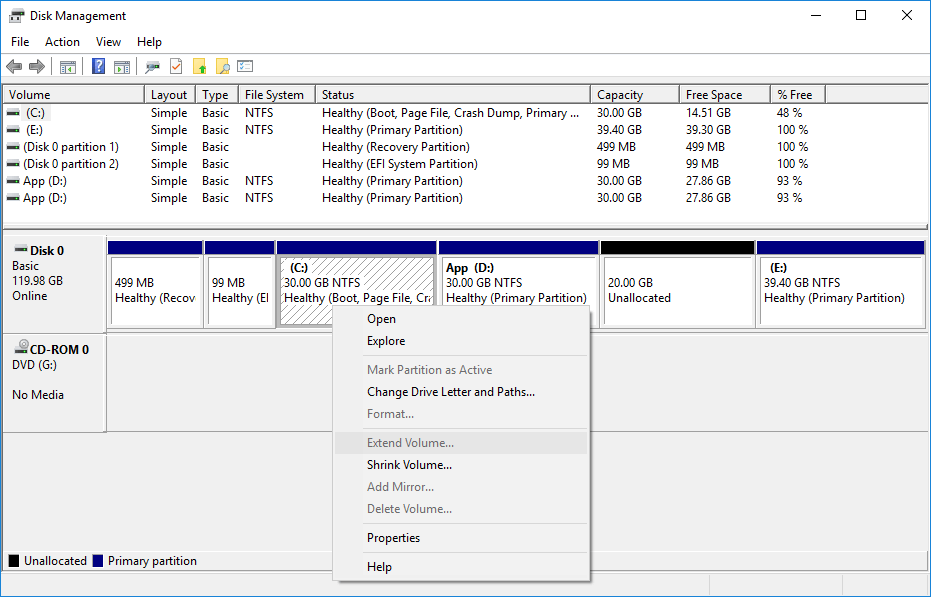
As you can see in the screenshot, the 20GB of unallocated space was shrunk from the D: drive; when right-clicking the C: drive, Extend Volume is disabled.
In this situation, if you do not want to use any third-party software to extend the C: drive in Windows 10/11 with unallocated space, you must delete the D: drive. There will be contiguous unallocated space behind the C: drive, and then Extend Volume will be enabled.
How to extend the C: drive with unallocated space in Windows 10/11 without software:
- Transfer all files in the D: drive to another partition.
- Right-click the D: drive and select Delete Volume.
- Right-click the C: drive and select Extend Volume.
- The "Extend Volume Wizard" will be opened; simply click Next to continue.
- Select the available disk and space, then click Next to continue.
- Click Finish to confirm and start extending.
Do not delete the D: drive if you have installed programs in it. The method above is invalid if D is a Logical partition, because Extend Volume is grayed out for the C: drive even after deleting D.
To extend the C: drive in Windows 11/10 with unallocated space, NIUBI Partition Editor is a better choice, because no partition will be deleted. It can add unallocated space to the C: drive, no matter whether they are contiguous or not. Better than other tools, it features innovative 1-Second Rollback, Cancel-at-Will, and Virtual Mode technologies, along with an advanced file-moving algorithm to help move and extend a partition much faster and more safely.
Extend the C Drive with Non-adjacent Unallocated Space in Windows 10/11
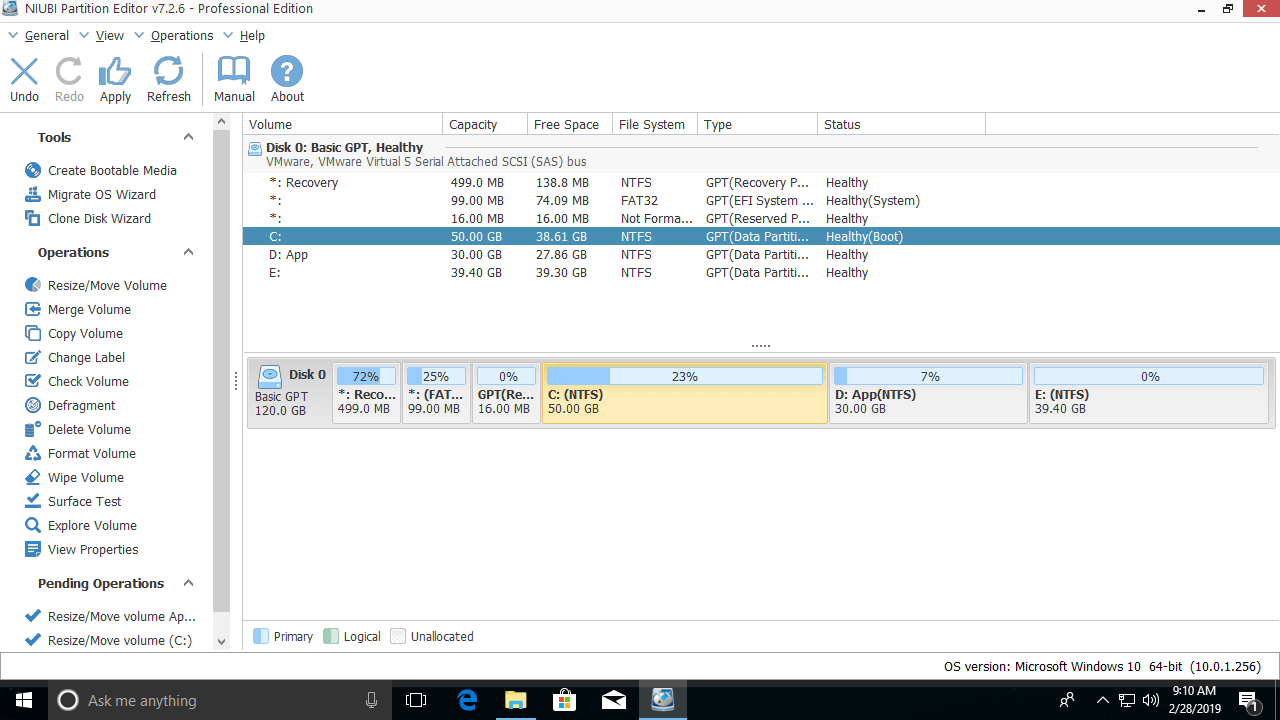
If you have shrunk the D: or E: drive and generated unallocated space with Disk Management, NIUBI Partition Editor can move the middle partition (D) to the right and make the unallocated space contiguous to the C: drive. Then you can extend the C: drive without deleting any partition. It has a free edition for Windows 11/10/8/7/Vista/XP home computer users.
Download this program and follow the steps to extend the C: drive with non-adjacent unallocated space in Windows 10/11:
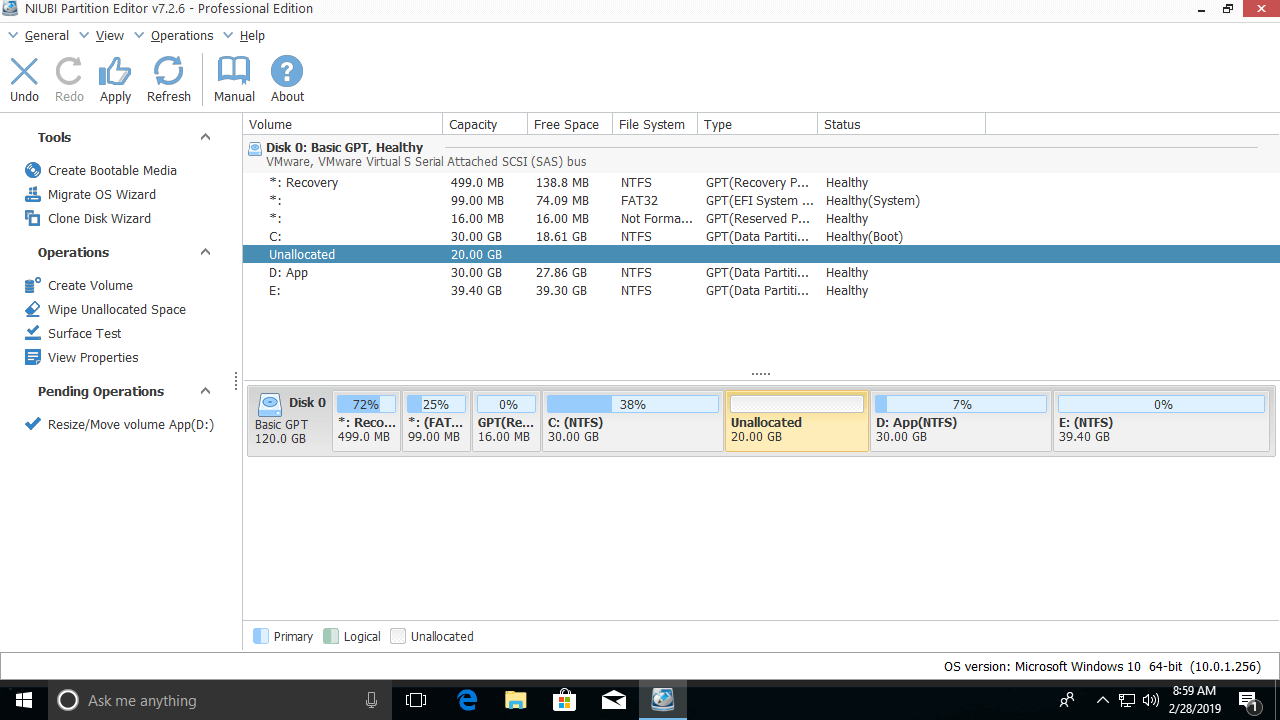
Step 1: Right-click the D: drive and select "Resize/Move Volume", then drag the middle of the D: drive to the right in the pop-up window.

Then, the unallocated space is moved next to the C: drive.
Step 2: Right-click the C: drive and select "Resize/Move Volume" again, then drag the right border to the right in the pop-up window.
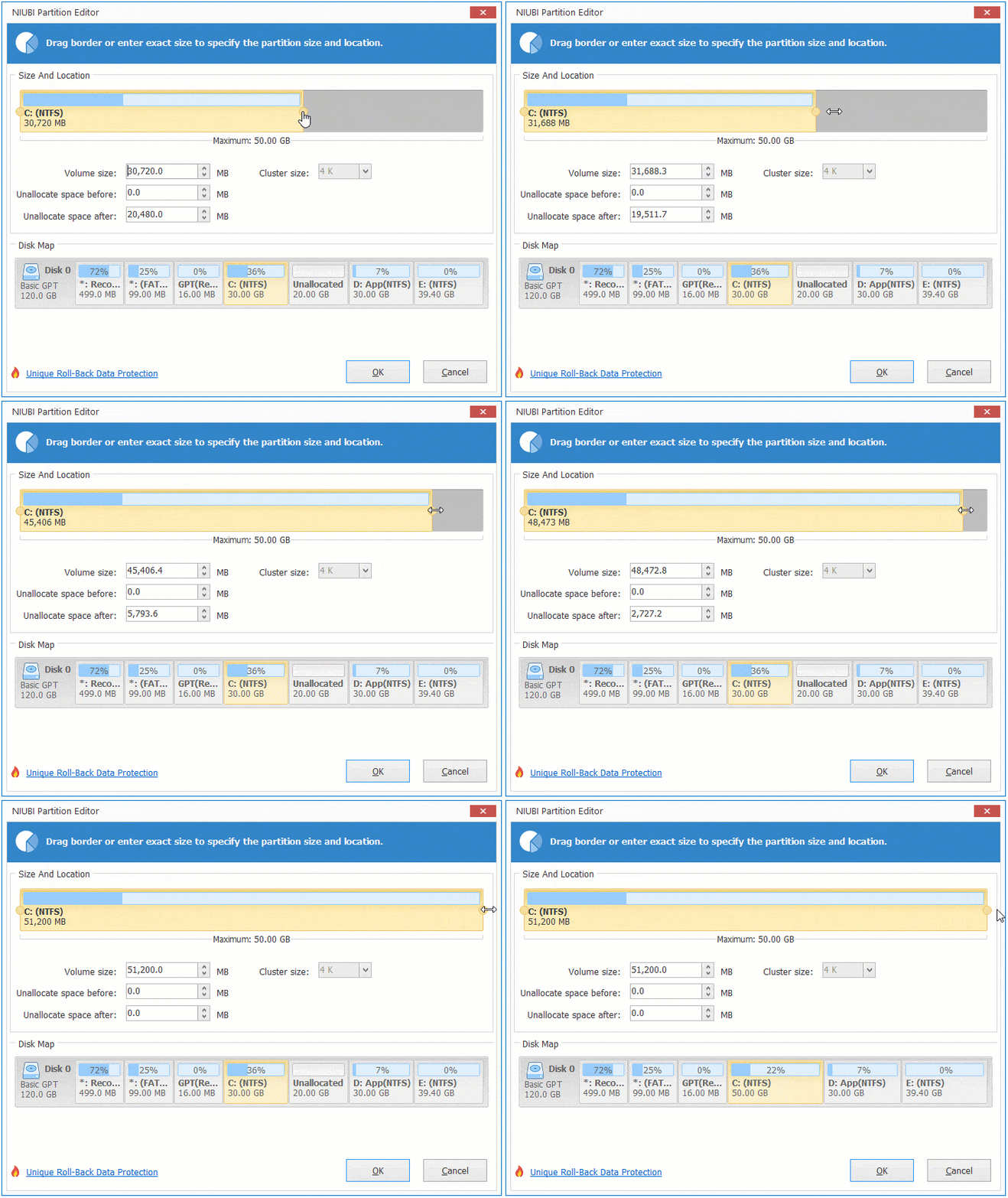
Then, the unallocated space is merged into the system C: drive.
Watch the video on how to extend the C: drive in Windows 11/10 with unallocated space:
Extend Partition C with Unallocated Space from Another Disk
In some computers, there is no other volume or not enough free space on the same disk. If you want to extend the C: drive with unallocated space from another separate disk, no software can help you, because the size of a hard disk is fixed. In this case, you can copy the disk to a larger one and extend the partition with the extra disk space.
In Summary
Windows 10/11 native Disk Management cannot generate unallocated space on the left or move a partition. So it is useless in most cases. To extend the C: drive with unallocated space in Windows 10/11, NIUBI Partition Editor is a better choice. Besides moving, shrinking, and extending partitions, it helps you perform many other operations such as copying, merging, converting, defragging, wiping, and hiding partitions, scanning bad sectors, and optimizing the file system.
 © 2009 - NIUBI Technology All Rights Reserved. |