
Before saving files to a brand-new hard disk, you must initialize it, create a partition, and format it with a file system. After running the server for a period of time, you may need to change the partition scheme. For example, you might need to shrink a large partition to create more space, or extend a partition when it becomes full. You may also need to copy a disk partition to migrate the OS/data or convert the partition type. Therefore, a reliable disk partition management tool is essential. Windows has included a native "Disk Management" tool since Windows 2000. This article explains how to open Disk Management in Windows Server 2016, what it does, and its limitations compared to server disk partition software.
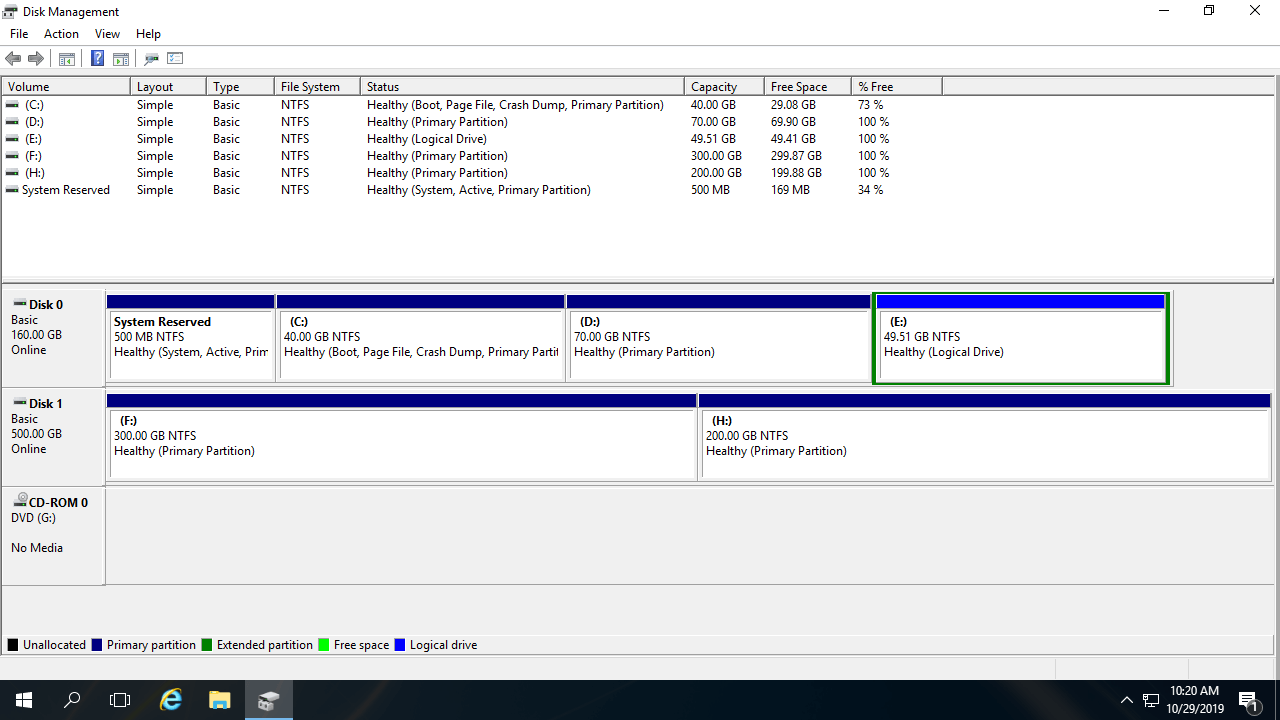
1. About Windows Server 2016 Disk Management Tool
The hard disk drive is an indispensable component of a computer, and, as mentioned earlier, a reliable tool is needed to manage disk partitions. Initially, in 1983, there was the "Fdisk" command-line utility running on DOS. In 2000, Microsoft introduced the "Diskpart" command-line tool, which offered more advanced capabilities. Later, Microsoft developed the Logical Disk Manager (LDM), which provides the ability to manage dynamic disks. To make this tool more user-friendly, Microsoft introduced a GUI-based Disk Management snap-in starting with Windows 2000.
To help resize allocated partitions without starting over, Microsoft introduced the "Shrink Volume" and "Extend Volume" options in Server 2008. Windows Server 2016's Disk Management inherited the same GUI and functionality without modification.
2. How to Run Disk Management in Windows Server 2016
There are two ways to open Disk Management in Windows Server 2016:
- Press Windows + X together on the keyboard and click Disk Management from the list.
- Press Windows + R to open the Run dialog box, type diskmgmt.msc and press Enter.
3. What Does Server 2016 Disk Management Do
After opening Disk Management in Windows Server 2016, right-click a partition, the header of a disk, or any unallocated space to view the associated options. Any unavailable options will be grayed out.
For an allocated partition:
- Open the root directory with File Explorer
- Mark the partition as active
- Change the drive letter and paths
- Format the partition
- Shrink the volume and create unallocated space to its right
- Extend the volume with unallocated space to its right
- Delete the partition
- Add a mirror
If you select Add Mirror, both disks will be converted to dynamic disks.
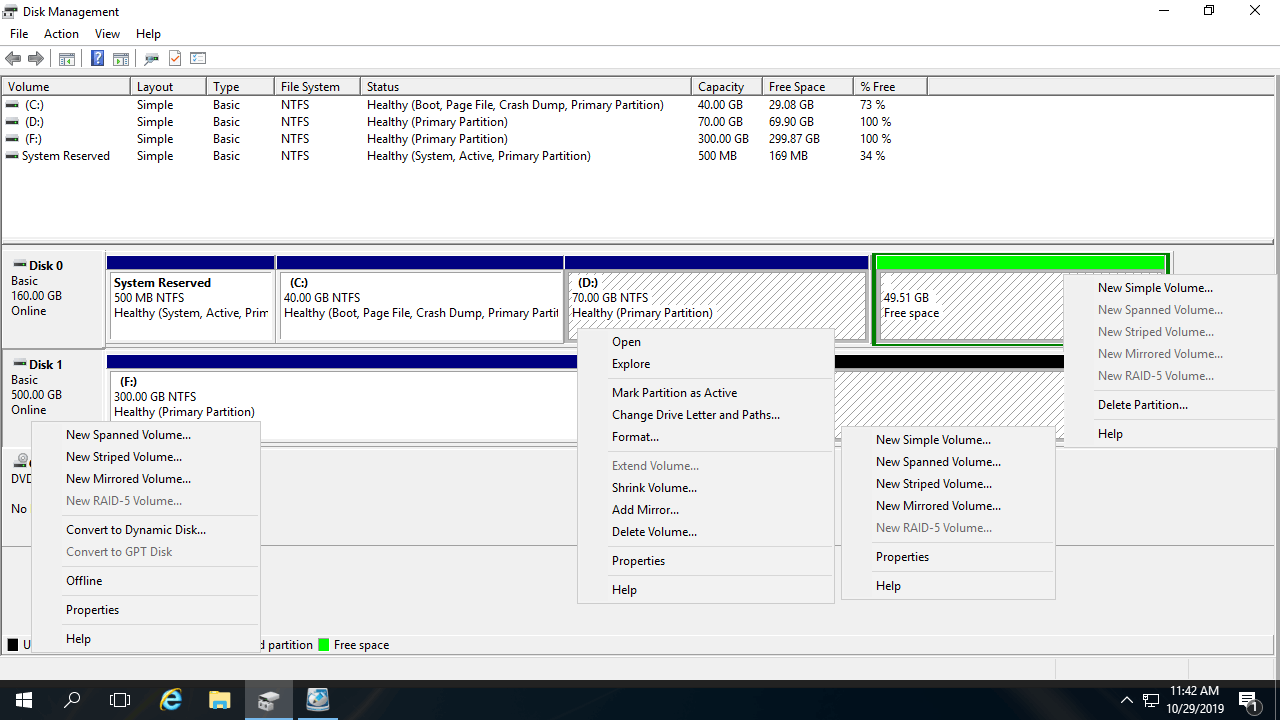
For a brand-new hard disk:
Bring online, take offline, and initialize a brand-new disk.
For a disk with volumes:
Convert a basic disk to a dynamic disk.
For a disk without any volumes:
Convert an MBR disk to GPT and vice versa, or convert a basic disk to a dynamic disk and vice versa.
For unallocated space:
Create new volumes.
For dynamic disks:
Disk Management can create Simple, Mirrored, Spanned, Striped, and RAID-5 volumes.
To create a RAID-5 volume, there must be at least 3 dynamic disks. There are only two in this computer, so this option is grayed out.
4. Disadvantages of Disk Management
Windows Server 2016 Disk Management can only perform basic operations. The advanced Shrink and Extend Volume functions have many restrictions.
- It can only shrink and extend NTFS/ReFS partitions; FAT32 and other types of partitions are not supported.
- In some situations, such as when there is a file system error in a partition, Disk Management cannot shrink it.
- If there are unmovable files in a partition, Disk Management can only shrink the partition by a limited amount.
- It can only create unallocated space to the right when shrinking a partition.
- It can only extend a partition if there is contiguous unallocated space to its right.
- It cannot extend a partition by shrinking other volumes.
- It lacks many features, such as moving, merging, copying, converting, wiping partitions, and scanning for bad sectors.
To manage disk partitions for a Windows server, NIUBI Partition Editor is a better choice. Unlike generic software, it is much safer and faster because of its innovative technologies:
- Virtual Mode - All operations are listed as pending for preview, and real disk partitions won't be modified until you click "Apply" to confirm.
- Cancel-at-Will - If you apply incorrect operations, you can cancel the ongoing process without damaging the partitions.
- 1-Second Rollback - If an error is detected while resizing a partition, it automatically reverts the server to its original state instantly.
- Hot Clone - Clone a disk partition in Windows without interrupting the server. You can regularly clone the system disk as a backup and boot from the cloned disk immediately if the system disk is damaged.
Upon downloading NIUBI Partition Editor, you will see all disks with their partition structures and other parameters on the right. Available operations for the selected disk or partition are listed on the left or can be accessed by right-clicking.
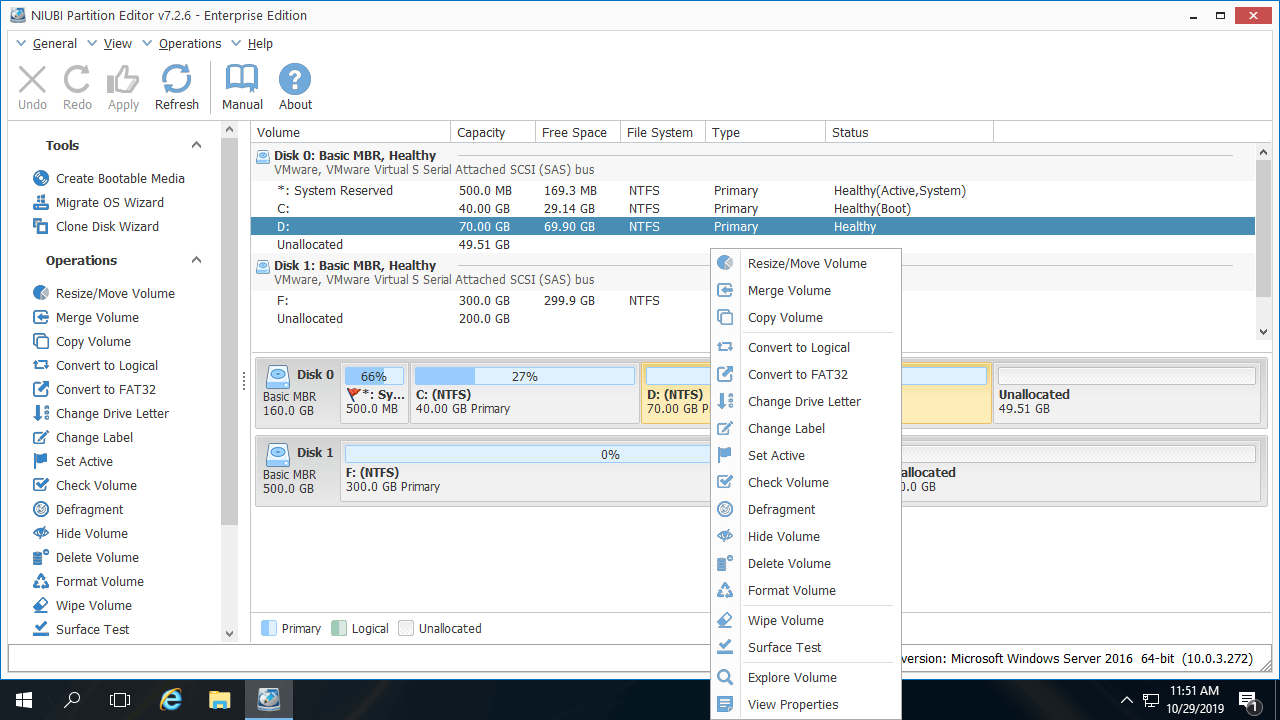
This server partition manager allows you to shrink, extend, move, and merge partitions without data loss, optimizing disk space. It also optimizes the file system and defragments partitions to improve server performance. You can clone disk partitions to migrate the operating system and data, and convert disk/partition types without losing data - such as converting dynamic disks to basic, NTFS to FAT32, or switching between primary and logical partitions. Additionally, it helps with creating, deleting, formatting, hiding, activating, and wiping partitions, scanning for bad sectors, and more. Learn how to manage disk partitions in Windows Server 2016.
 © 2009 - NIUBI Technology All Rights Reserved. |