
The "System Reserved" partition is a small hidden partition that contains the Boot Configuration Data (BCD), Boot Manager, and other essential files. In general, there is no need to modify it. However, in some cases, you need to extend the System Reserved partition in Windows Server 2016. For example, before converting an MBR system disk to GPT and upgrading to a higher Windows Server version, you must increase the System Reserved partition size. To extend the System Reserved partition in Windows Server 2016, the native Windows Disk Management and Diskpart command tools cannot help you. Instead, reliable disk partition software is required to accomplish this task.
Why Disk Management Cannot Extend the System Reserved Partition
Similar to Windows Server 2012, Windows Server 2016 has a built-in "Extend Volume" function in Disk Management, but it cannot extend the System Reserved partition. This is because "Extend Volume" only works when there is contiguous unallocated space to the right of the target partition. To obtain this unallocated space, you must delete the adjacent partition. In most cases, the C drive is adjacent to and to the right of the System Reserved partition. Obviously, you cannot delete the system partition (C:).
When shrinking a partition using the native Disk Management utility, it only allows you to enter an amount, and the resulting unallocated space is automatically created to its right. Therefore, after shrinking the C drive in Windows Server 2016 via Disk Management, you find that the "Extend Volume" option is greyed out for the System Reserved partition.
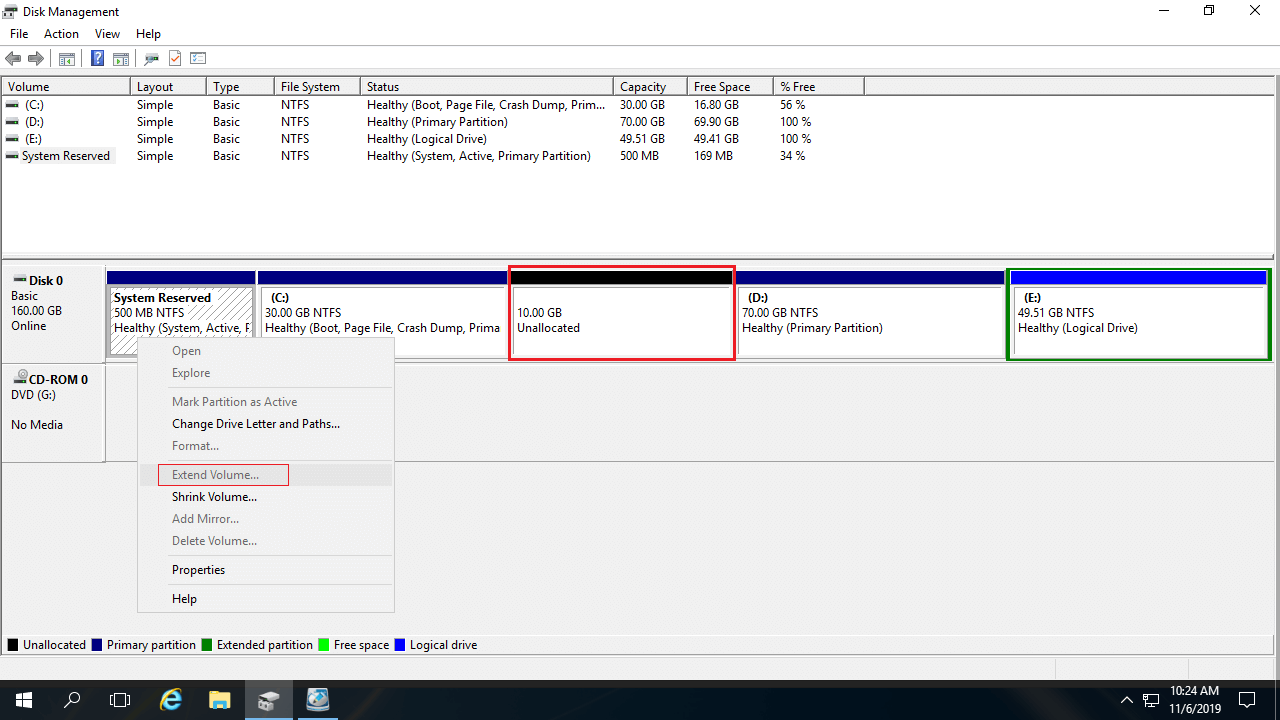
If you have already shrunk the C drive with Disk Management, you must move the C drive to the right to make the unallocated space contiguous to the System Reserved partition.
How to Extend System Reserved Partition in Server 2016 After Shrinking the C Drive:
- Download NIUBI Partition Editor, right-click drive C, and select "Resize/Move Volume". Position the mouse pointer in the middle of the C drive and drag it to the right in the pop-up dialog box.
- Right-click the System Reserved partition and select "Resize/Move Volume" again, then drag the right border to the right to combine the unallocated space.
- Click Apply at the top left to execute.
- Any operations performed before clicking Apply only work in Virtual Mode.
- A server reboot is required to shrink the C drive (the pending operation is marked with a "Refresh" symbol).

A Safe Way to Extend the System Reserved Partition in Windows Server 2016
If you have not performed any operations yet, you can shrink the C drive and create unallocated space on the left side using NIUBI Partition Editor. Then, the System Reserved partition can be extended easily.
Steps to Extend System Reserved Partition in Windows Server 2016 with NIUBI:
- Right-click the C: drive and select "Resize/Move Volume". Drag the left border towards the right side in the pop-up dialog box, or directly enter an amount in the "Unallocated space before" box.
- Right-click the System Reserved partition and select "Resize/Move Volume" again, then drag the right border towards the right side to combine the unallocated space.
- Click Apply to execute.
- If there is not enough free space in the C drive, or if you do not want to shrink this partition, you can shrink the D drive or another data volume on the same disk. In that case, there is an additional step required to move drive C towards the right side.
- If there is no available free space on the same disk, you can copy the disk to a larger one and extend the partition(s) with the additional disk space.
How to Increase the System Reserved Partition in RAID/VMware/Hyper-V
If you use any type of hardware RAID array, do not break the array or perform any operations on the RAID controller; simply follow the same steps as outlined above.
If you run Windows Server 2016 as a virtual machine in Hyper-V or VMware, you just need to install NIUBI on the virtual server and follow the steps above. There is only one difference: if there is no available free space on a virtual disk, you can expand it directly without copying it to another disk. Follow the steps to expand a VMware or Hyper-V disk.
Many tools can shrink and extend partitions in Windows Server 2025/2022/2019/2016, but unlike generic software, NIUBI Partition Editor is much safer and faster due to its innovative technologies:
- Virtual Mode - All operations are listed as pending for preview; real disk partitions are not modified until you click "Apply" to confirm.
- Cancel-at-Will - If you applied incorrect operations, you can cancel the ongoing operations without damaging the partition.
- 1-Second Rollback - If any error is detected while resizing partitions, it automatically reverts the server to its original state instantly.
- Hot Clone - Clone disk partitions without server interruption. You can clone the system disk regularly as a backup and boot from the cloned disk immediately if needed.
Besides shrinking, extending, and moving partitions, this tool helps you perform many other disk partition management operations.
 © 2009 - NIUBI Technology All Rights Reserved. |