
Unallocated space is a portion of hard disk capacity that does not belong to any active partition. Windows built-in Disk Management tool allows you to create new volumes with Unallocated space or merge it into the left contiguous NTFS partition. But if you need to move Unallocated space or combine it with partitions of other types and locations, this native tool falls short. This article explains how to move and merge Unallocated space in Windows Server 2019/2022 easily and safely.
How to Move Unallocated Space in Windows Server 2019/2022
Many server administrators encounter a common issue: they cannot expand the system C drive after shrinking the data drive D. This happens because the built-in "Shrink Volume" function always makes Unallocated space on the right side of the shrunk partition. However, Disk Management can only merge Unallocated space to the left contiguous partition. Because the Unallocated space is non-adjacent, you cannot extend the C drive using native tools. To extend the C drive in Server 2019/2022 with this non-adjacent space, you must run partition software to move Unallocated space to the left. As the screenshot shows, Extend Volume is disabled for the C drive after shrinking drive D.
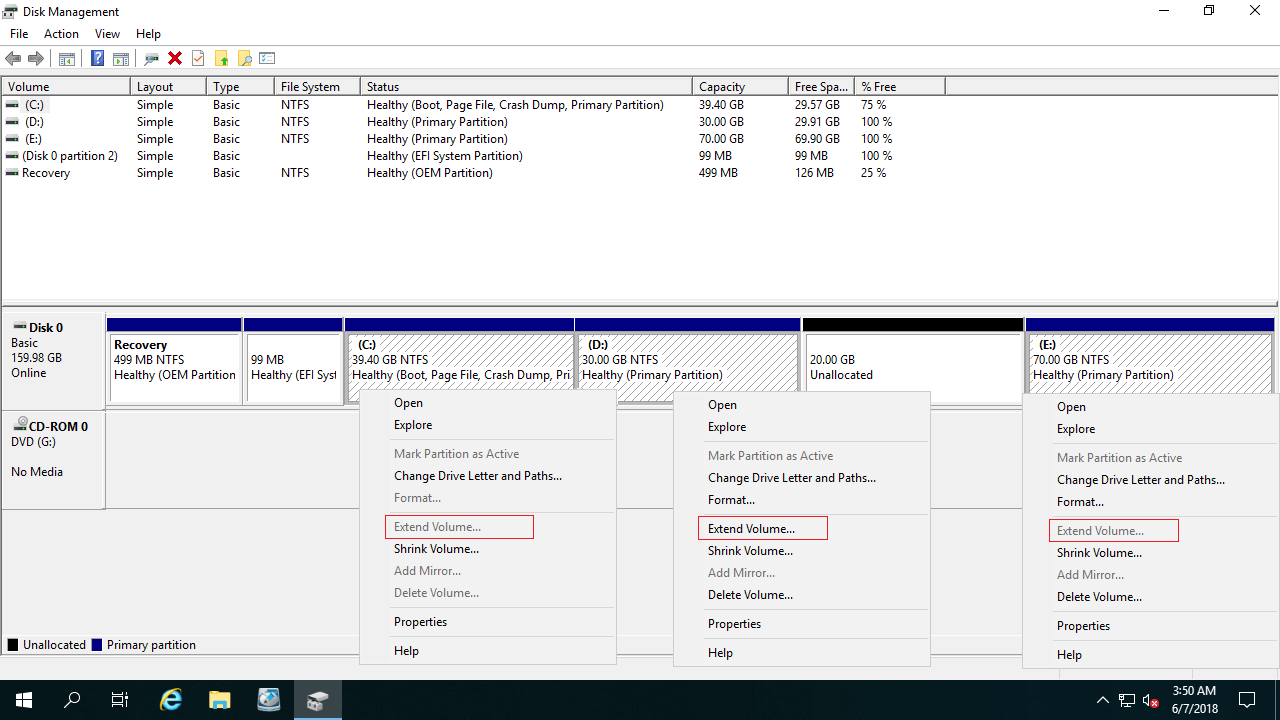
Steps to move Unallocated space in Windows Server 2019/2022 to the left:
- Download NIUBI Partition Editor, right-click the contiguous drive D: and select "Resize/Move Volume".
- In the pop-up window, drag the middle of the D drive towards the right, and the Unallocated space will be moved to the left.
![Move Unallocated]()
- Click Apply on the top left to execute the pending operations.

How to Merge Unallocated Space in Windows Server 2019/2022
After moving the Unallocated space to the left, you can easily combine it into the C drive. If you intend to merge the Unallocated space to the right contiguous drive E after shrinking drive D, you can do this directly without moving the partition. Simply right-click drive E, select "Resize/Move Volume", and drag the left border leftward to combine the Unallocated space.
Steps to move and merge Unallocated space in Windows Server 2019/2022 via video guide:
Is It Possible to Move Unallocated Space from Another Disk
No partition software can move Unallocated space to a different disk. If there is no available free space on the entire disk, you can extend your partitions using the following solutions:
- For a physical server, clone the disk to a larger one, and then combine the extra space into the partition you want to expand.
- For a virtual machine, expand the virtual disk size in VMware or Hyper-V. After expanding, the additional space will be shown as Unallocated at the end of the disk. You can then follow the steps above to move and merge this Unallocated space into the target partition.
Besides moving and merging Unallocated space in Windows Server 2019/2022/2025, NIUBI Partition Editor helps you perform many other disk and partition management operations.
 © 2009 - NIUBI Technology All Rights Reserved. |