
The D: drive will become full if you create it small and install a large amount of programs on it. In this situation, you can add more space to the D: drive from the C: or E: drive on the same disk. Then you can solve this problem without wasting a long time reinstalling Windows and programs. To accomplish this task, the Windows built-in "Disk Management" is an option, but because of many restrictions, it is not the best choice. This article introduces how to add space to the D: drive in Windows 10/11 with safe and free partition software.
How to Add More Space to the D Drive from C
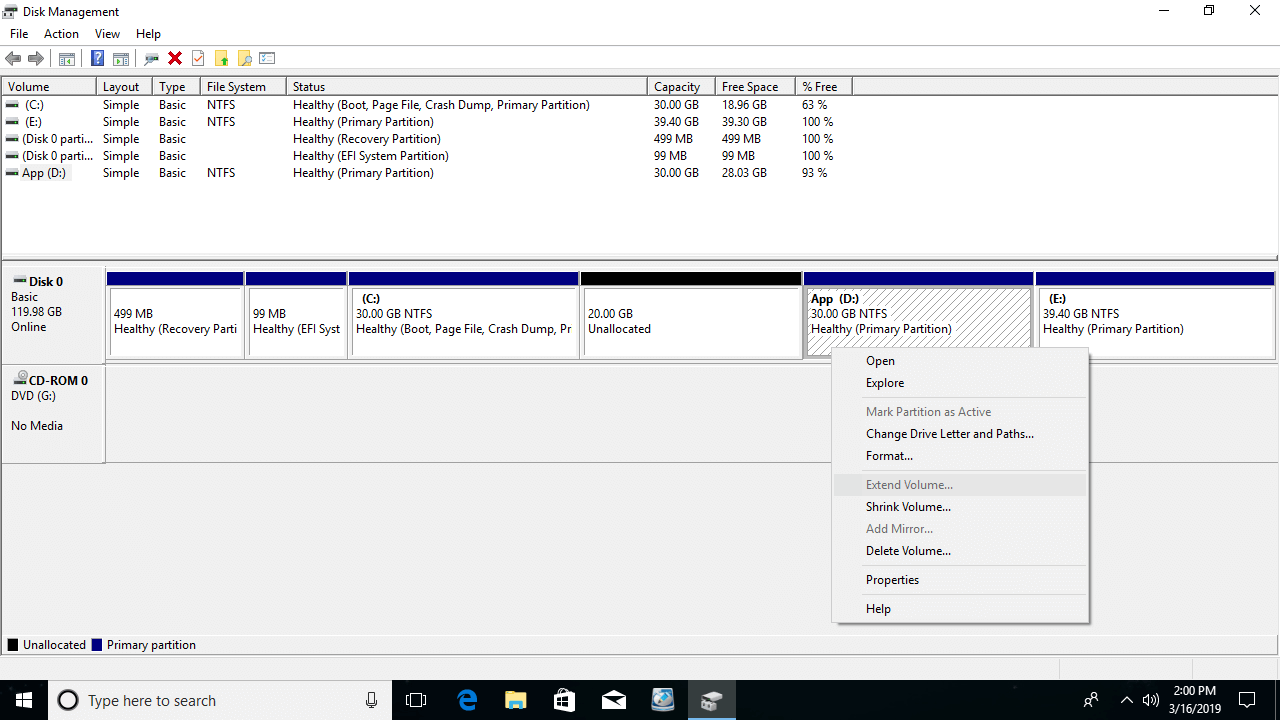
In fact, Windows 10/11 has Disk Management to help shrink and extend a partition without losing data. "Shrink Volume" can decrease an NTFS partition to release free space. However, as mentioned at the beginning, Disk Management is not the best choice because it has some restrictions.
- "Shrink Volume" can only generate unallocated space on the right when shrinking a partition.
- "Extend Volume" can only extend an NTFS partition when there is adjacent unallocated space on the right.
Better than Disk Management, NIUBI Partition Editor can generate unallocated space on either the left or right when shrinking a partition. It is able to move and merge unallocated space into another partition on the same disk. To do this, you just need to drag and drop on the disk map.
It has a free edition for Windows 11/10/8/7/Vista/XP home computer users.
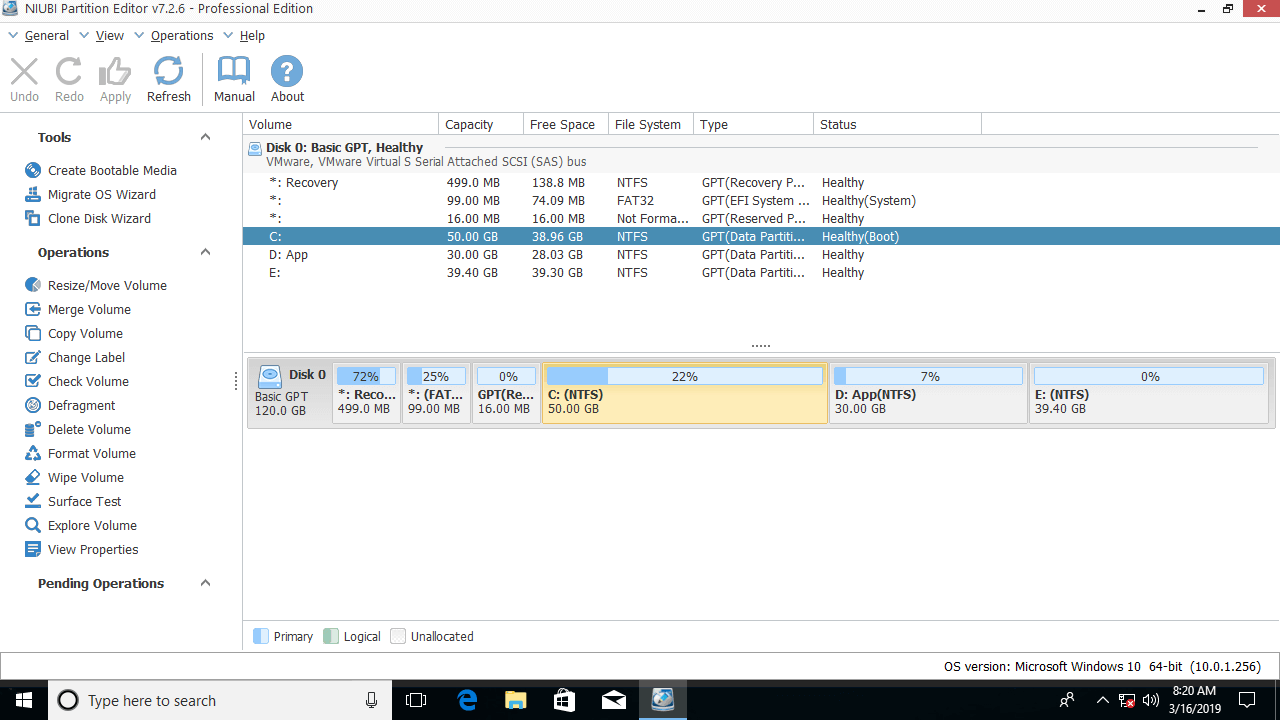
Download the free partition software, and you will see all disk partitions with their layout and detailed information on the main window.
Steps to add space to the D: drive from C in a Windows 10/11 computer:
Step 1: Right-click the C: drive and select "Resize/Move Volume"; drag the right border to the left in the pop-up window.

Then unallocated space will be generated on the right side of the C: drive.
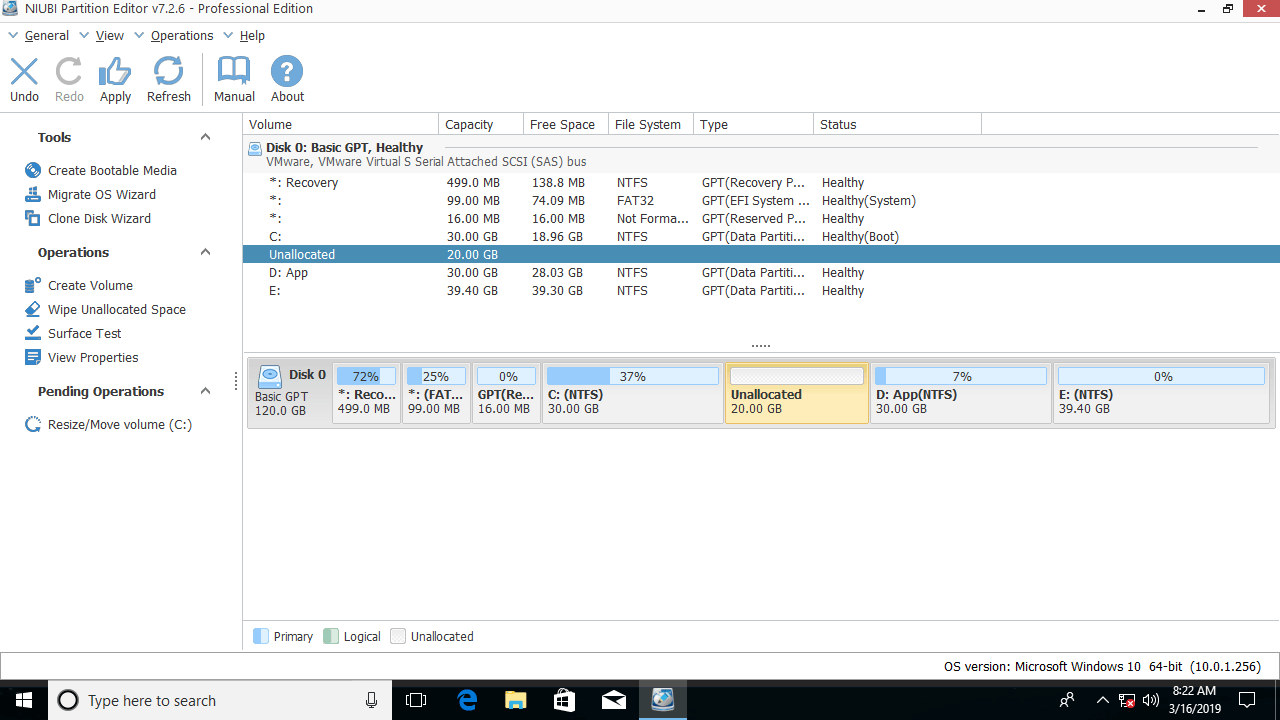
Step 2: Right-click the D: drive and select "Resize/Move Volume" again; drag the left border to the left in the pop-up window.

This unallocated space will be merged into the D: drive.
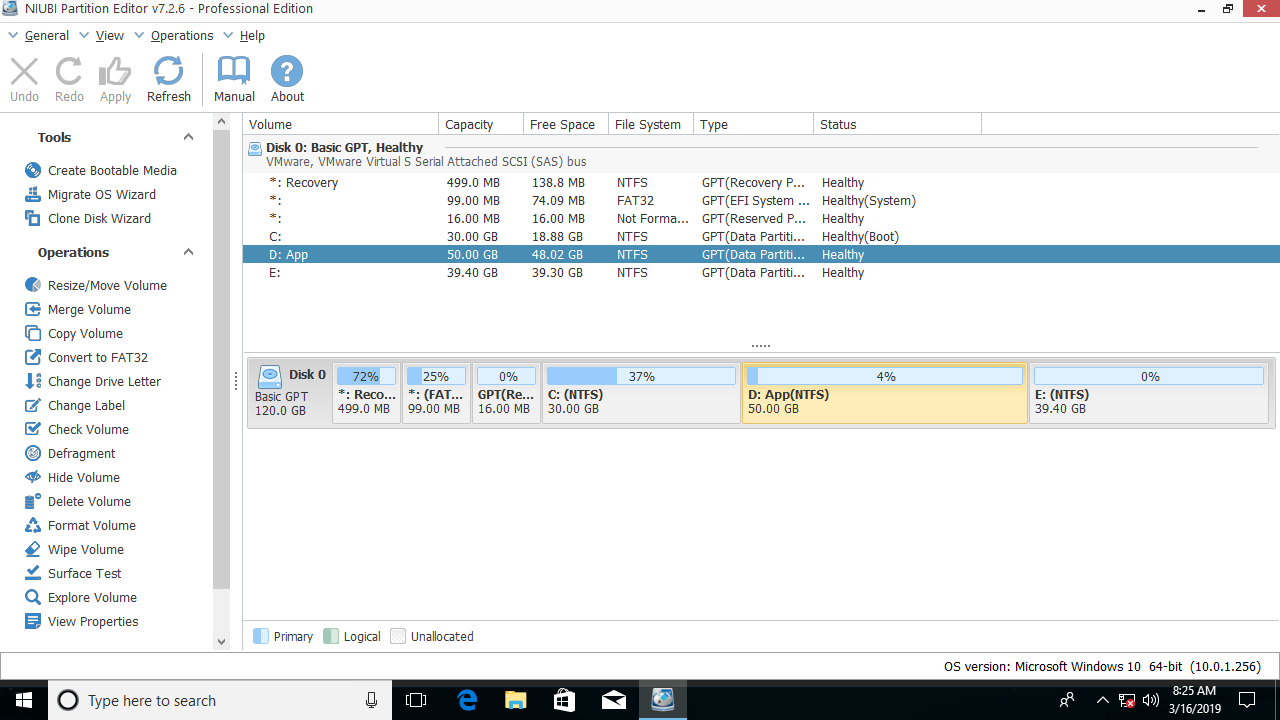
Click "Apply" on the top left to execute. All operations before clicking "Apply" only work in virtual mode.
How to Add Free Space to D from Volume E
If there is another data volume E, you can add free space from it, too. The steps are similar, but the directions to drag and drop are different.
Steps to add free space to the D: drive from E in Windows 10/11:
Step 1: Right-click the E: drive and select "Resize/Move Volume"; drag the left border to the right to shrink it.

Then unallocated space will be generated on the left side of E:.
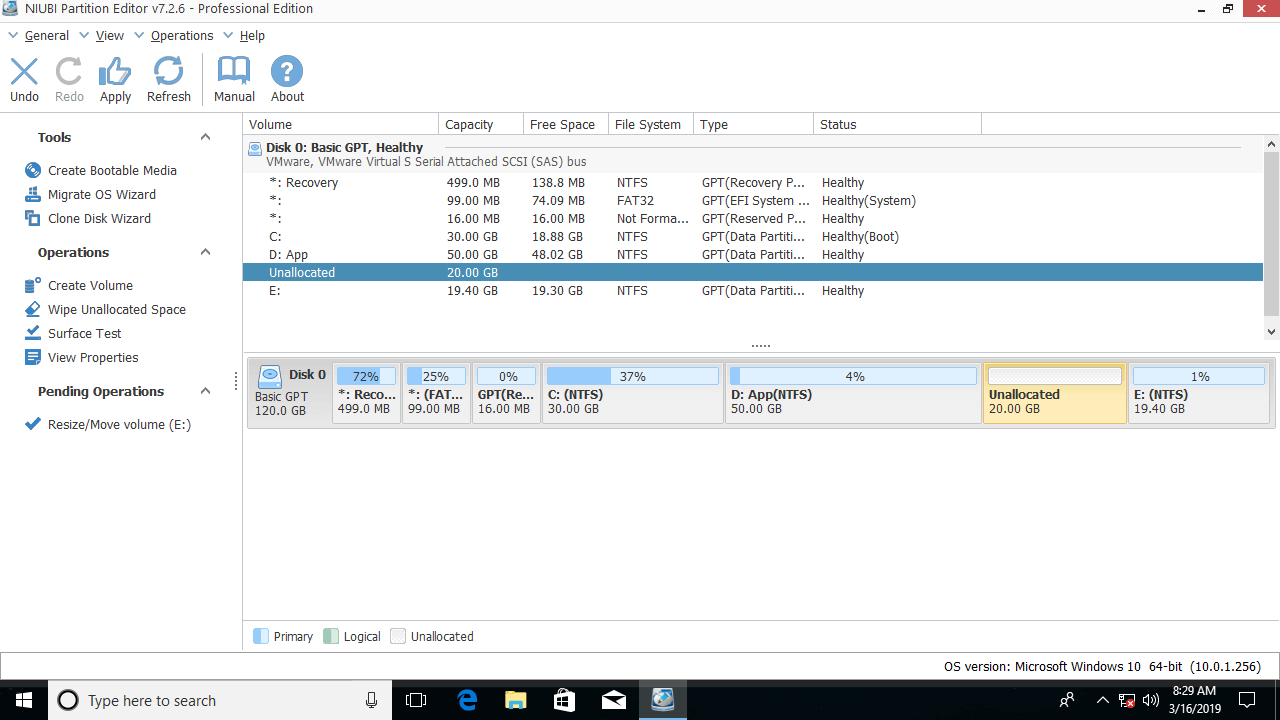
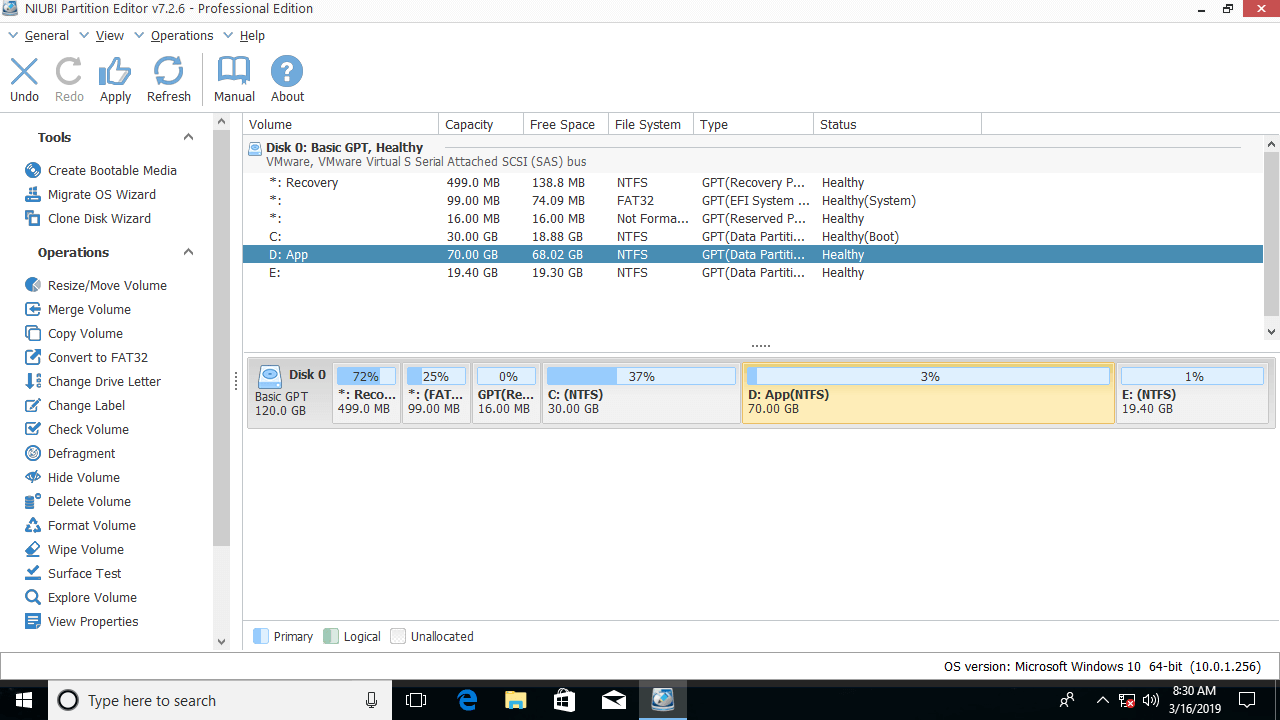
Step 2: Right-click the D: drive and select "Resize/Move Volume" again; drag the right border to the right.

Then the unallocated space will be merged into the D: drive.
How to Add Space to Partition D from Another Disk
If there is no available free space on this disk, no software can add space from another separate disk because the size of a physical disk is fixed. In this case, you have two options:
- Copy the D: drive to another disk.
- Clone the disk to a larger one and extend the partition with the extra disk space.
Besides shrinking and extending a partition, NIUBI Partition Editor helps you move, merge, convert, wipe, defrag, scan, hide partitions, and much more.
 © 2009 - NIUBI Technology All Rights Reserved. |