
As with other versions, the C: drive runs out of space in Windows 10. To improve computer performance, many Windows 10 laptops and desktops use an SSD as the system disk. The read and write speed of an SSD is much faster than a traditional mechanical disk, so it is good for the operating system and applications. However, an SSD is still expensive, and its capacity is not large. That means the C: drive is very likely to run out of space.
It is easy to understand: Windows Updates, services, applications, browser caches, and many other kinds of files are continuously saved or generated in the C: drive. Sooner or later, the C: drive will run out of space in Windows 10/8/7 computers. When the C: drive becomes full, it will be shown as red instead of blue in File Explorer.

When the C: drive is running out of space in Windows 10/8/7, you had better fix this issue as fast as possible. Otherwise, you will suffer from decreased computer performance, system freezes, unexpected reboots, or even crashes. This article introduces a 3-step solution to fix the Windows 10 C: drive running out of space issue fast and easily.
Step 1 - Clean Up the C Drive to Reclaim Disk Space
There are many unnecessary and junk files in the C: drive; by removing them, you can reclaim disk space. To do this, Windows 10/8/7 has the built-in Disk Cleanup utility, which can delete common types of junk files easily and safely.
How to run Disk Cleanup when the C: drive is running out of space in Windows 10/8/7:
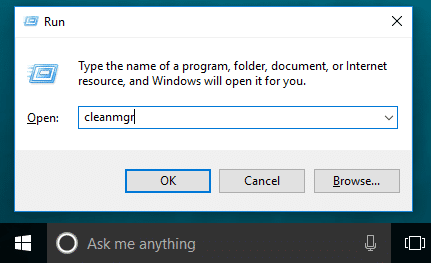
① Press the Windows and R keys on the keyboard, type cleanmgr, and then click OK.
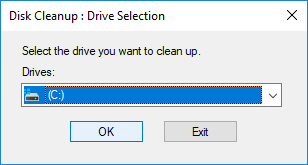
② Select the C: drive and click OK.
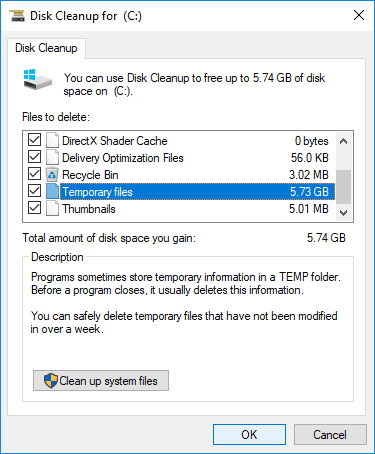
③ Click the check-box in front of the files that you want to clean up and click OK.
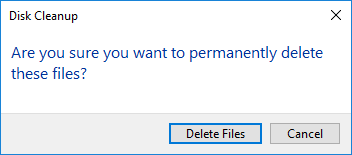
④ Confirm this operation by clicking Delete Files.
⑤ Repeat steps 1 and 2, and click Clean up system files in step 3.
You may get several gigabytes of free space if you have not cleaned up the C: drive before. If you want to reclaim more disk space, follow additional methods to free up disk space in a Windows 10 laptop/desktop.
Step 2 - Enlarge the C Drive as Large as Possible
You can reclaim disk space with the Windows native Disk Cleanup or third-party optimization software, but not all computers can regain plenty of free space. Even if you can get over 10GB of free space, it will be eaten up quickly by newly generated files. That means the C: drive runs out of space in a Windows 10/8/7 laptop/desktop again shortly. So you had better expand the C: drive as large as possible.
With safe partition editor software, you can shrink a partition to release free space and transfer it to the C: drive. In this way, there will be plenty of free space in the C: drive again without reinstalling the operating system or programs; everything (except the partition size) remains the same as before. This step is the most important to fix the C: drive out of space issue.
Better than other tools, NIUBI Partition Editor has innovative 1-Second Rollback, Virtual Mode, and Cancel-at-Will technologies to protect your system and data. The advanced file-moving algorithm helps resize/move partitions 30% to 300% faster. It has a free edition for Windows 11/10/8/7/Vista/XP home computer users.
How to fix the C: drive out of space in Windows 10/8/7 by moving free space:
- Download this program, right-click the D: drive, select "Resize/Move Volume", and drag the left border to the right to shrink it and generate unallocated space on the left side.
- Right-click the C: drive, select "Resize/Move Volume" again, and drag the right border to the right to merge this unallocated space.
- Click "Apply" on the top left to take effect.
The D: drive here means the contiguous partition on the right side of the C: drive.
Follow the steps in the video to enlarge the C: drive with free space from another partition:

Step 3 - Automatically Remove New Junk Files
To completely fix the C: drive running out of space in a Windows 10/8/7 computer, you had better continue with this step. The larger the C: drive is, the less probability there is that the C: drive will run out of space again. However, you still need to remove newly generated junk files. In Windows 7/8, you need to run the Disk Cleanup utility monthly. But in Windows 10, you can free up disk space automatically.
First, you need to enable this service:
- Press Windows and X on the keyboard, then Settings.
- Go to System > Storage.
- Switch Off to On under Storage Sense on the right side.

Then click Change how we free up space automatically below it.
You have several options:
- Select the frequency to clean up disk space.
- Click the option to delete temporary files that are not being used.
- Select the options in the drop-down list to delete files in the Recycle Bin and Downloads folder one by one.

In Summary
When the system C: drive is running out of space in Windows 10/8/7, the right strategy is: clean up the C: drive to get some precious free space. Then expand the C: drive as large as possible. Finally, turn on Storage Sense to free up disk space automatically, or run the Disk Cleanup utility monthly to remove newly generated junk files. To fix the Windows 10 C: drive out of space issue completely, the second step is the most important.
 © 2009 - NIUBI Technology All Rights Reserved. |