
Partitions are allocated by the computer manufacturer or by yourself when installing Windows. Many people ask whether it is possible to shrink a Windows 10 partition without losing data. Nobody likes to reinstall the operating system and all programs. Two common reasons why people want to shrink a partition in a Windows 10 computer:
- Besides the OEM, Recovery, and EFI partitions, there is only a C: drive on a disk, and many people want to shrink the C: drive to create more partitions.
- The C: drive is running out of space, so many people want to shrink another partition and allocate more free space to the C: drive.
If you want to shrink an NTFS partition in Windows 10 to create a new volume, you may try the Windows native Disk Management or diskpart command line tool. If you want to shrink a FAT32 partition or shrink a volume to extend another one, these native tools cannot help you. This article introduces how to shrink a volume in Windows 10 without losing data. Shrink a Windows 10 partition with free tools.
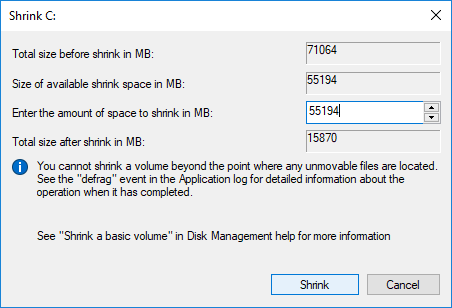
1. How to Shrink a Partition in Windows 10 Without Software
In the old Windows XP, if you want to decrease a partition, there is a diskpart command tool, but it is difficult for common users. Since Windows 7, Microsoft has added a new Shrink Volume function in the Disk Management tool. Because neither native tool can change the start position of a volume, many people encounter issues while shrinking a partition in a Windows 10/8/7 computer.
If you are interested in the command line tool, refer to how to shrink a Windows 10 volume with the diskpart cmd.
Steps to shrink a partition in Windows 10 with the Disk Management tool:
- Press Windows and X together, and click Disk Management in the list.
- Right-click an NTFS partition and select Shrink Volume.
- Click Shrink to proceed with all available space or enter an amount in MB (1024MB=1GB) manually.
In general, this partition can be shrunk in a short time. If you want to shrink a partition in Windows 7/8, press Windows and R keys together, input diskmgmt.msc, and press Enter to open Disk Management. The other steps are the same.
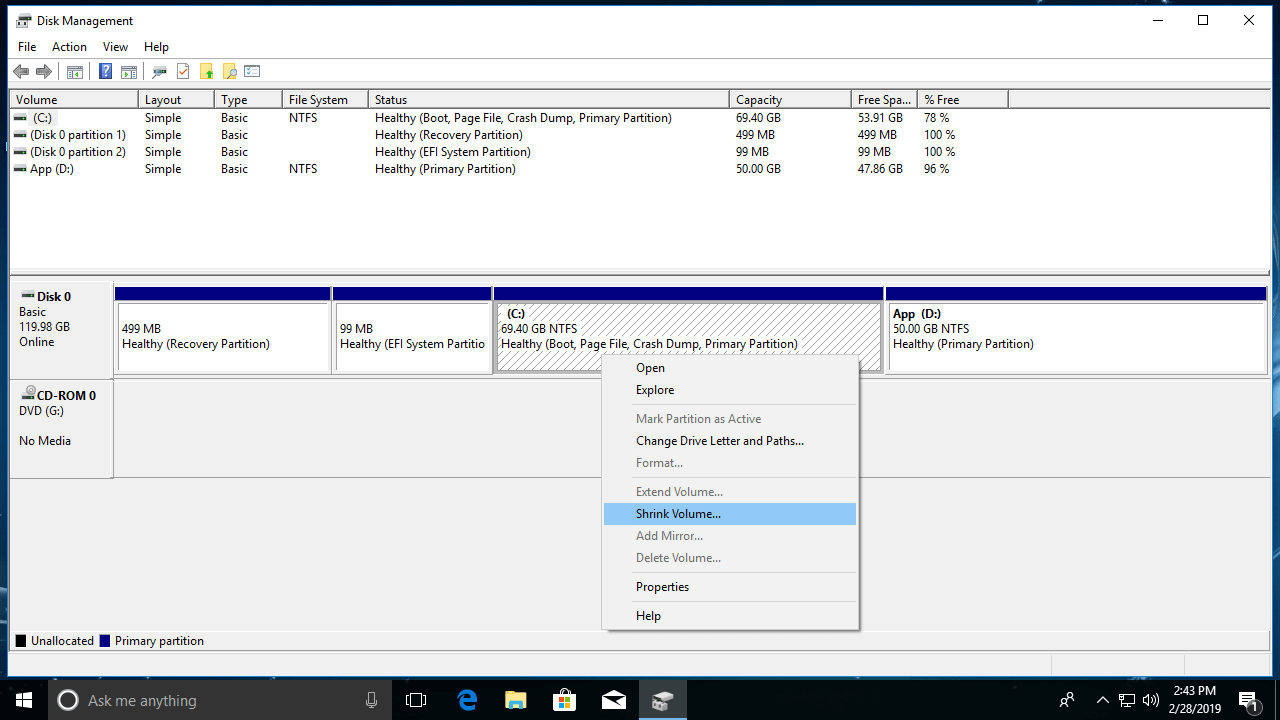
2. Limitations of Shrinking a Windows 10 Partition with Native Tools
To shrink a volume in a Windows 10/8/7 computer, the diskpart command tool and Disk Management are not the best tools because they have the same disadvantages:
- They can only shrink NTFS partitions; FAT32 and any other types of partitions are not supported.
- They can only shrink a partition to the left and generate unallocated space on the right side.
- They can only shrink a little space if there are unmovable files located in the partition that you want to decrease.
- They may destroy partitions when shrinking; pay more attention when there are both primary and logical drives on a disk.
To shrink a hard drive in Windows 10/8/7, NIUBI Partition Editor has more advantages such as:
- It supports shrinking and extending both NTFS and FAT32 partitions.
- It can generate unallocated space on either the left or right side when shrinking a partition.
- It is able to shrink a partition to the minimum size because it can move these "unmovable" files.
- It can merge unallocated space into any contiguous or non-adjacent partition on the same disk.
NIUBI Partition Editor has a free edition for Windows 11/10/8/7/Vista/XP home computer users.
3. How to Shrink a Volume in Windows 10 with the Free Partition Editor
Download NIUBI Partition Editor, and you will see all storage devices with their partition structure and other information on the right. Available operations are listed on the left and after right-clicking.
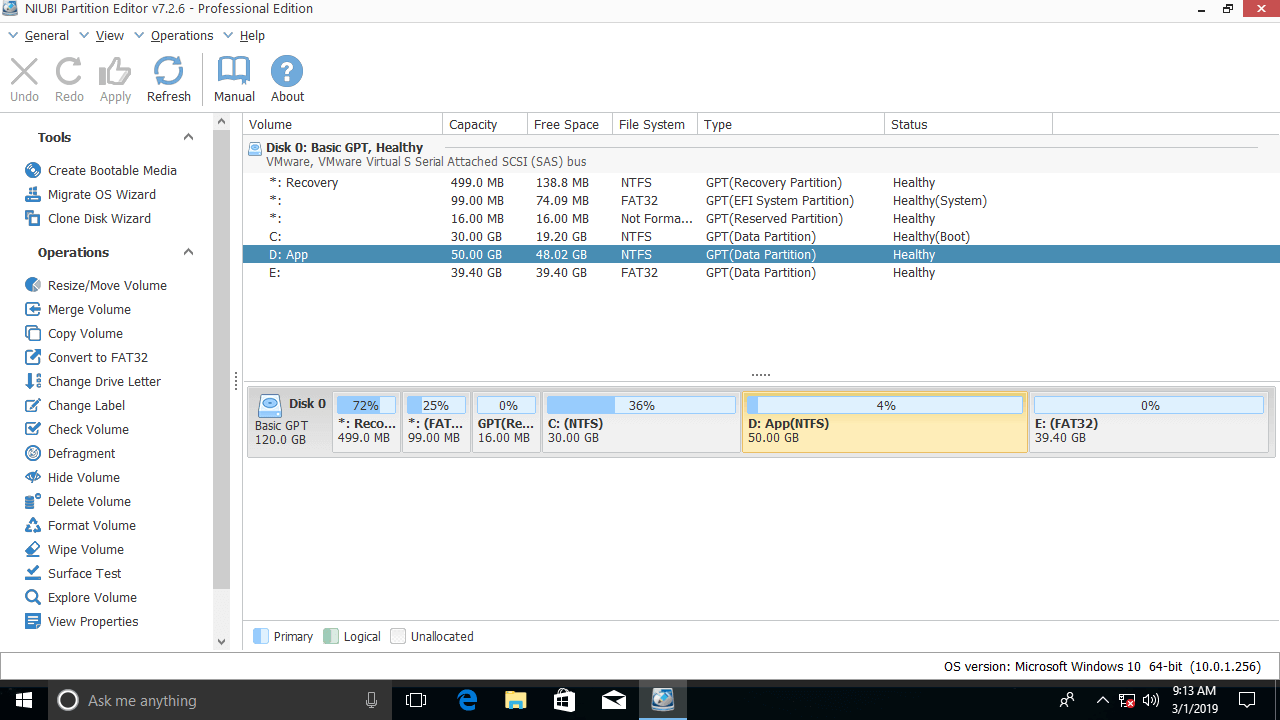
To shrink a partition in a Windows 10/8/7 computer, it is very easy, and you just need to drag and drop on the disk map. For example: if you want to shrink the D: drive, right-click it and select "Resize/Move Volume"; you have two options in the pop-up window.
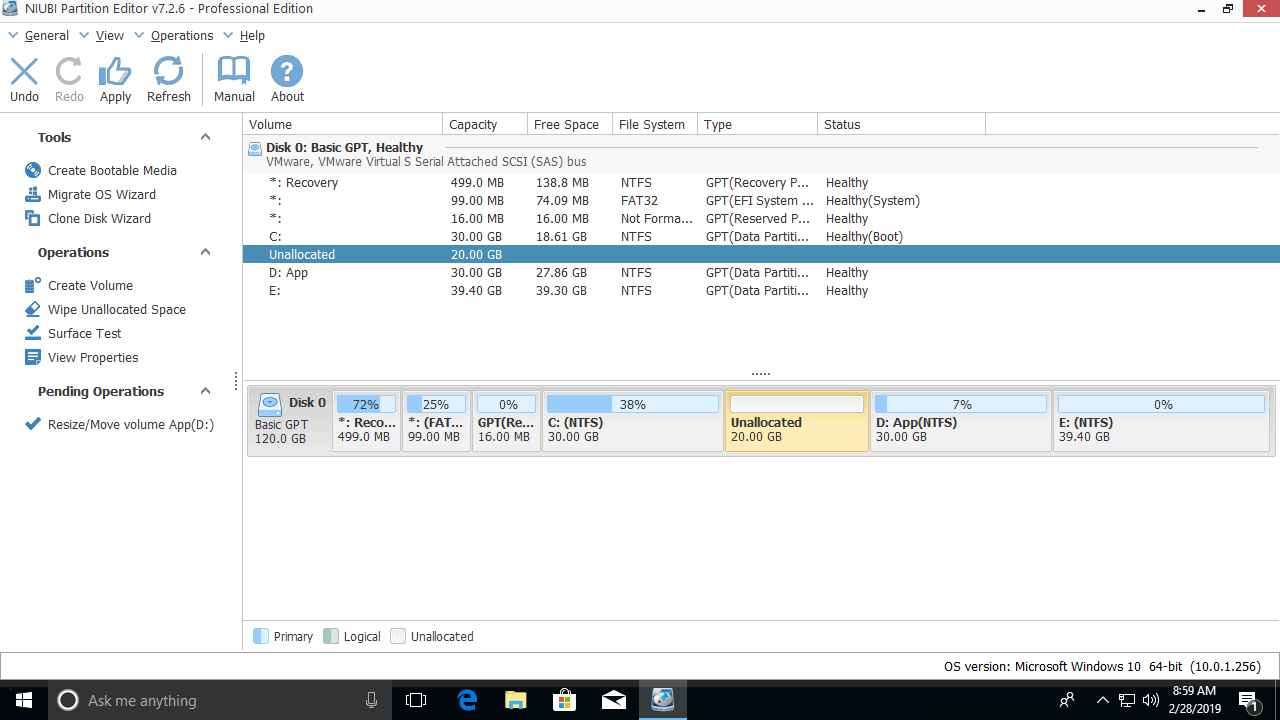
① If you drag the left border to the right in the pop-up window,
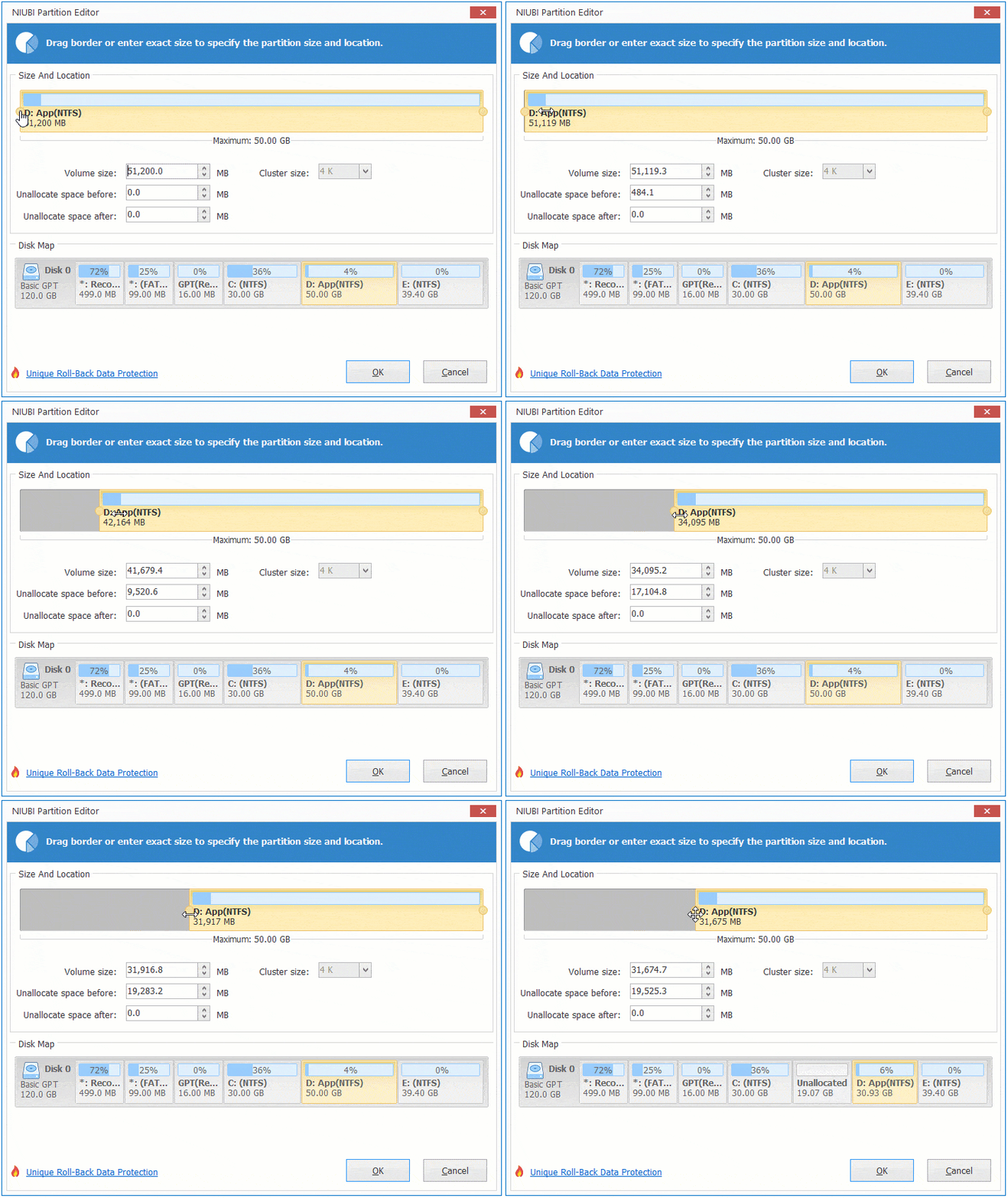
Unallocated space is generated on the left side.
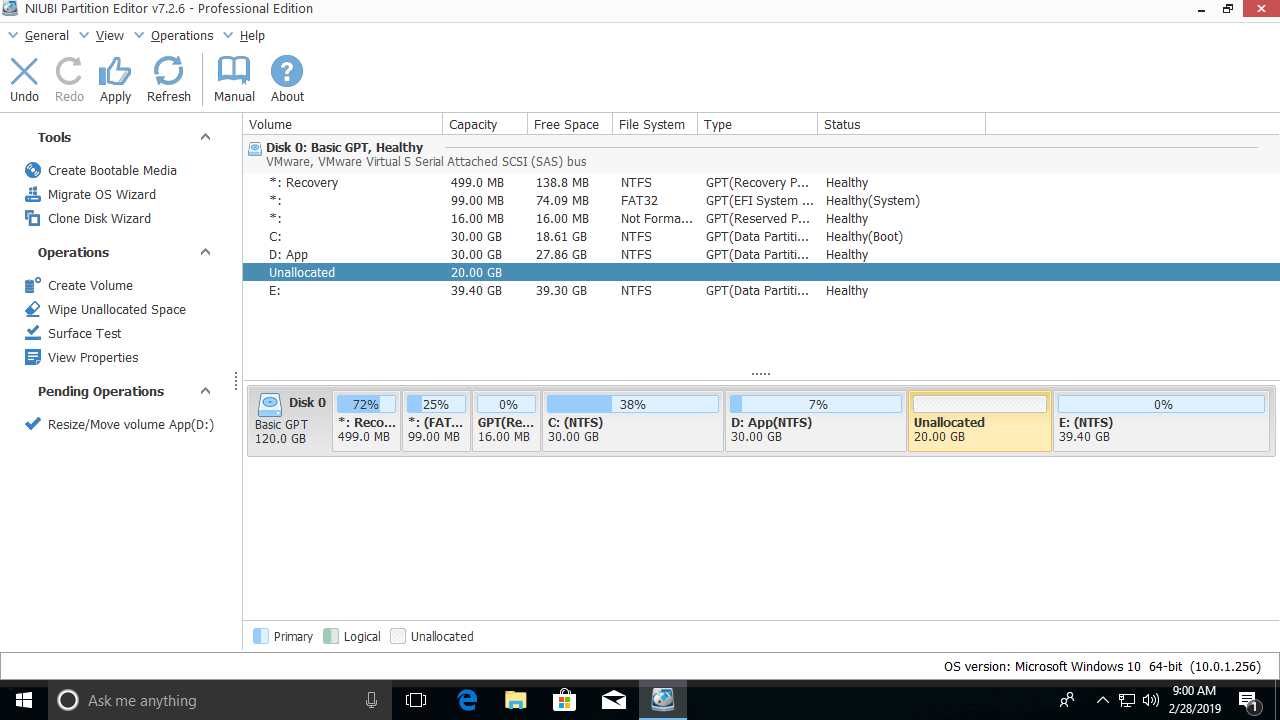
② If you drag the right border to the left in the pop-up window,

Unallocated space is generated on the right side.
If you want to create more partitions, right-click the unallocated space and select the "Create Volume" feature; there are more options than in Disk Management. If you want to extend another partition after shrinking, follow the steps in the video.
In Summary
To shrink a volume in a Windows 10/8/7 computer, the native Disk Management and diskpart are not the best choices because of many limitations. Because of its powerful data protection technologies and fast file-moving ability, NIUBI Partition Editor is the best tool. Besides shrinking a partition in Windows 10/8/7/Vista/XP, it helps you perform many other operations such as copying, merging, converting, defragging, hiding, and wiping partitions, scanning bad sectors, etc.
 © 2009 - NIUBI Technology All Rights Reserved. |