
This article introduces how the Windows 10 Diskpart extend volume command works, how to run DiskPart to expand the C: drive and other volumes, as well as its shortages.
What Is the Windows 10 Diskpart Command
DiskPart is a Windows built-in tool that runs from the command prompt. You can perform many disk and partition management operations, such as creating, deleting, formatting, converting, shrinking, and extending volumes, etc.
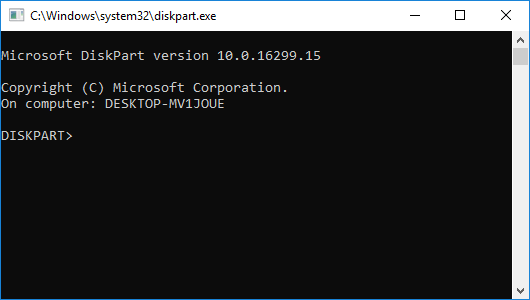
Press Windows and R on the keyboard to launch Run, type diskpart, and press Enter; then, the diskpart command prompt window will be opened.
Input "?" and press Enter, and you will see all available commands.

How to Extend the C Drive with Windows 10 Diskpart
Unlike Disk Management, the Diskpart cmd lists all partitions without a graphic configuration, so you will not know which partitions are on the same disk. Furthermore, unallocated space will not be shown, but it is very important to extend a partition.
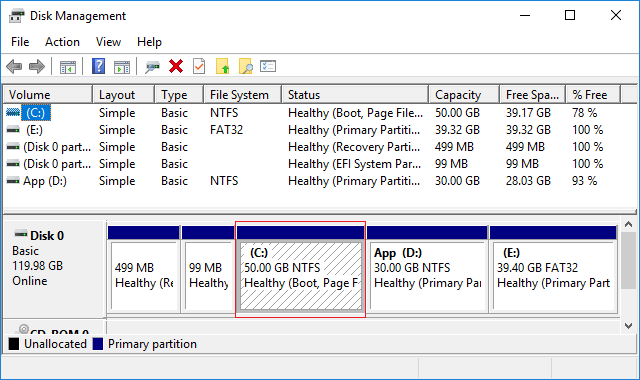
To better understand how the diskpart extend command works, it is suggested to open the GUI Disk Management (press Windows and X on the keyboard).
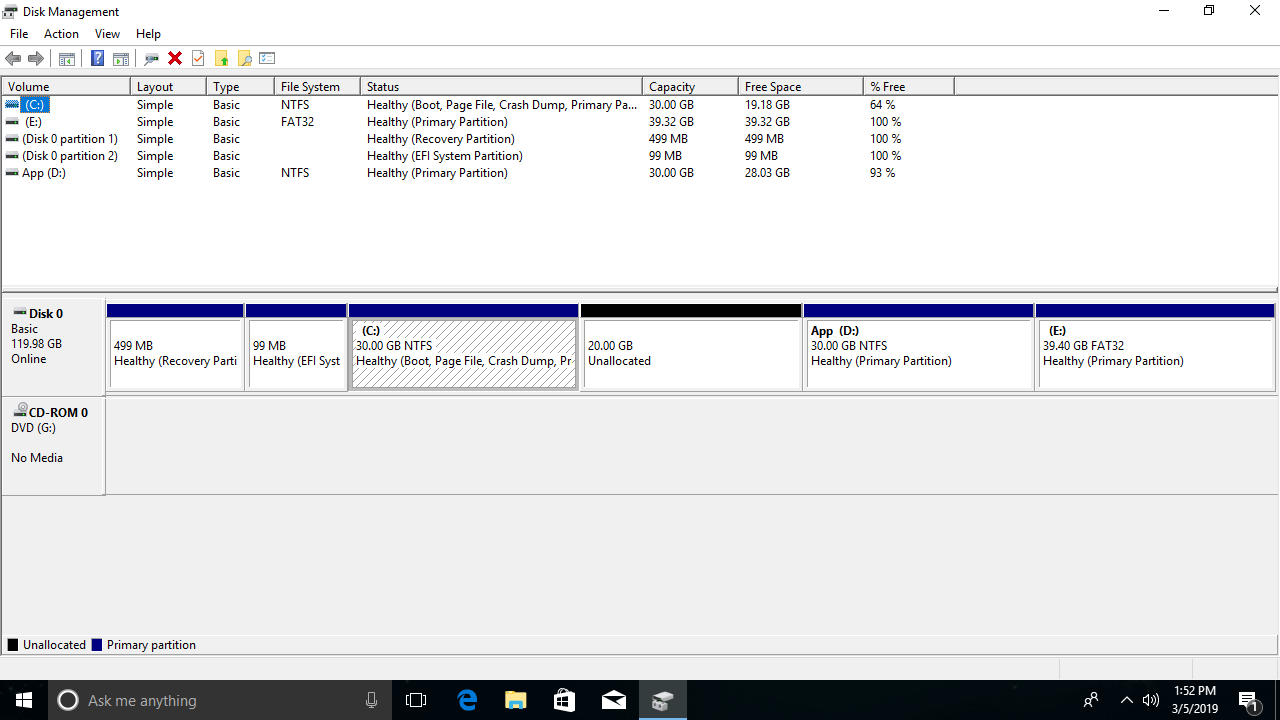
From the screenshot:
- There are 2 system reserved partitions and drives C:, D:, and E: on Disk 0.
- There is 20GB of unallocated space between drives C: and D:.
Steps to extend the C: drive with Diskpart in Windows 10:
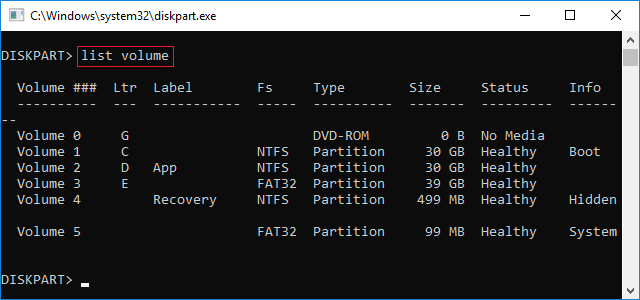
Step 1: In the diskpart command prompt window, type list volume and press Enter.
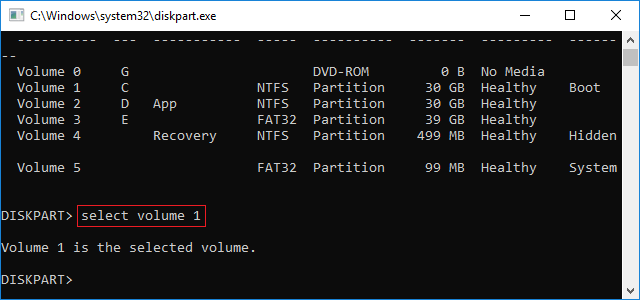
Step 2: Type select volume 1 and press Enter.
Step 3: Type extend and press Enter.
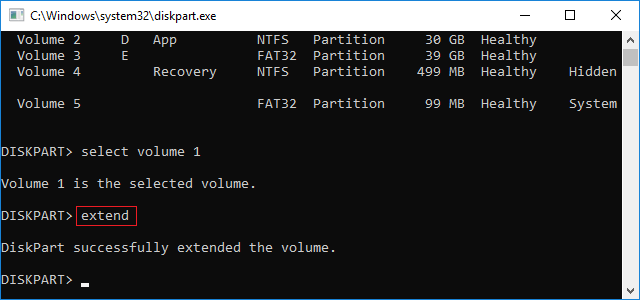
Diskpart will report successfully extending the volume. Check again in Disk Management; the C: drive is extended from 30GB to 50GB.
How to Extend Partition D with Diskpart
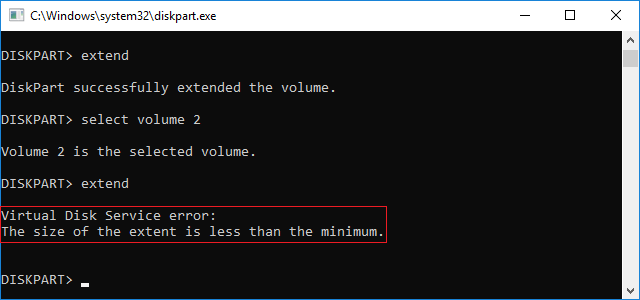
All steps are the same as above except in step 2, type select volume 2 instead.
This time diskpart reports the error "The size of the extent is less than the minimum."
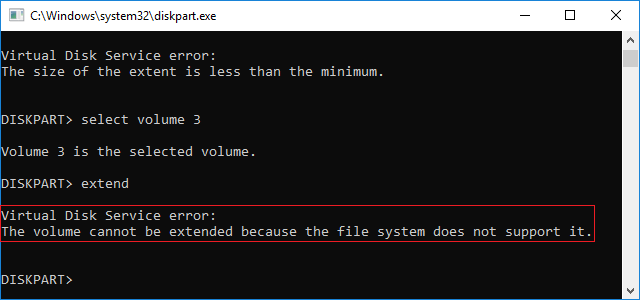
If you retry extending volume E, diskpart reports another error "The volume cannot be extended because the file system does not support it."
Shortages of the Windows 10 Diskpart Cmd
Although, the same as the GUI Disk Management tool, the Diskpart cmd has the ability to extend a partition, in fact, most hard drives cannot be extended. If you want to extend a volume with the Windows 10 diskpart command, it is not a good idea, because this built-in tool has many shortages, including:
- The Diskpart shrink command can only shrink a partition to the left and generate unallocated space on the right side.
- The extend command can only expand a partition with contiguous unallocated space on the right side; all other partitions cannot be extended.
- Only NTFS partitions are supported; FAT32 and other types of partitions cannot be extended.
- Unallocated space deleted from a logical partition cannot be extended to any primary partitions, and vice versa.
Therefore, you had better run professional partition software, which can help you shrink, move, extend, and merge partitions. You just need to drag and drop on the disk map in the graphical interface. Follow the detailed step to extend a partition in Windows 10.
 © 2009 - NIUBI Technology All Rights Reserved. |