
This article introduces how to run the Windows 10 Diskpart shrink command, how to shrink the system C: drive and other data volumes with it, as well as its shortages.
How to Shrink a Volume with the Windows 10 Diskpart Command
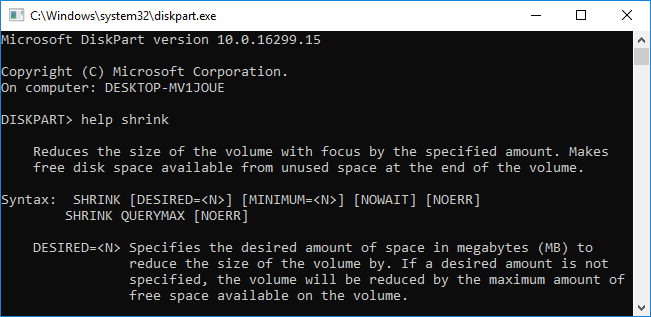
DiskPart is a Windows disk and partition management tool that runs from the command prompt. It is able to create, delete, format, convert, shrink, and extend volumes, etc. To open this tool:
Press Windows and R on the keyboard, type diskpart, and press Enter.
In the diskpart.exe command prompt window, type "?" and you will see all commands.

Type help shrink and you will see all the parameters of the diskpart shrink command as shown above.
Steps to shrink the system C: drive with Diskpart in Windows 10:
Step 1: Type list volume and press Enter to execute; then, you will see all partitions.

Step 2: Type select volume 1 and press Enter to give focus to the C: drive.
Step 3: Type shrink desired=20480 and press Enter. Diskpart will report successfully shrinking the C: drive by 20GB.
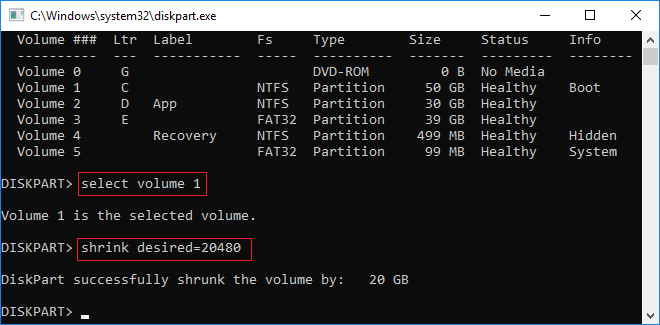
It is not difficult, but in some situations, you cannot shrink the C: drive with Windows 10 diskpart.
Scenarios Where You Cannot Shrink a Volume with Diskpart
After typing help shrink in the Diskpart command window, besides the parameters, you will see the tips for the shrink command, including:
- It is used to generate unallocated space from the unused space at the end of this volume. (It cannot generate unallocated space on the left side of this volume.)
- You can reduce the size of a volume only if it is formatted using the NTFS file system or if it does not have a file system.
- This command does not operate on OEM, ESP, or Recovery partitions.
- If a minimum amount parameter is specified but not enough free space is available, the command will fail.
Better Method to Shrink a Disk Partition in Windows 10
It is much easier and has no such limitations to shrink a volume with professional partition software. For example, how to shrink the C: drive in Windows 10:
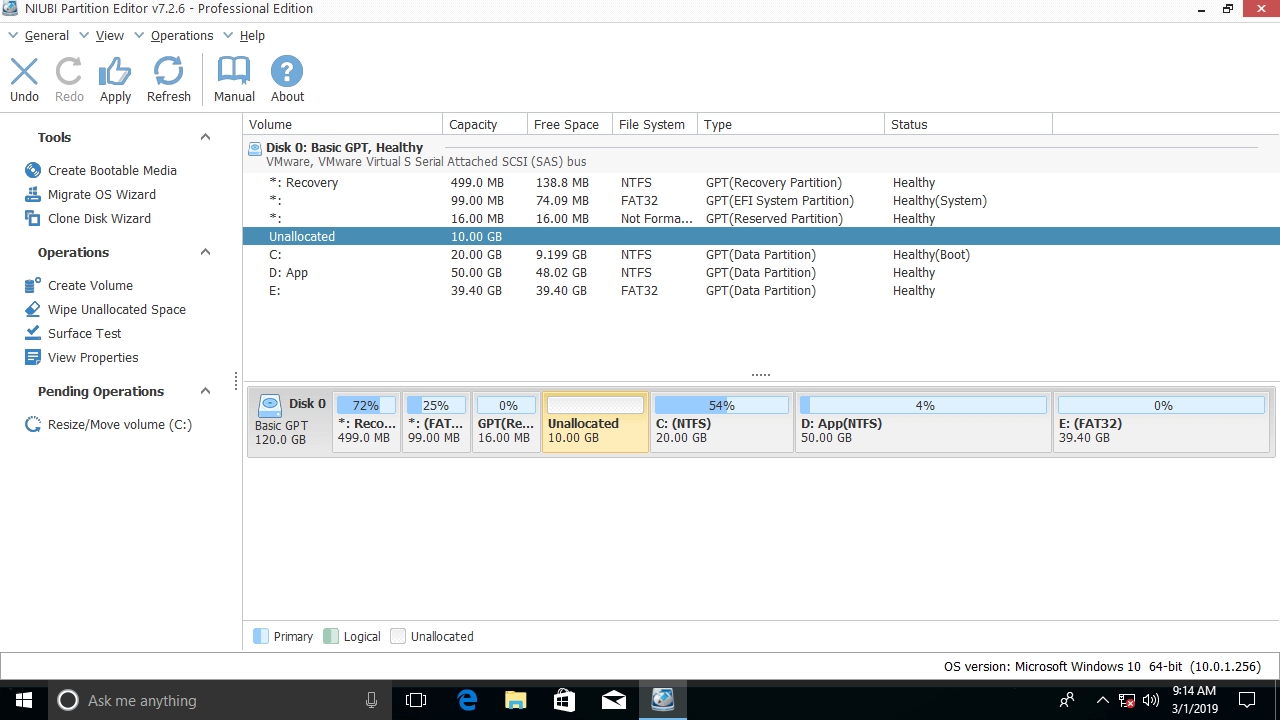
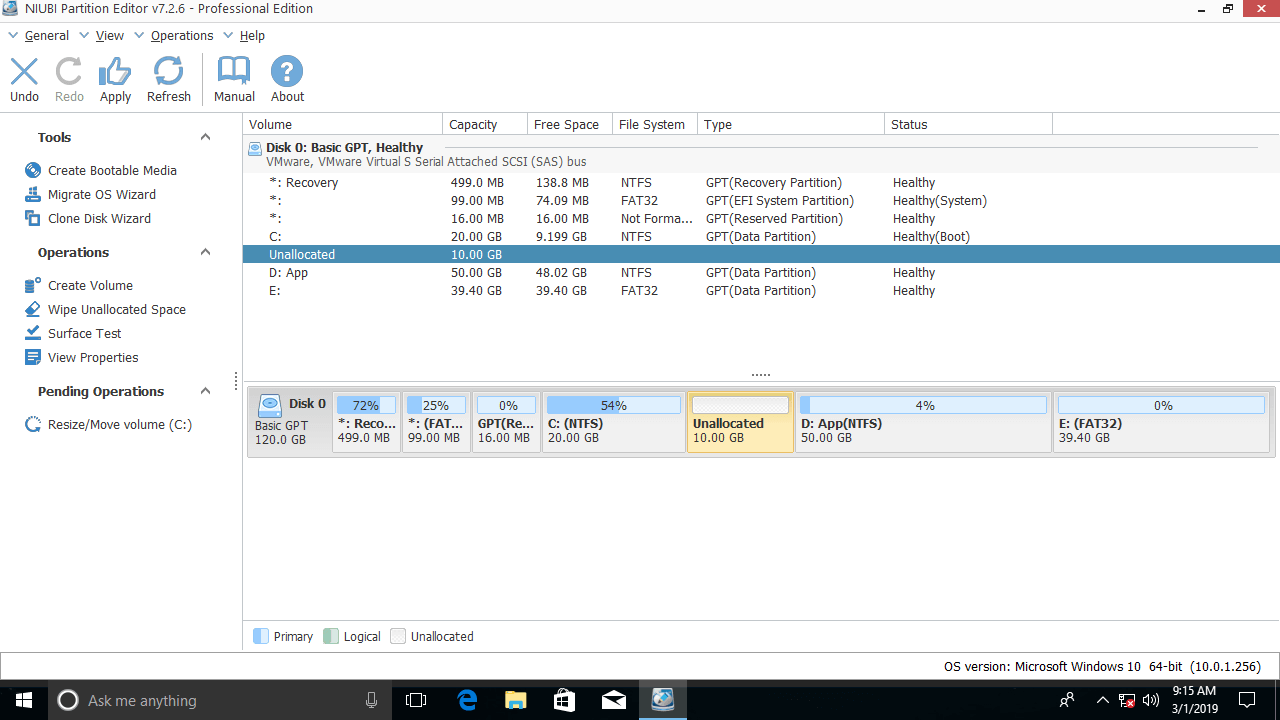
Download and install NIUBI Partition Editor, right-click the C: drive, and select "Resize/Move Volume".
If you drag the left border to the right in the pop-up window:

Unallocated space is generated on the left side of the C: drive.
If you drag the right border to the left in the pop-up window:

Unallocated space is generated on the right side of the C: drive.
It is similar to shrinking D and other data volumes. Unallocated space shrunk from this volume can be used to create new volumes or extend other volumes on the same disk. Besides shrinking and extending volumes, NIUBI Partition Editor helps you move, merge, convert, defrag, wipe, check, scan, and hide partitions, etc.
 © 2009 - NIUBI Technology All Rights Reserved. |