
There is no system reserved partition in Windows XP and Server 2003; the system and boot partitions are the same C: drive. Starting from Windows 7, the System Reserved partition was introduced. The System Reserved partition contains two types of files: the boot manager and boot configuration data, as well as startup files for BitLocker encryption. In general, you do not need to care about the System Reserved partition. But when you upgrade Windows 7/8 to Windows 10, or update Windows 10/8/7, you may encounter the error "We couldn't update system reserved partition", error code 0xc1900104, or error code 0x800f0922. This is because:
- The System Reserved Partition (SRP) is a small partition on your hard drive; some third-party anti-virus and security apps write to the SRP and can fill it up.
- The System Reserved partition consumes 100 MB of space on Windows 7, 350 MB of space on Windows 8, and 500 MB of space on Windows 10. When you upgrade Windows 7/8 to Windows 10, the original System Reserved partition is too small.
To solve this problem, you need to increase the System Reserved partition. This article introduces how to extend the System Reserved partition in Windows 10/8/7 with the best free tool.
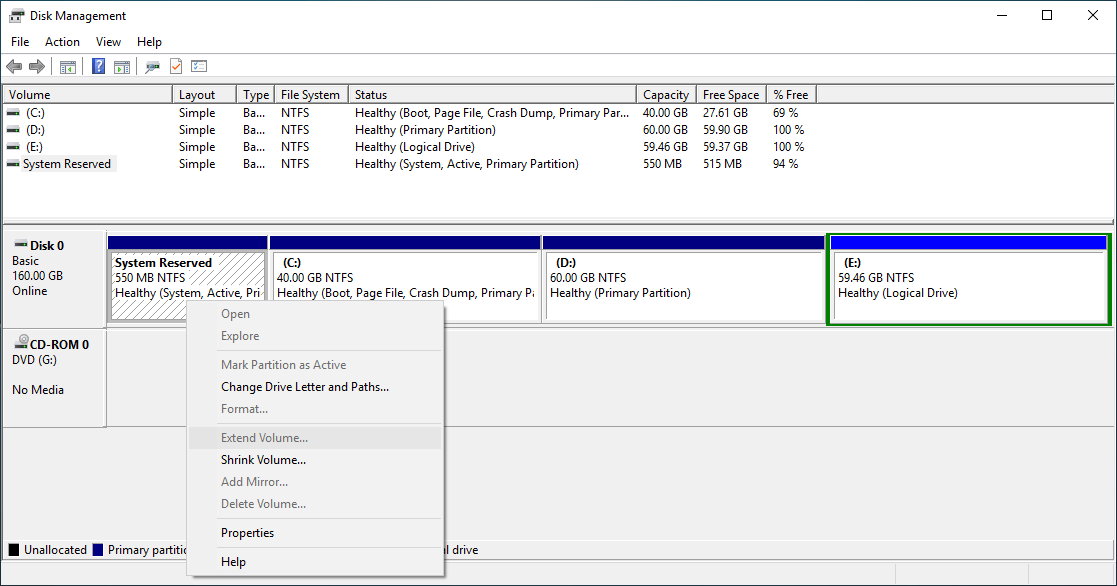
Cannot Increase the System Reserved Partition in Windows 10 with Native Tools
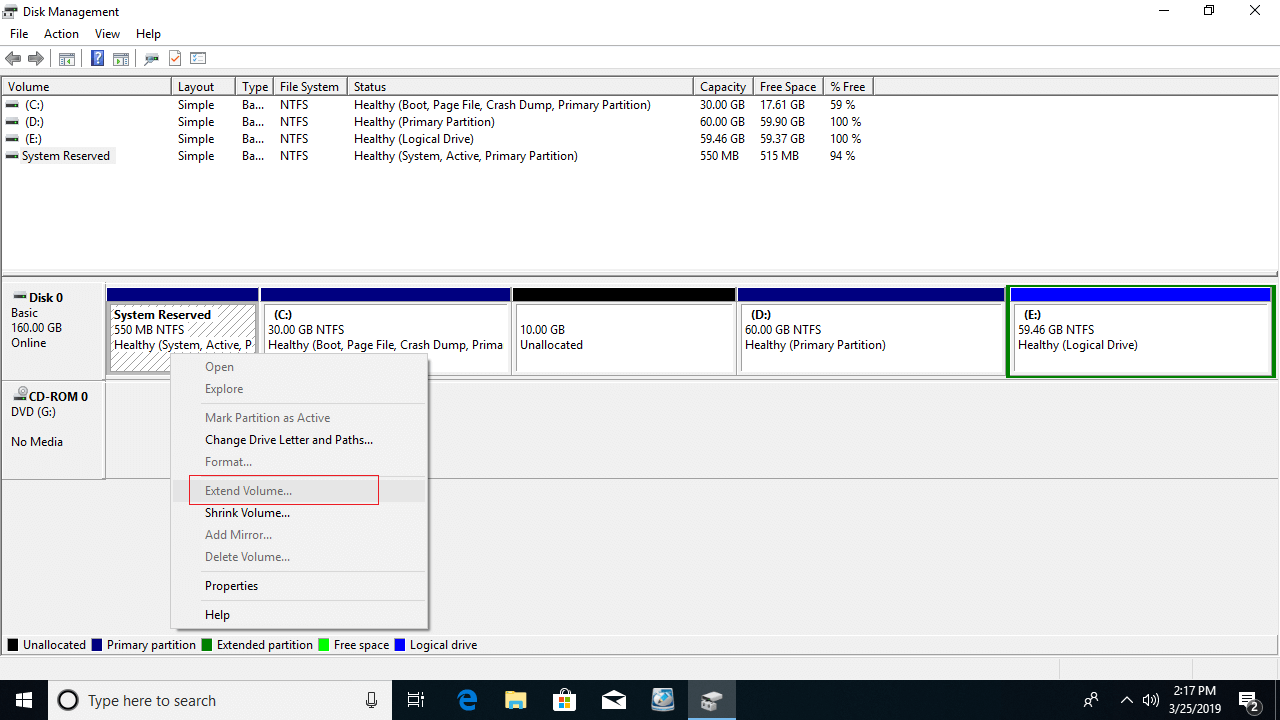
Although there is an "Extend Volume" function in the Windows 10/8/7 Disk Management tool, it cannot extend the System Reserved partition by shrinking C: or another volume. This is because when extending a partition with Disk Management, there must be adjacent unallocated space on the right. If you shrink the adjacent C: drive, the unallocated space is non-adjacent to the System Reserved partition.
The only way to get contiguous unallocated space for the System Reserved partition is by deleting the C: drive. However, you cannot delete it because it is where the Windows operating system is located. As you can see in the screenshot, Extend Volume is disabled for the system reserved partition after shrinking the C: drive.
Windows 10/8/7 has another diskpart command tool. As with Disk Management, it requires deleting the right contiguous partition. To increase the System Reserved partition in Windows 10/8/7, you must run third-party partition software.
How to Extend the System Reserved Partition in Windows 10/8/7
Unlike Windows Disk Management, which can only shrink a volume to the left, NIUBI Partition Editor can shrink a volume and generate unallocated space on either the left or right. Therefore, the System Reserved partition can be extended easily after shrinking the C: drive. If you have shrunk C: or another partition using Disk Management, NIUBI Partition Editor can move the unallocated space to the left and then merge it into the System Reserved partition. For Windows 11/10/8/7/Vista/XP home computer users, NIUBI Partition Editor has a free edition.
Download this tool, and you will see the initial partition size and other information; there is a 550MB System Reserved partition in the test computer.
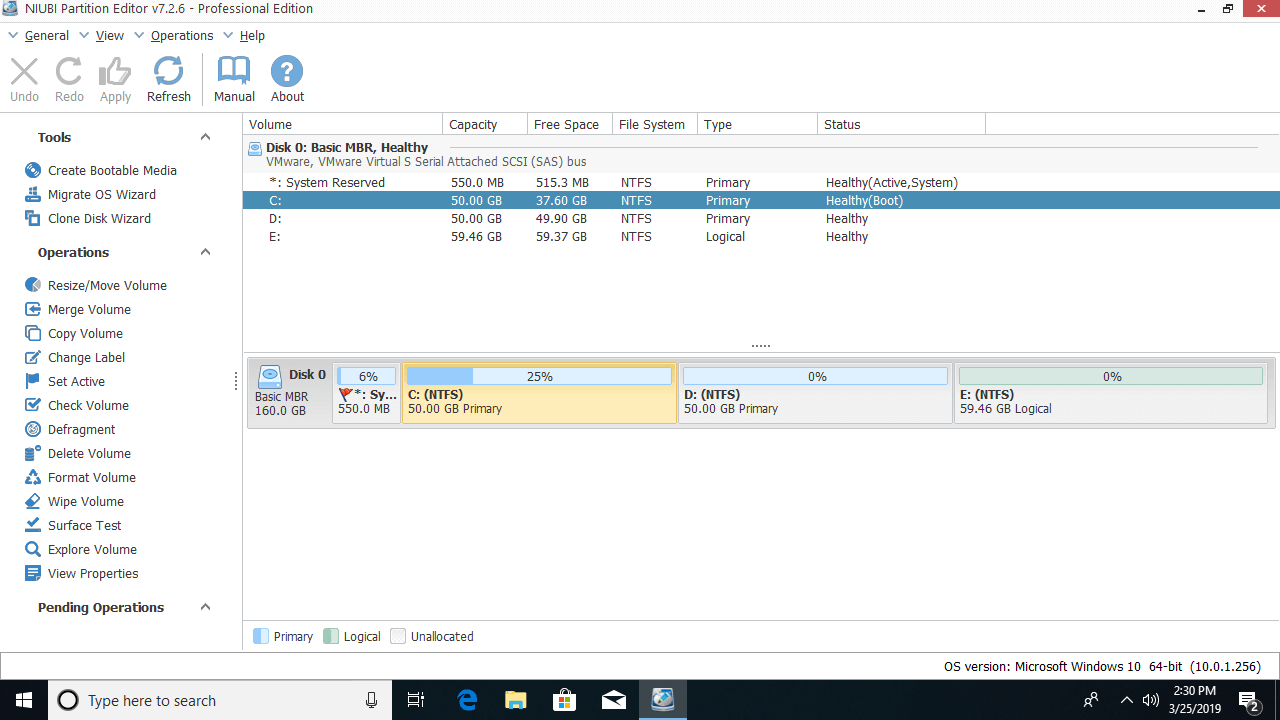
Steps to extend the System Reserved partition in Windows 10/8/7 without losing data:
Step 1: Right-click the C: drive and select "Resize/Move Volume"; drag the left border to the right in the pop-up window (or enter an amount in "Unallocated space before").
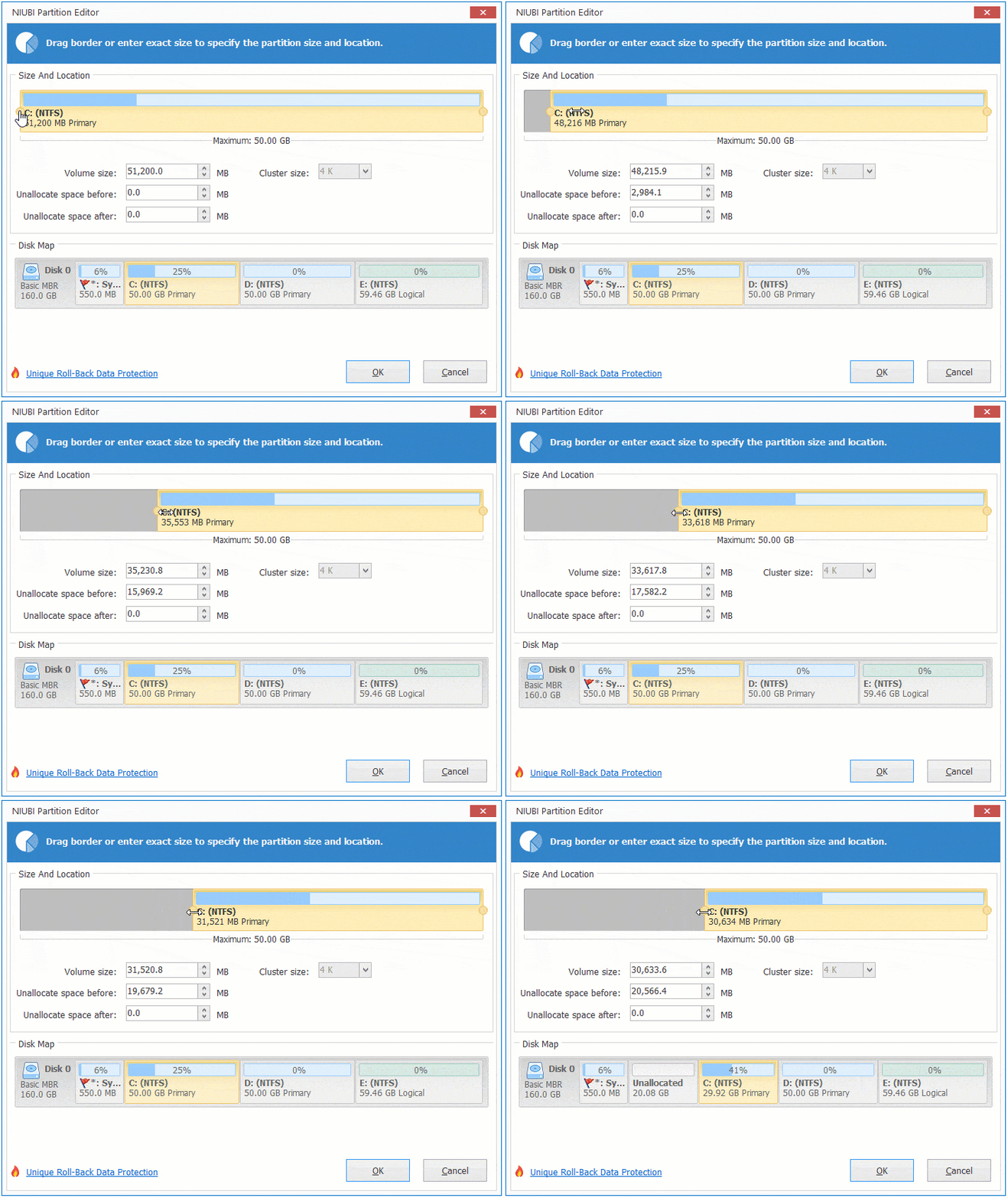
The C: drive will be shrunk, and unallocated space will be generated on its left side.
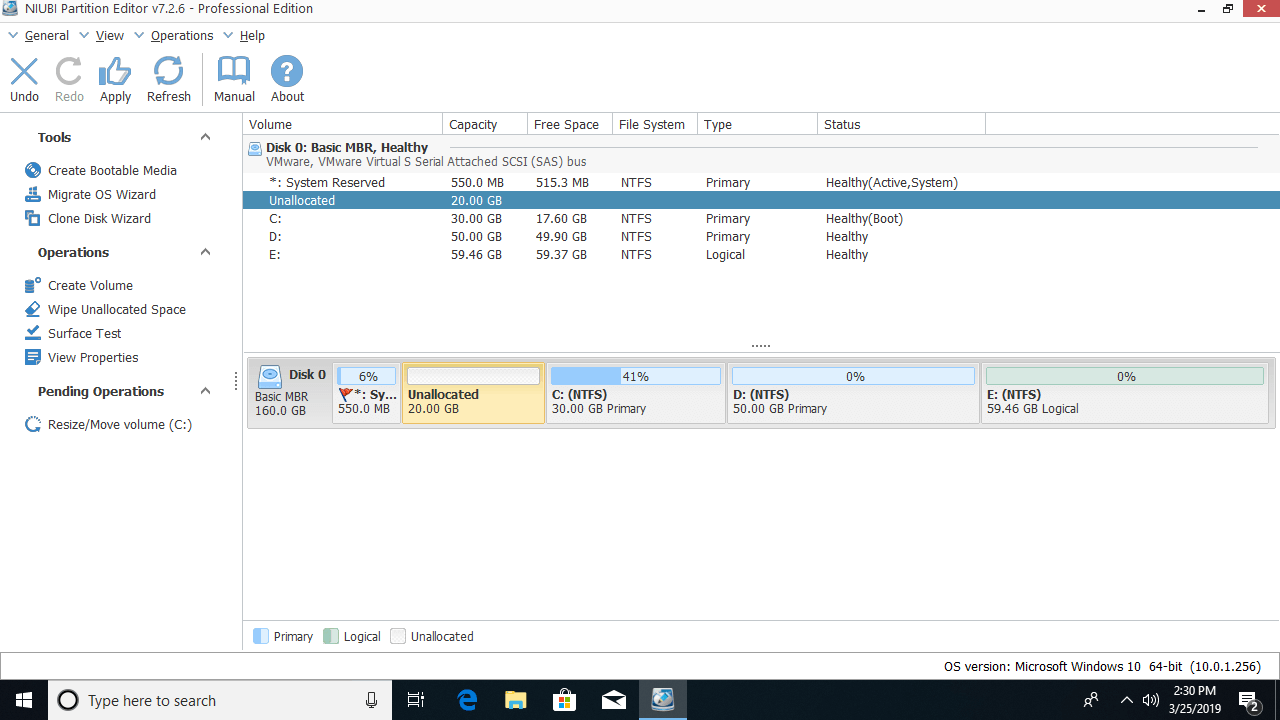
If you drag the right border to the left, unallocated space will be generated on the right side.
Step 2: Right-click the System Reserved partition and select "Resize/Move Volume" again; drag the right border to the right to merge this unallocated space.
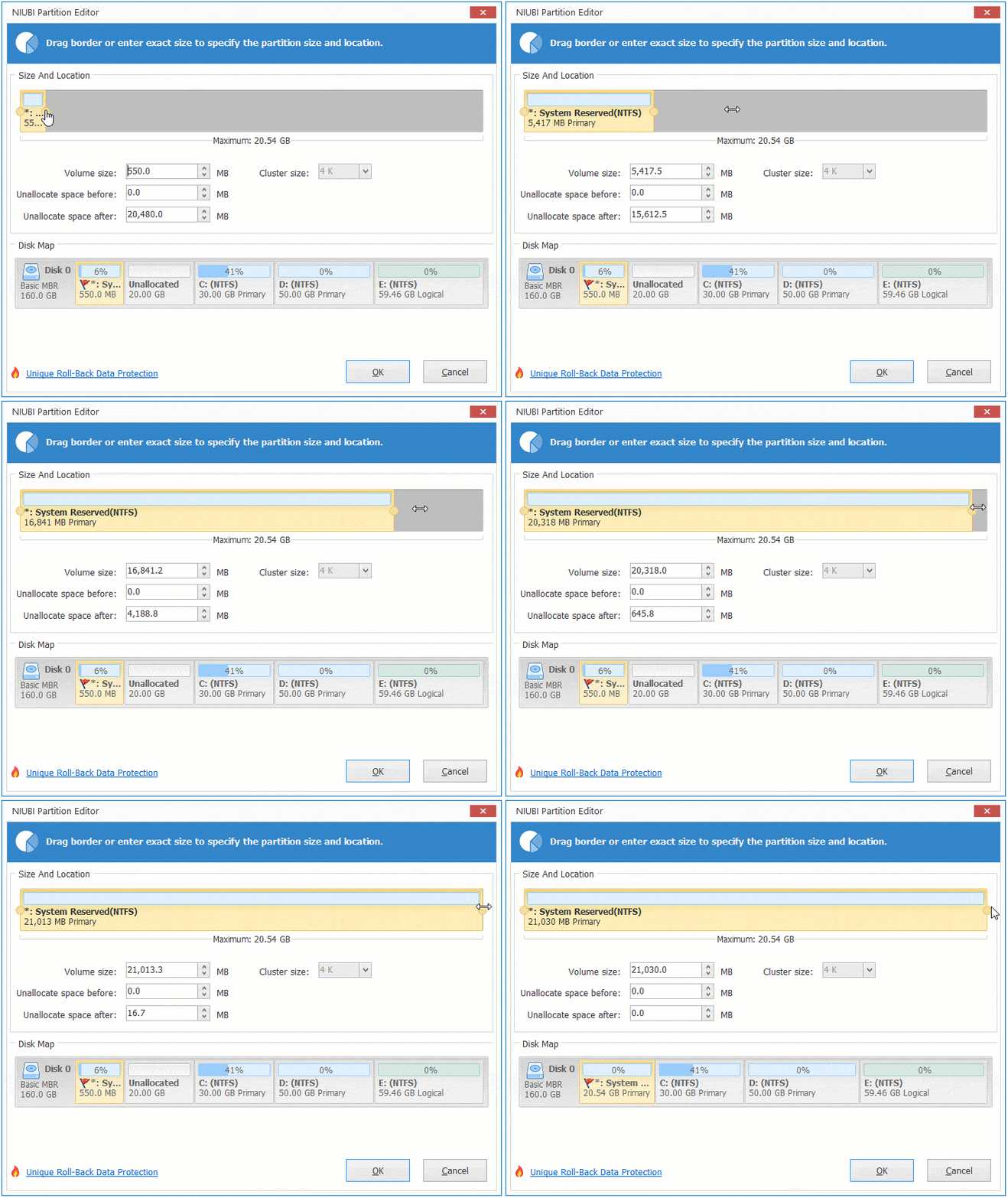
The System Reserved partition is extended to 2.5GB.
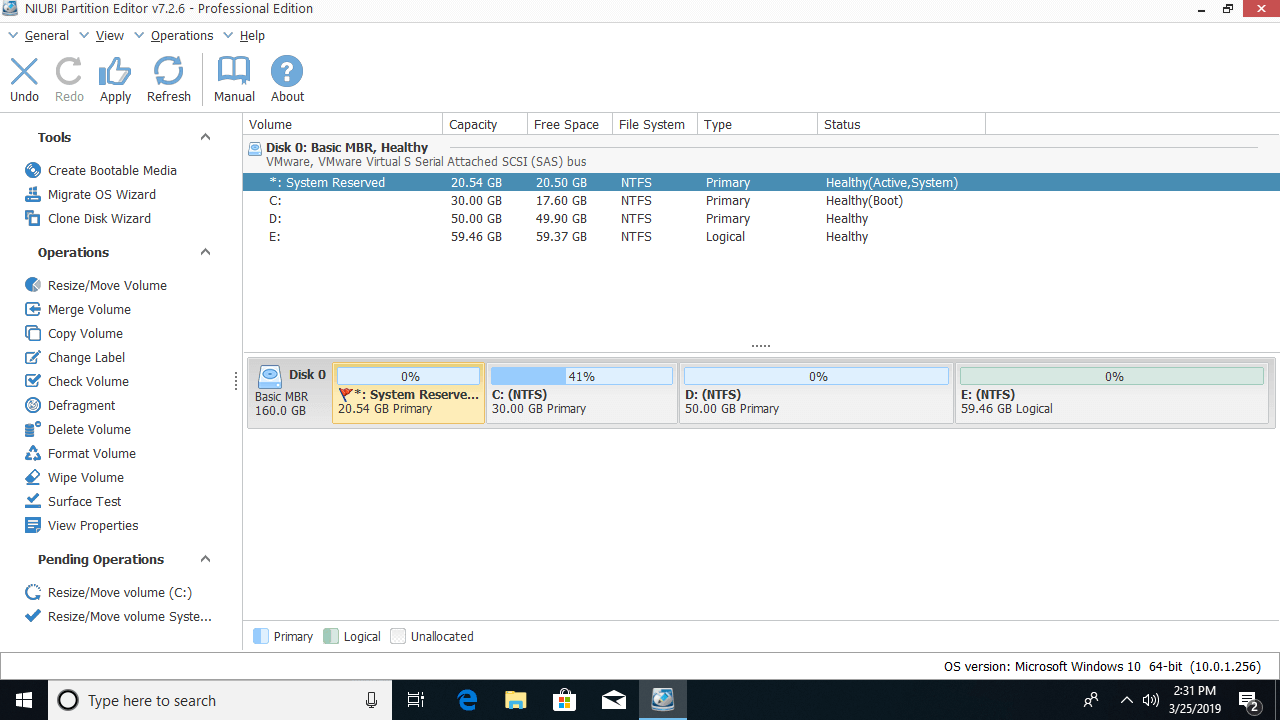
If you want to get unallocated space from a non-adjacent partition (such as D:), there is an additional step to move the unallocated space before merging it into the System Reserved partition. It requires a computer reboot when shrinking and moving the C: drive.
Follow the video guide to increase the System Reserved partition in Windows 10/8/7:
Take Care of the System and Data While Resizing Partitions
When resizing any partitions, the parameters of each partition and all files within it will be modified; sometimes all files will be moved to new locations. Therefore, there is a potential system damage and data loss risk. You had better back up in advance and run safe partition software.
Unlike other tools, NIUBI Partition Editor features advanced technologies to ensure data protection and accelerate operations:
- Hot Clone - Clone disk partitions in Windows for backup, migration, and fast disk swapping.
- Virtual Mode - All operations are listed as pending for preview, and real disk partitions won't be modified until you click "Apply" to confirm.
- Cancel-at-Will - If you applied incorrect operations, you can safely cancel the ongoing operations at any stage before completion.
- 1 Second Rollback - If any error is detected while resizing partitions, it can immediately and automatically revert the disk partitions to their previous state.
- Advanced file-moving algorithm: Resize and move partitions 30% to 300% faster, saving significant time, especially when handling a large number of files.
Besides shrinking and extending partitions, it helps you copy, merge, convert, hide, defrag, and wipe partitions, scan bad sectors, and optimize the file system, etc.
 © 2009 - NIUBI Technology All Rights Reserved. |