
Many Windows 10 users report a similar issue: the C: drive gets full even if they created it as large as 50GB. This is easy to understand, as many types of files are continuously saved to the C: drive. If you do not free up disk space regularly, the C: drive runs out of space quickly. In this situation, you can transfer space from the D: to the C: drive without losing programs or data, as nobody likes to start from scratch.

However, there are still some questions asked by these users, for example:
- Is it safe to move free space from D to C in Windows 10, and will it cause data loss?
- Which tool is better to transfer space from one partition to another?
This article introduces how to move space from the D: to the C: drive in a Windows 10/11 computer with safe partition software.
Run Safe Partition Software to Move Disk Space
Some unreliable partition software could damage the system and partitions. When resizing and moving partitions, all parameters of the related disk, partitions, and files must be updated correctly. However, some software errors or hardware issues could cause a portion of the parameters to fail to update. In that case, the system and/or partitions will be destroyed. Therefore, you had better back up in advance and use a safe partition tool.
Better than other software, NIUBI Partition Editor has unique and powerful technologies to protect your system and data:
- 1-Second Rollback - automatically reverts the disk partitions to their previous state instantly if any error is detected while resizing or moving partitions.
- Virtual Mode - the operations you perform will be listed as pending for preview; the real disk will not be changed until you click "Apply" to confirm.
- Cancel-at-Will - if you did something wrong but the operations are ongoing, you can cancel them without damaging the disk partition.
- Hot Clone - Clone a disk partition in Windows without rebooting. You can clone the system disk before resizing a partition or clone it regularly as a backup.
How to Move Free Space from the D to the C Drive
It is very easy to transfer space from the D: to the C: drive in a Windows 10/11 computer; you just need to click, drag, and drop on the disk map. After shrinking partition D, a portion of the free space will be converted into unallocated space; then, merge this unallocated space into the C: drive. In this way, there will be more free space in the C: drive again, and the operating system, programs, and everything else will remain the same as before.
NIUBI Partition Editor has a free edition for Windows 11/10/8/7 home computer users. It is 100% clean without any bundled plugins.
Download this program and you will see the disk partition with its structure and other information. C is 30GB and D is 50GB on the test computer.
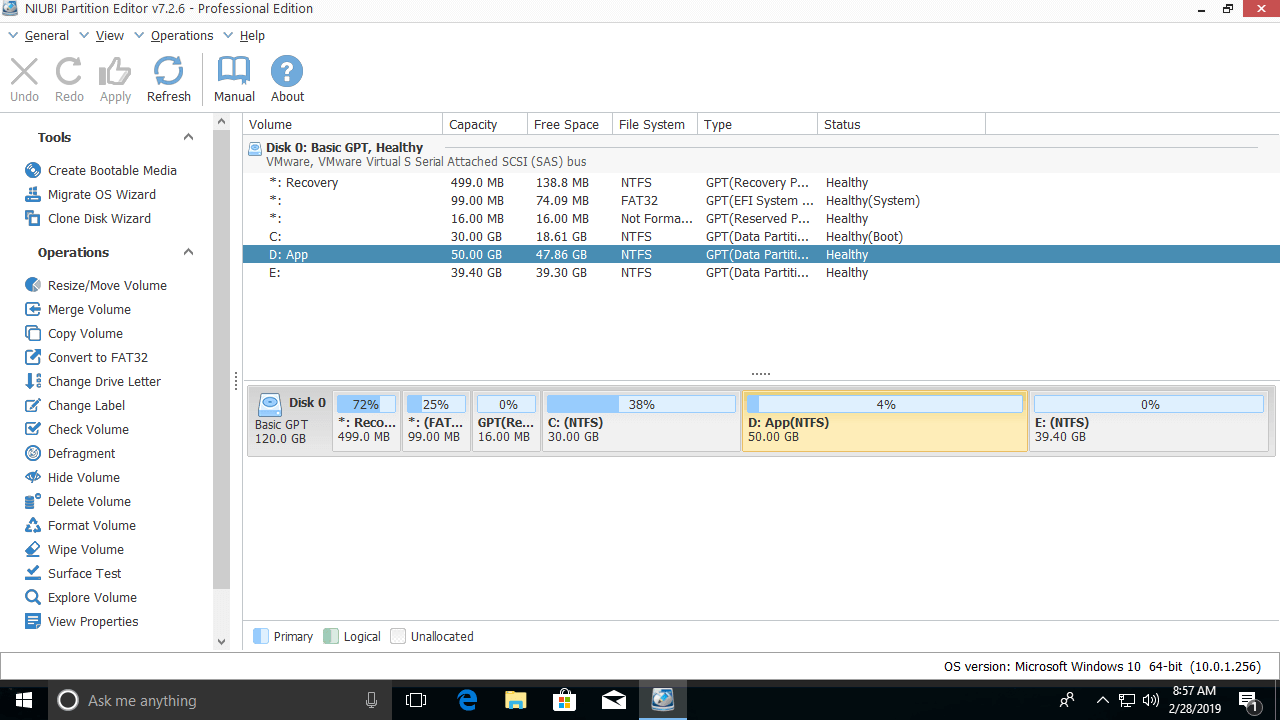
How to move space from D to C in Windows 10/11 without losing data:
Step 1: Right-click the D: drive and select "Resize/Move Volume", then drag the left border to the right in the pop-up window (or enter an amount directly: 1024MB=1GB).
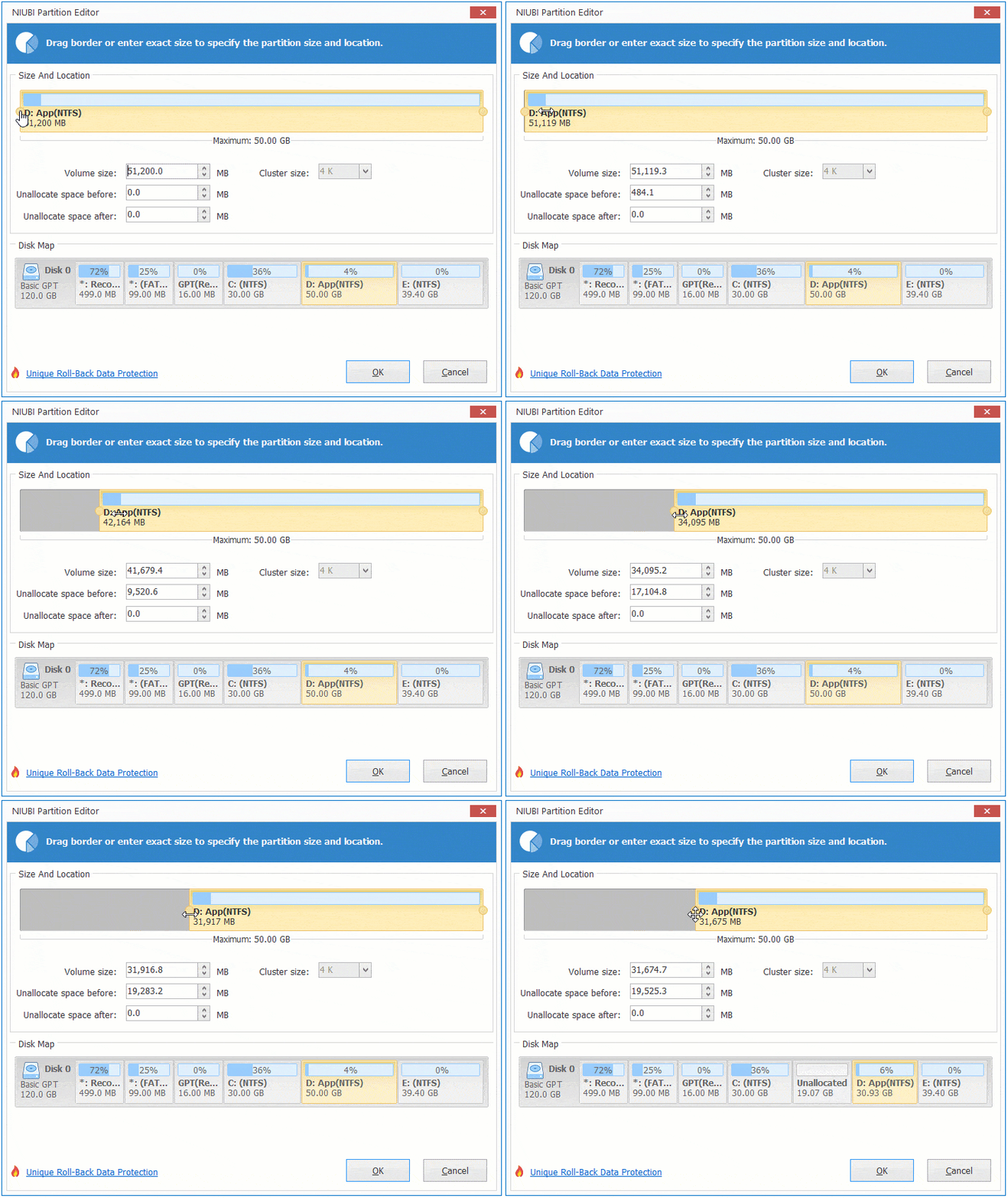
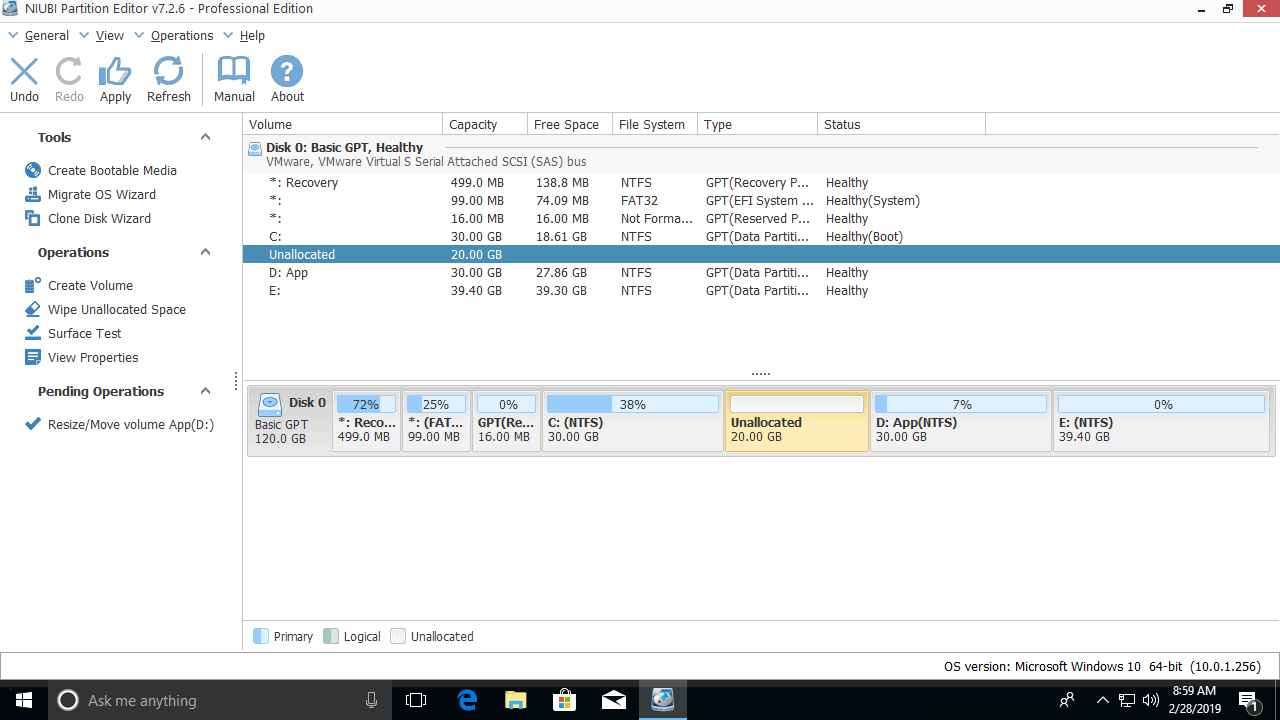
20GB of unused space is converted into unallocated space on the left side.
Step 2: Right-click the C: drive and select "Resize/Move Volume" again, then drag the right border to the right.
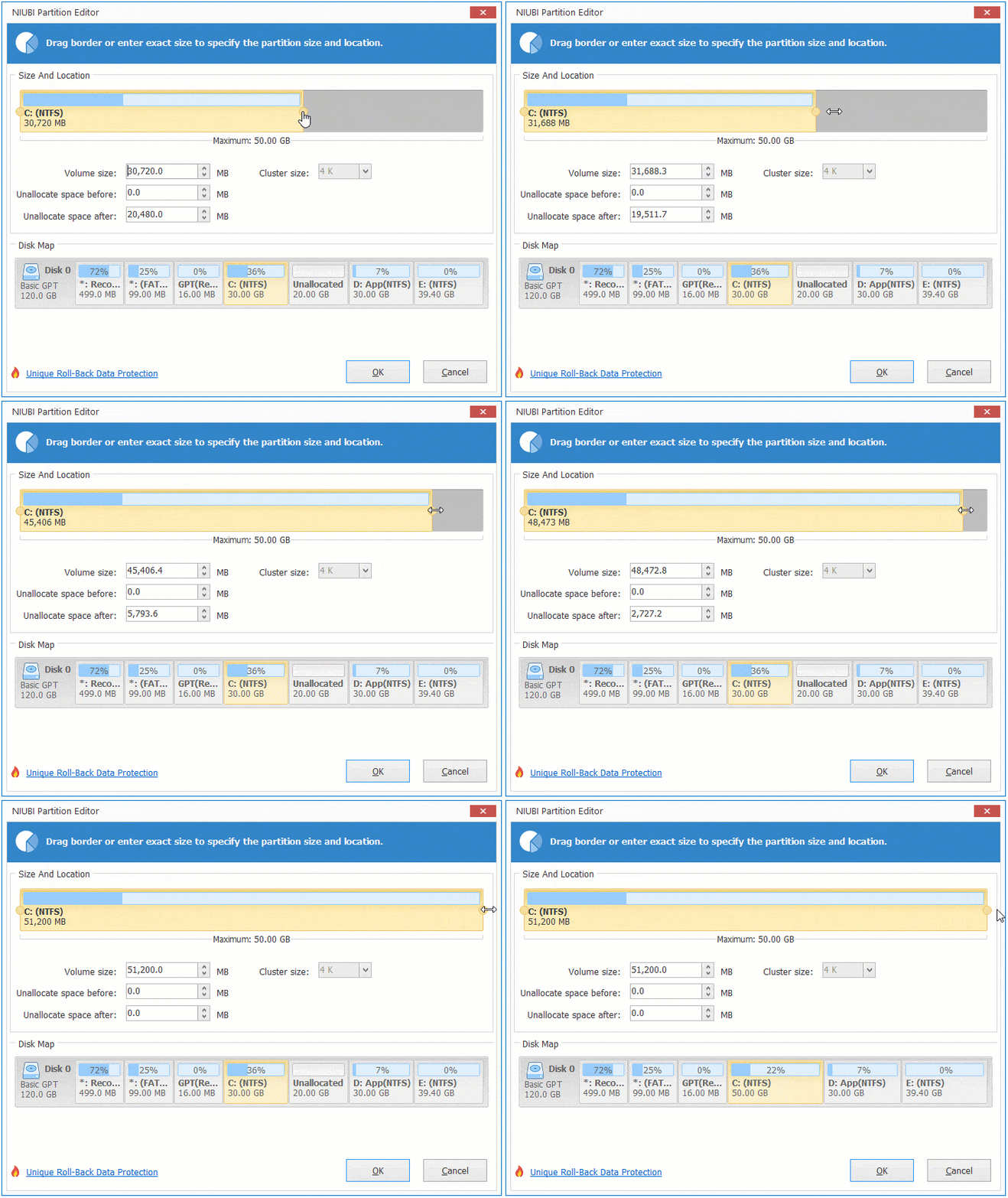
Then, the unallocated space is moved into the C: drive.
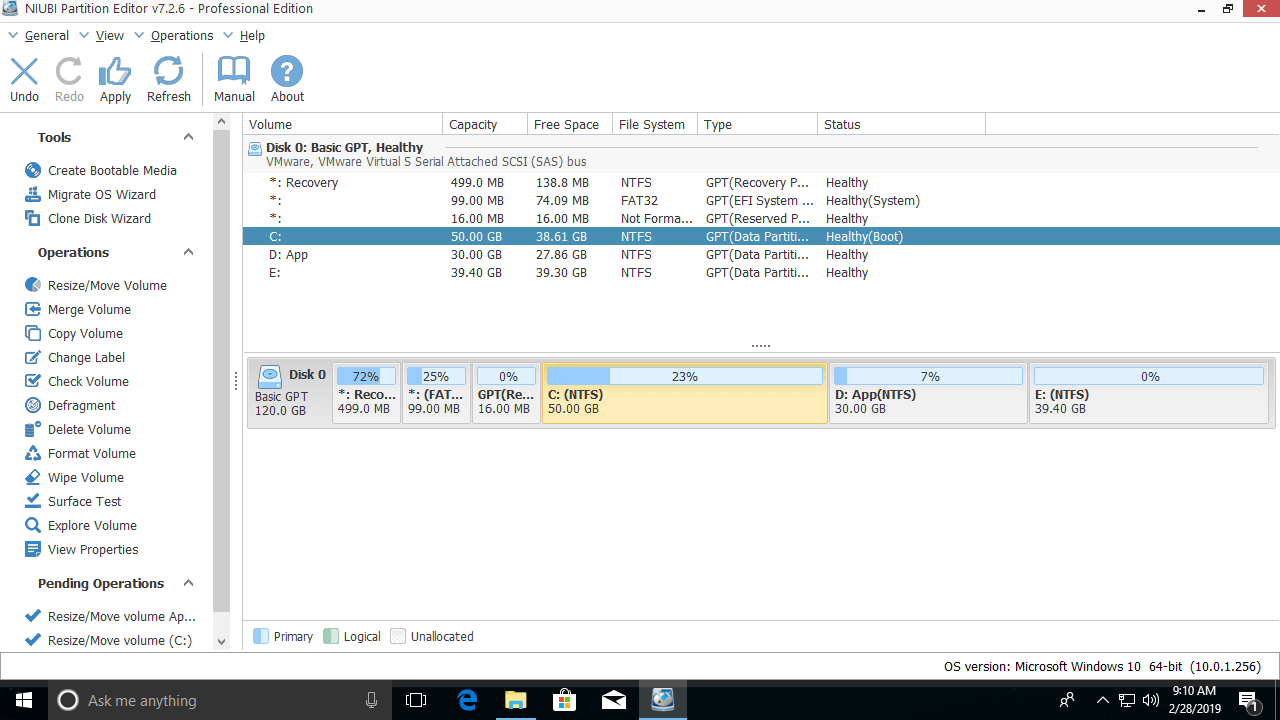
This software works in virtual mode, and real disk space will not be changed until you click Apply on the top left to execute.
Move Space from One Disk to Another
If partitions C and D are on different disks, for example: C is on Disk 0 and D is on Disk 1, the method above is invalid. No partitioning software can transfer space to the C: drive from a separate disk. This is because the size of a physical disk cannot be decreased or increased.
In this case, you can clone Disk 0 to a larger one and transfer the extra disk space to the C: drive. Besides resizing, moving, and copying disk partitions, NIUBI Partition Editor helps you merge, convert, defrag, hide, wipe partitions, scan bad sectors, etc.
 © 2009 - NIUBI Technology All Rights Reserved. |