
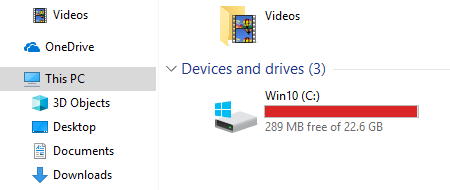
Most Windows 10 computer users have encountered the problem where the C: drive runs out of space. This is annoying and nobody likes to start from scratch. There are many methods if you search on Google. In fact, there is no need to try them all, because many methods provide little help. This article introduces the 3 most effective methods to fix the Windows 10 C: drive out of space issue.
Why the C Drive Is Running Out of Space in Windows 10
As the latest Windows client operating system, the strategy used to organize and manage files in Windows 10 has little difference from previous versions. So, low disk space is still a very common issue in Windows 10. Many users report that the system C: drive is running out of space. To better solve this problem, you should first know why the C: drive runs out of space on a Windows 10 desktop or laptop.
Program installation
All programs use the system partition C: as the default installation directory, and many people do not change the path manually. The more programs you install, the less free space is left in this partition. Furthermore, some programs for pictures, videos, games, and special projects produce many large files. This is the reason why the C: drive gets full in a short time on a new computer.
Windows Services
As with older versions, Windows 10 also downloads and asks you to install Updates continuously. Each Update uses from hundreds of MBs to several GBs.
Other services such as System Protection and Hibernation could produce files larger than 10GB.
Junk files
Both Windows and third-party programs could generate temporary files and other junk files. These files are not large, but there could be a large amount of them.
Many Windows 10 users have an SSD for the operating system and programs. It is good for performance but is small because of the high price. If you do not create the C: drive as large as possible and use the computer in the right way, the C: drive runs out of space in a short time.
What to Do When the C Drive Runs Out of Space
First, you should delete the junk files. These files can be removed safely by the Windows 10 built-in Disk Cleanup utility. Then, move the installed programs and some other files out of the C: drive. If you cannot get enough free space, you can add more space to the C: drive from another partition.
1. Remove Junk Files to Regain Free Space
Step 1: Press Windows and R on the keyboard, type cleanmgr, and press Enter.

Step 2: Select the C: drive or any other one from the drop-down list and click OK.

Step 3: Click the check-boxes in front of the files that you want to remove. Read the associated description at the bottom before clicking OK if you do not know what these files are about.

Step 4: Click Delete Files to confirm.

Disk Cleanup will begin clearing up; the time depends on your computer's performance and the amount of files.

Step 5: Repeat to clear up system files (optional).
See the complete solution to free up disk space on Windows 10.
2. Move Programs and Files (Necessary)
Windows 10 has the ability to move non-essential programs to another volume directly without reinstalling.
Follow the steps:
- Press Windows and X on the keyboard, then click Settings > Apps > Apps & features.
- Click an app or game.
- Click the Move button.
- Select the new location from the drop-down list.
- Click the Move button.
- Repeat the steps to move more items.

Save Files to a New Location (Optional)
Better than older versions, Windows 10 has a new option to "change where new content is saved" for apps, documents, music, pictures, and videos to another place. Steps:
- Press Windows and X on the keyboard, then click Settings.
- Click System > Storage.
- Click Change where new content is saved under More storage settings.
- Click the drop-down list to select a new location and click Apply.

3. Add More Space to the C Drive from Another Partition
Disk partitions are already allocated, but you can change partition sizes without losing data. There is free partition software such as NIUBI Partition Editor to help you. It is able to shrink another partition to release free space and add it to the C: drive. The operating system, programs, and everything else remain the same as before. This is the most effective way to fix the Windows 10 C: drive out of space issue.
Download NIUBI Partition Editor and follow the steps to shrink drive D and expand C:
Step 1: Right-click drive D: and select "Resize/Move Volume", then drag the left border to the right in the pop-up window.
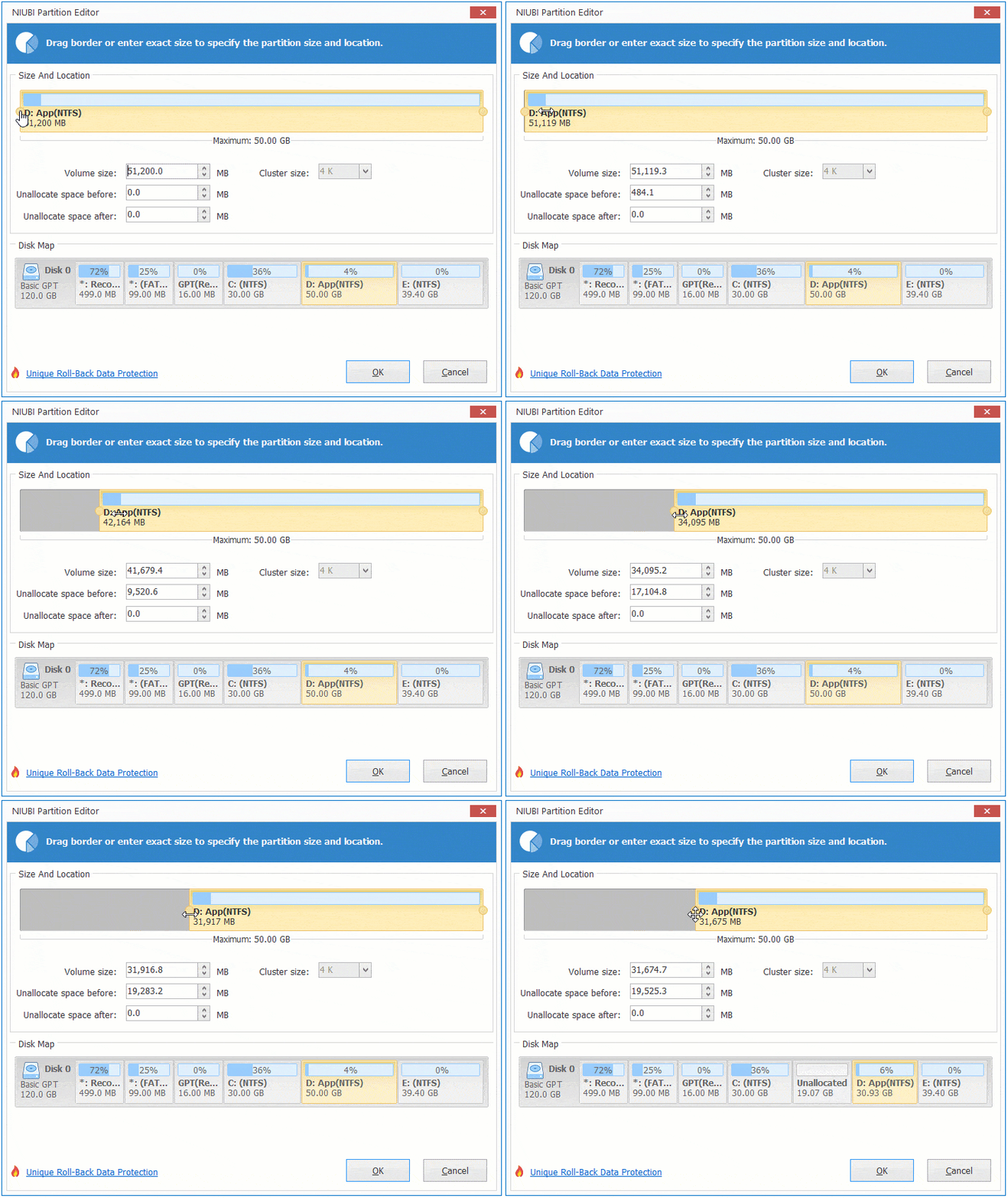
Then, some free space will be converted into unallocated space on the left side.
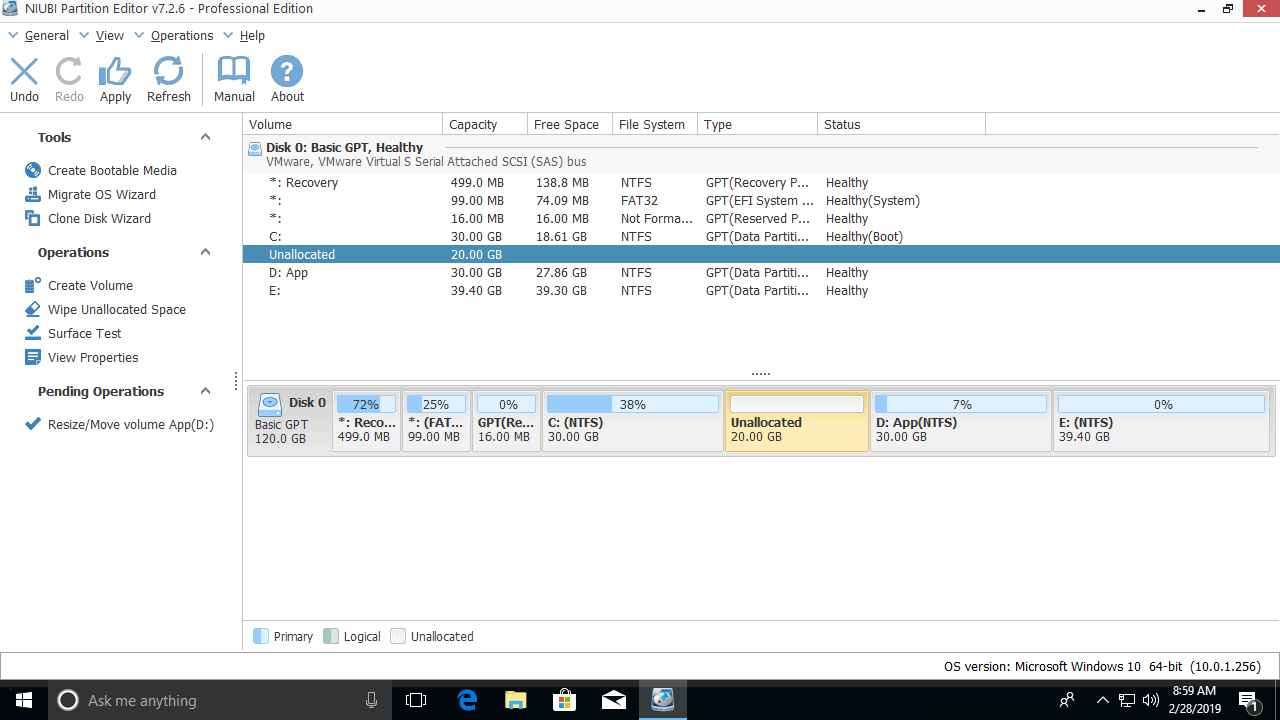
Step 2: Right-click drive C: and select "Resize/Move Volume" again, then drag the right border to the right.
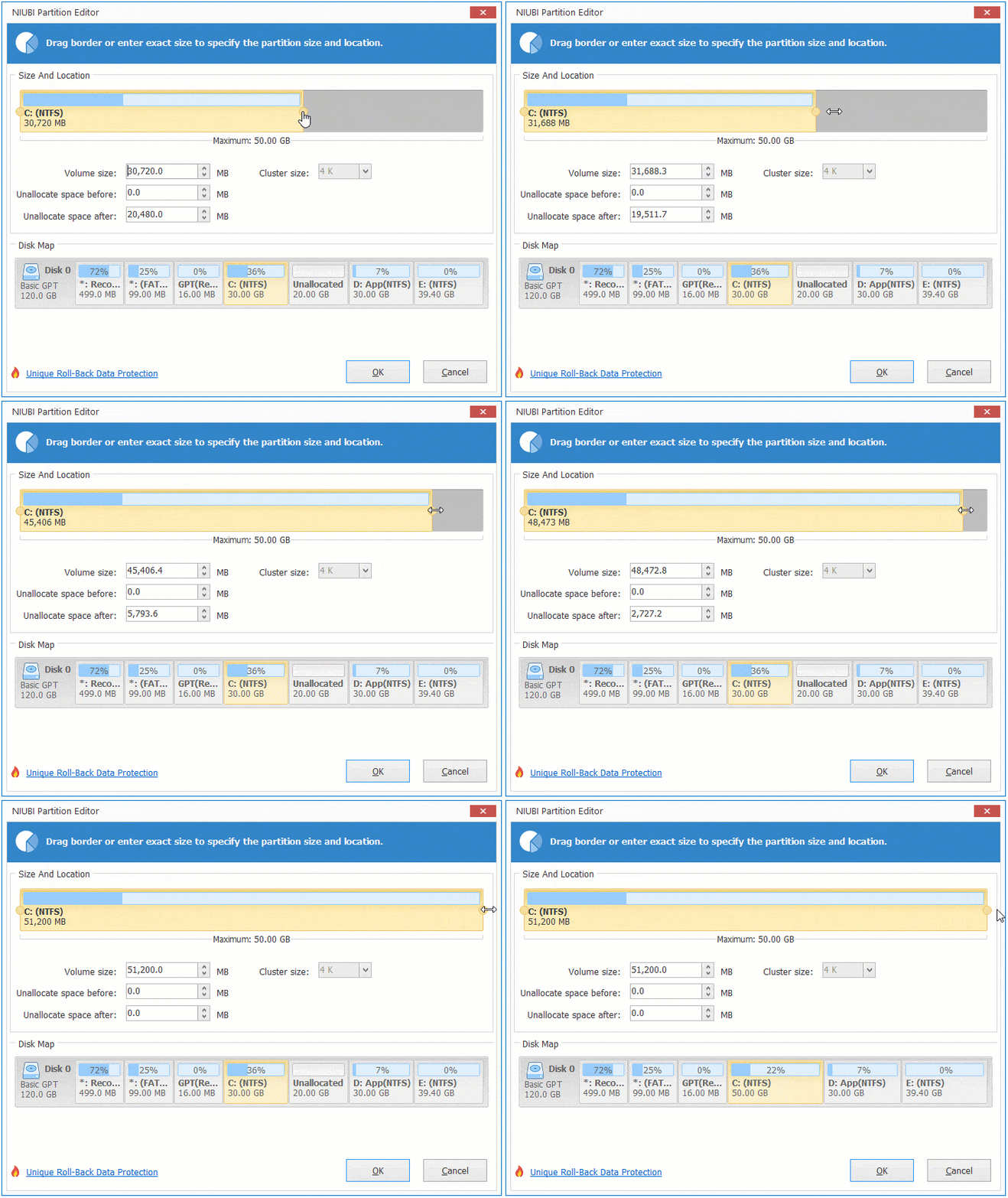
Then, the unallocated space will be merged into the C: drive.
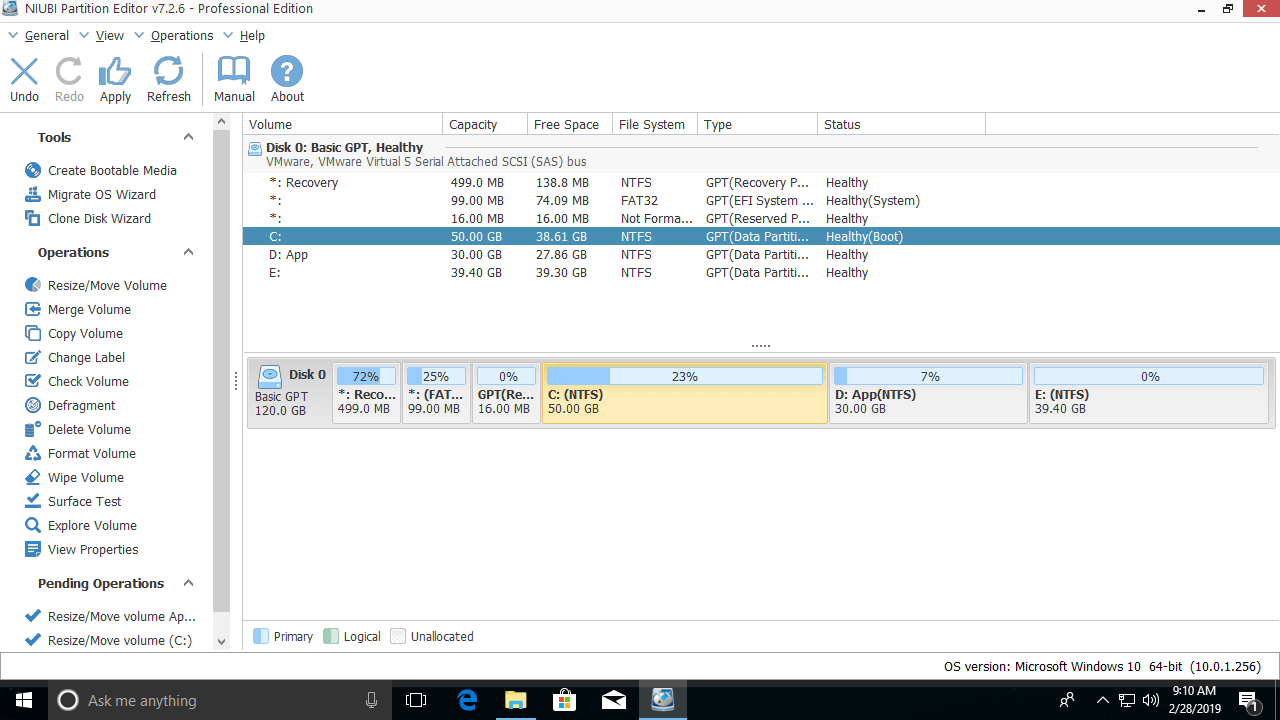
See the full solution to allocate more space to the C: drive in Windows 10 without losing data.
 © 2009 - NIUBI Technology All Rights Reserved. |