
When the system C: drive is full in a Windows 10 computer, many users want to extend it, thinking this problem can be solved without reinstalling the operating system and programs. The Windows 10 built-in Disk Management tool has Shrink Volume and Extend Volume features to help resize allocated partitions. However, many users find that this native tool cannot extend the C: drive after shrinking D or another partition. This article explains why Disk Management is unable to extend the C: drive in Windows 10 and how to fix this issue easily with a free tool.
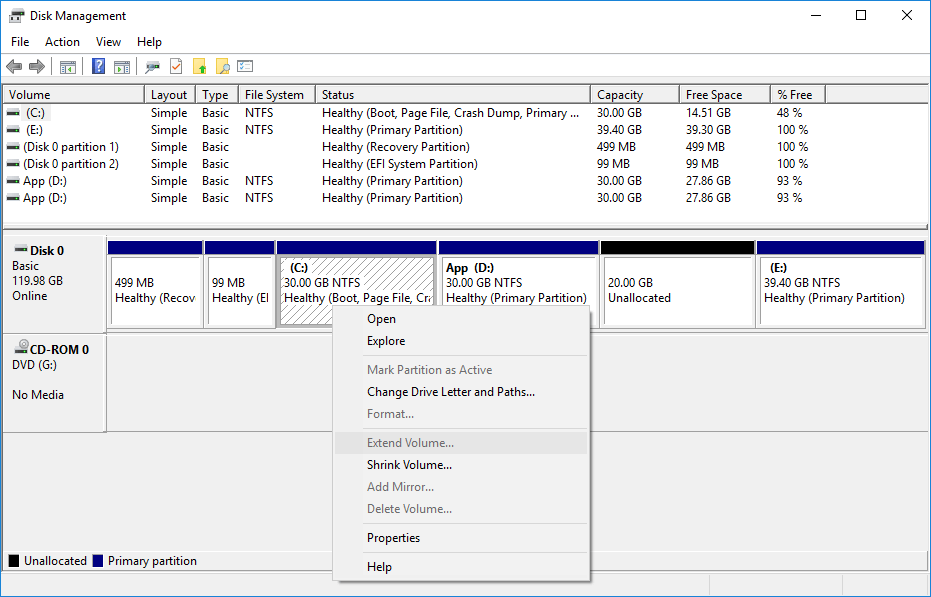
Reasons Why Disk Management Is Unable to Extend the C Drive
Reason 1: There is no adjacent unallocated space on the right.
A 256GB physical disk cannot be increased to 300GB or decreased to 200GB. Thus, before extending a volume, there must be unallocated space on the same disk. To get unallocated space via Disk Management, you may either delete or shrink a volume. If you delete a volume, all its disk space will be converted into unallocated space, but you will lose all the files in it.
Obviously, it is much better to get unallocated space by shrinking a volume, because you will not lose any data, and all settings remain the same. However, Disk Management only gives you the option to enter an amount when shrinking a partition; then unallocated space will be generated on the right side.
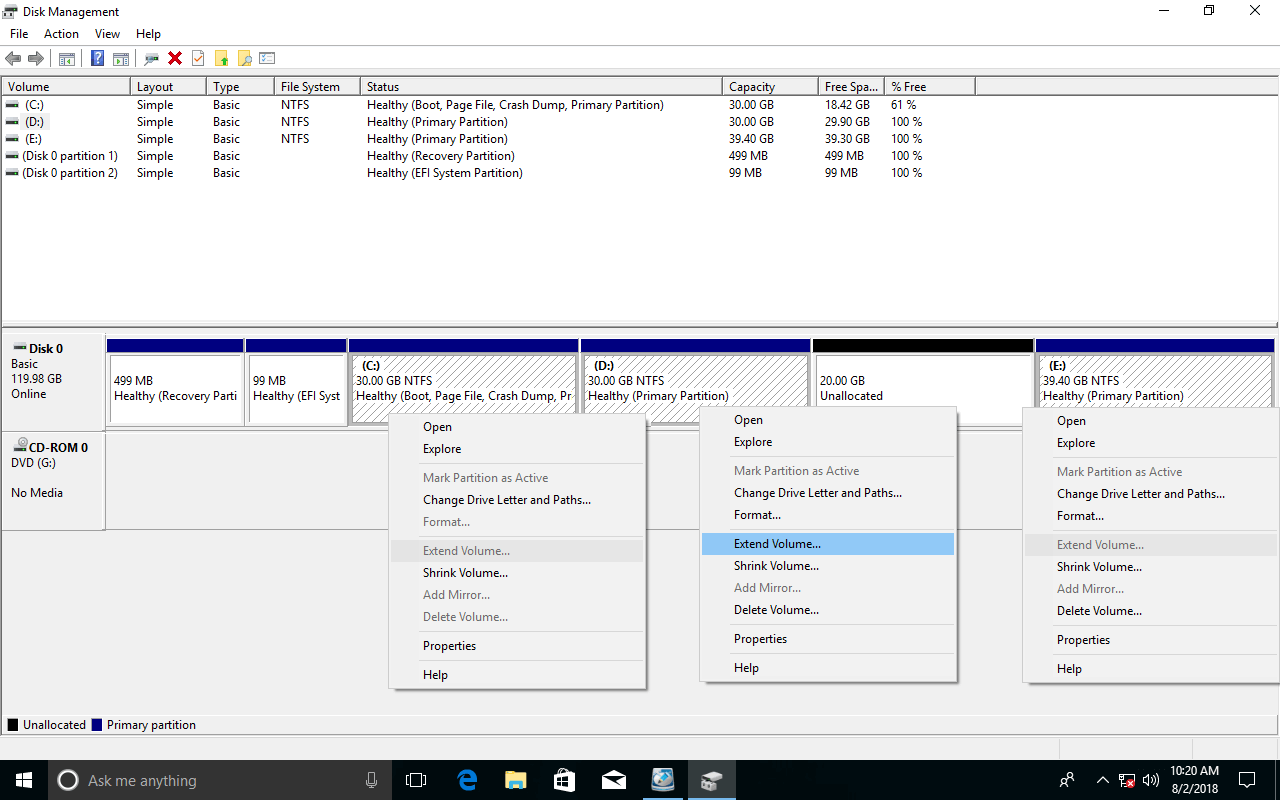
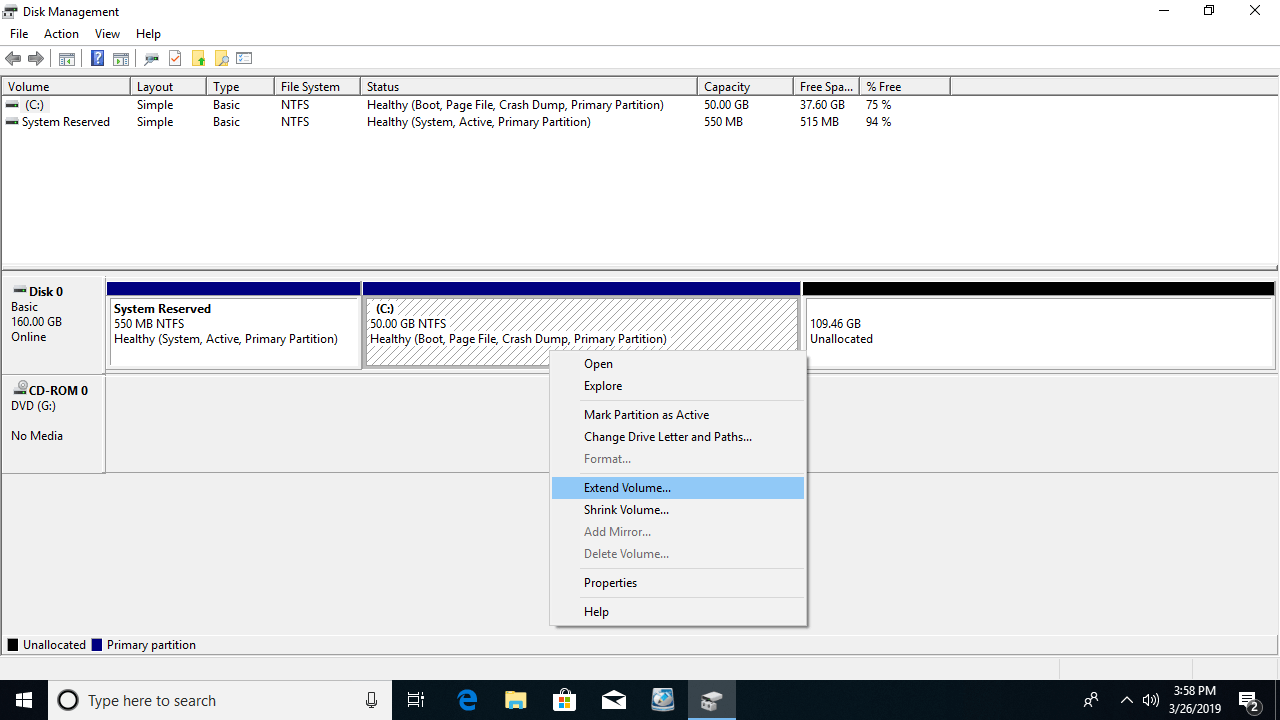
After shrinking the volume D, Extend Volume is disabled for all other partitions. This is because this function can only expand a partition when there is adjacent unallocated space on the right side.
The C: drive is non-adjacent to the unallocated space, and E is on the right side, so Extend Volume is unavailable.
Disk Management cannot generate unallocated space on the right or move a partition. To solve this problem, disk partition software is required.
Reason 2: There is a limit between primary and logical partitions.
If you use a GPT disk or there is no logical partition on the disk, you may ignore this paragraph.
On the bottom left of the Disk Management window, you will see if there is a logical partition.
To check your disk type: Press Windows and X on the keyboard and select Disk Management, right-click Disk 0 (or another) and select Properties. Switch to the Volumes tab in the pop-up window.
Shrink Volume cannot get adjacent unallocated space by shrinking D, so some users have tried to delete it. Extend Volume will be enabled if D is a primary partition, but if it is logical, you still cannot extend the C: drive.
After deleting the logical drive D, Extend Volume is still disabled for the C: drive. Notice the difference: the disk space of D is showing as Free instead of Unallocated.
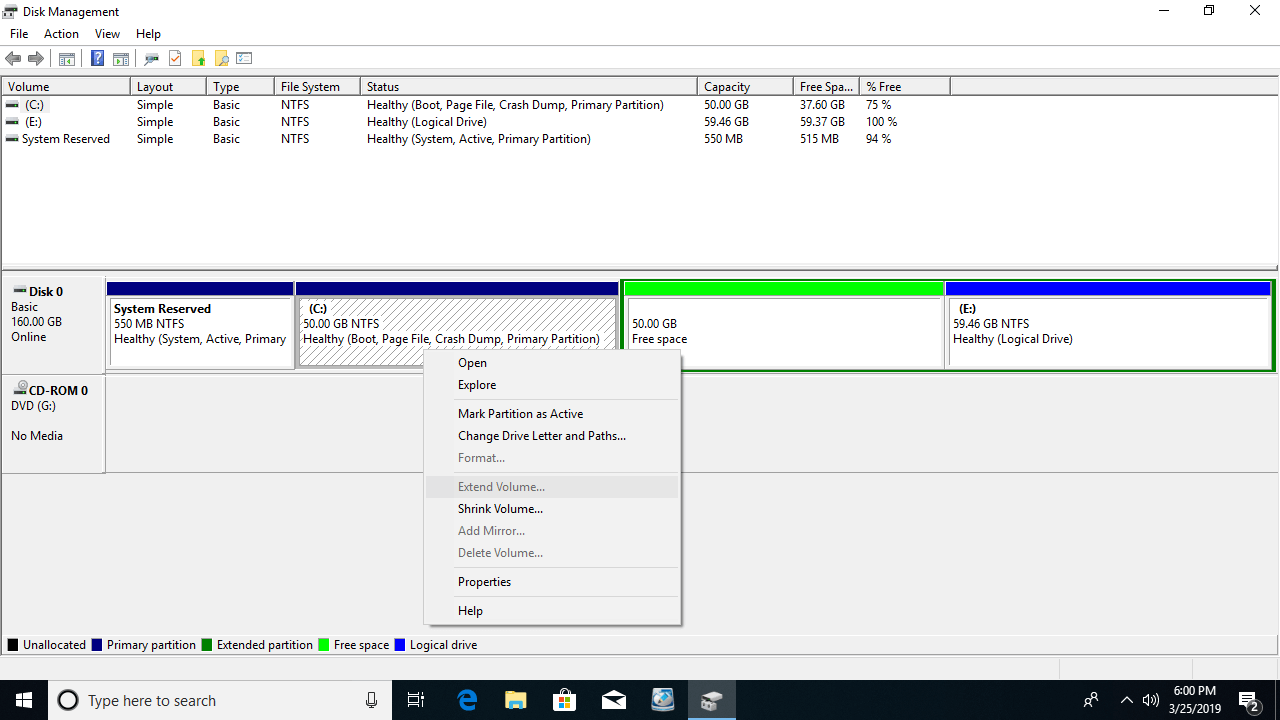
When right-clicking this Free space, it only allows creating a new volume; therefore, the other logical drive E must also be deleted.

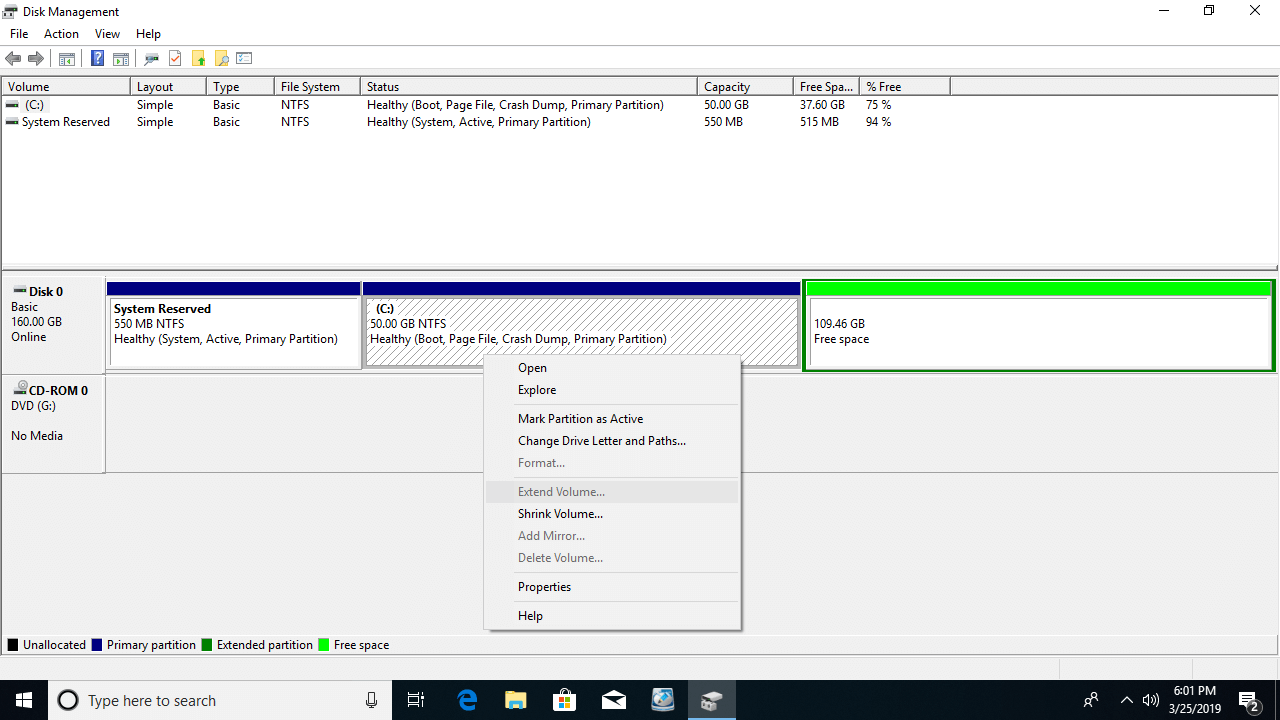
Now, when right-clicking the Free space, there is an option to delete the partition. After deleting it, Extend Volume is enabled for the C: drive.

Free space that is deleted from a logical partition cannot be extended to any primary partition. Unallocated space that is deleted from a primary partition cannot be extended to any logical drive.
What to Do When You Cannot Extend the C Drive in Windows 10
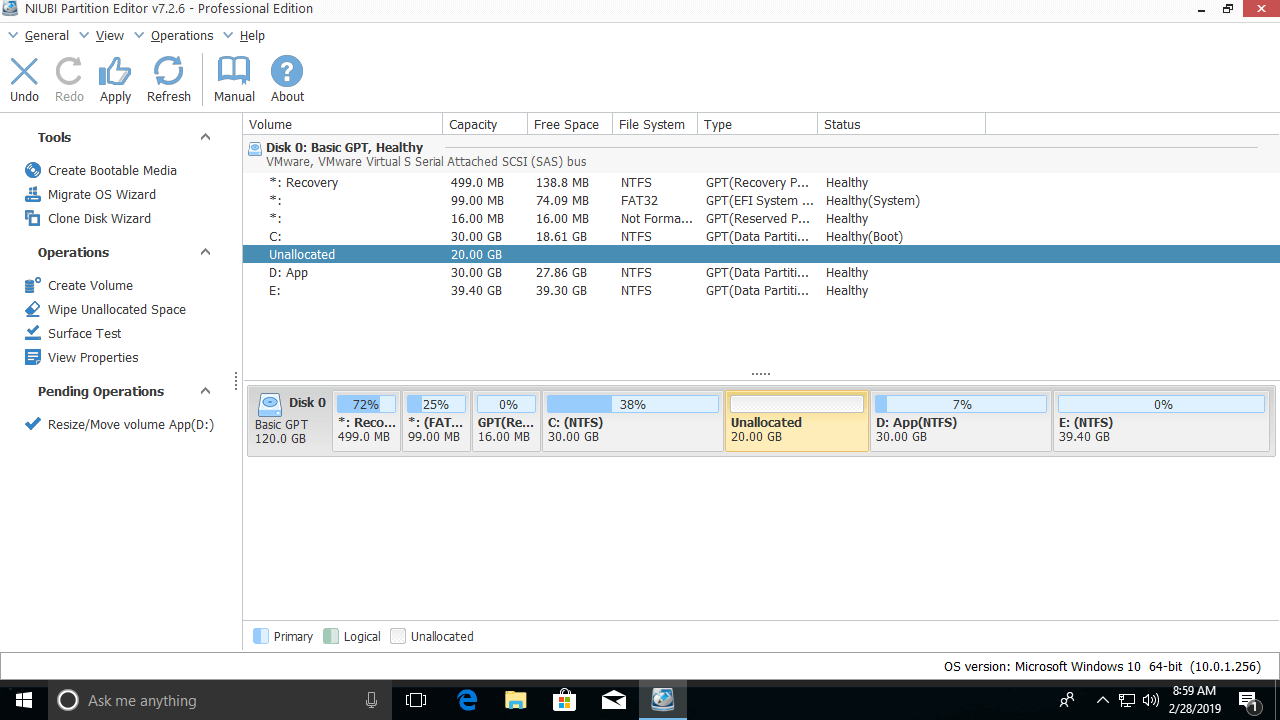
If you have shrunk the D: drive via Windows 10 Disk Management, you need third-party software such as NIUBI Partition Editor to move the unallocated space to the left side.
Step 1: Right-click the D: drive and select "Resize/Move Volume", then drag the middle of the partition to the right in the pop-up window.

Then, the unallocated space is moved next to the C: drive.
Step 2: Right-click the C: drive and select "Resize/Move Volume" again, then drag the right border to the right to merge the unallocated space.
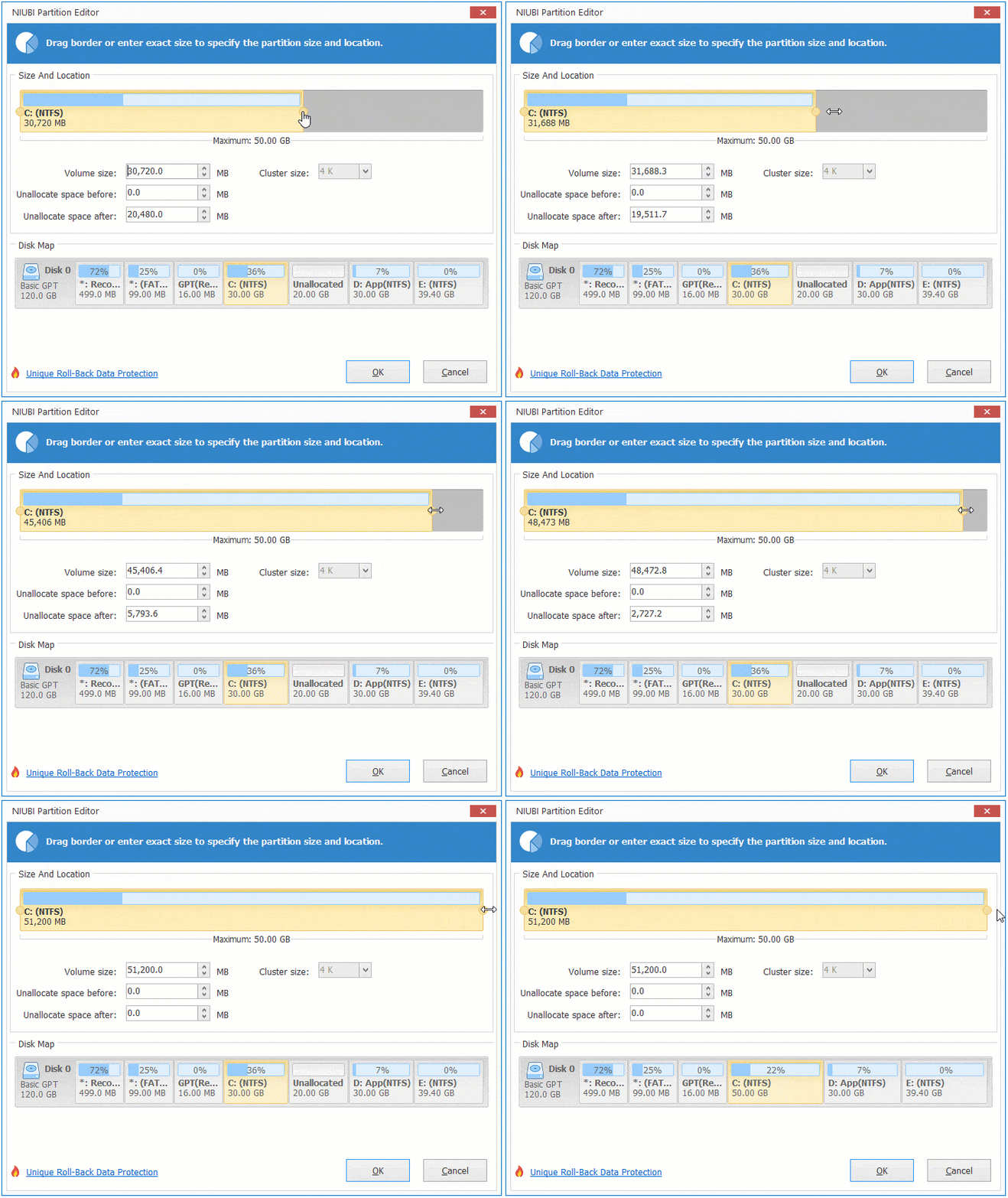
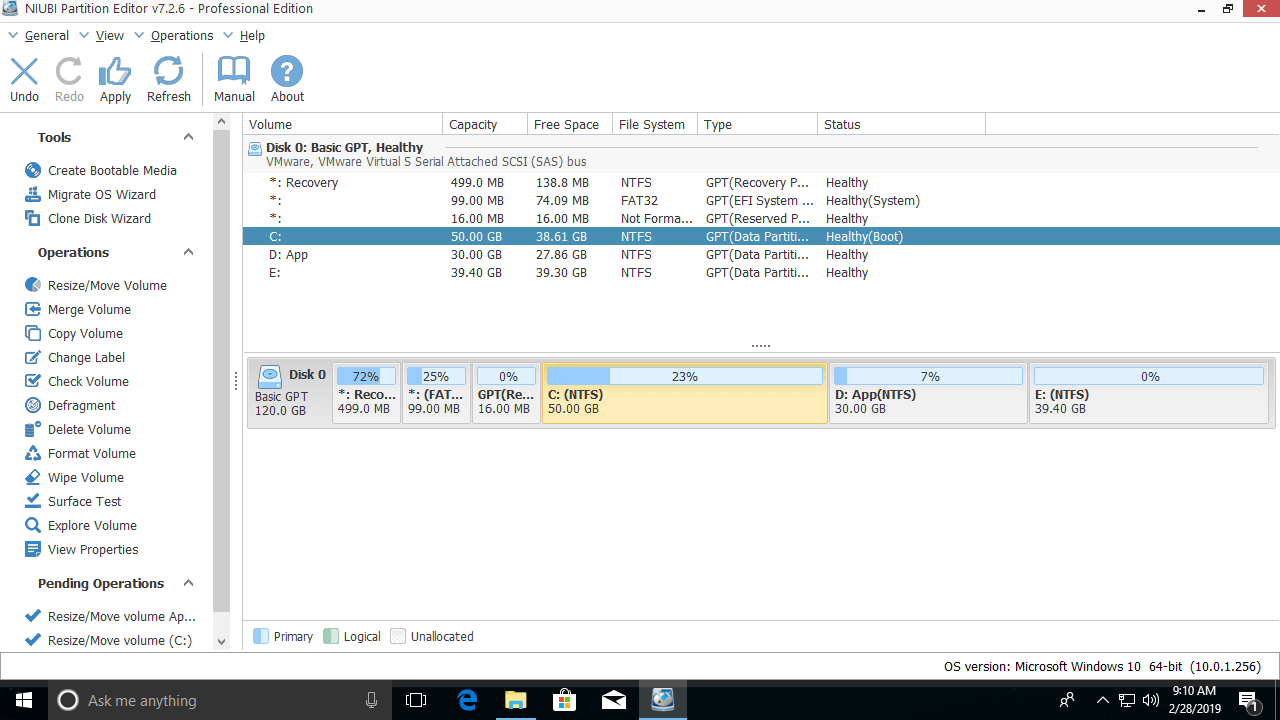
Then, the C: drive is extended by merging the unallocated space.
If you deleted the logical drive D but cannot extend C, create a new volume in Disk Management and then delete or resize it with NIUBI Partition Editor.
Unable to Extend Volume C with Another Disk
Neither the native Disk Management nor third-party software is able to expand the C: drive with space from another disk. If there are no other volumes on the same disk, you may clone this disk with NIUBI Partition Editor to a larger one and extend the C: drive with the extra disk space.
 © 2009 - NIUBI Technology All Rights Reserved. |