
Low disk space on the C drive is a common issue in Windows Server 2016. In this case, nothing could be better than increasing the C drive's free space without spending a significant amount of time recreating partitions and restoring everything. Many administrators prefer to use a command-line tool. To extend a Windows Server 2016 partition, the operating system provides a native Diskpart command-line tool. However, due to its many restrictions, it is not the best tool available. This article explains how to extend the C drive with Diskpart in Windows Server 2016 and details the limitations of extending a volume using the Diskpart tool in Windows Server 2016.
How to Extend the System C Drive with Diskpart in Windows Server 2016
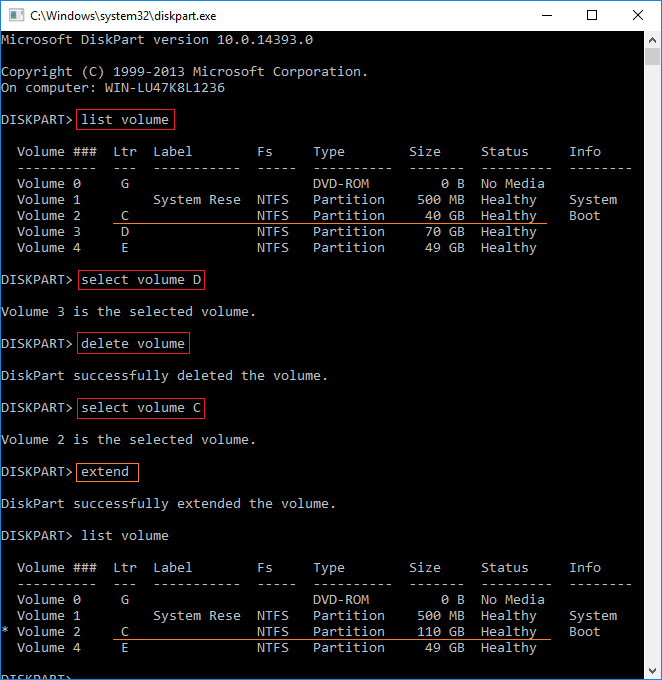
It is easy to extend the C drive with Diskpart in Windows Server 2016, but you must first delete the adjacent partition D (or E). Follow the steps below:
- Transfer all files on drive D (or drive E on your server) to another location.
- Press Windows + R together on the keyboard, type diskpart, and press Enter.
- Type list volume and press Enter in the diskpart.exe command prompt window.
- Type select volume D and press Enter. (D is the drive letter or number of the right contiguous partition.)
- Type delete volume and press Enter.
- Type select volume C and press Enter.
- Type extend and press Enter.
Within a short time, Diskpart reports that it has successfully extended the volume. Type list volume again; as you can see, the C drive size has increased from 40GB to 110GB.
- If you attempt to extend the C drive with Diskpart without deleting drive D, you receive the error: "There is not enough usable free space on specified disk(s) to extend the volume."
- Do not delete drive D if you have installed programs or any Windows services on it.
Limitations of Extending Partition with Diskpart in Windows Server 2016
Diskpart has another shrink command. Why not shrink drive D to expand the C drive? It does not work. When you try to extend the C drive with Diskpart in Windows Server 2016 after shrinking D, you will receive an error message stating that there is not enough usable free space.
In the Diskpart command prompt window, type help extend to see the syntax and restrictions of the extend command.

The Windows Server 2016 Diskpart extend command only works when your disk partition meets the following requirements:
- The partition that you want to extend must be formatted with the NTFS or ReFS file system.
- There must be unallocated space immediately following (contiguous and on the right side of) the partition that you want to extend.
- The partition and unallocated space must be on the same disk.
After shrinking the D drive, the unallocated space is located to the right of D rather than C. Therefore, the extend command does not work. This is why you must delete the adjacent drive D to get unallocated space to the right of the C drive. If there is no adjacent partition to the right or you cannot delete it, you cannot extend the partition with Diskpart in Windows Server 2016.
If you have already shrunk drive D, follow the steps to move the unallocated space to the left and add it to the C drive.
A Better Way to Extend a Volume in Windows Server 2016
Unlike the Diskpart command, NIUBI Partition Editor can create unallocated space on either the left or the right side, eliminating the need to delete any partitions. Other advantages include:
- Both NTFS and FAT32 partitions are supported.
- Unallocated space can be extended to either contiguous volume in just one step.
- Unallocated space can be moved and merged into any non-adjacent volume on the same disk.
- If there is no available free space on the same disk, you can clone the system disk to a larger one and extend the partition with the extra disk space.
download NIUBI Partition Editor and follow the steps in the video to shrink and extend volumes in Windows Server 2016.
How to Extend the C Drive by Shrinking Another Volume:

How to Extend D Drive by Shrinking Another Volume:
- If you want to extend a non-adjacent volume, there is an additional step required to move the partition.
- The steps remain the same whether you run a physical server with an SSD, HDD, or hardware RAID, or a virtual server in VMware/Hyper-V.
Unlike other tools, NIUBI Partition Editor features advanced technologies to protect your system and data:
- Virtual Mode - All operations are listed as pending for preview, and real disk partitions are not modified until you click "Apply" to confirm.
- Cancel-at-Will - If you apply incorrect operations, you can cancel the ongoing processes without damaging the partitions.
- 1-Second Rollback - If any error is detected while resizing partitions, it automatically reverts the server to its original state instantly, allowing your server to come back online immediately without damage.
- Hot Clone - Clone disk partitions without rebooting the server. You can regularly clone the system disk as a backup and boot from the cloned disk directly if the system disk fails.
Besides shrinking, extending, moving, and copying disk partitions, NIUBI Partition Editor helps you merge, convert, defrag, wipe, optimize, and hide partitions, scan for bad sectors, and much more.
 © 2009 - NIUBI Technology All Rights Reserved. |