
The native Windows Disk Management tool features "Shrink Volume" and "Extend Volume" functions to help change partition sizes without data loss in most cases. However, many administrators report that the "Extend Volume" option is greyed out in Windows Server 2016 Disk Management. A typical example is when "Extend Volume" is greyed out for the C drive after shrinking the D or E drive. This article explains all possible reasons why "Extend Volume" is greyed out in Windows Server 2016 Disk Management and provides simple solutions to fix this issue.
Why the "Extend Volume" Option Is Greyed Out in Windows Server 2016
There are 4 reasons why "Extend Volume" is greyed out in Windows Server 2016 Disk Management:
- No adjacent unallocated space on the right
- File system is not supported
- Different partition types on an MBR disk
- 2TB restriction on MBR disks
Each of these reasons is explained in detail below.
① No Adjacent Unallocated Space on the Right
You can resize a partition, but you cannot change the physical size of a disk. For instance, a 256GB physical hard drive cannot be increased to 512GB. Therefore, before extending a partition, you must shrink or delete another volume to get unallocated space on the same disk. Deleting a partition converts all its disk space into unallocated space, but all files within it will be permanently deleted. Conversely, shrinking a drive converts only a portion of its free space into unallocated space without data loss.
If you did not shrink or delete another volume to obtain unallocated space, the "Extend Volume" option is naturally greyed out in Windows Server 2016 Disk Management.
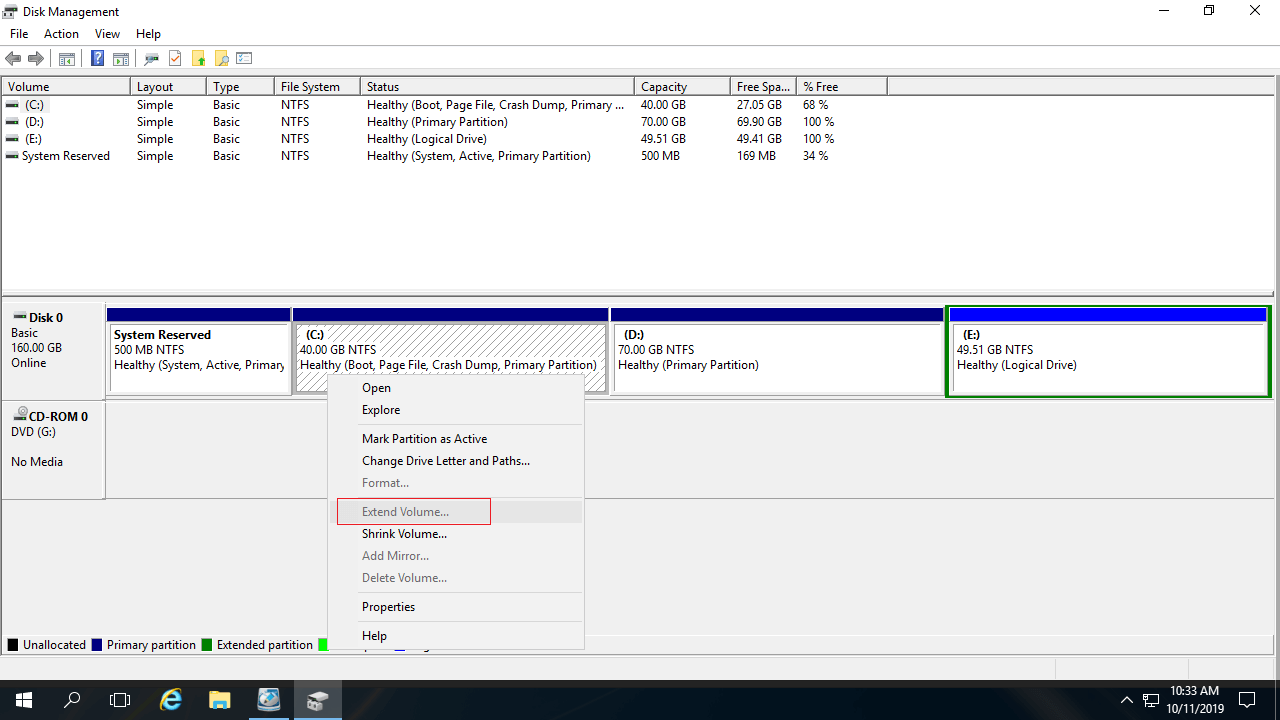
Many server administrators shrink the D or E drive before extending the C drive, yet the "Extend Volume" option remains greyed out in Windows Server 2016.
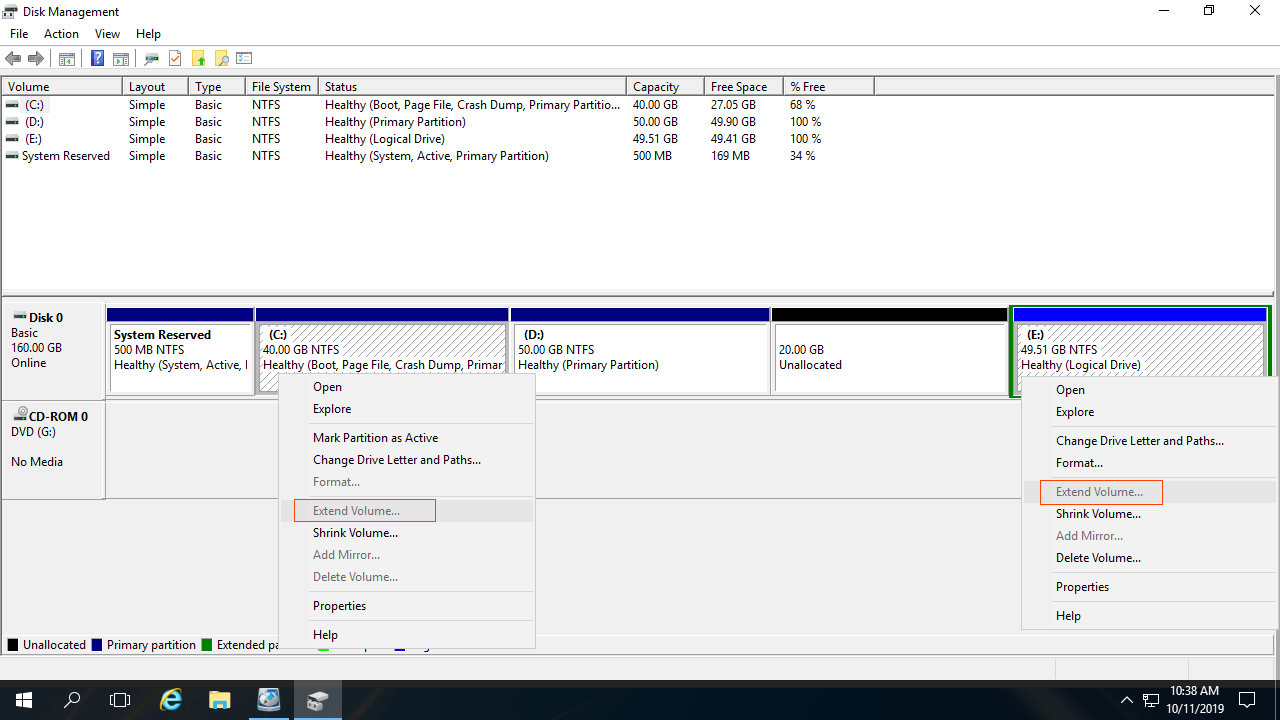
The "Shrink Volume" function can only create unallocated space to its right while shrinking a partition. The "Extend Volume" function can only combine unallocated space with the adjacent partition to its left. Since the C drive is non-adjacent and the E drive is located to the right of the unallocated space, the "Extend Volume" option is greyed out for both the C and E drives after shrinking drive D. This is the most common reason why the "Extend Volume" option is greyed out in Windows Server 2016 Disk Management.
② File System Is Not Supported
The "Extend Volume" function only supports extending NTFS and RAW (no file system) partitions. Therefore, FAT32 and other types of partitions cannot be extended, even if there is adjacent unallocated space on the right side.
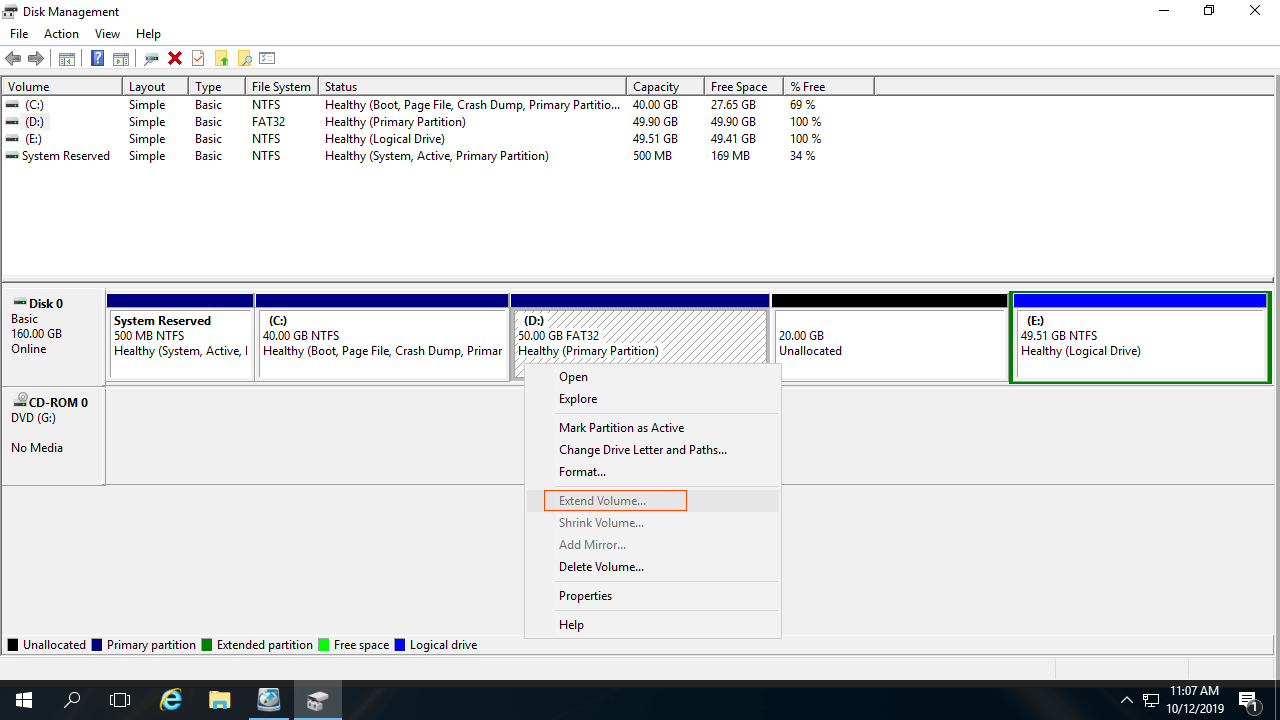
For example, if drive D is formatted as FAT32, as shown in the screenshot, the "Extend Volume" option remains greyed out even though there is 20GB of unallocated space to its right.
In most Windows servers, the system C drive is formatted with NTFS, so this issue is typically unique to data drives.
③ Different Partition Type on MBR Disk
Because shrinking a volume does not resolve the issue, some administrators wonder if deleting the partition instead will work. The behavior differs between GPT and MBR disks.
On a GPT disk, all partitions are primary. However, on an MBR disk, there can be both primary and logical partitions. If the type of partition you want to delete and the one you want to extend are different, Disk Management cannot extend the partition even after deleting the contiguous volume.
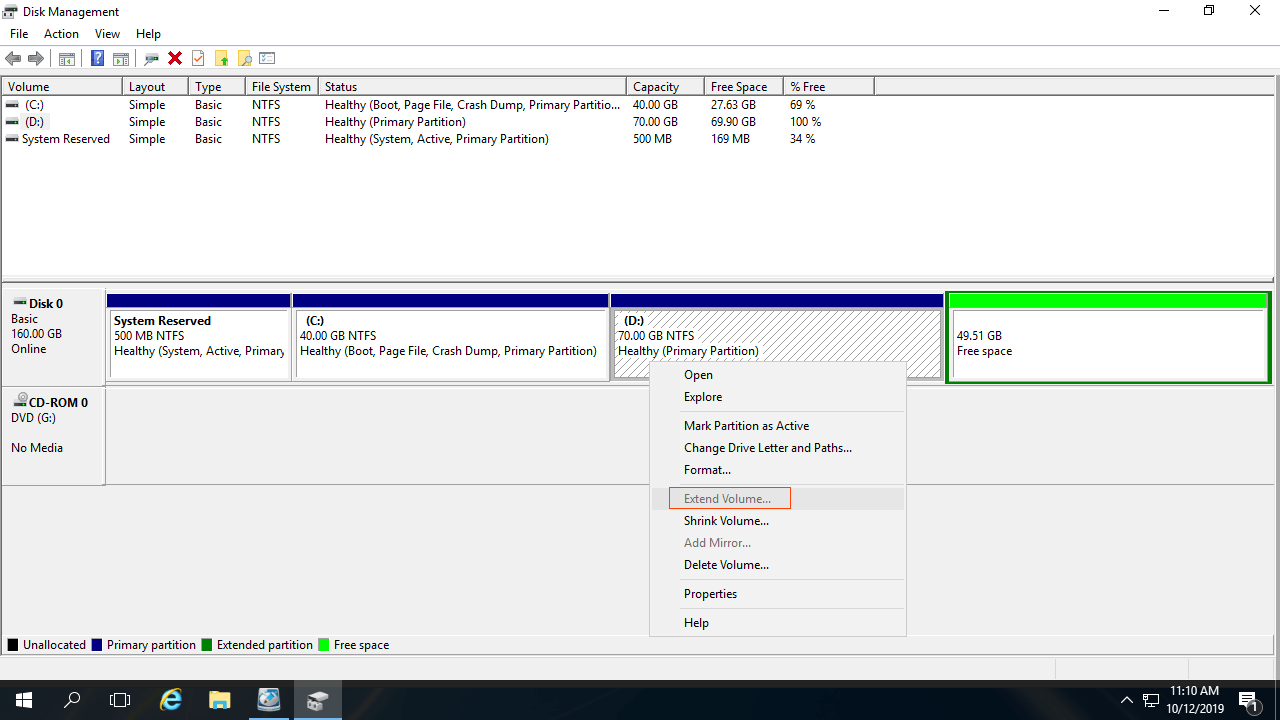
As you see in the screenshot, Extend Volume is disabled for the D drive after deleting the right contiguous partition E.
This is because:
On an MBR disk, "Free" space obtained by deleting a logical drive cannot be extended into any primary partition. Conversely, "Unallocated" space deleted from a primary partition cannot be extended into any logical drive.
Note: This limitation only exists in Disk Management. If you manage volumes with NIUBI Partition Editor, you can combine unallocated space into either adjacent partition directly.
④ 2TB Restriction on MBR Disks
Nowadays, hard disks are much cheaper and larger; it is very common to use a single 4TB disk or a RAID array exceeding 10TB. However, if you initialize a large disk or RAID array as MBR, you can only utilize up to 2TB of disk space in Disk Management.
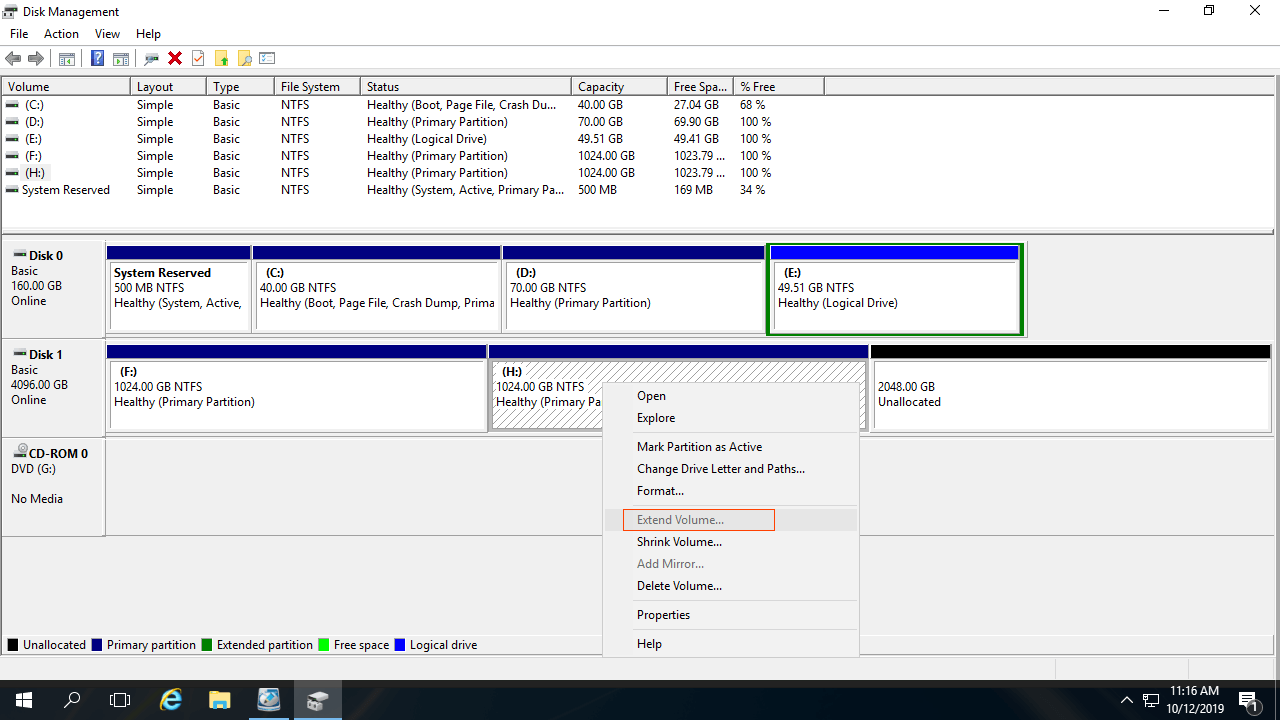
As the screenshot shows, the H drive is formatted with NTFS and there is adjacent unallocated space to its right, but the "Extend Volume" option is still greyed out.
To use the full 2TB+ disk space and extend a partition larger than 2TB, you need to convert the disk from MBR to GPT in advance.
What to Do When Extend Volume Is Disabled in Server 2016
Open Disk Management and examine your server's disk partition configuration. Follow the corresponding solution below according to your disk partition structure. Each solution includes a video guide.
Solution 1: Move Unallocated Space
Steps when Extend Volume greyed out in Server 2016 after shrinking D drive:
- Download NIUBI Partition Editor, right-click the D drive, and select "Resize/Move Volume". Drag the middle of drive D to the right in the pop-up dialog box. The unallocated space is then moved to the left.
- Right-click drive C, select "Resize/Move Volume" again, and drag the right border to the right to combine this unallocated space.
- Click "Apply" on the top left to execute. (All operations before this step only work in Virtual Mode.)
If there is an EFI, Recovery, or another partition behind the C drive, follow the same method to move these partitions to the right side.

Solution 2: Resize Partition with NIUBI
To fix the Extend Volume greyed-out issue in Windows Server 2016 caused by an unsupported FAT32 partition or mismatched partition types:
- Run NIUBI Partition Editor, right-click the adjacent partition, and select "Resize/Move Volume".
- Drag the border toward the opposite side to combine the unallocated space with either adjacent partition on the left or right side.
- Click Apply on the top left to execute.
Solution 3: Convert MBR Disk to GPT
When you cannot extend a partition past 2TB in Windows Server 2016, follow the steps below:
- Run NIUBI Partition Editor, right-click the front of this disk, and select "Convert to GPT disk".
- Run the "Resize/Move Volume" function to combine the unallocated space with the partition(s) you want to expand.
Take Care of Data While Extending Partitions in a Server
Unlike read-only programs, partitioning software modifies the parameters of the associated disk, partition, and files. Therefore, there is a potential risk of system damage and data loss, especially when shrinking and moving partitions. Remember to back up in advance and use safe partition software.
Better than other tools, NIUBI Partition Editor has innovative technologies to protect system and data such as:
- Virtual Mode – All operations will be listed as pending for preview. Real disk partitions are not modified until you click “Apply” to confirm.
- Cancel-at-Will – If you apply incorrect operations, you can cancel the ongoing workflows safely without damaging the partitions.
- 1-Second Rollback – If any error is detected while resizing the partition, it automatically reverts the server to its original state instantly.
- Hot Clone – Clone the disk partition without interrupting the server. You can clone the system disk regularly and boot from the cloned disk immediately if the system disk fails.
NIUBI Partition Editor is 30% to 300% faster when shrinking, moving, and copying partitions because it has an advanced file-moving algorithm. In addition to helping fix the "Extend Volume" greyed-out issue in Windows Server 2016/2019/2022/2025, it also helps you merge, optimize, convert, hide, wipe partitions, scan for bad sectors, and much more.
 © 2009 - NIUBI Technology All Rights Reserved. |