
As with previous versions, the Windows 10 C: drive runs out of space because many types of files are saved to the C: drive continuously. Nobody likes to start from scratch. Some people want to know whether it is possible to merge the C: and D: drives in a Windows 10 computer without losing data. By merging drive D into C, the free space in partition D will be transferred to the C: drive. This is indeed a way to increase the C: drive free space, but it is not the best. This article introduces how to merge the C: and D:/E: drives in a Windows 10 computer with free tools.
2 Ways to Combine the C and D Drives in Windows 10
To merge the C: and D: drives in a Windows 10 laptop/desktop/tablet, you may use either the native Disk Management or third-party disk partition software.
Windows 10 Disk Management has no Merge Volume function, but you can achieve this indirectly with the "Extend Volume" function.
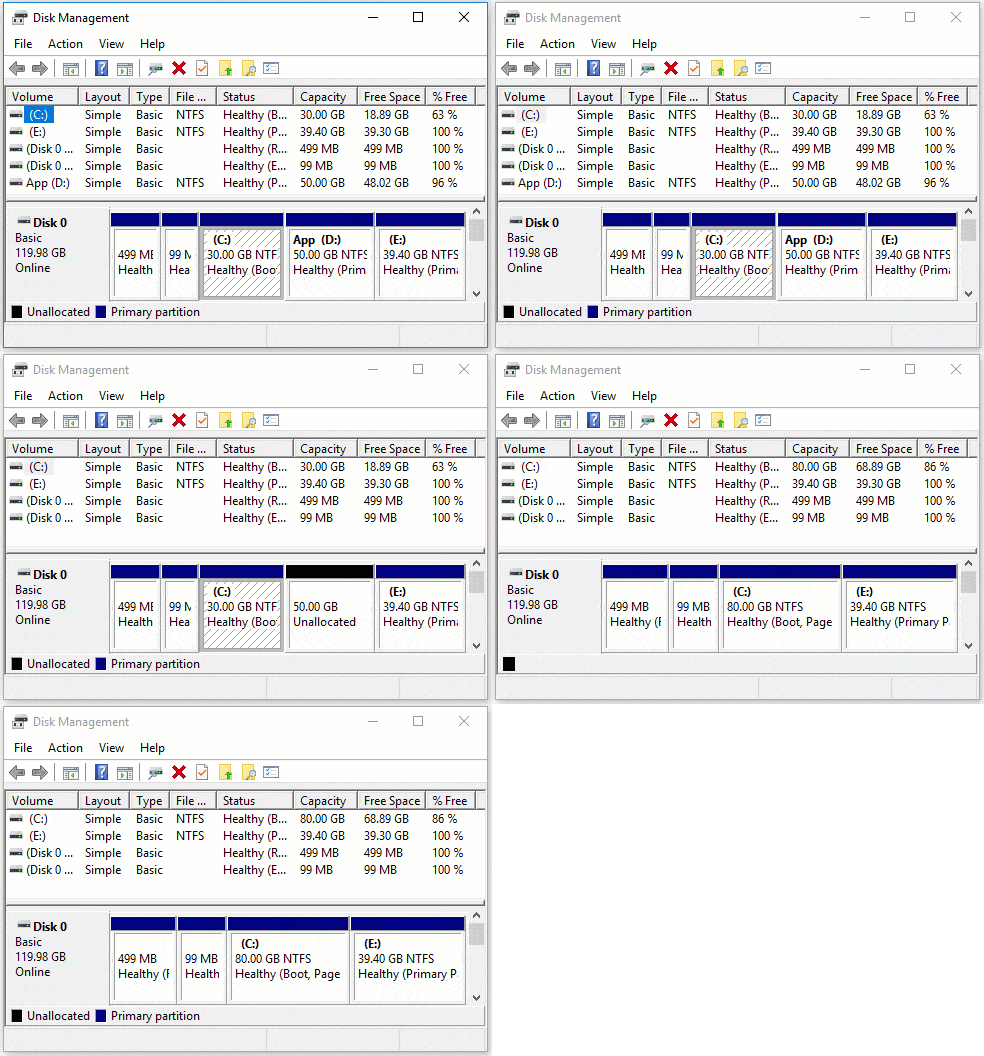
Steps to merge the C: and D: drives in Windows 10 with Disk Management:
- Press Windows and X on the keyboard, then click Disk Management from the list.
- Right-click drive D: and select Delete Volume. (D must be a primary partition)
- Right-click the C: drive and select Extend Volume.
- Simply click Next until Finish in the pop-up "Extend Volume Wizard" window.
You will lose data in drive D if you forget to transfer files before deleting it. Do not delete this partition if you have installed programs in it.
Windows Disk Management can only delete a volume and merge the unallocated space into the adjacent partition on the left. For example, merge D to the C: drive or combine E to the D: drive.
Combine the C and D Drives in Windows 10 with NIUBI Partition Editor
NIUBI Partition Editor has a free edition for Windows 11/10/8/7/Vista/XP home computer users. It only requires several clicks to merge the C: and D: drives. Better than Disk Management, it can merge primary and logical partitions, and merge NTFS and FAT32 partitions. In addition, all files in the D: drive will be moved to a folder in the root directory of the C: drive automatically.
Download this tool, and you will see all storage devices with their partition layout and other information on the main window.
Steps to merge the C: and D: drives in Windows 10/8/7 with the free tool:
Step 1: Right-click the C: or D: drive and select "Merge Volume".
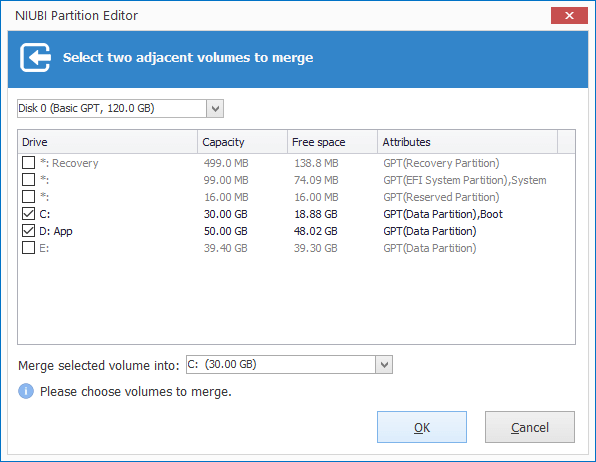
Step 2: Click the check-box in front of both the C: and D: drives, and then click OK.
Step 3: Click the Apply button on the top left to execute; done.
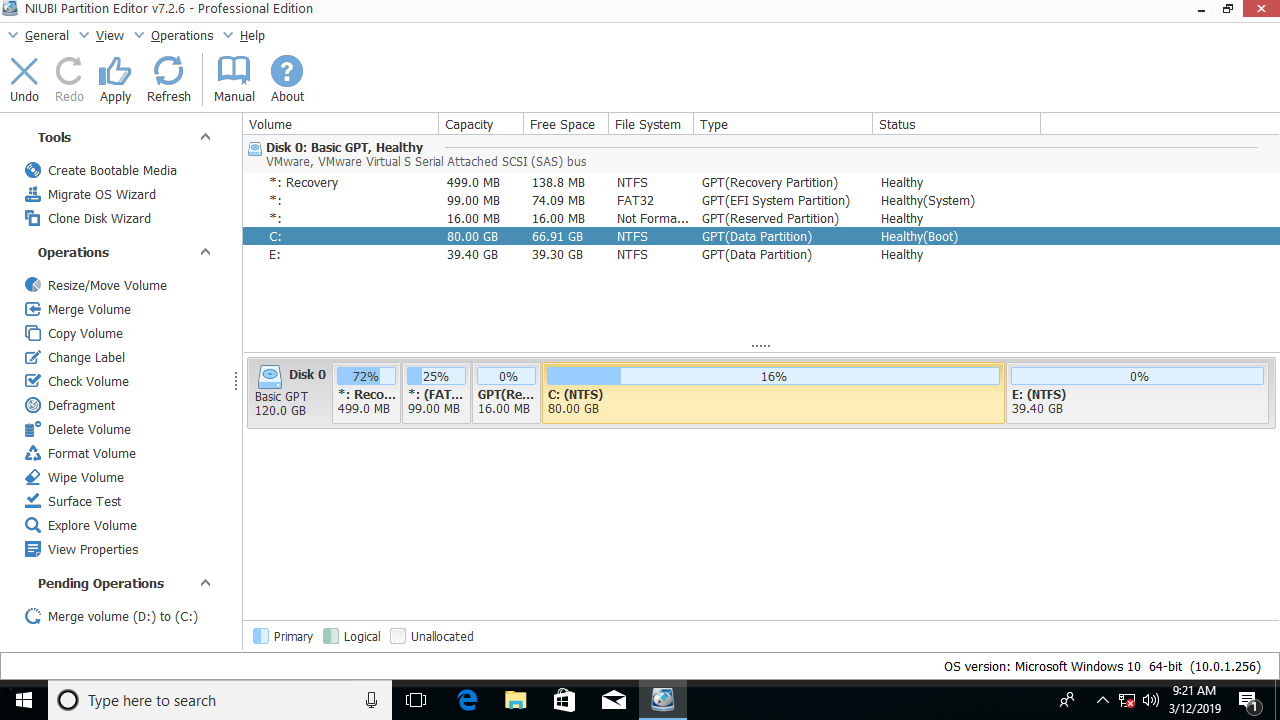
It is easy and fast to merge partitions in a Windows 10 computer, but you will lose a partition. If you want to extend the C: drive, you had better resize the partitions instead of merging them.
Resize the Partitions Instead of Merging
With NIUBI Partition Editor, you can shrink the adjacent partition D and generate unallocated space on the left. Then merge this unallocated space into the C: drive. In this way, you do not have to delete any partition. All files in D remain intact; the operating system, programs, and anything else remain the same as before.
Watch the video on how to shrink D and extend the C: drive:
How to Merge the C and E Drives in Windows 10 (Non-Adjacent Partitions)
If E: is the adjacent partition behind the C: drive in your computer and you want to merge the C: and E: drives, follow the steps above and replace D with E.
Drive E here refers to a non-adjacent partition. If you want to merge the C: drive and a non-adjacent E: drive, Disk Management is useless because it cannot move partitions or unallocated space.
Steps to merge the C: and E: drives in Windows 10 with NIUBI Partition Editor:
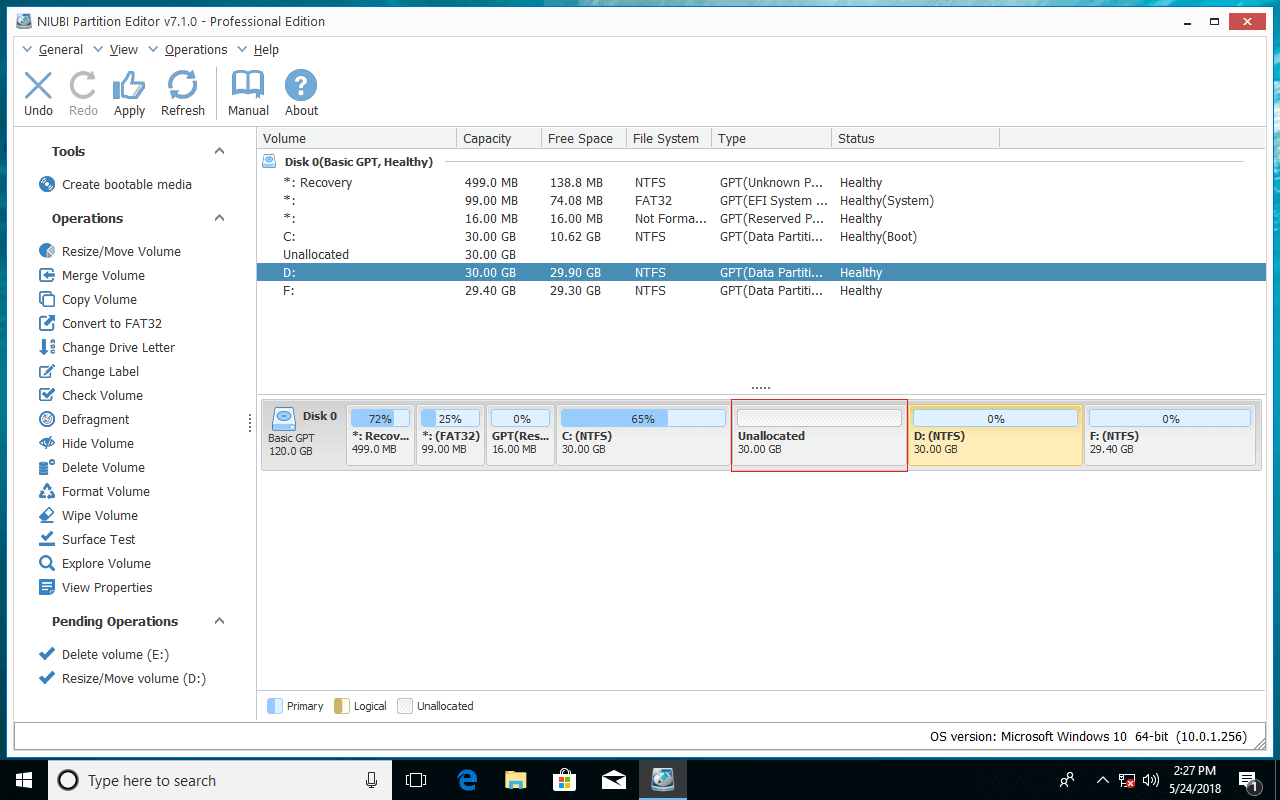
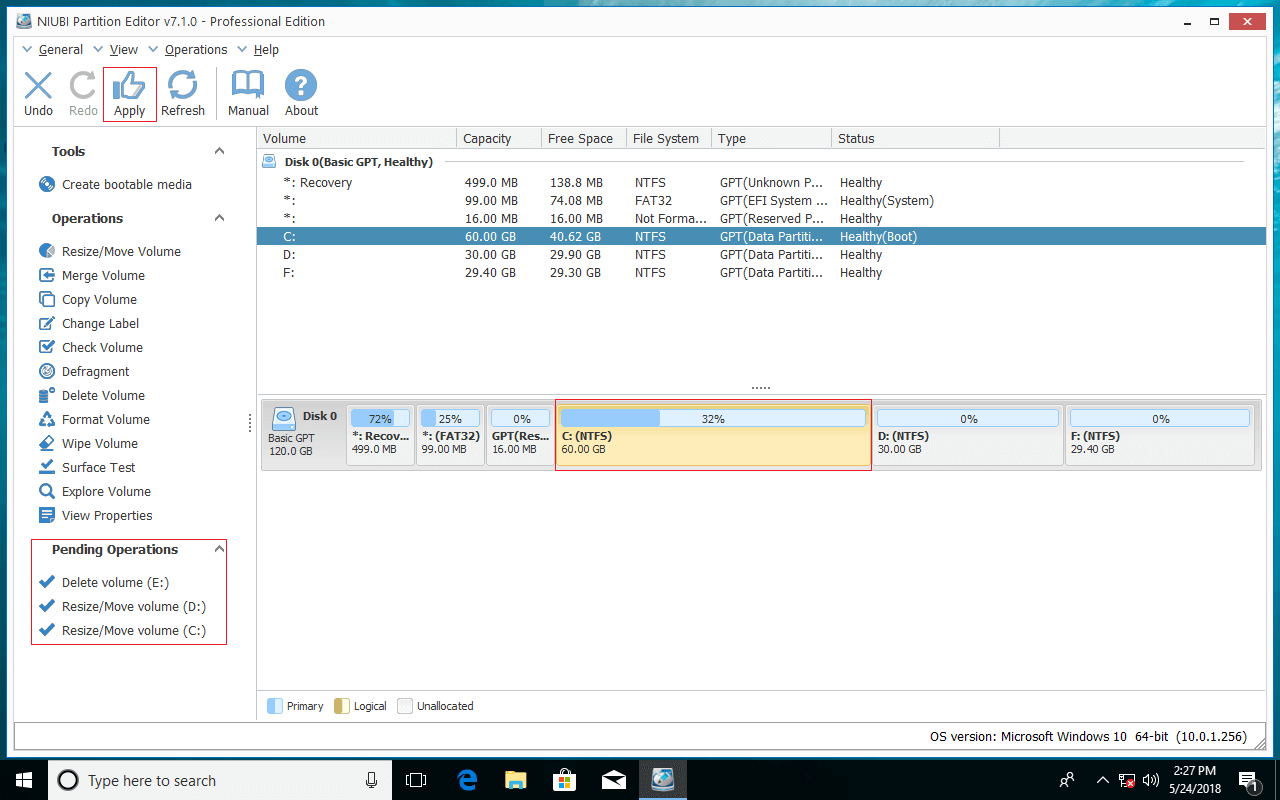
Step 1: Transfer all files in the E: drive to another place, right-click this partition in NIUBI Partition Editor, and select "Delete Volume".
Step 2: Right-click the D: drive and select Resize/Move Volume; drag the middle of the D: drive to the right in the pop-up window.
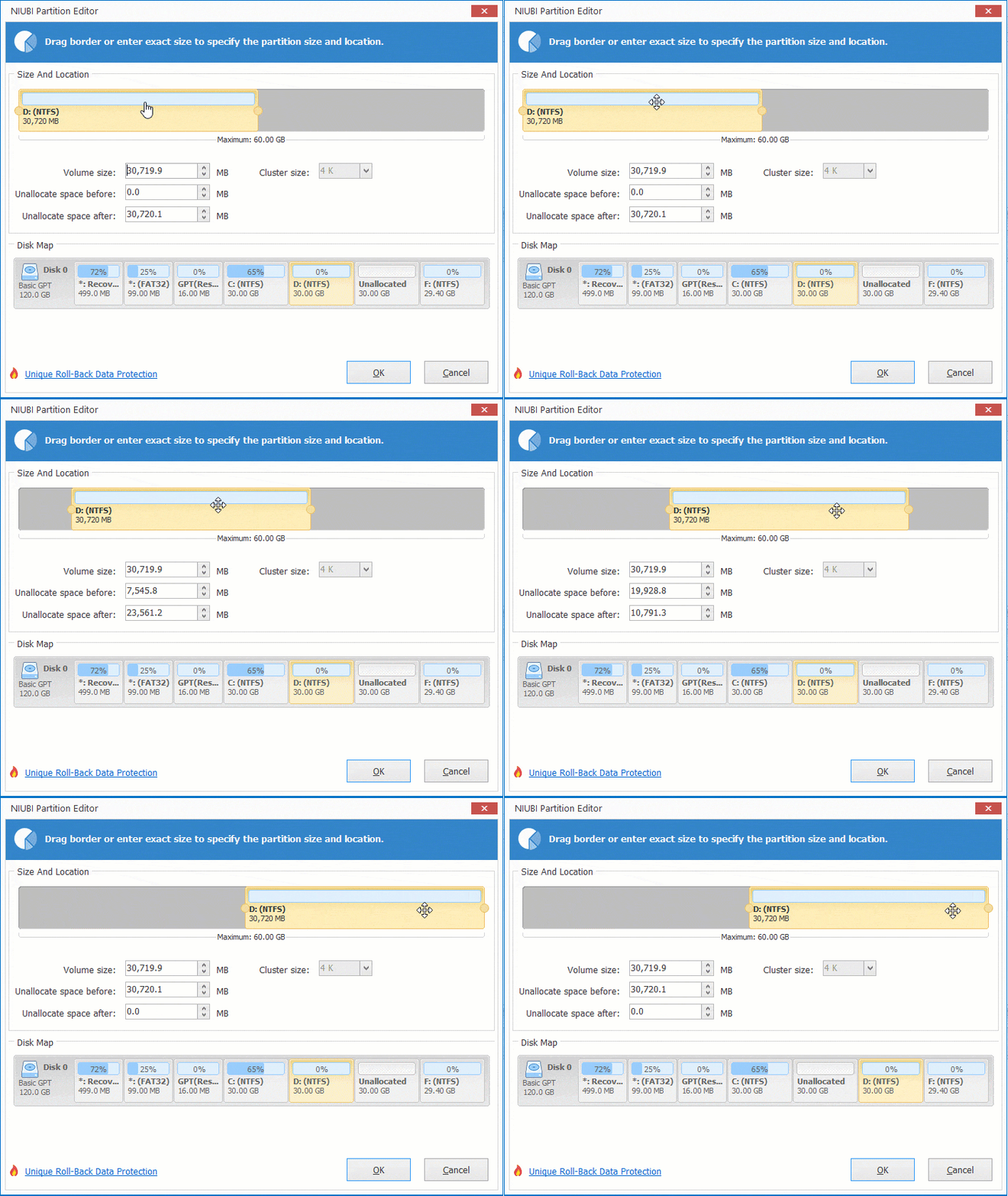
Unallocated space will be moved to the left side of D.
Step 3: Right-click the C: drive and select Resize/Move Volume; drag the right border to the right in the pop-up window.
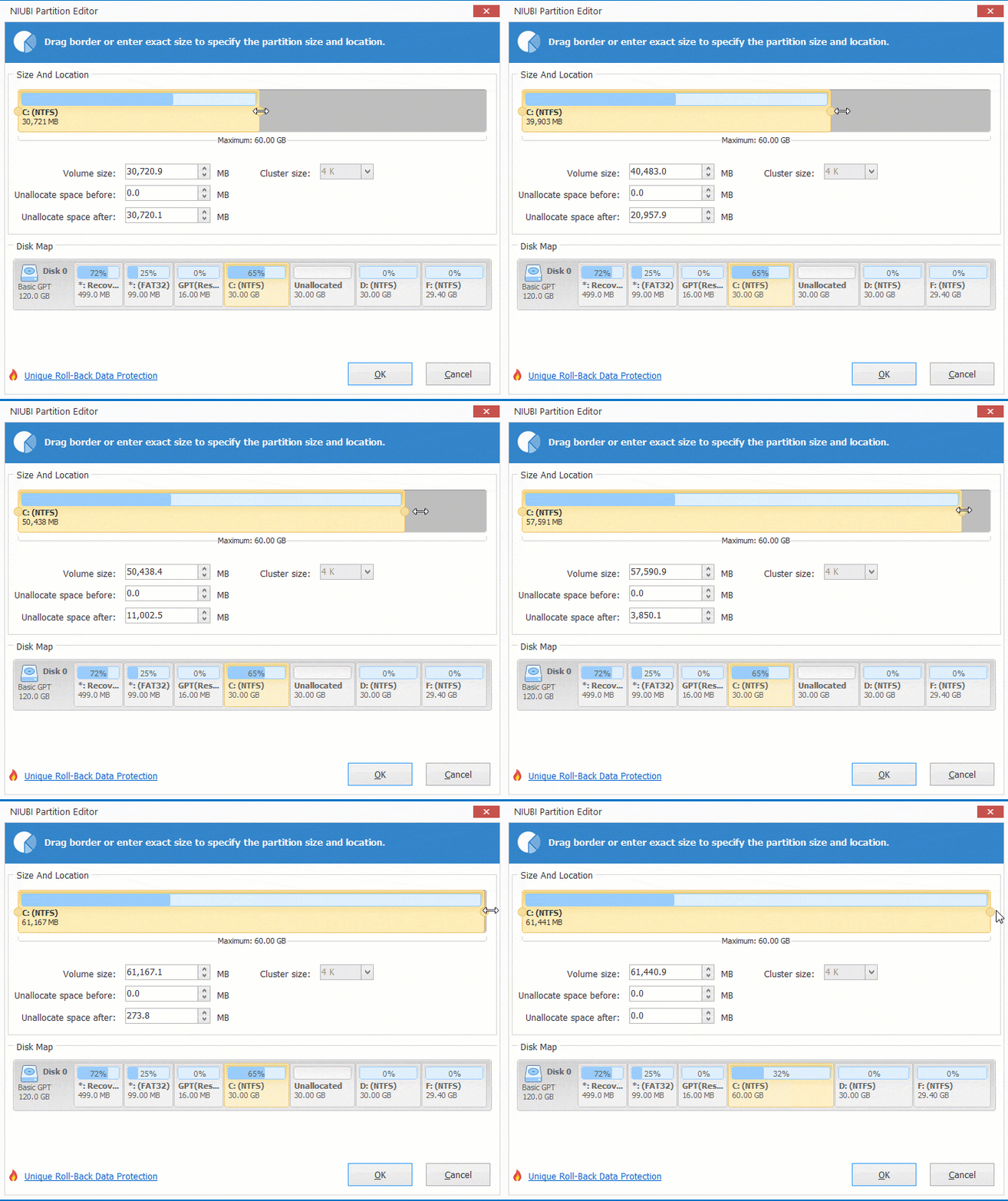
The unallocated space will be merged into the C: drive; click Apply to execute.
Besides merging partitions in Windows 11/10/8/7/Vista/XP, NIUBI Partition Editor helps you perform many other disk partition management operations such as shrinking, extending, moving, converting, defragging, copying, hiding, and wiping partitions, scanning bad sectors, and optimizing the file system.
 © 2009 - NIUBI Technology All Rights Reserved. |