
Compared with other data volumes, the C: drive is very likely to run out of space. In that case, you can increase the C: drive space by taking free space from another volume on the same disk. Then, there will be plenty of free space in the C: drive again without having to start over. It is not difficult to achieve, but first, you should use the right tool. This article introduces how to increase the C: drive space in Windows 10 without losing data.
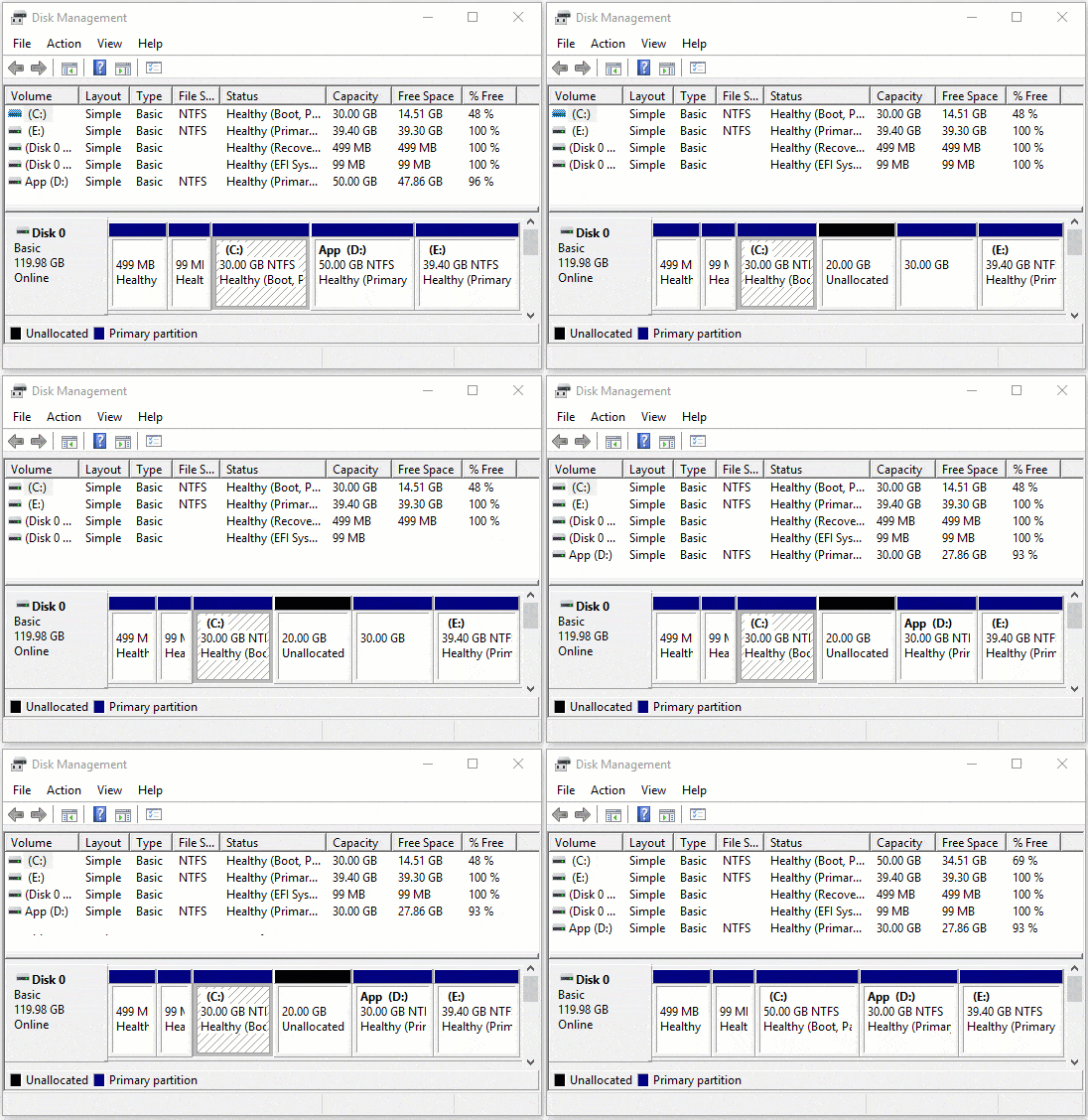
Cannot Increase the C Drive by Shrinking D in Windows 10
In fact, Windows 10 has a native Disk Management tool which has the ability to change partition size without losing data. Shrink Volume is used to decrease partition size and release unused space. Extend Volume is used to increase partition size by adding unallocated space.
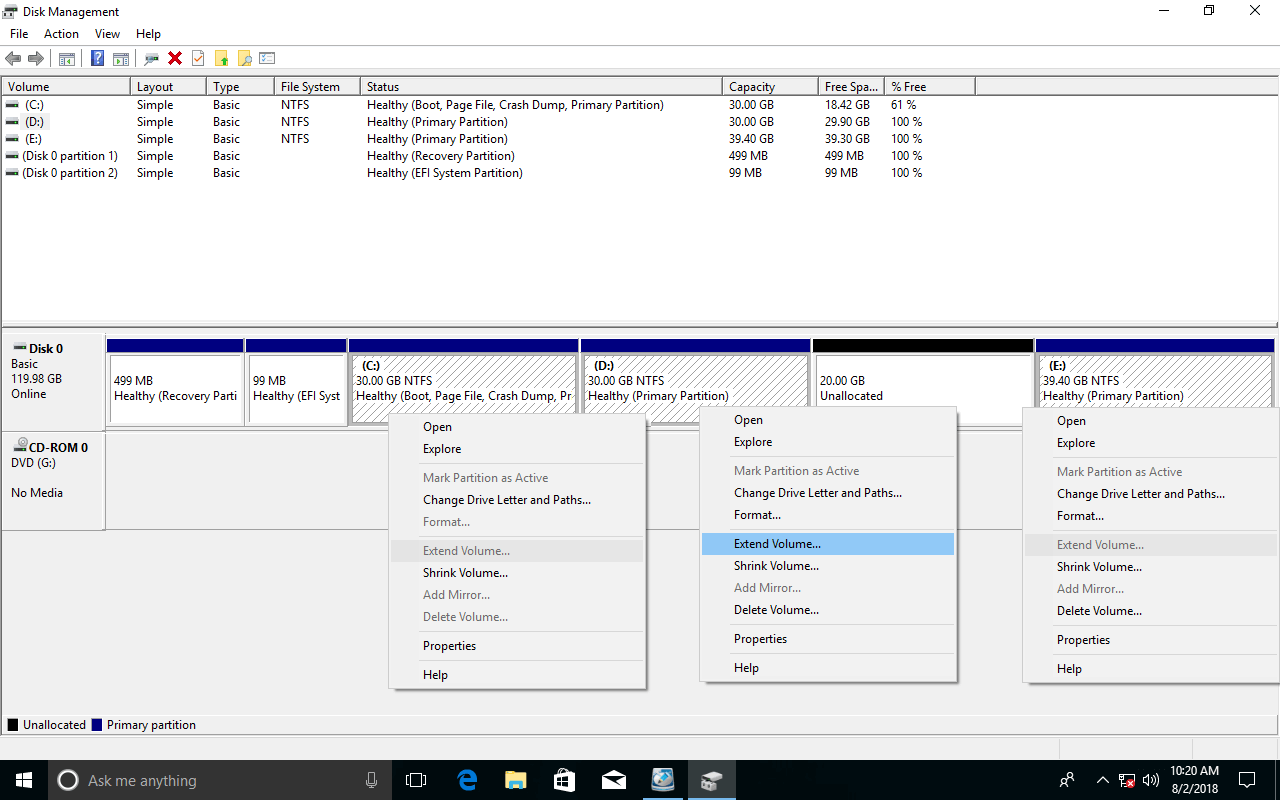
However, Shrink Volume can only help shrink an NTFS partition to create a new one, and Extend Volume can only help expand an NTFS partition by deleting the adjacent one behind it. If you want to increase the C: drive space by shrinking D via Windows 10 Disk Management, it is impossible.
Ignore this paragraph if you have no interest in this Windows built-in utility.
Extend Volume can only expand a partition when there is adjacent unallocated space on its right side, but Shrink Volume cannot generate unallocated space on the left side when shrinking another partition.
As you can see, unallocated space is generated on the right side of D after shrinking this partition. Drive C is non-adjacent to it, and E is on its right side, so Extend Volume is disabled for both drives.
If there is a tool that can generate unallocated space on the left side of D, or move the unallocated space to the end, then drives C and E can be extended.
Drag and Drop to Increase the C Drive Size in Windows 10
Compared with Windows Disk Management, NIUBI Partition Editor is much more powerful. It can generate unallocated space on either side when shrinking. Unallocated space can be merged into either adjacent partition directly. If you want to extend any non-adjacent partition, you can move the unallocated space first. All that you need to do is drag and drop on the disk map.
Download this program, and you will see all hard disks with the graphical partition layout and detailed parameters.
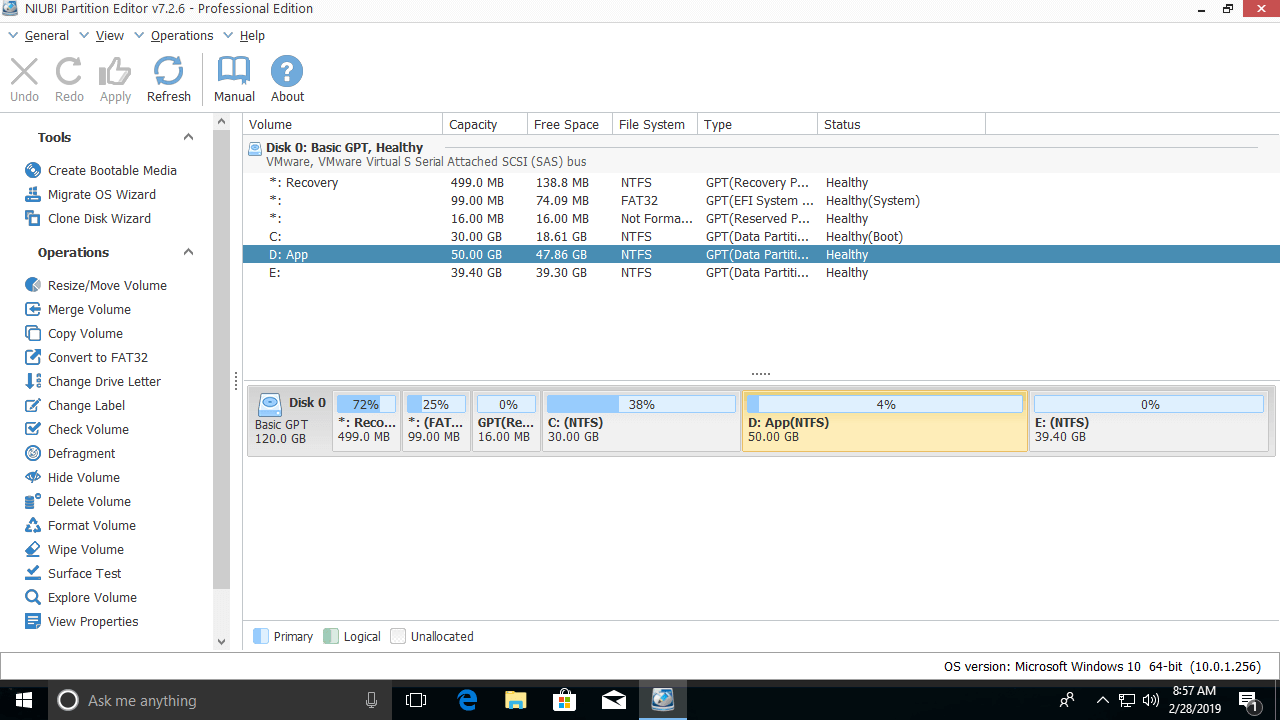
Steps to increase the C: drive space in Windows 10:
Step 1: Right-click the adjacent drive D: and select "Resize/Move Volume", then drag the left border to the right in the pop-up window.
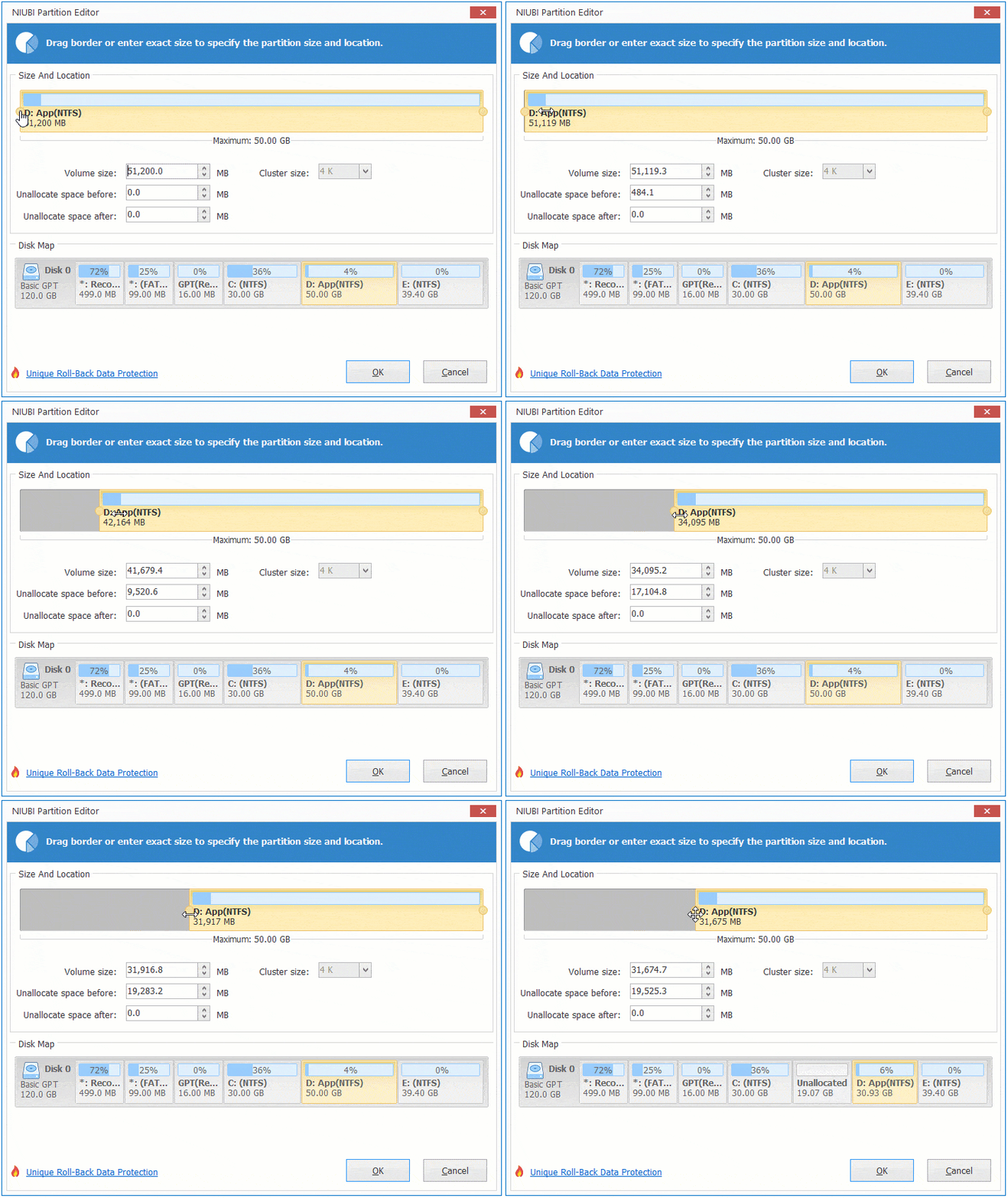
20GB of unallocated space is generated on the left side of the D: drive.
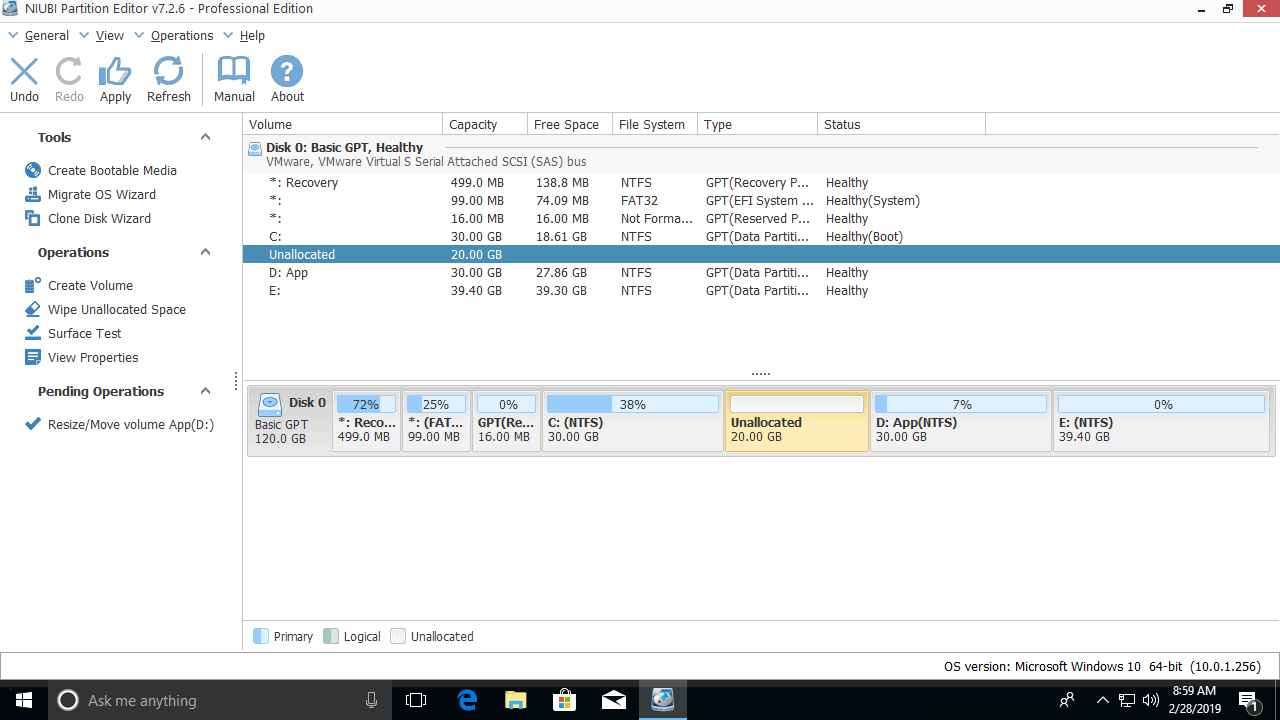
Step 2: Right-click partition C: and select "Resize/Move Volume" again, then drag the right border to the right to merge the unallocated space.
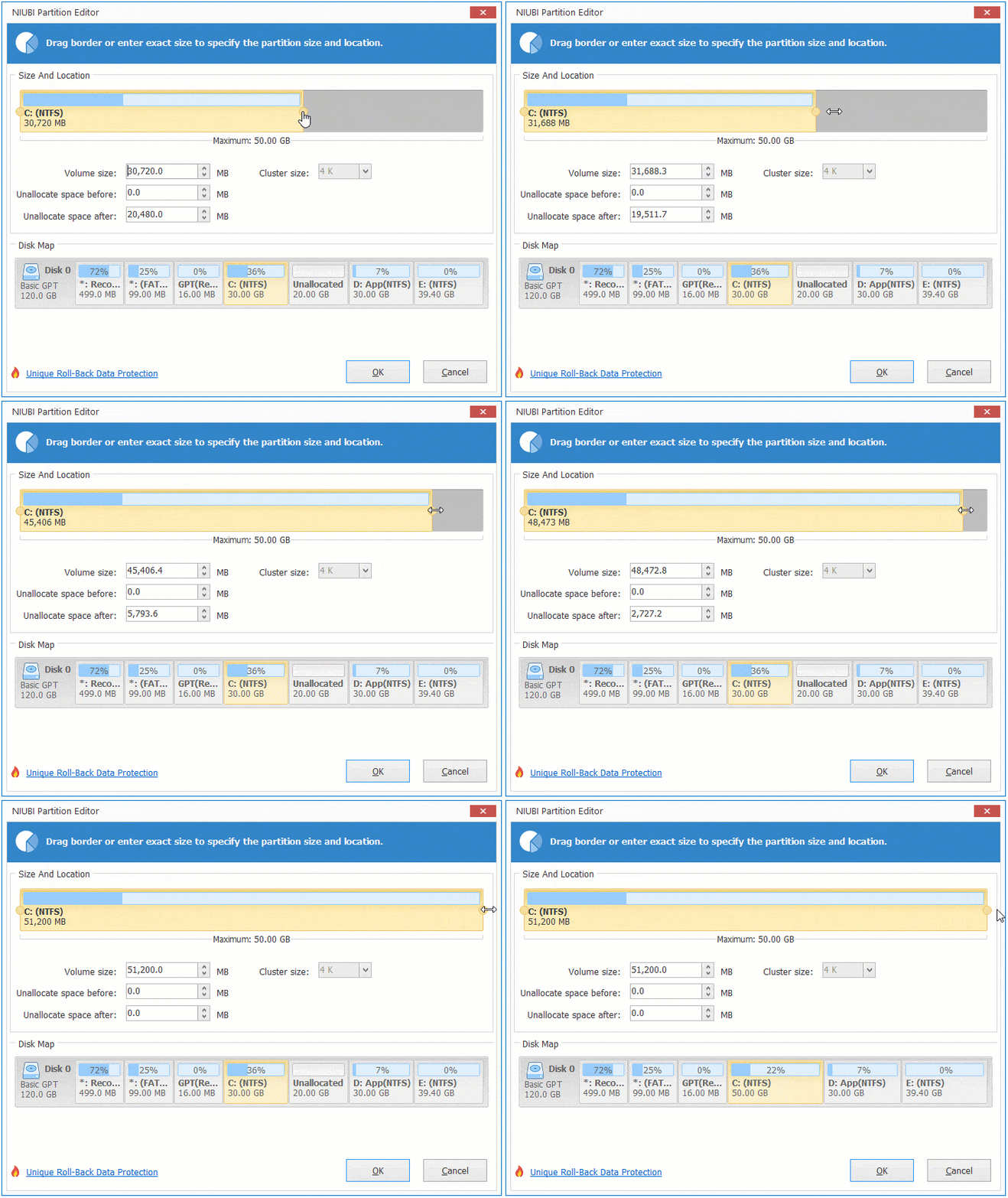
The C: drive size is increased from 30GB to 50GB.
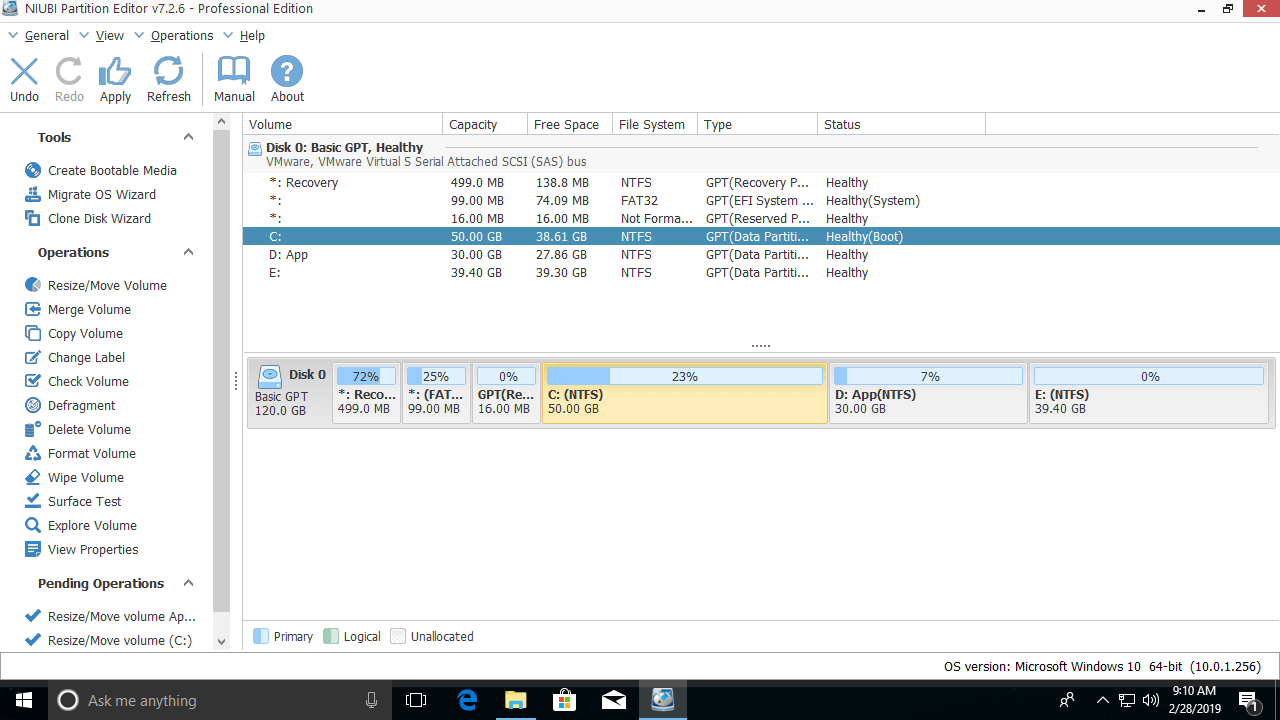
NIUBI uses virtual mode technology to avoid wrong operations; all the operations you perform will be listed as pending on the bottom left for preview, undo, and redo. Real disk partitions will not be modified until you click Apply to confirm.
If you want to increase the space of the C: drive from non-adjacent partitions such as E, it is similar. Shrink E and generate unallocated space on its left side; however, there is an additional step to move the unallocated space before expanding the C: drive:
Right-click the D: drive and select "Resize/Move Volume", then drag the middle of the partition to the right in the pop-up window.
Then, the unallocated space will be moved behind the C: drive.
If you have shrunk volume D via Windows 10 Disk Management, use the same method to move and add the unallocated space to the C: drive.

How to Increase Partition C with Another Disk
No partitioning software can increase the C: drive size by adding unused or existing unallocated space from another disk. If there are no data volumes, or not enough free space in another data volume, you may clone this disk to a larger one with NIUBI Partition Editor. The extra disk space will be shown as unallocated space at the end of this larger disk; then, you can increase the size of the C: drive by moving and merging this unallocated space.
 © 2009 - NIUBI Technology All Rights Reserved. |