
Resizing and extending a partition is an ideal solution when it runs out of disk space. However, whether this is possible and safe depends on the tool being used. To resize and extend a primary partition in Windows 10, the native Disk Management is an option, but not all partitions can be resized due to certain restrictions. This article introduces how to resize a primary partition in Windows 10 with Disk Management, and provides an alternative method when the built-in tool cannot extend a primary partition.
About Primary and Logical Partitions
- A Primary Partition is a hard disk partition where both the Windows OS and other data can be stored, and it is the only type of partition that can be set as Active. The system reserved and other partitions created by Windows must be Primary; otherwise, Windows cannot boot.
- A Logical Partition is a segment of an Extended partition that is simulated as a drive. Like a primary partition, a logical partition can be used to install Windows and save any other types of files, but it cannot be set as Active.
In a GPT style hard disk, many partitions can be created with a unique drive letter (C, D, E, etc.). In addition, all partitions on a GPT disk can only be created as Primary partitions.
The strategy for organizing partitions and files on an MBR disk differs from that of a GPT disk. There are only 4 entries in the master boot record, from which the Operating System determines the size and position of each partition. On an MBR disk:
- Only a maximum of 4 partitions can be created if they are all Primary, as all 4 entries will be assigned to these partitions.
- To create more than 4 partitions, one of the entries must be assigned to an Extended Partition.
- Similar to a Primary partition, an Extended partition is an independent unit, but it functions as a container.
- All Logical partitions must be created within the Extended partition and work like simulated drives. However, there is no noticeable difference in daily usage.

Resize Primary Partitions With Windows 10 DM
Understanding the difference between Primary and Logical partitions is important because issues may arise when extending a Primary partition with Disk Management. When a disk partition meets the requirements, it is very easy to shrink and extend a partition. However, this section focuses on the specific restrictions that might be encountered.
1. Cannot Resize a FAT32 Partition
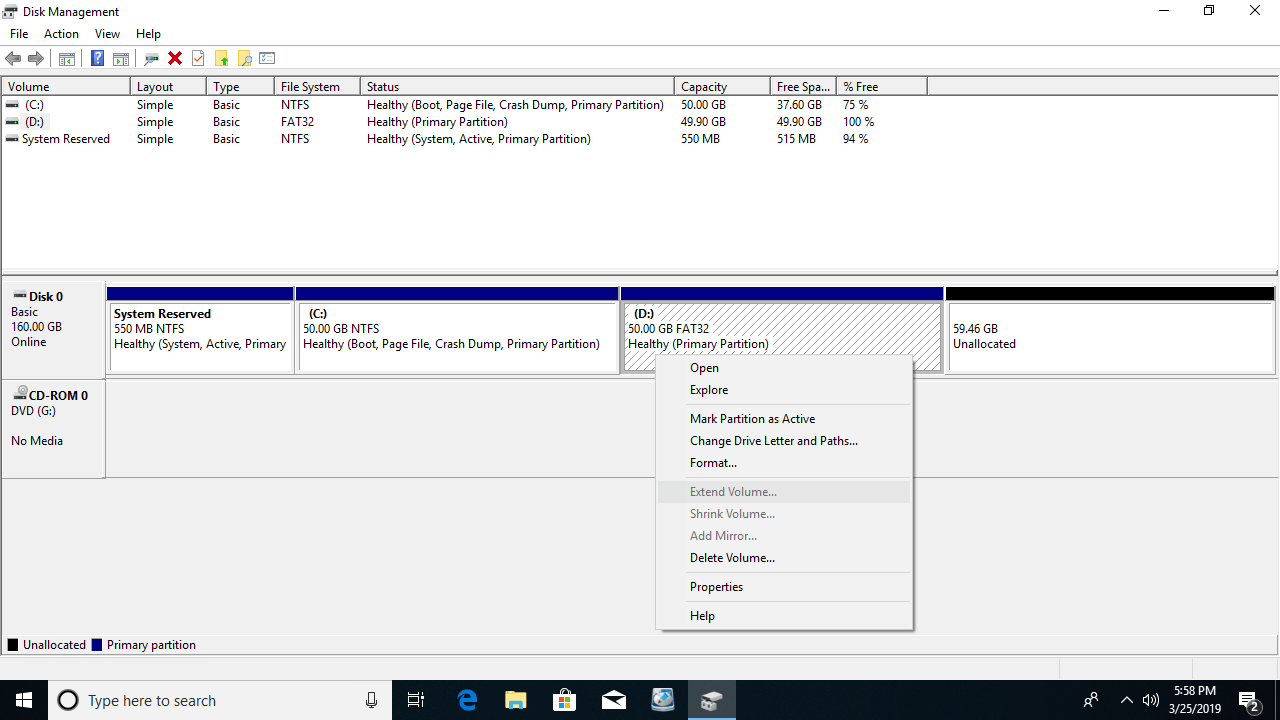
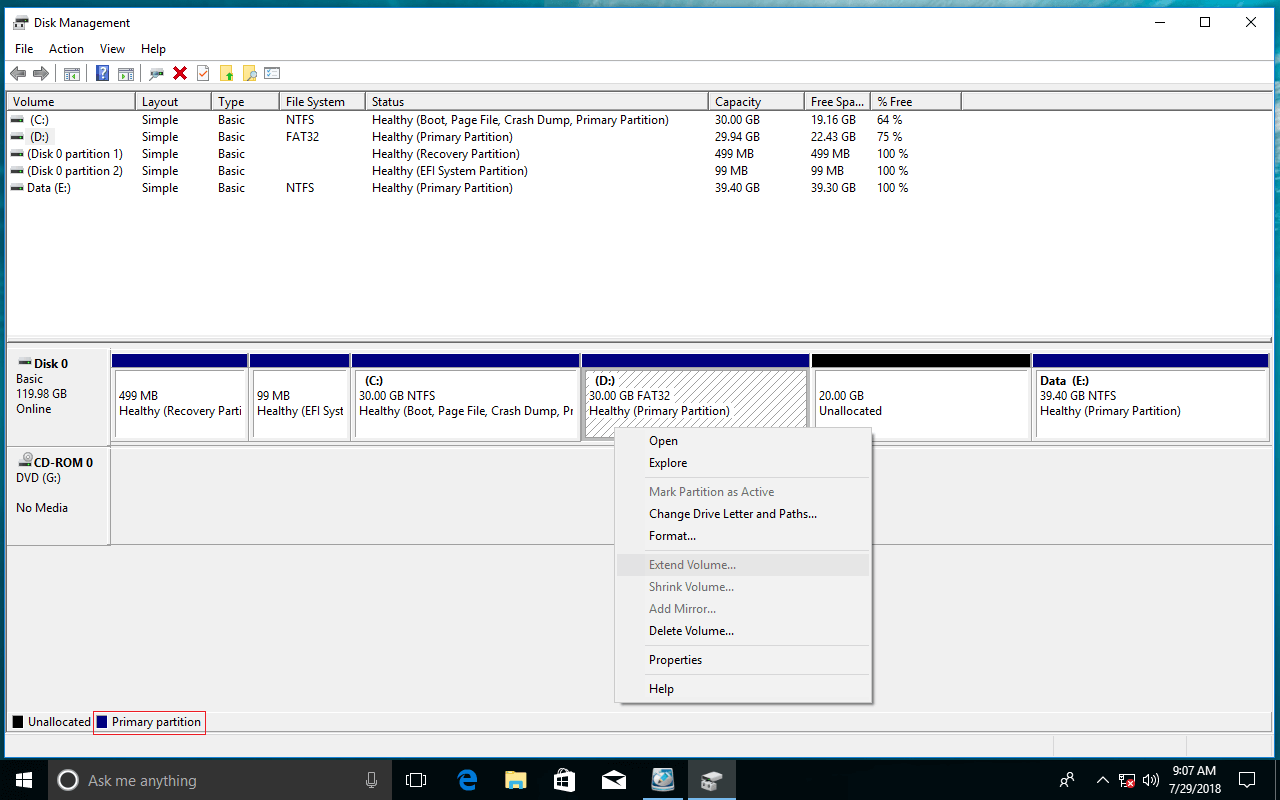
As is generally known, NTFS and FAT32 are the most common types of partitions on Windows computers, but the built-in Shrink and Extend Volume functions only support NTFS partitions.
If a drive, such as D, is a FAT32 Primary partition, both Shrink and Extend Volume will be disabled.
2. Cannot Extend C by Shrinking D
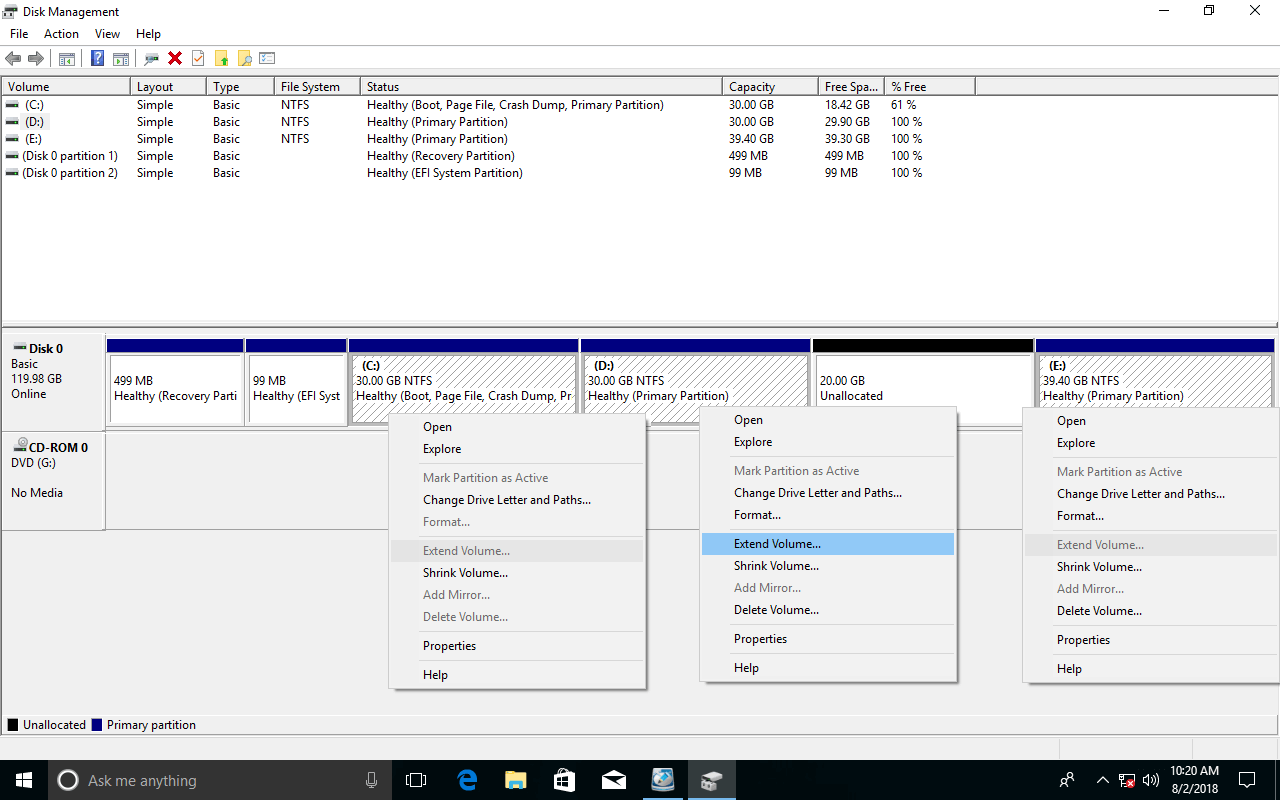
The primary restrictions of Disk Management are:
- Shrink Volume can only generate Unallocated space on the right side when shrinking a partition.
- Extend Volume can only merge Unallocated space into the contiguous partition on its left.
As illustrated, the Unallocated space is generated on the right side after shrinking D, meaning Extend Volume is disabled for both the C and E drives. This is because C is non-adjacent and E is on the right side of the Unallocated space.
3. Cannot Extend a Primary Partition by Deleting a Logical One
Since Disk Management cannot extend the C drive by shrinking D, users often attempt to delete D instead. The theory is that the disk space of D will be converted to Unallocated, enabling Extend Volume for the C drive. While this works on a GPT disk, on an MBR disk, the primary drive C cannot be extended if D is a Logical partition.
If programs are installed on drive D, do not delete it, even if it is a Primary partition. Always transfer files before deleting a partition.
To demonstrate this restriction, Logical partitions D and E were deleted. As illustrated below, the Primary partition C still cannot be extended.
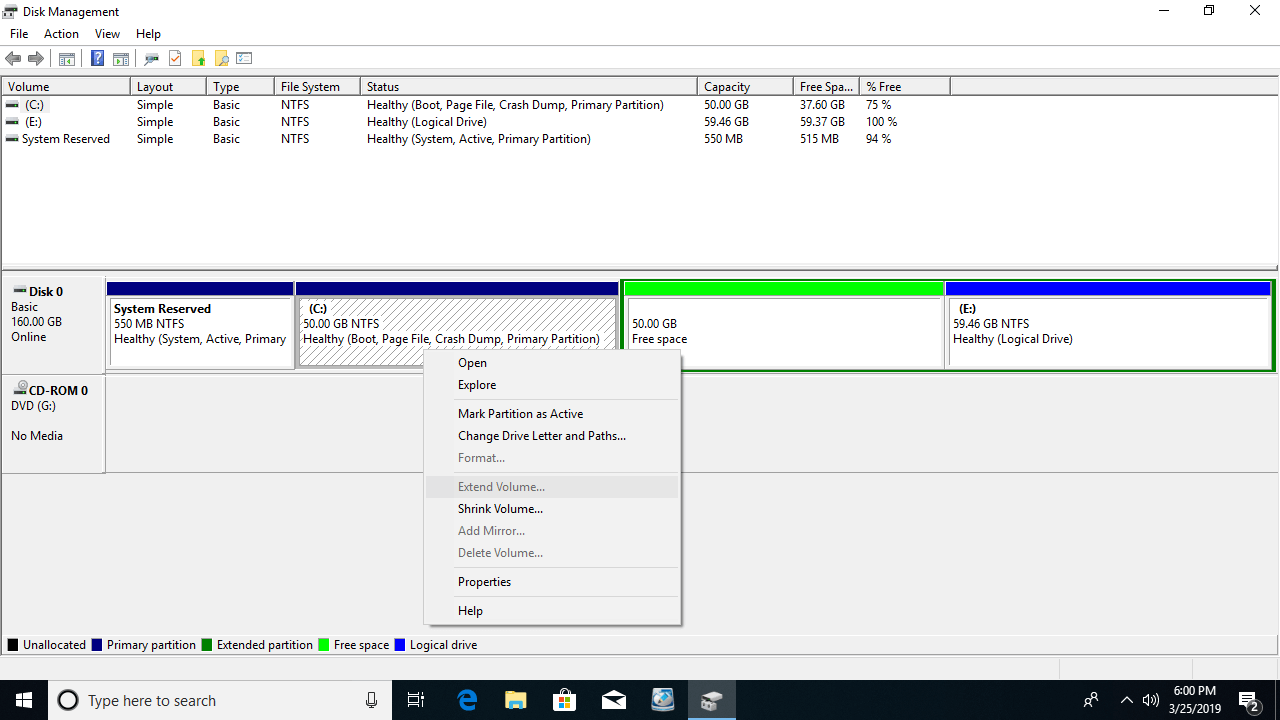
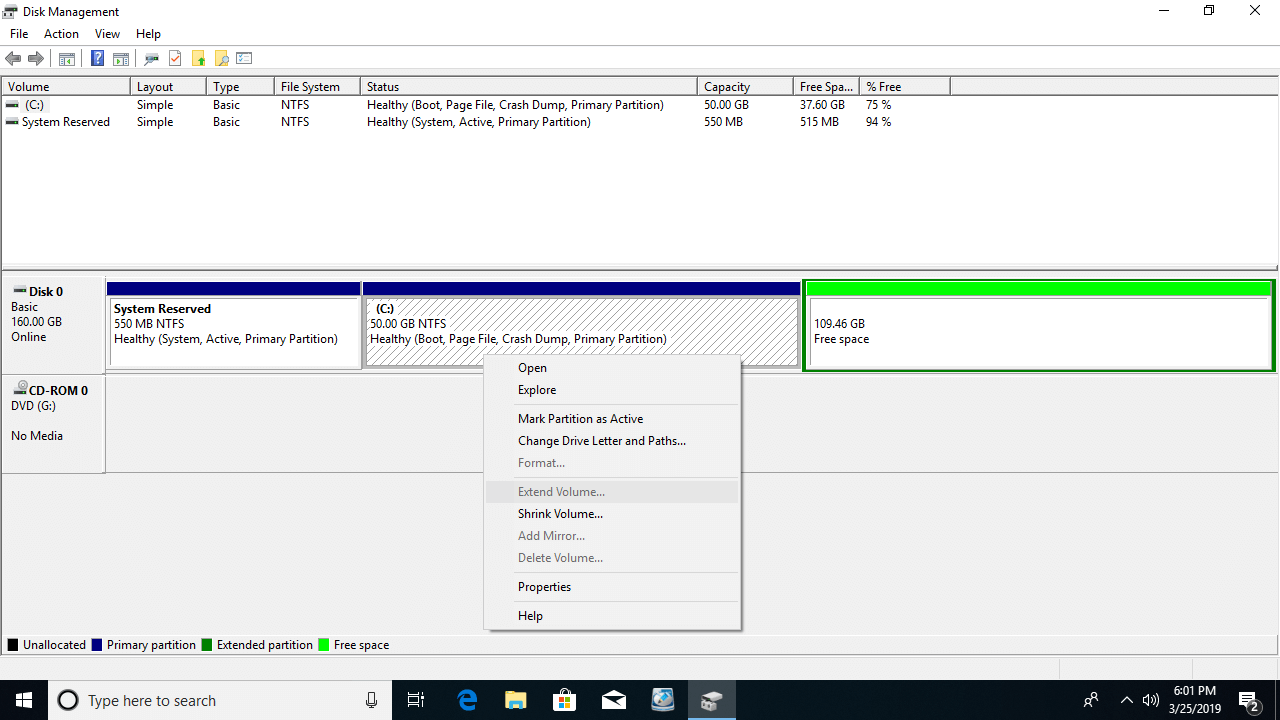
The disk space of a deleted Logical partition is converted to Free space, which cannot be merged into any Primary partition. Likewise, Unallocated space generated by deleting a Primary partition cannot be merged into any Logical partition.
Shrink and Extend Primary Partitions With a Free Editor
With NIUBI Partition Editor, these issues do not exist. There are no restrictions or differences when resizing primary or logical partitions.
Download this software and follow the steps in the video to resize and extend a Primary partition on Windows 10:
 © 2009 - NIUBI Technology All Rights Reserved. |