
As is generally known, Windows continuously installs updates; if programs are also installed on the OS partition, it will become full in a short time. Fortunately, the OS partition can be resized and extended without losing data. If a new Windows 10 computer has a C drive that is built too large, the OS partition can be shrunk to create new volumes or extend other ones. This article introduces how to shrink and extend the OS partition in Windows 10 using the built-in Disk Management and a third-party partition tool.
Shrink and Extend the OS Partition in Windows 10 With Disk Management
To shrink the OS partition:
- Right-click the Windows flag on the bottom left of the screen and select Disk Management.
- Right-click the OS partition (C:) and select Shrink Volume.
- Enter an amount in MB (1024MB=1GB) and click Shrink.
To extend the OS partition:
There must be contiguous Unallocated space on its right side; otherwise, this method is invalid.
- Right-click the OS partition and select Extend Volume.
- Simply click Next until Finish in the pop-up window.
It is easy and fast to resize the OS partition with Windows 10 Disk Management, but NOT all partitions can be resized because of some limitations.
Limitations of Resizing the OS Partition With Disk Management
First, it is important to note that only NTFS partitions are supported by the Shrink and Extend Volume functions.
When shrinking a volume:
- Unallocated space cannot be generated on the left side.
- Only a small amount of space can be shrunk if there are unmovable files.
- A volume cannot be shrunk if there is a file system error or if the remaining free space changes before clicking Shrink.
When extending a volume:
- A volume cannot be extended with non-adjacent Unallocated space.
- A partition cannot be extended with Unallocated space on its left side.
- The OS partition cannot be extended by shrinking any data volumes.
- The OS partition cannot be shrunk to extend another data volume.
To resize the OS volume in Windows 10, it is better to run professional disk partition software such as NIUBI Partition Editor, which has a free edition for home users.
Download and install NIUBI Partition Editor; all disks with their graphical configuration and detailed parameters will be displayed on the right upon launching.
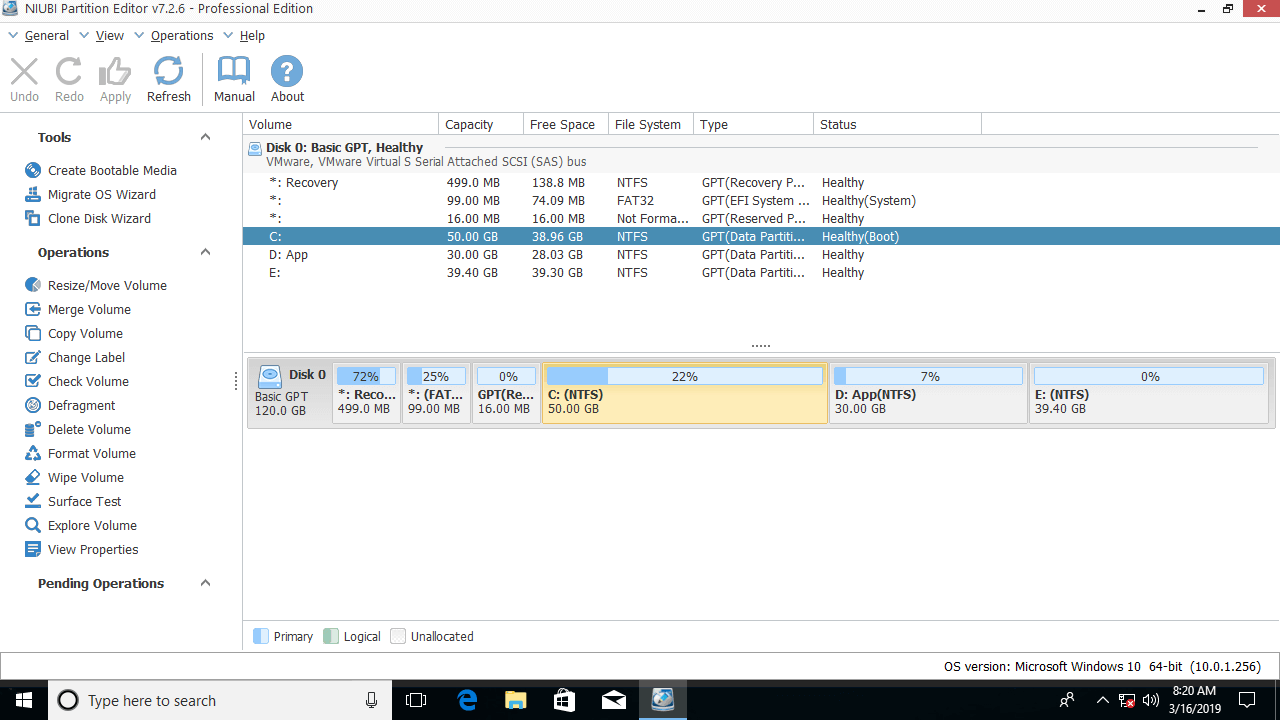
Unavailable operations for the selected disk or partition will be hidden.
How to Shrink the OS Partition on Windows 10 to Extend D
Step 1: Right-click the C drive and select "Resize/Move Volume", then drag the right border to the left in the pop-up window. (Or enter an amount in "Unallocated space after".)

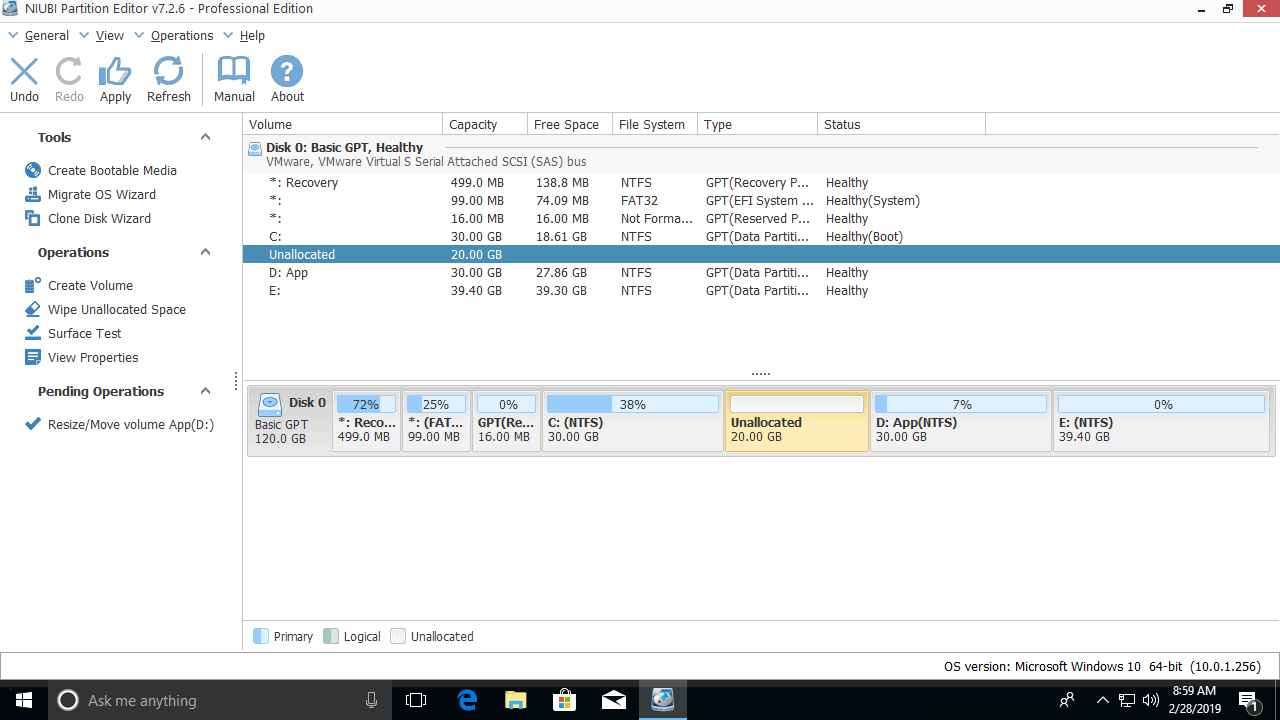
20GB of unused space is taken from C and converted to Unallocated space on the right side.
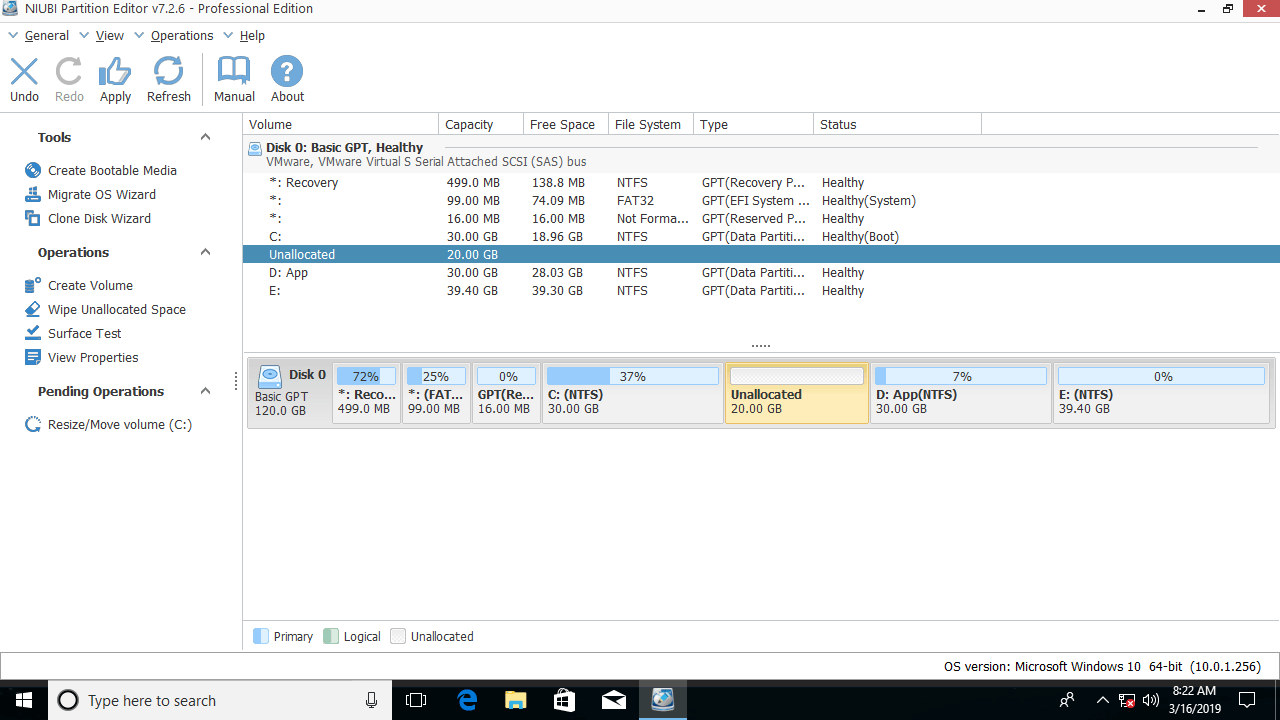
Step 2: Right-click drive D and select "Resize/Move Volume" again, then drag the left border to the left to merge the Unallocated space.

The D drive is extended from 30GB to 50GB.
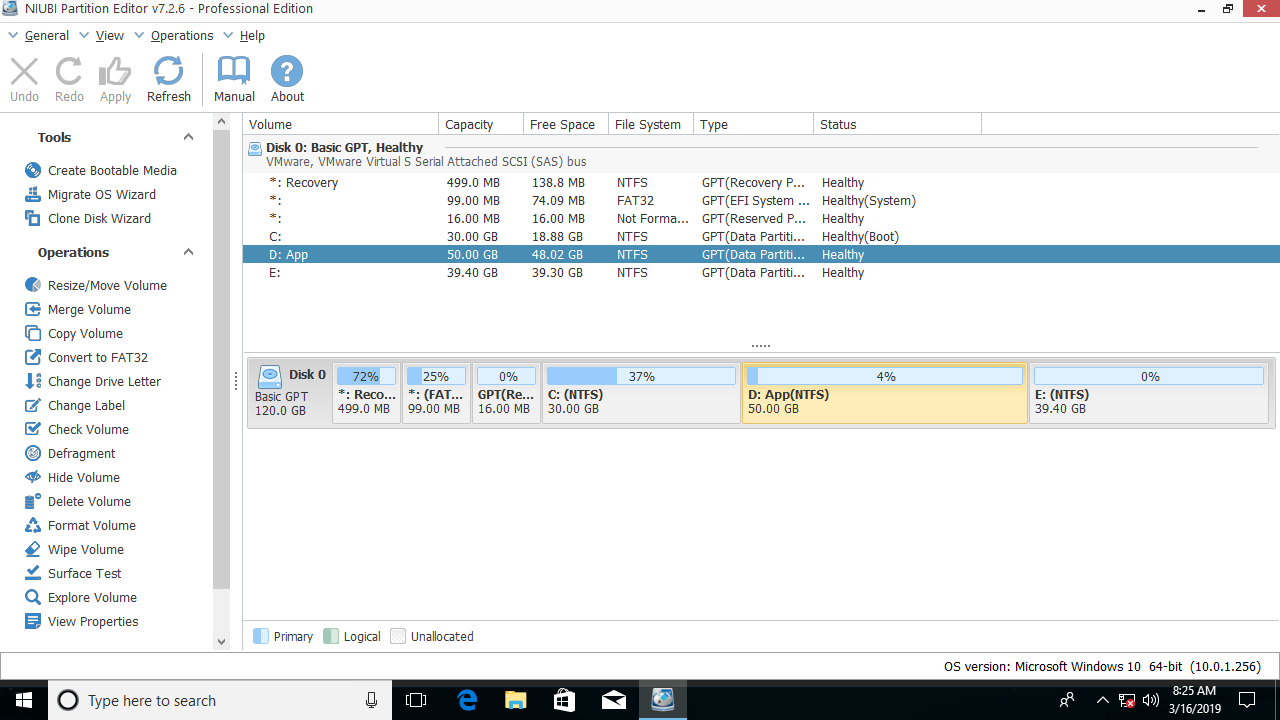
Click Apply on the top left to execute. (All operations before clicking Apply only work in virtual mode.)
How to Extend the OS Partition in Windows 10 by Shrinking D
Step 1: Right-click the adjacent drive D and select "Resize/Move Volume", then drag the left border to the right in the pop-up window.
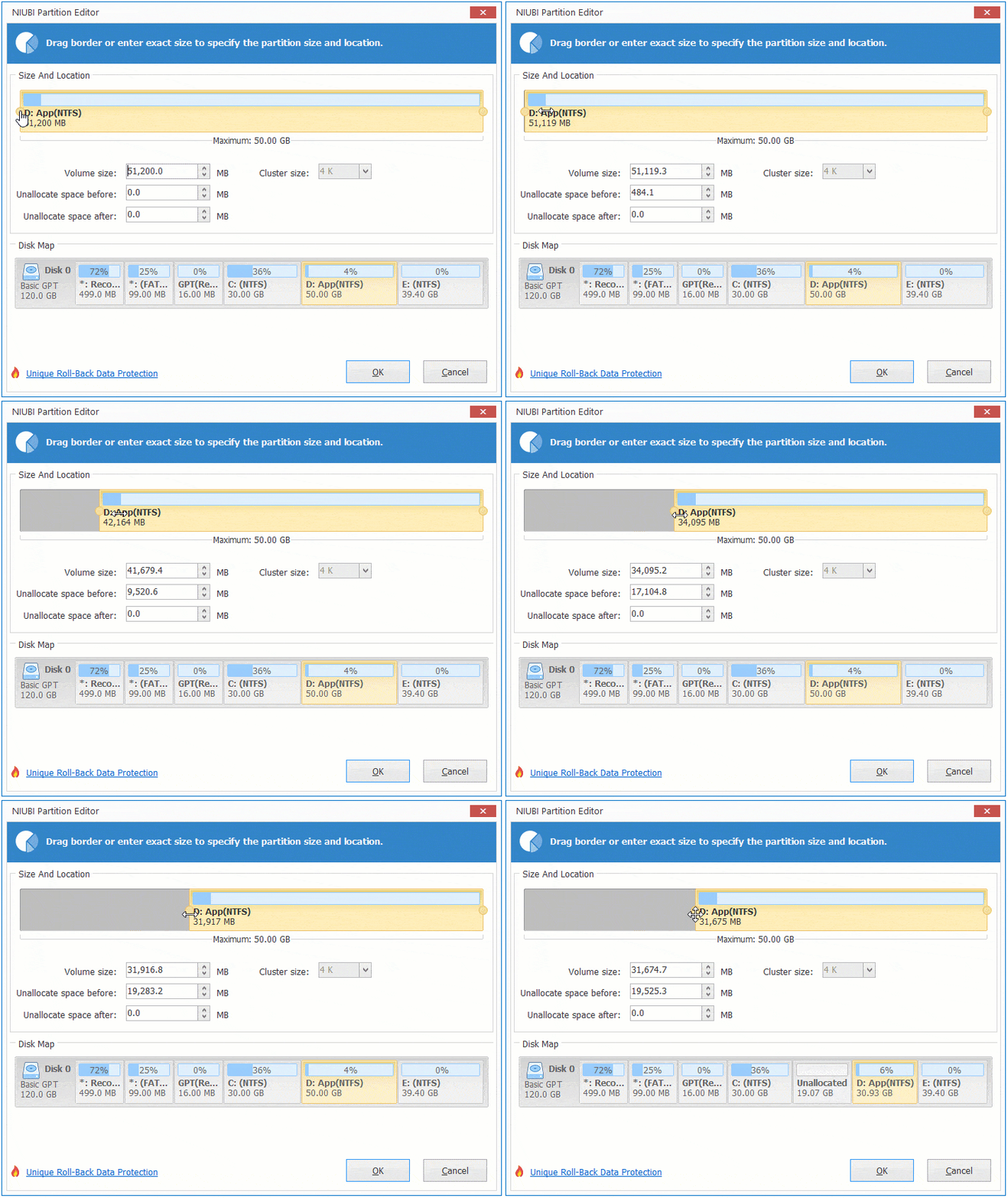
Partition D is shrunk, and Unallocated space is generated on its left side.
Step 2: Right-click partition C and select "Resize/Move Volume" again, then drag the right border to the right to merge the Unallocated space.
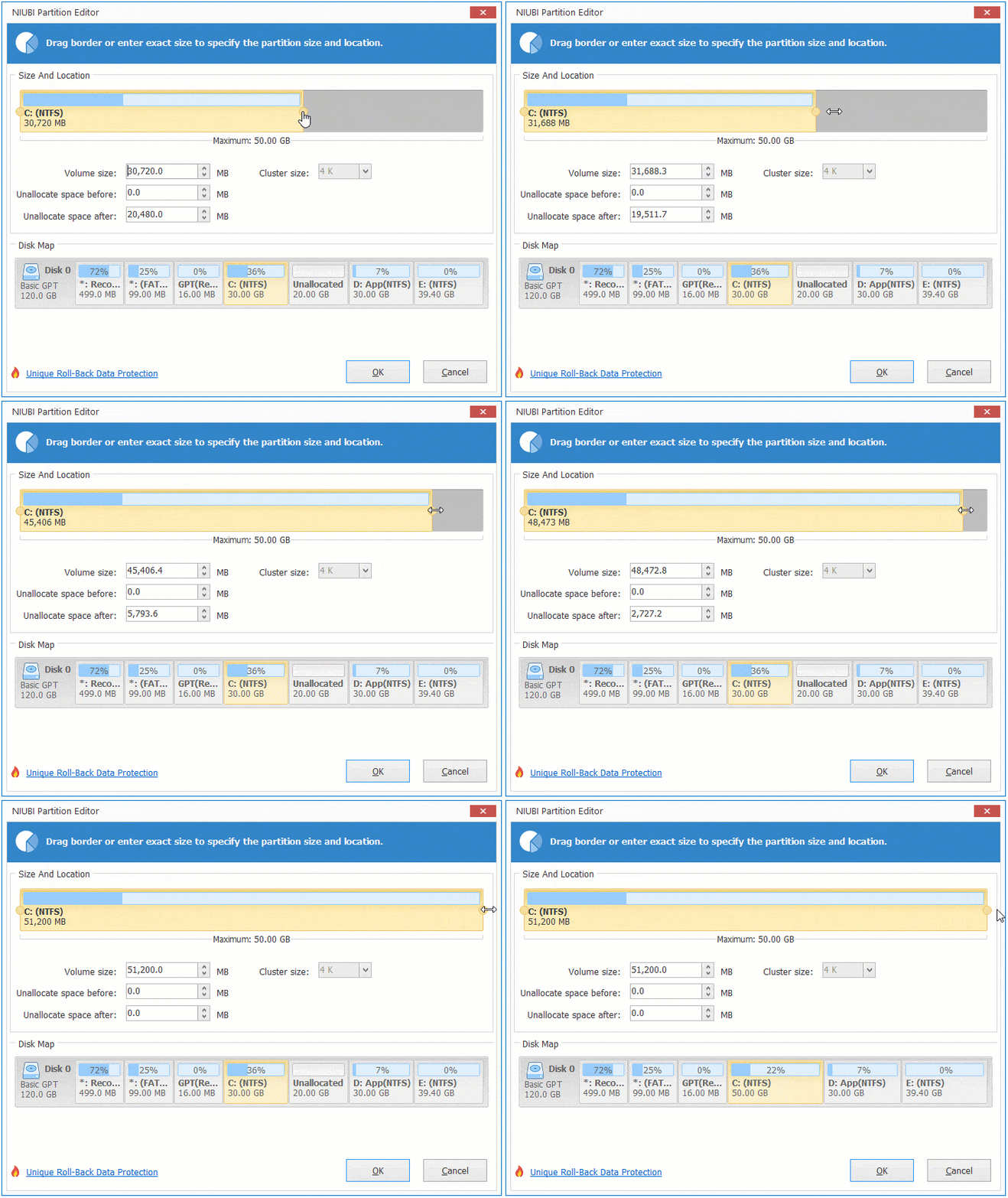
The OS partition is extended.
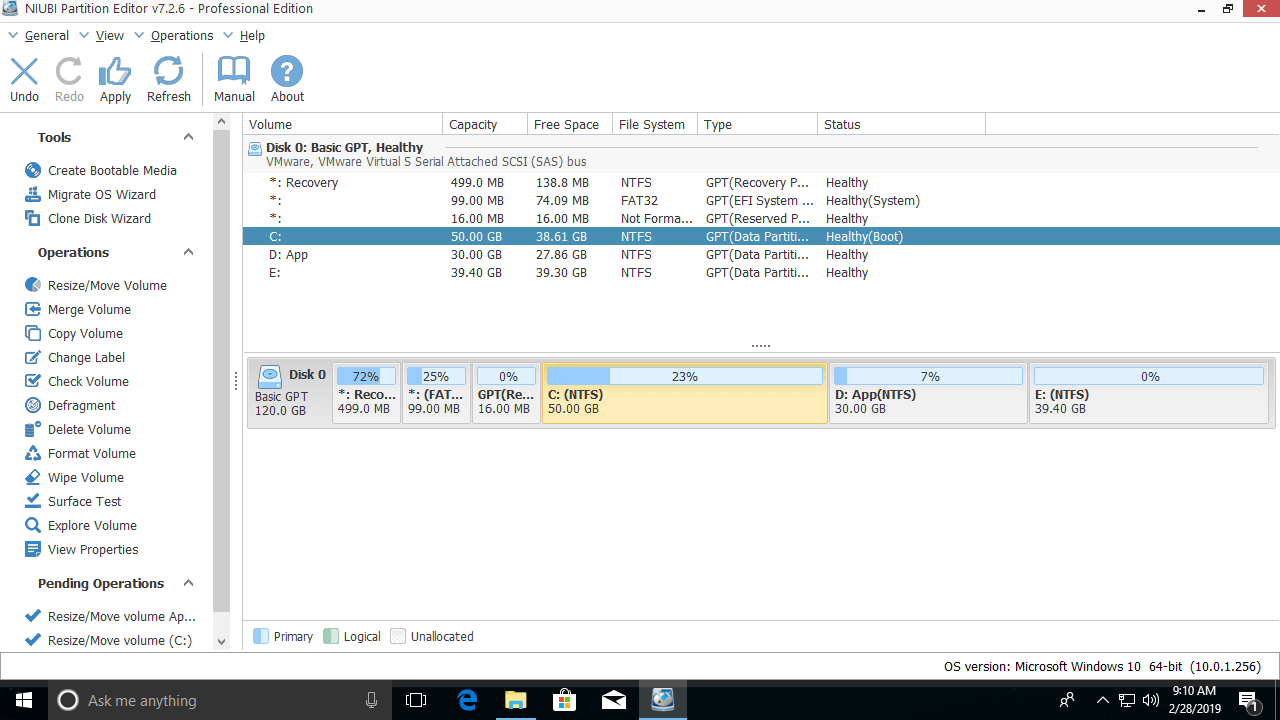
By dragging the border towards the other side, a volume can be shrunk, or extended by merging contiguous Unallocated space. To shrink the non-adjacent drive E to extend the OS volume, an additional step is required to move the Unallocated space before extending.
To do this, right-click drive D and select "Resize/Move Volume", then drag the middle of this partition to the right in the pop-up window:

The Unallocated space will then be moved next to the C drive from the right side of D.
If there is no other partition on the same disk, the OS partition cannot be extended, because no partitioning software can extend a partition using space from a separate disk. However, the disk can be cloned to a larger one with NIUBI Partition Editor; during the cloning process, the OS drive can be extended with the extra disk space.
 © 2009 - NIUBI Technology All Rights Reserved. |