
A hard disk drive is an important component of a computer; it is used to store all kinds of files temporarily or permanently. Nowadays, many people insert at least two hard disks into their Windows 10 laptops or desktops. They use one SSD for the operating system and programs for better performance, and one traditional mechanical disk to save data and files. No matter whether you use a laptop or desktop, an SSD, a traditional disk, or even RAID arrays, you need a reliable disk partition tool to manage these devices. This article introduces the built-in tools in Windows 10 and the best free disk partition software.
Command-Line Disk Partition Tool - Diskpart
DiskPart is a Windows built-in tool that runs from the command prompt. You can perform many disk and partition management operations, such as creating, deleting, formatting, converting, shrinking, and extending volumes, etc.
Press Windows and R on the keyboard to launch Run, type diskpart, and press Enter; then, the diskpart command prompt window will be opened.
Input "?" and press Enter, and you will see all available commands.
For most Windows 10 users, Diskpart is not the right partition tool because:
- The command interface is not user-friendly.
- It takes a long time to learn how to use each command.
- Some commands have limitations, for example: you cannot extend a volume by shrinking another one.

Another Built-in Disk Partition Tool - Disk Management
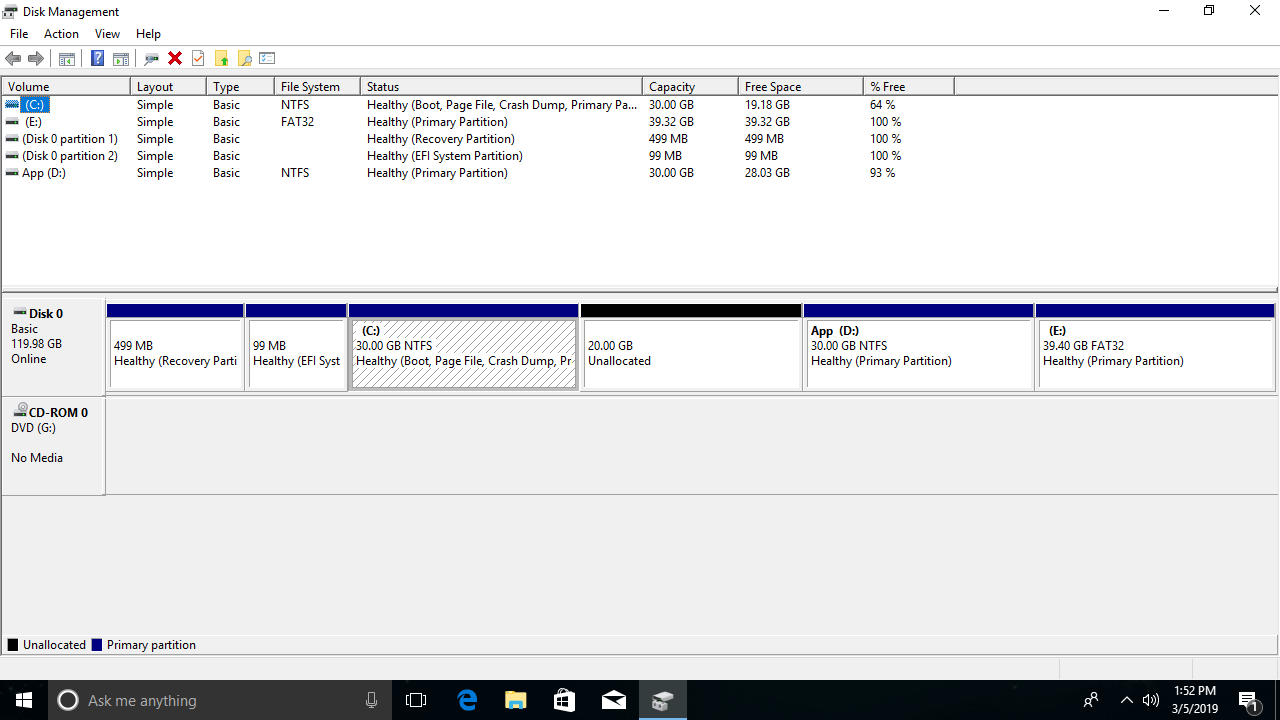
Disk Management is another Windows built-in utility first introduced in Windows XP. It has the same ability as the Diskpart command but works with a graphical interface.
It displays all hard disks with their partition structure, and detailed parameters of each partition including the type, file system, status, capacity, free space, usage percentage, etc.
Windows 10 Disk Management is inherited from Windows Vista, which improved the ability by adding the new Shrink and Extend Volume functions.
However, all functions and the interface remain the same, with no further improvements for so many years.
Disk Management is much easier to use, but the same as Diskpart, some functions have limitations. In addition, this disk partition tool lacks some useful features.
The Best Free Partition Tool for Windows 10/11
The same as other Windows native utilities, Diskpart and the Disk Management tool have some basic abilities, but they are not excellent. To manage disks and partitions better, you had better run third-party professional software.
However, there is one important point you should know. Unlike read-only programs, disk partition software will modify the parameters more or less. An unreliable partition tool is very likely to cause system, partition, and data damage.
Better than other Windows disk partition tools, NIUBI Partition Editor provides unique technologies to ensure everything remains intact, for example:
- Hot Clone - Clone disk partitions in Windows for backup, migration, and fast disk swapping.
- Virtual Mode - All operations are listed as pending for preview, and real disk partitions won't be modified until you click "Apply" to confirm.
- Cancel-at-Will - If you applied incorrect operations, you can safely cancel the ongoing operations at any stage before completion.
- 1 Second Rollback - If any error is detected while resizing partitions, it can immediately and automatically revert the disk partitions to their previous state.
In addition, unlike other free disk partition software that bundles plugins or disable many functions, the NIUBI Partition Editor free edition is 100% clean and free for home users.
Download it and you will see 4 blocks in the main window.
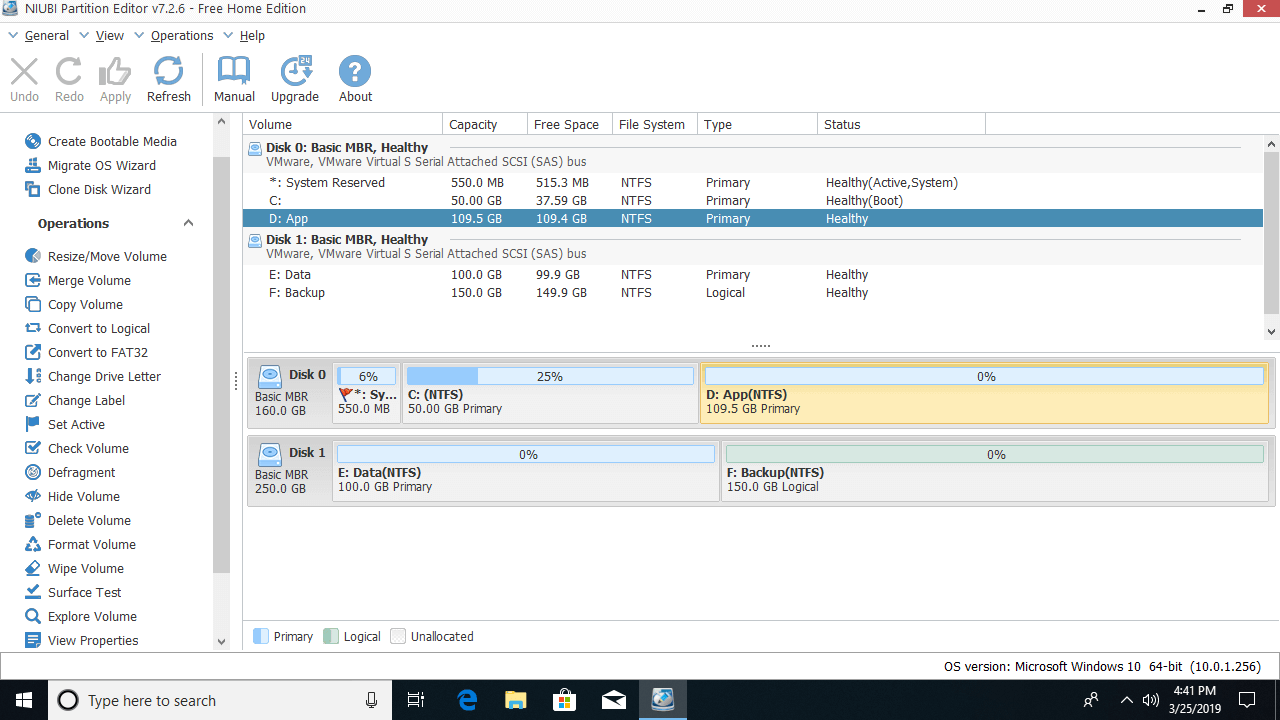
- Single partitions with their detailed parameters.
- All hard disks with partition structure.
- Available operations to the selected disk or partition; unavailable operations are hidden automatically.
- Refresh to load the newest disk partition info, undo to cancel pending operations, redo to repeat, or click Apply to modify the real disk partitions.
This disk partition tool helps shrink, extend, move, and merge partitions to optimize disk space. It can also convert disk partition types, clone disk partitions to migrate the operating system and data, optimize file systems, and defragment partitions to improve computer performance. Additional features include creating, deleting, formatting, hiding, setting partitions as Active, and wiping partitions, as well as scanning for bad sectors and much more.
 © 2009 - NIUBI Technology All Rights Reserved. |