
To help manage disk partitions, Microsoft provides the Diskpart command and Disk Management. Both tools have the ability to shrink and extend an allocated partition without losing data. However, they only work under specific conditions. The major shortage is that they cannot extend a partition by shrinking another one. Diskpart works in the command prompt, and it is not suitable for many users. This article introduces why Disk Management cannot extend a partition in Windows 10/8/7 and what to do when you are unable to extend a volume in Windows 10/8/7.
Reason - Why Can't Extend a Volume in Windows 10 Disk Management
GPT and MBR are common disk styles in Windows computers. You will not find any differences in daily usage if you just read and write files to the computer. However, you will find many differences when shrinking and extending disk partitions.
To check your disk type: Press Windows and X on the keyboard and select Disk Management, right-click Disk 0 (or any other) and select "Properties". Switch to the "Volumes" tab in the pop-up window.
Reason 1: Unallocated Space Isn't Adjacent
This is the most common reason why you cannot extend partition C in Windows 10/8/7 after shrinking D. This could happen on both GPT and MBR disks.
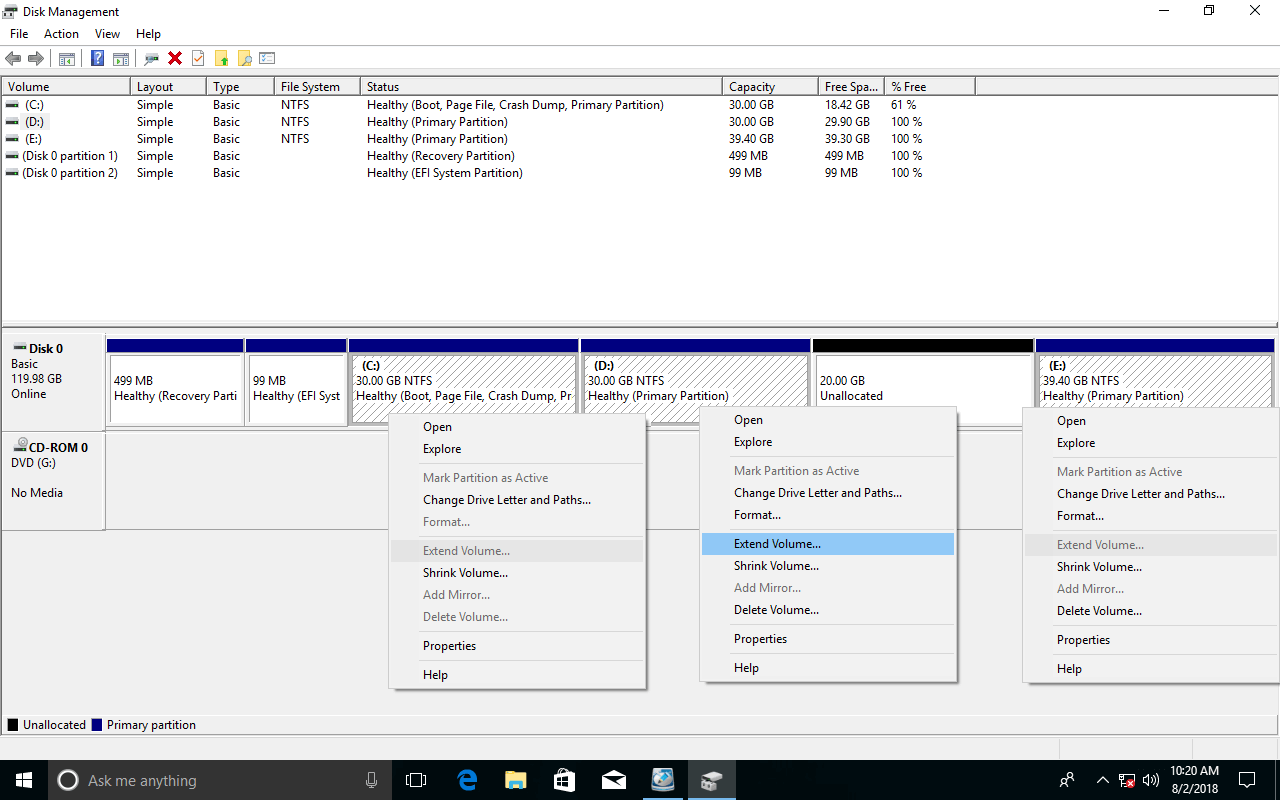
- The "Shrink Volume" function can only generate unallocated space on the right side when shrinking a partition.
- "Extend Volume" can only merge unallocated space into the adjacent partition on the left.
As shown in the screenshot, after shrinking the D: drive, "Extend Volume" is disabled for both the C: and E: drives. This is because C is non-adjacent and E is on the right side of this unallocated space.
Reason 2: Only NTFS Partitions Can Be Resized
This could happen on both GPT and MBR disks.
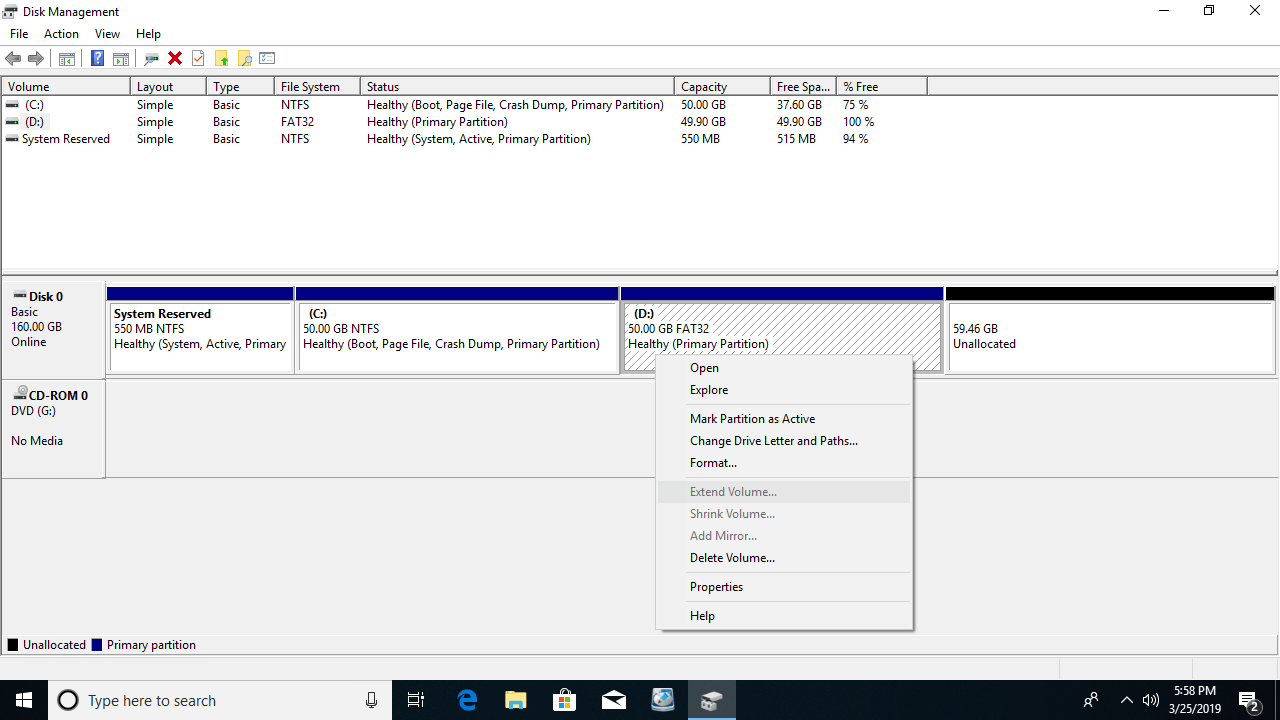
As shown in the screenshot, although there is 59.46GB of unallocated space adjacent to and on the right of the D: drive, Extend Volume is still grayed out because D is formatted with the FAT32 file system.
Reason 3: Partitions to Be Deleted and Extended Are Different

All partitions are primary on a GPT disk, but there is a maximum of 4 primary partitions, or 3 primary partitions plus an extended partition on an MBR disk. An extended partition works like a container, and all logical drives must reside continuously within it.
After deleting any primary partition, the disk space will be converted to "unallocated", but a logical drive will be converted to "free space" after deletion. With Disk Management, unallocated space cannot be merged into any logical drive, and free space cannot be merged into any primary partition.
To demonstrate this limitation, after deleting volume D and then E, the system partition C still cannot be extended.
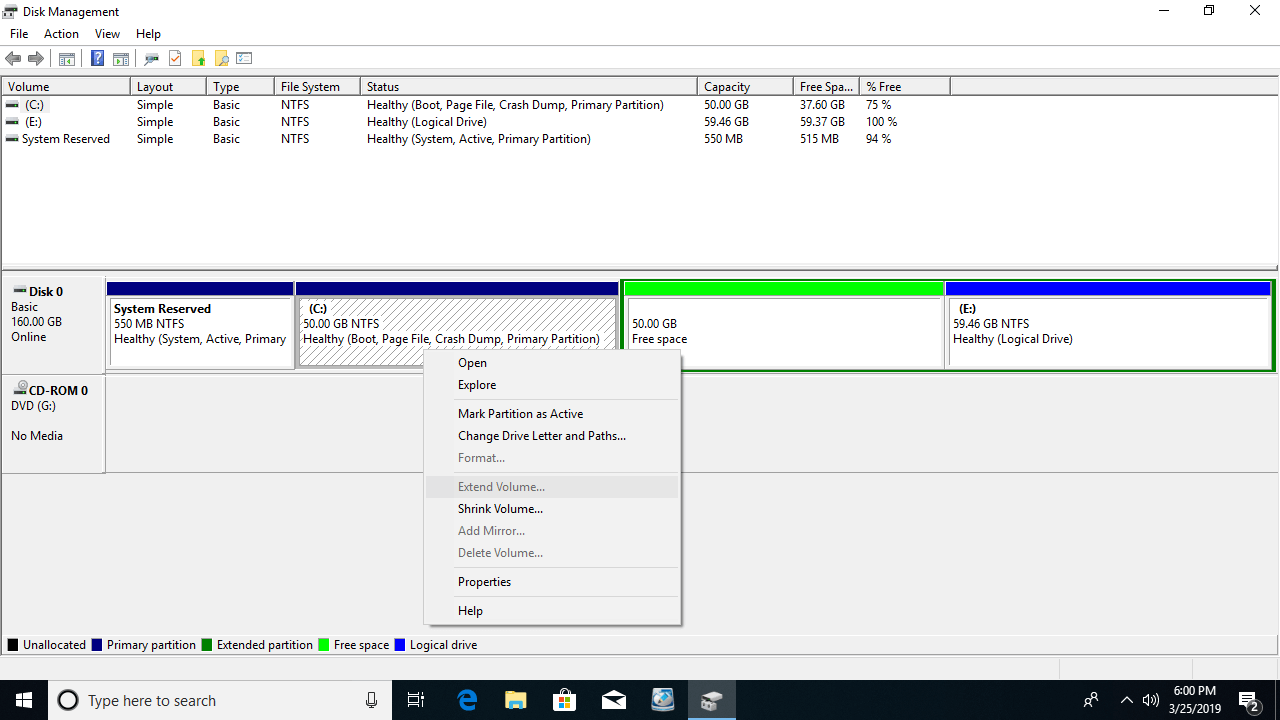
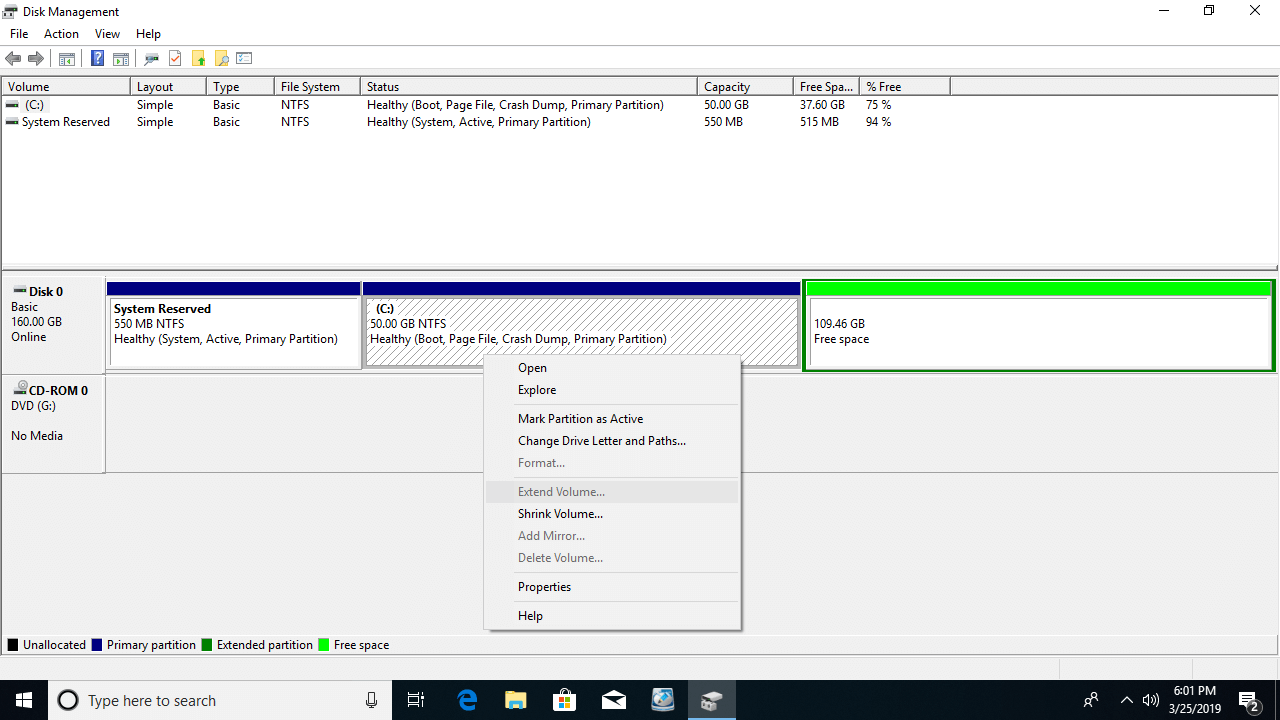
If the adjacent partition D is a logical drive, to enable "Extend Volume" for the C: drive in Disk Management, you must delete D, then delete all other logical drives, and finally delete the extended partition. Obviously, nobody wants to do that.
What to Do When Unable to Extend a Partition in Windows 10
The methods are different; follow the corresponding method according to your own disk partition configuration. If you want to extend the C: drive, move D to the right with NIUBI Partition Editor. The unallocated space will be moved to the left at the same time, and then the C: drive can be extended easily with the adjacent unallocated space.
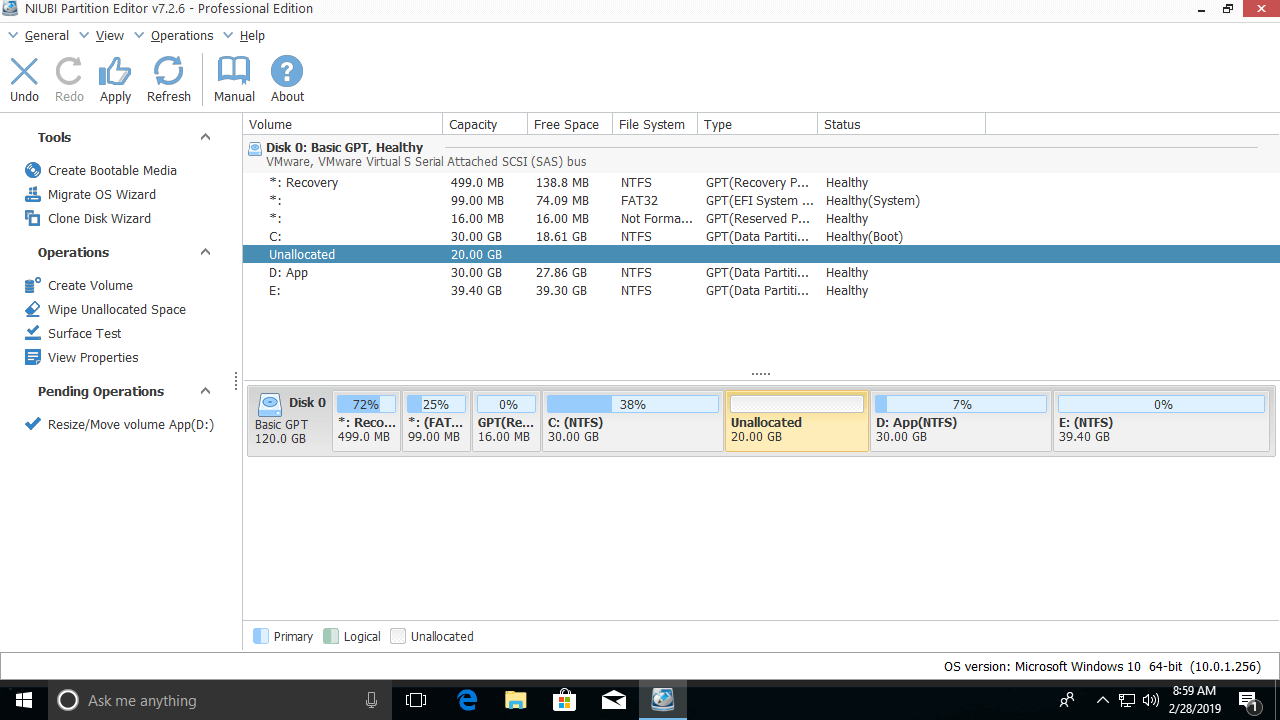
Steps when you cannot extend partition C in Windows 10/11 after shrinking D:
Step 1: Download NIUBI Partition Editor, right-click drive D: and select "Resize/Move Volume", put the mouse pointer in the middle of D, and drag it to the right in the pop-up window.

Then, the unallocated space will be moved to the left.
Step 2: Right-click drive C: and select "Resize/Move Volume" again, then drag the right border to the right in the pop-up window.
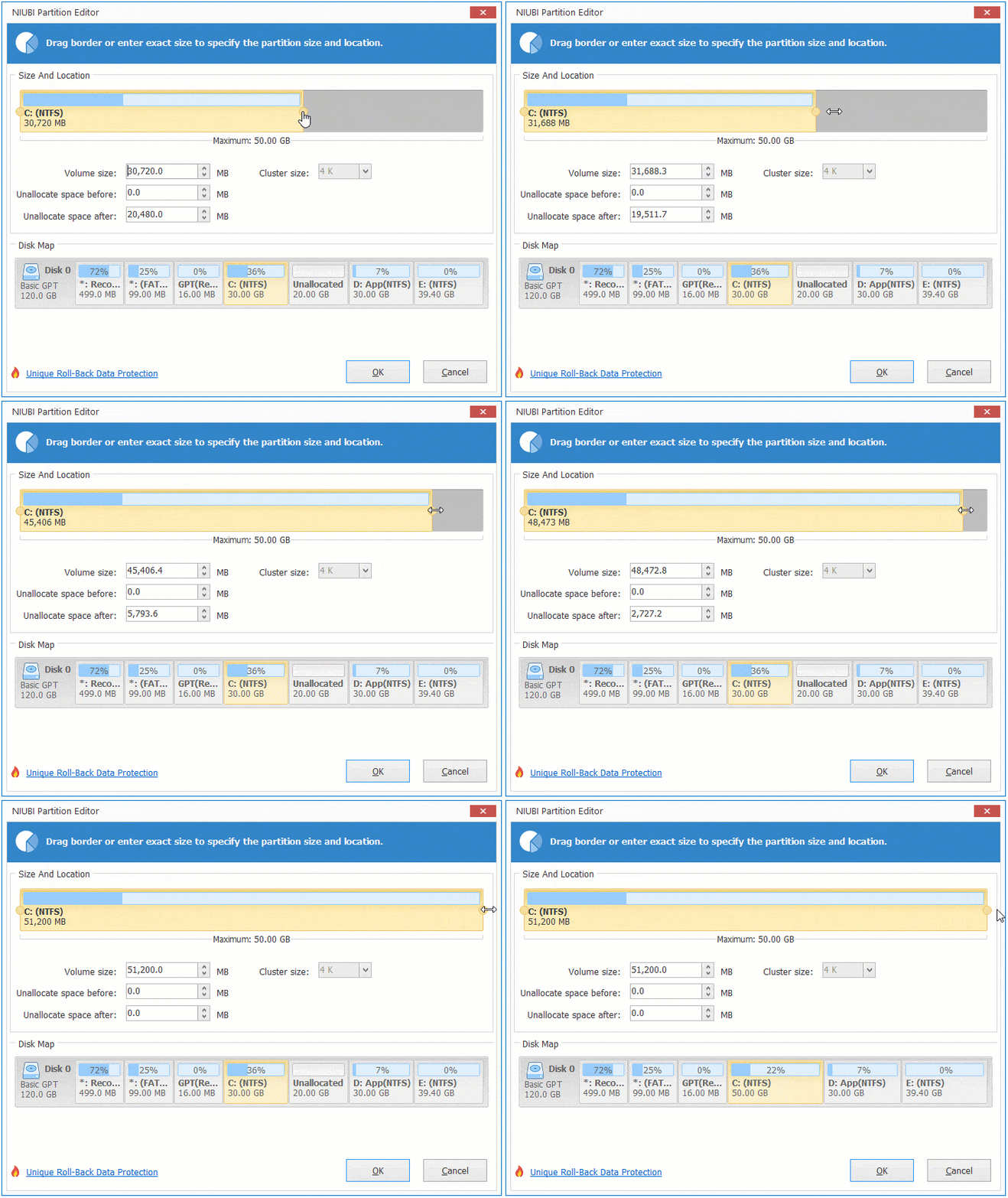
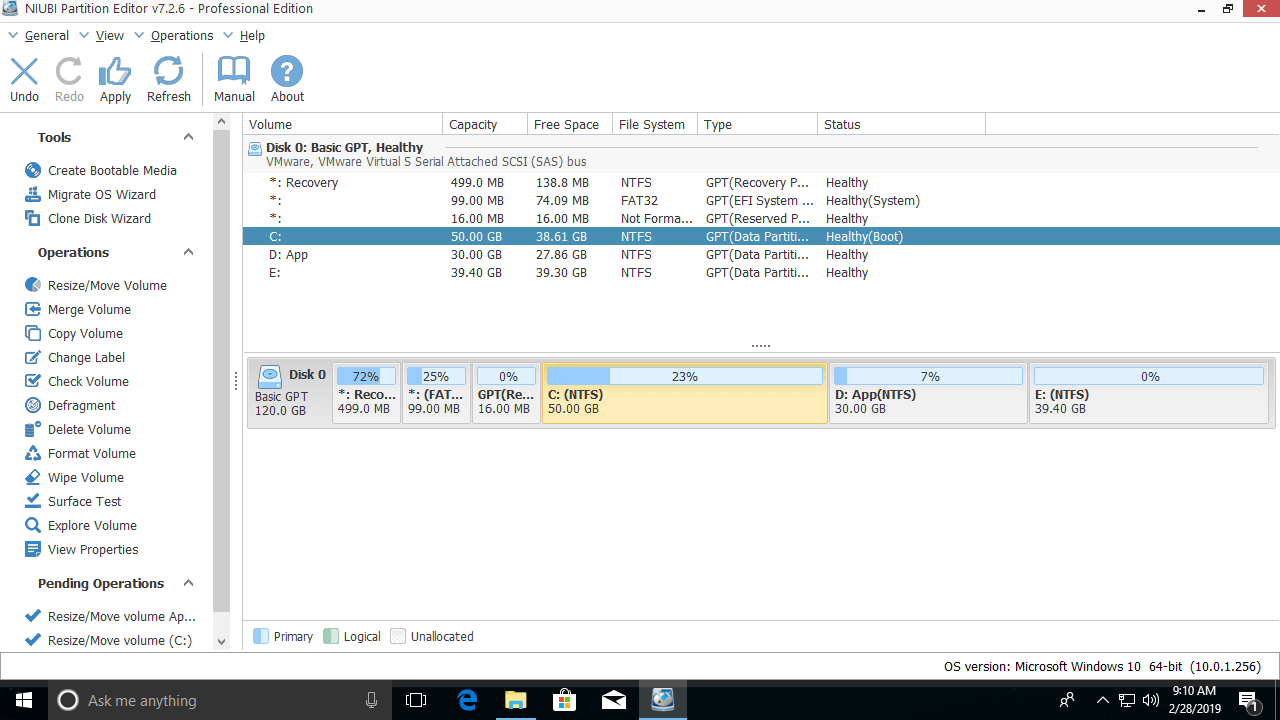
Then, the unallocated space will be merged into the C: drive.
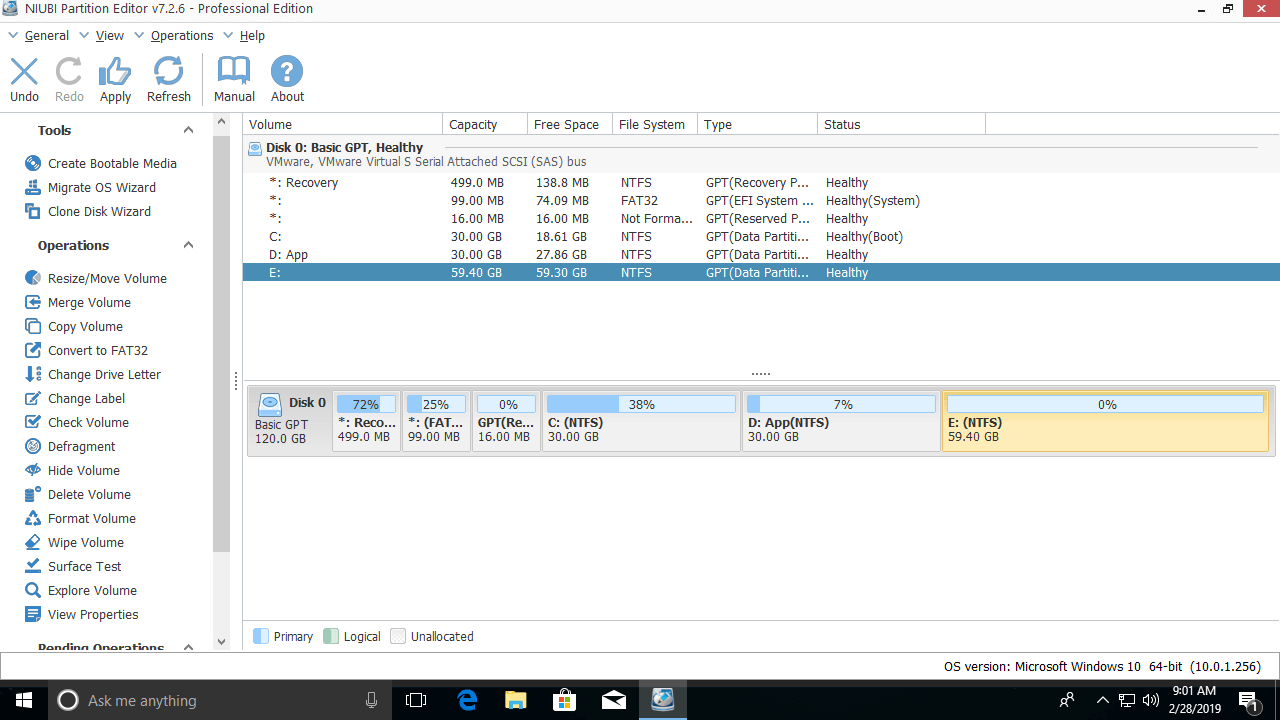
If you want to extend the E: drive after shrinking D, right-click E: and select "Resize/Move Volume", then drag the left border to the left in the pop-up window.

Then, the unallocated space will be merged into the E: drive.
For NIUBI Partition Editor, there is no difference whether you want to resize an NTFS or FAT32 partition, or resize primary or logical partitions. Follow the method in the video to shrink and extend a partition for a Windows 10/8/7 computer.
Besides shrinking, moving, and extending partitions, NIUBI Partition Editor helps you perform many other disk partition management operations. It has a free edition for Windows 11/10/8/7/Vista/XP home computer users. It is 100% clean without any bundled plugins.
 © 2009 - NIUBI Technology All Rights Reserved. |