
Sometimes you need to shrink the C drive in Windows Server 2016. For example, if you forgot to edit the disk partitions when installing the operating system, all available disk space might be occupied by the C drive. As we know, it is a bad idea to put everything into the system partition. In some cases, you need to shrink the C drive to extend the System Reserved partition or other data volumes. Windows Server 2016 provides a "Shrink Volume" function in its built-in Disk Management tool, but sometimes it cannot shrink the C drive. This article explains how to shrink the C drive in Windows Server 2016 using both Disk Management and safe disk partition software.
How to Shrink the C Drive in Windows Server 2016 with Disk Management
Starting from Windows Server 2008, Microsoft added the "Shrink Volume" function to the native Disk Management utility. This tool can decrease the partition size without data loss and without rebooting the server, making it both fast and easy to use.
How to shrink the C drive in Windows Server 2016 with Disk Management:
- Press the Windows and X keys together on the keyboard, then select Disk Management from the list.
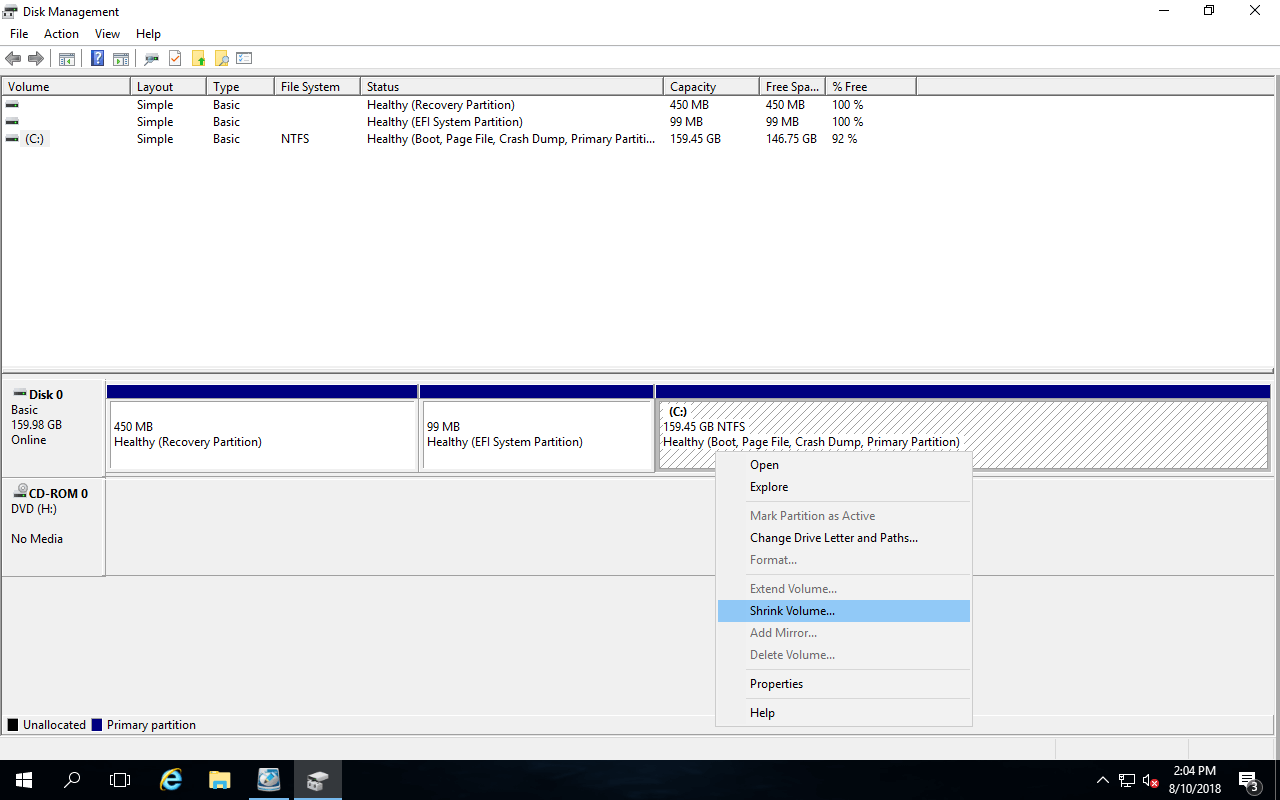
- Right-click the C drive and select Shrink Volume.
![Shrink C drive]()
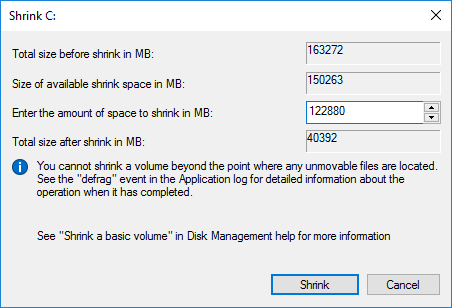
- Wait for Disk Management to query the available free space, then simply click Shrink to decrease the size using the default maximum available space, or enter a smaller amount manually.
![Enter amount]()
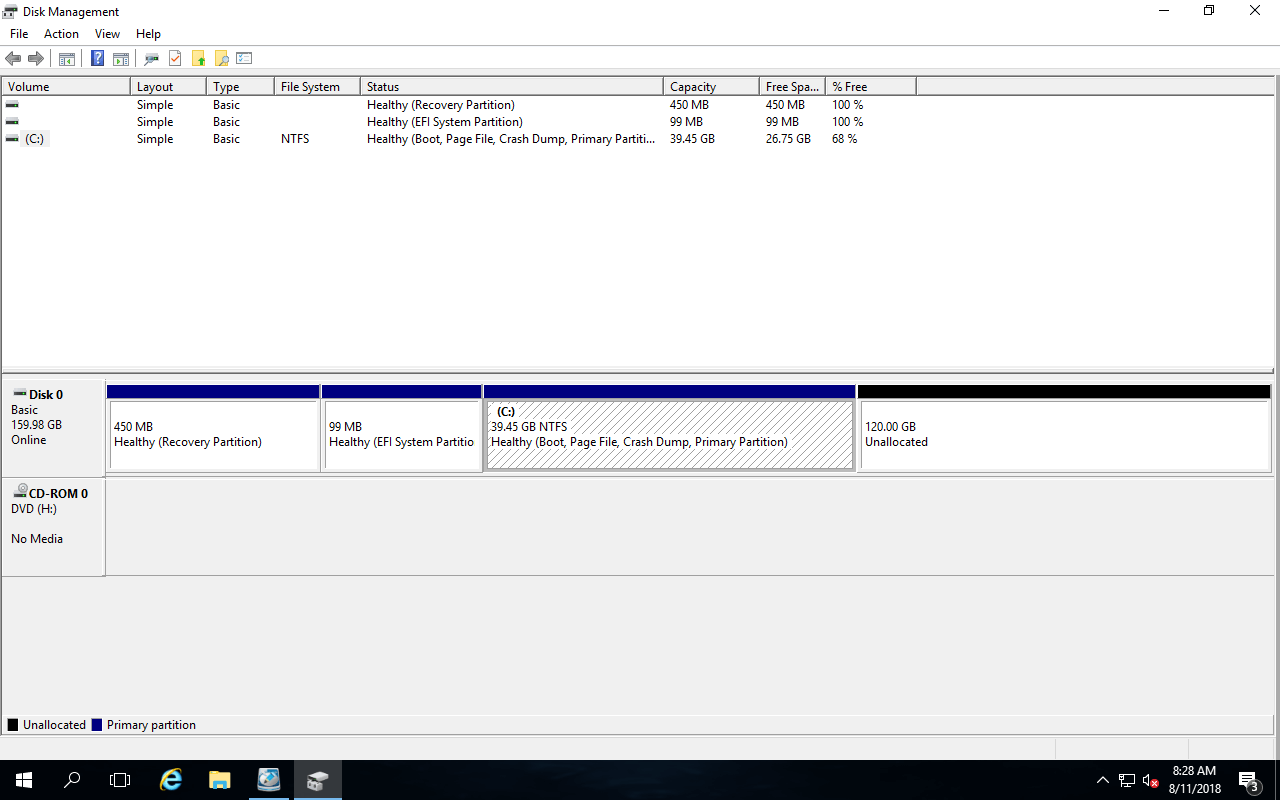
Within a short time, the system C partition has been shrunk to 39.45GB in this example, and 120GB of free space is now converted to unallocated space to its right.
While it is easy to shrink a partition in Server 2016 via Disk Management, it cannot shrink the C drive in certain situations, as mentioned above.
Cases Where You Cannot Shrink the C Drive in Windows Server 2016
In fact, "Shrink Volume" only supports NTFS partitions, so it will be greyed out if you try to shrink a FAT32 partition. However, since most system partitions are formatted with NTFS by default, this is generally not an issue when shrinking the system C drive.
There are 3 common issues encountered when trying to shrink the C drive in Windows Server 2016 using Disk Management.
1. Not Enough Space
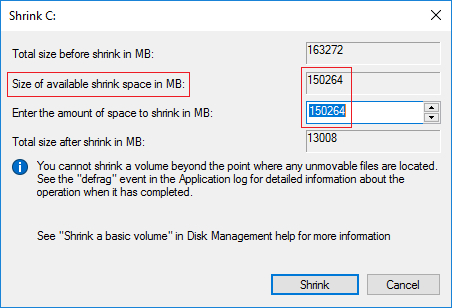
When clicking Shrink, you might receive the following error message: "There is not enough space available on the disk(s) to complete this operation."
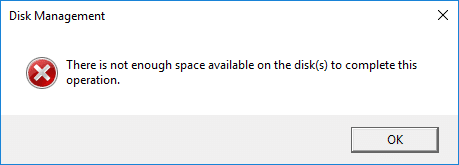
Disk Management provides the maximum available space in the Shrink dialog box by default. If any Windows Updates or other large files are saved to the C drive after the analysis but before you click the Shrink button, the actual available free space becomes less than previously calculated. If you encounter this error, simply open the Shrink dialog box again.
2. File System Error
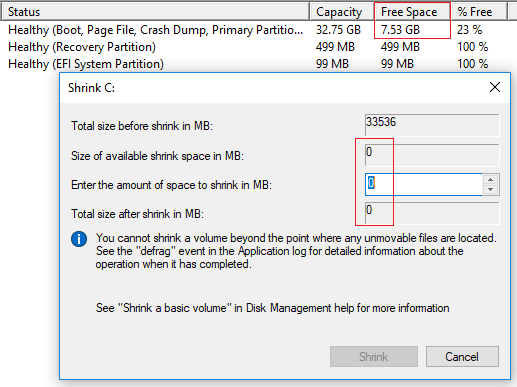
Sometimes, when there is a file system error in a partition, Disk Management will not allow you to shrink it. As shown in the screenshot, there is 7.53GB of free space on the system C drive, but in the Shrink dialog box, the available free space is displayed as 0.
3. Unmovable Files
If there is a large amount of free space on the C drive but Disk Management gives you very little space to shrink, it means that there are 'unmovable' files located in this partition. This is another common issue when shrinking the C drive in Windows Server 2016.
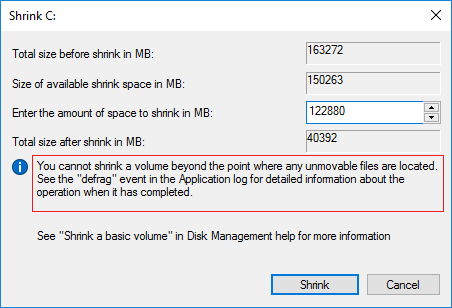
In the dialog box, there is a tip: "You cannot shrink a volume beyond the point where any unmovable files are located."
For example, if 'unmovable' files are located in block 3, you cannot shrink the C drive volume to block 2 even if it is completely blank.
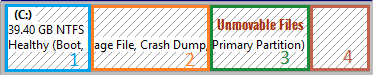
In this case, you need to run NIUBI Partition Editor, which is capable of moving these unmovable files so that you can shrink the C drive to its minimum size if desired.
A Better Way to Decrease the C Drive in Windows Server 2016
Unlike Windows Disk Management, NIUBI Partition Editor offers more advantages, such as:
- It supports shrinking and extending both NTFS and FAT32 partitions.
- It can create unallocated space on either the left or right side while shrinking partitions.
- It can merge unallocated space into either contiguous partition in a single step.
- It can move unmovable files, allowing you to shrink a partition to its minimum size if desired.
- It can move and combine unallocated space with any non-adjacent partitions on the same disk.
- It provides various additional functions to copy, convert, defrag, hide, or wipe partitions, scan for bad sectors, and much more.
How to shrink the C drive in Windows Server 2016 without losing data:
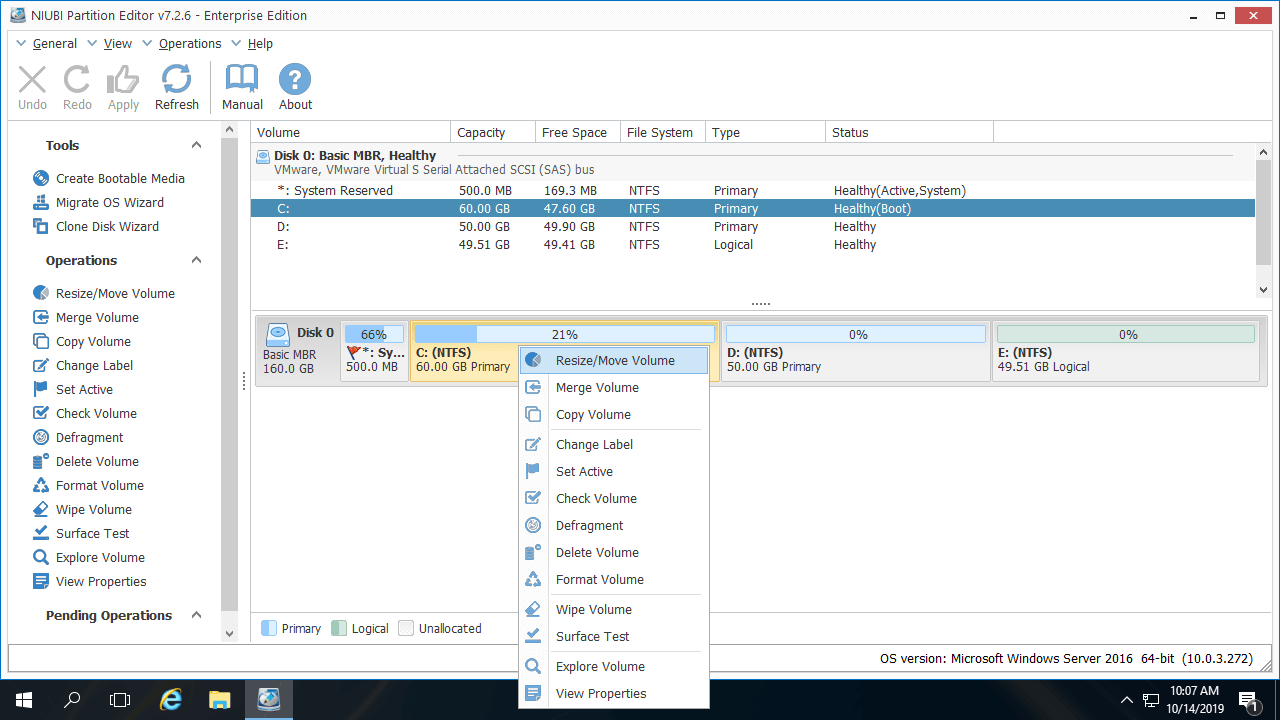
- Download NIUBI Partition Editor, right-click the C drive, and select "Resize/Move Volume".
![NIUBI Partition Editor]()
- In the pop-up dialog box, drag either border toward the opposite side. If you drag the right border toward the left, unallocated space is created on the right side of the C drive.
- Click Apply at the top left to execute. (NIUBI is designed to work in virtual mode first; real disk partitions will not be changed until you click Apply to confirm.)
How to extend other partitions after shrinking the C drive in Windows Server 2016:

Besides shrinking and extending volumes in Windows Server 2025/2022/2019/2016/2012/2008/2003, NIUBI Partition Editor helps you perform many other disk partition management operations. Unlike other tools, it features 1-Second Rollback, Virtual Mode, Cancel-at-will, and Hot-Clone technologies to thoroughly protect your system and data.
 © 2009 - NIUBI Technology All Rights Reserved. |