
This article shows how to extend the C: drive in Windows 10 (32 & 64 bit) without reinstalling the operating system or losing data. It provides 4 ways to expand the C: drive partition with detailed steps.
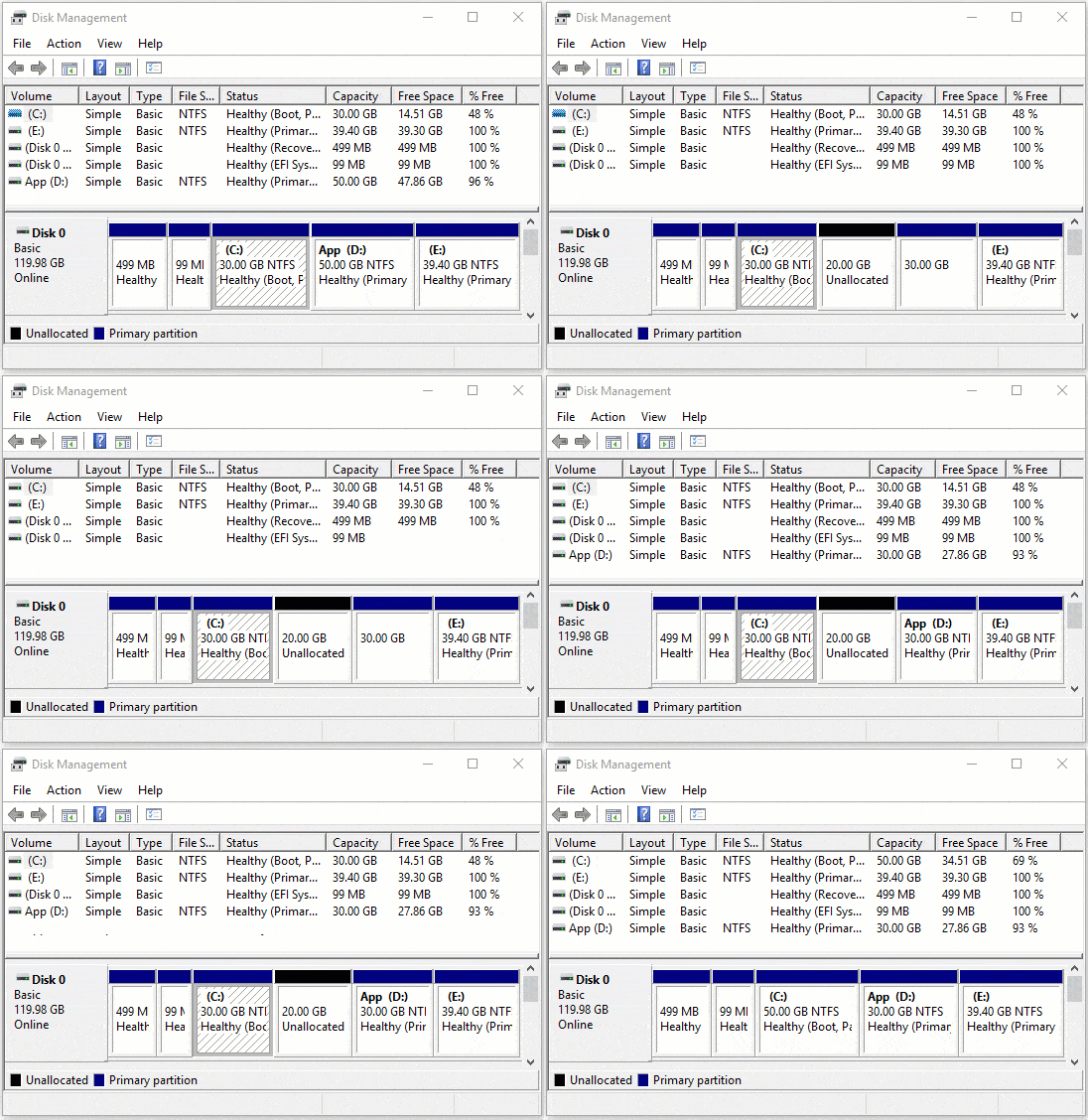
Extend the C Drive via Windows 10 Disk Management
As with the previous Windows 7, the Windows 10 native Disk Management tool has the Extend Volume functionality to help expand a disk partition. However, it is not the best tool because of many limitations, which may make you unable to extend the C: drive.
The typical example is that Extend Volume is disabled for the C: drive after shrinking D.
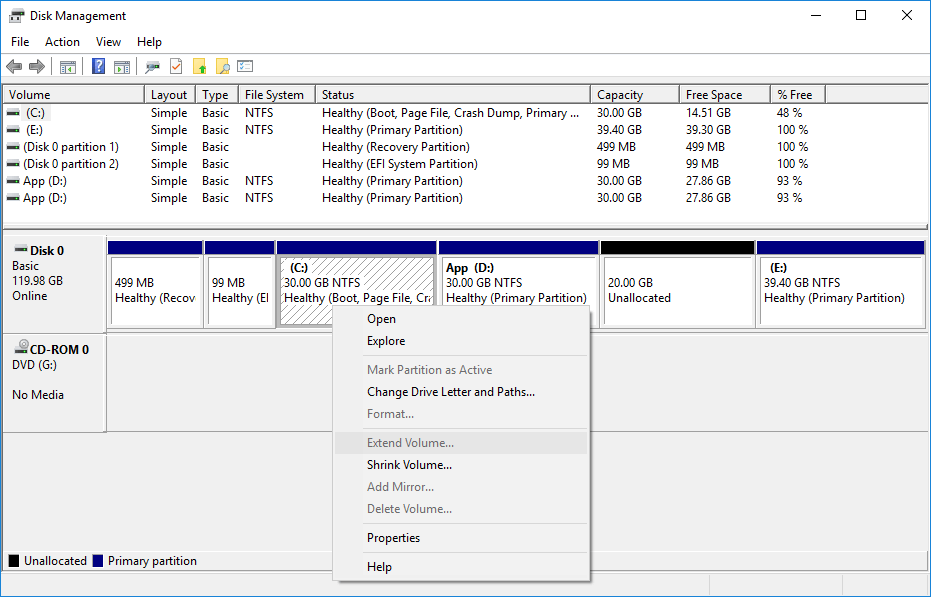
- The Extend Volume function can only expand an NTFS partition with contiguous unallocated space on its right side.
- Shrink Volume can only shrink a partition toward the left and generate unallocated space on the right side.
As you can see, the 20GB of unallocated space is non-adjacent to the C: drive after shrinking D; of course, Extend Volume is greyed out.
The only way to enable Extend Volume for the C: drive is to delete the contiguous partition (D:).
Do not do this if you installed programs on this partition. Why not extend the C: drive without causing damage?
Extend Partition C by Shrinking the Contiguous Volume D
Better than Windows built-in Disk Management, disk partition software can shrink a partition and generate unallocated space on either side. Then you can expand the C: drive with either native or third-party tools.
Steps to extend the C: drive in Windows 10 with free partition software:
Download and install NIUBI Partition Editor, and you will see the main window with disk partition information and available operations.
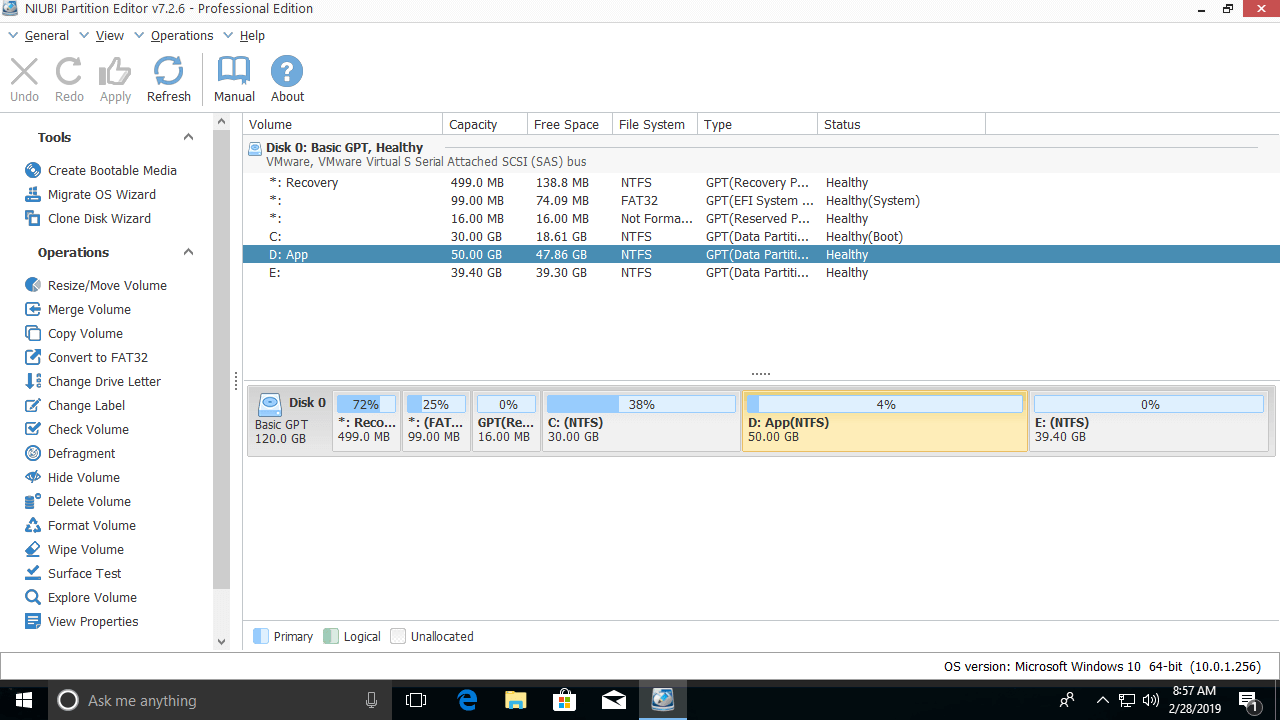
Step 1: Right-click drive D: and select "Resize/Move Volume", then drag the left border to the right in the pop-up window.
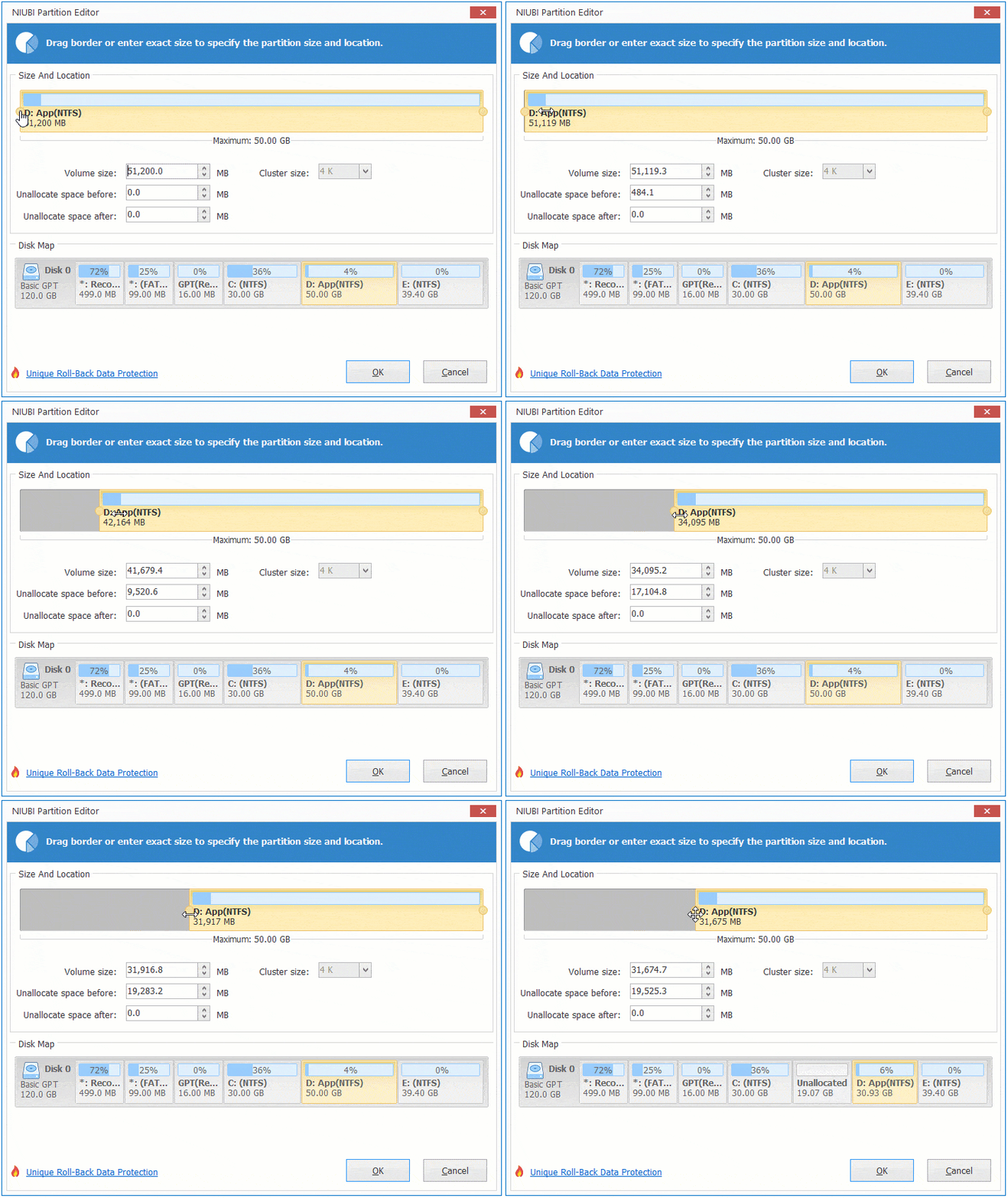
As you can see, unallocated space is generated on the left side of D.
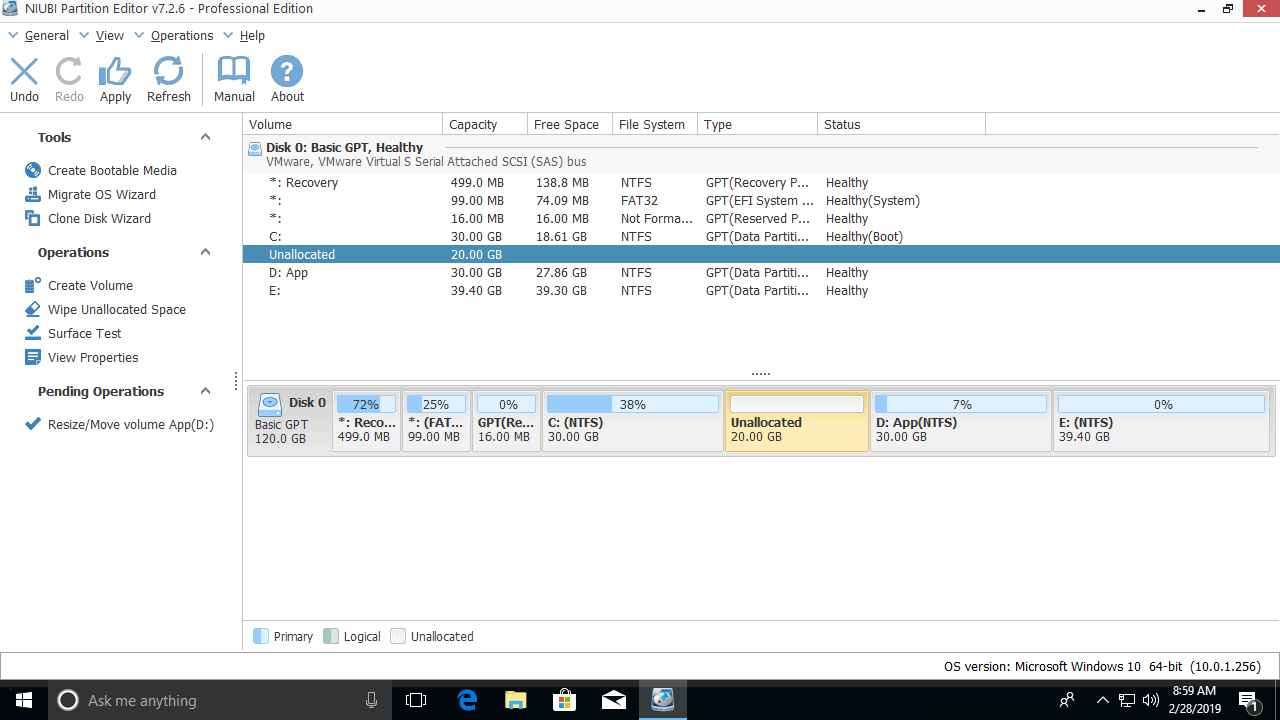
Step 2: Right-click drive C: and select "Resize/Move Volume" again, then drag the right border to the right in the pop-up window.
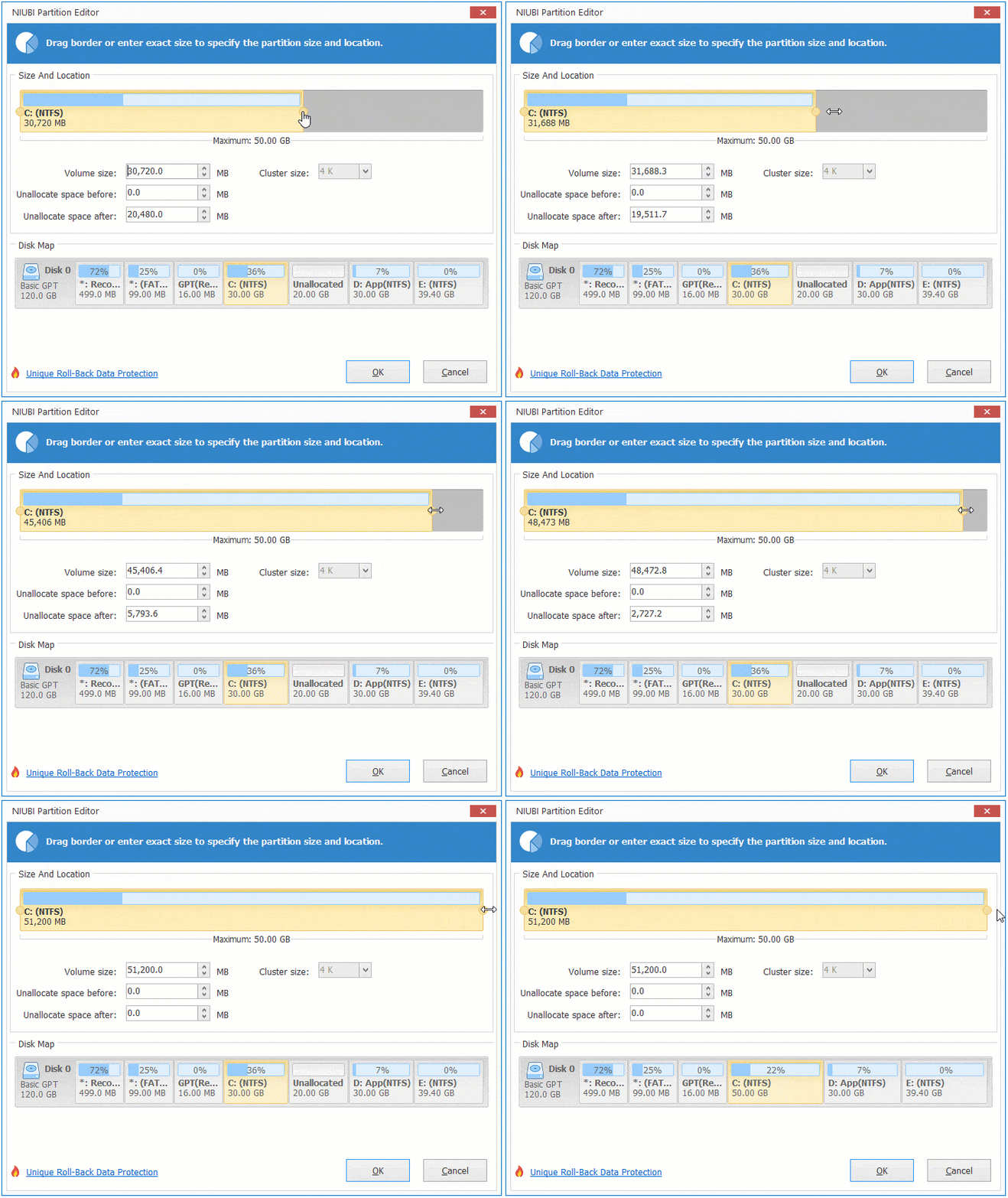
As you can see, the C: drive is extended by merging the unallocated space.
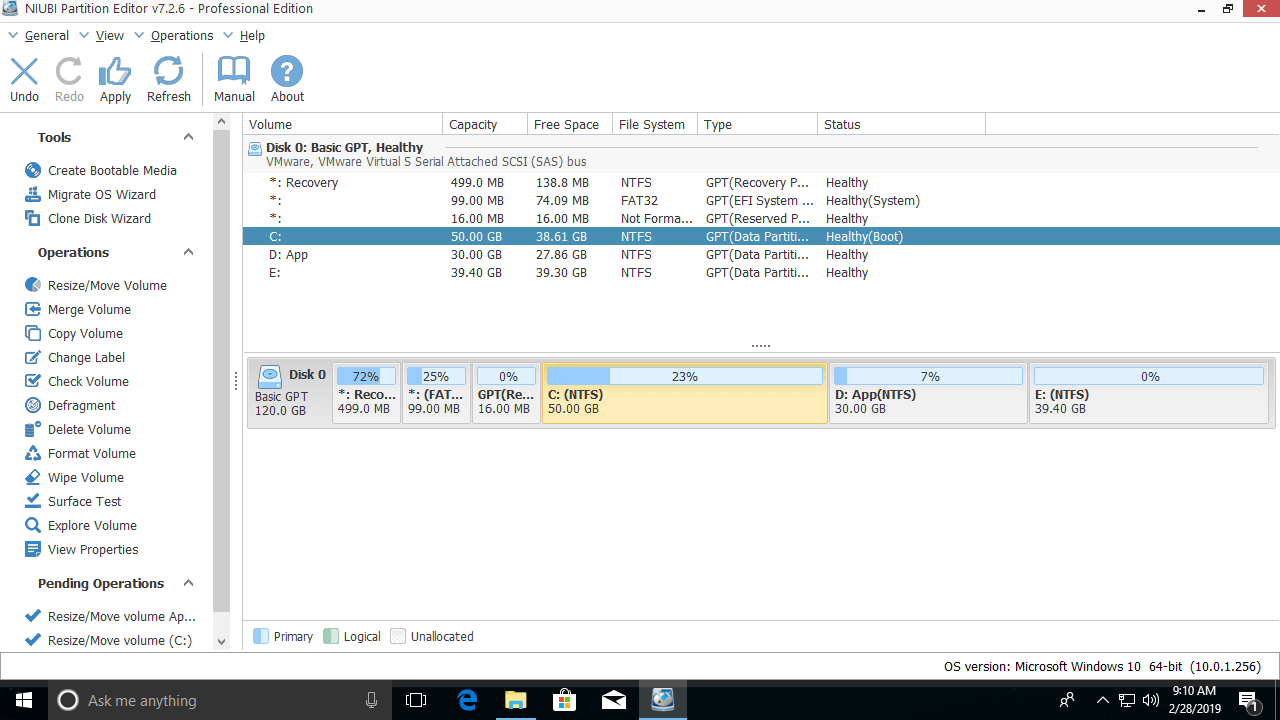
Step 3: Click Apply on the top left to execute.
This software is designed to work in its virtual mode. The operations you perform will be listed as pending on the bottom left, and real disk partitions will not be modified until you click Apply to confirm.
Expand the C Drive by Shrinking a Non-Adjacent Volume
If you cannot get enough free space from the contiguous partition D, it does not matter. You may shrink any non-adjacent partition on the same hard disk.
For example, how to shrink E to expand the C: drive in Windows 10:
- Right-click partition E: and select "Resize/Move Volume", then drag the left border to the right in the pop-up window. Then you will get unallocated space on the left side of E. (Similar to Step 1 above)
- Right-click partition D: and select "Resize/Move Volume", then drag the middle of the partition to the right in the pop-up window. Then, the unallocated space will be moved next to the C: drive.
Follow the steps in the video to extend the C: drive by shrinking another volume on the same disk:
Extend Volume C with Another Disk
If there is no other partition, or not enough unused space in all other partitions on the same disk, NO partitioning software can extend a partition by taking space from another separate hard disk.
However, there is still a way with NIUBI Partition Editor by cloning this disk to another larger one. You can extend partition C and other data volumes with the extra disk space. Watch the video on how to expand the C: drive by cloning:
When extending the C: drive for a Windows 10 virtual machine in VMware or Hyper-V, the steps are the same if there is available free space on the same disk. If there is not enough free unused space, follow the steps to increase the virtual disk size, and then you can add the additional space to the C: drive.
In Summary
To extend the C: drive in Windows 10 (32 & 64 bit), the native Disk Management tool can only achieve this by deleting the contiguous partition. You cannot do this in most cases. Better than other software, NIUBI Partition Editor features innovative 1-Second Rollback, Virtual Mode, and Cancel-at-Will technologies to protect your system and data.
 © 2009 - NIUBI Technology All Rights Reserved. |