
This article explains the reasons why Disk Management cannot extend the C: drive in Windows 10 (32 & 64 bit) and what to do if you are unable to extend partition C: by shrinking D: or other volumes.
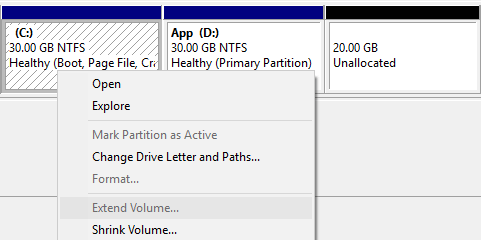
Why Can't Extend the C Drive in Windows 10
Many Windows 10 computer users encounter the problem that the C: drive is getting full, but nobody likes to reinstall the operating system and all programs. Luckily, Microsoft provides native Disk Management with Shrink Volume and Extend Volume functions to resize a disk partition without losing data.
However, many people report that they cannot extend the C: drive with the Windows 10 Disk Management tool, because Extend Volume is disabled for the C: drive after shrinking D.
This is because both the Shrink Volume and Extend Volume functionalities have serious limitations:
Shrink Volume cannot generate unallocated space on either side. For example, when shrinking partition D, you can only enter an amount, and then it will generate unallocated space on the right side.
Extend Volume can only extend a partition by merging the contiguous unallocated space on the right side. Therefore, Extend Volume is always disabled unless you delete the right contiguous partition instead of shrinking it.
To demonstrate these limitations, drive D was shrunk on a Windows 10 laptop.
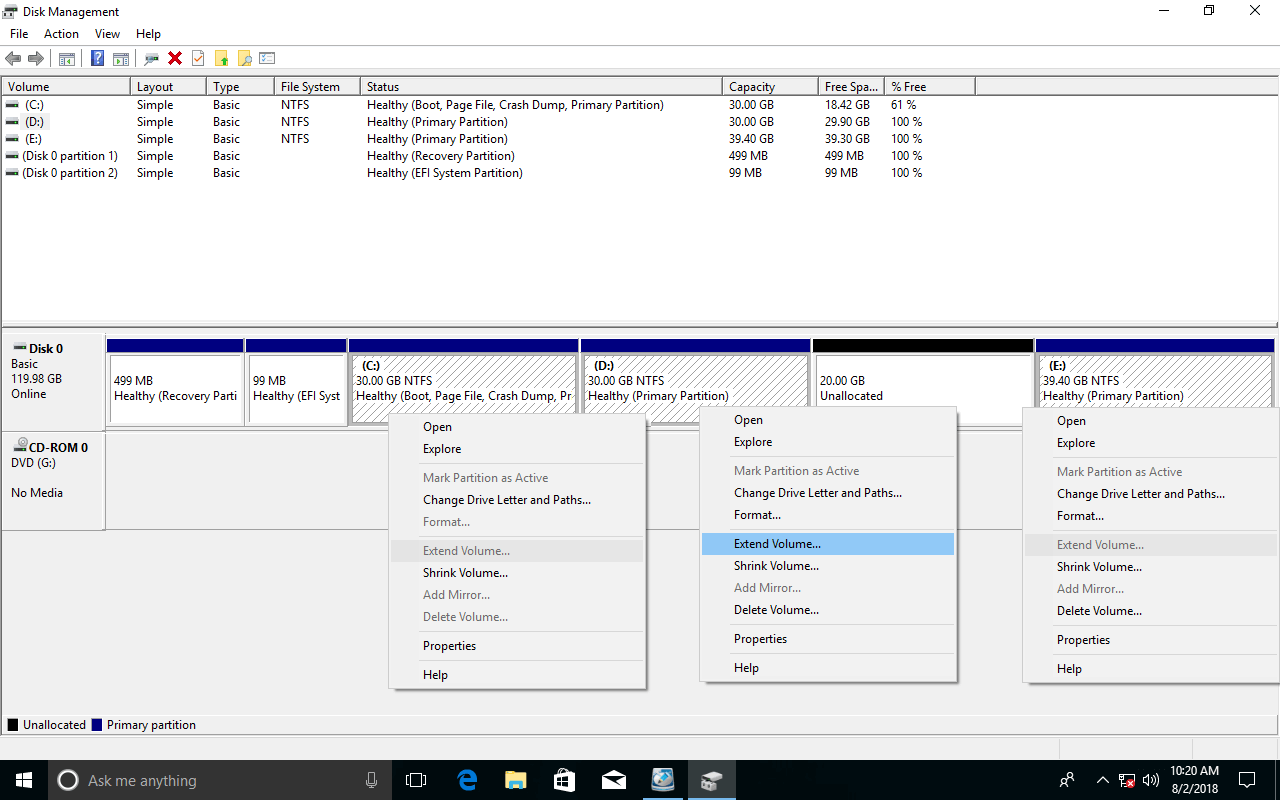
As you can see, Extend Volume is unable to extend drives C: and E: after shrinking D.
Do not delete drive D to enable Extend Volume for the C: drive; otherwise, many programs will stop working even if you transfer all files in D to another partition.
In this situation, you need to move the unallocated space from the right side of D to the left. The steps to do this are shown in the next paragraph.
Here are other reasons that cause the inability to extend the C: drive in Windows 10 Disk Management.
Logical and Primary Partitions on an MBR Style Disk
In Windows desktops and laptops, there are two styles of disks: MBR and GPT. Because of the many advantages of the GPT style, many Windows 10 computers format disks as GPT by default.
To check the disk style, press Windows and X on the keyboard to open Disk Management, right-click this disk, select Properties, and then switch to the Volume tab on the top.
Unlike a GPT disk that creates all partitions as primary, an MBR disk can only create a maximum of 4 primary partitions, or 3 primary plus 1 extended partition. All logical partitions must be created in the extended partition.
As mentioned above, you can delete partition D to get contiguous unallocated space (though not suggested), and then Extend Volume will be enabled for the C: drive. However, if partition D is a logical partition, you still cannot extend the C: drive via Windows 10 Disk Management after deleting D.
On an MBR disk, unallocated space generated by deleting a primary partition cannot be extended to any logical partitions; similarly, free space generated by deleting a logical partition cannot be extended to any primary partitions.
Another limitation: only NTFS and RAW partitions can be extended; however, this is not an issue for the system C: drive.
What to Do if Unable to Expand the C Drive in Windows 10
Actually, it is very easy to solve this problem regardless of the reasons listed above.
Firstly, here is the solution if you cannot extend the C: drive after shrinking D in Windows 10 Disk Management. Download and install NIUBI Partition Editor.
Step 1: Right-click the D: drive and select "Resize/Move Volume"; drag the middle of the D: drive to the right in the pop-up window.

Then the unallocated space is moved to the left side of volume D.
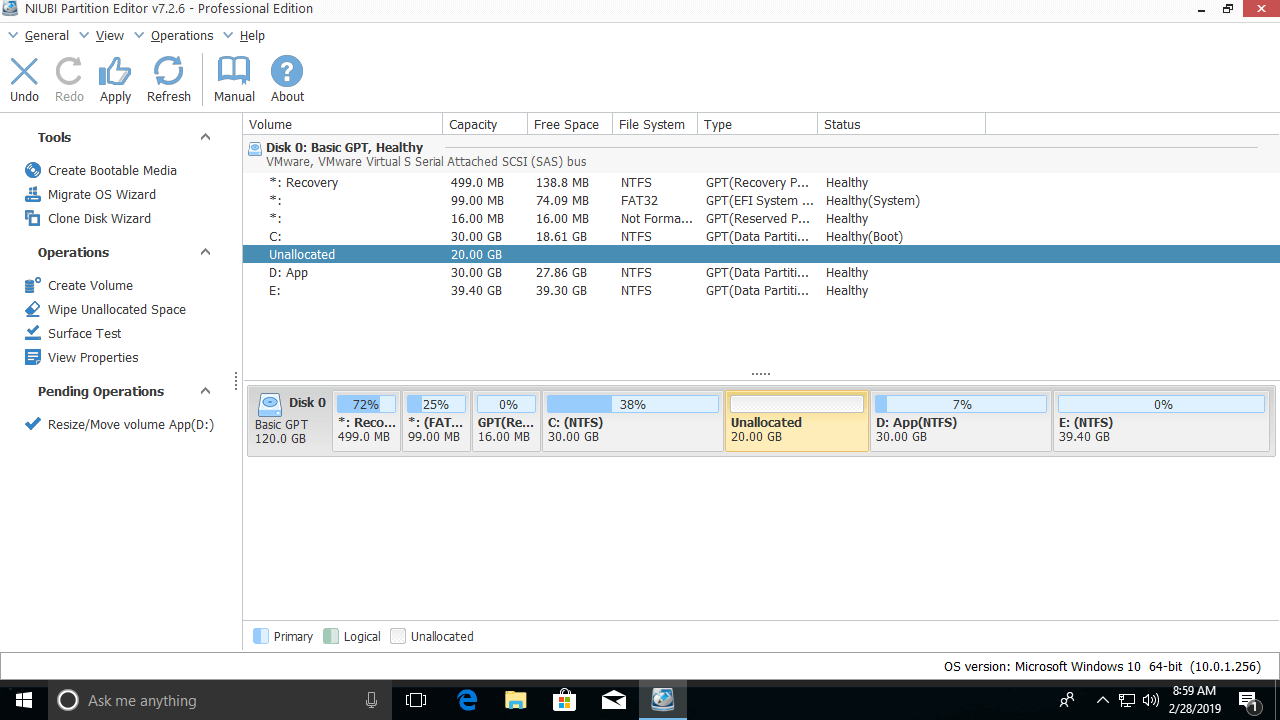
Step 2: Right-click the C: drive and select "Resize/Move Volume" again; drag the right border to the right in the pop-up window.
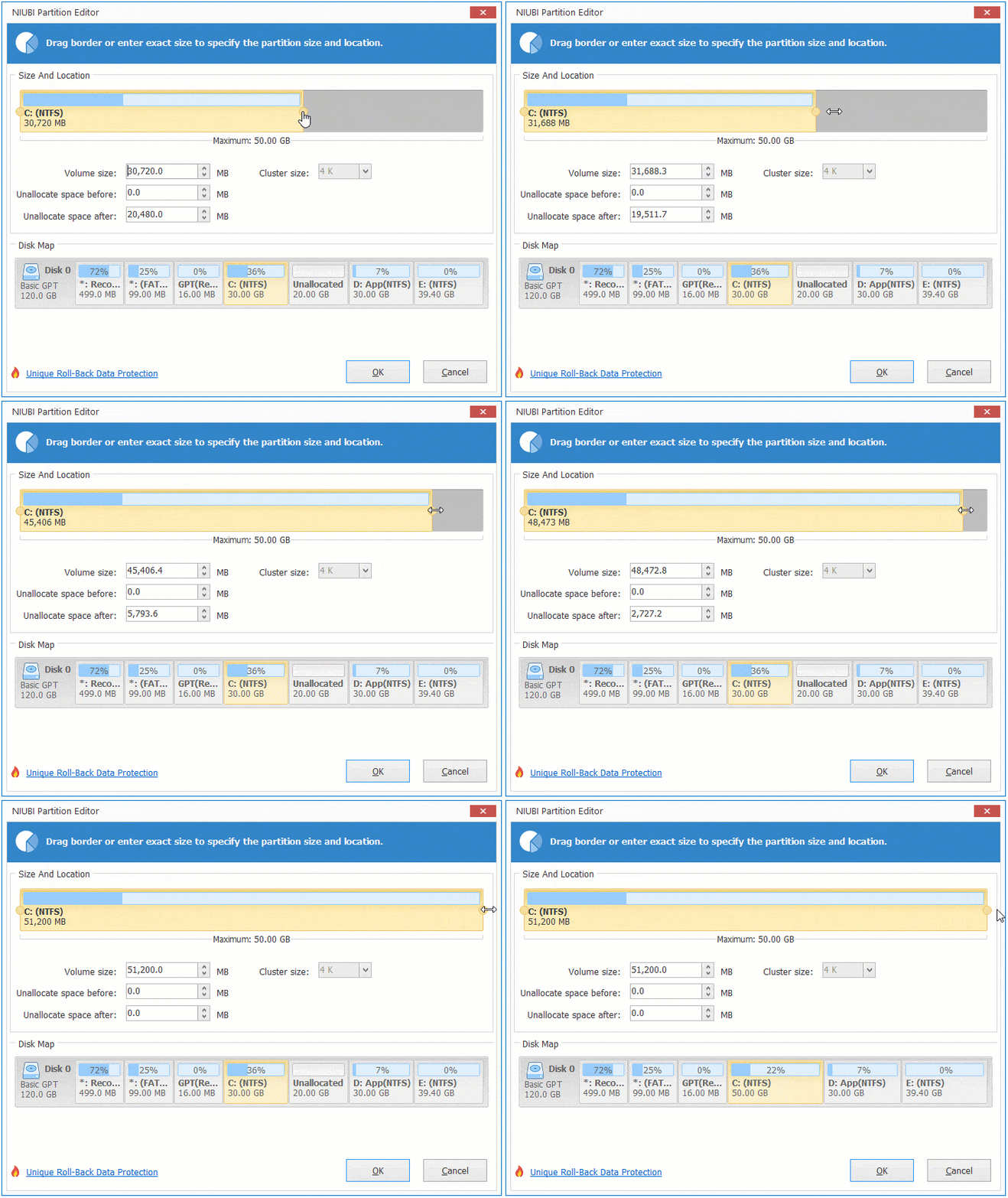
As you can see, the unallocated space is merged into the C: drive.
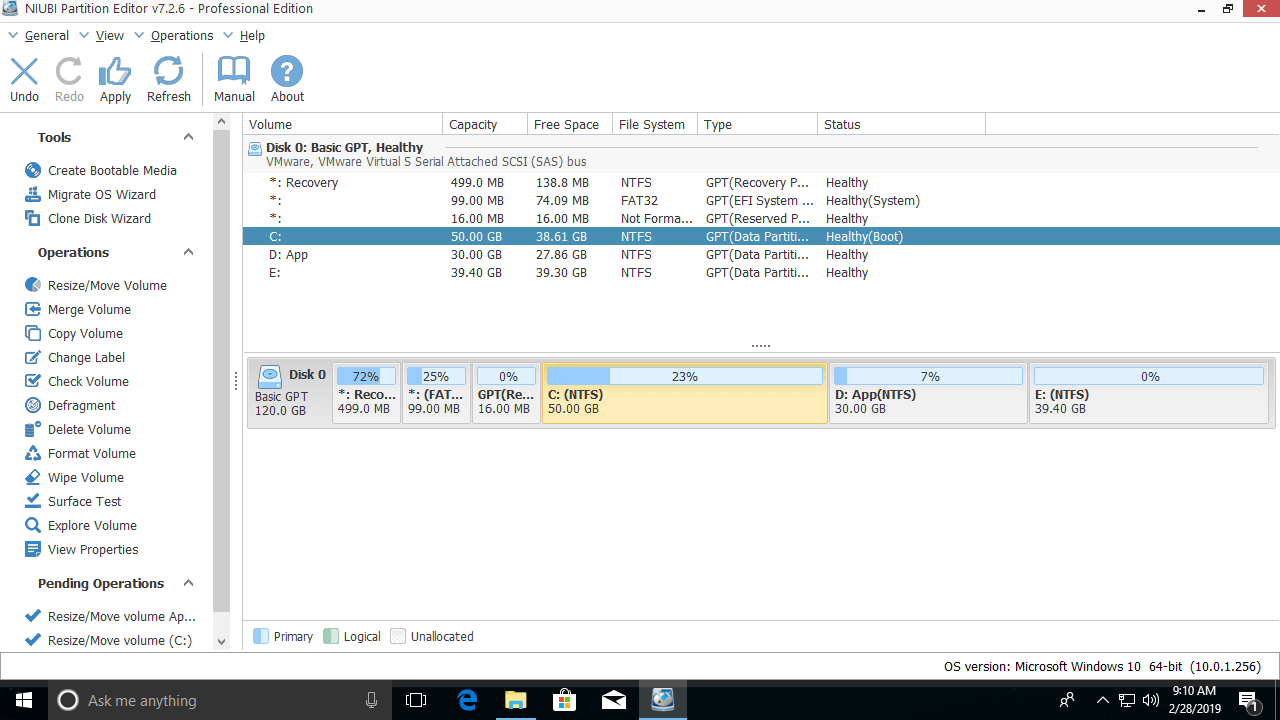
The disk space of a logical partition will be shown as Free after deleting it in Disk Management, but NIUBI will convert it as Unallocated. If D is a logical partition that causes the inability to expand the C: drive in Windows 10 after deleting it, simply follow Step 2 above.
Special Solution to Extend Partition C
A few computers have no data volumes (only C: and the system reserved partition); the methods above are invalid in that case. This is because no partitioning software can extend the C: drive to another separate disk.
Run the "Disk Clone Wizard" feature to copy this disk to a larger one, and then you can extend the C: drive with the extra disk space.
In short, the built-in Disk Management tool in Windows 10/11 cannot extend volume C by shrinking D, or by deleting D if it is a logical partition. As the safest and fastest tool, NIUBI Partition Editor can help you solve this problem easily; it also helps you perform many other disk partition operations.
 © 2009 - NIUBI Technology All Rights Reserved. |