
In Windows 10 Disk Management, the C drive is marked as Boot, and the System Reserved partition is marked as System. However, for most computer users, the system partition is the one from which the Operating System runs; therefore, this article refers to the C drive as the system partition. All programs are installed on the system partition by default, and some files are forced to save there even when another volume is selected. Windows continuously downloads and installs updates. Combined with various other types of files, the system partition will inevitably fill up. By resizing hard drives, this problem can be solved without reinstalling Windows and programs. This article introduces how to extend the system drive in Windows 10 by shrinking D or other volumes.

Cannot Extend the System Partition in Windows 10 With Disk Management
As with previous versions, the native Windows 10 Disk Management tool provides Shrink Volume and Extend Volume functions to resize disk partitions. However, extending a partition by shrinking another one using this tool is impossible, because:
- Shrink Volume can only generate Unallocated space on the right side of a partition.
- Extend Volume can only expand a partition when there is contiguous Unallocated space on its right side.
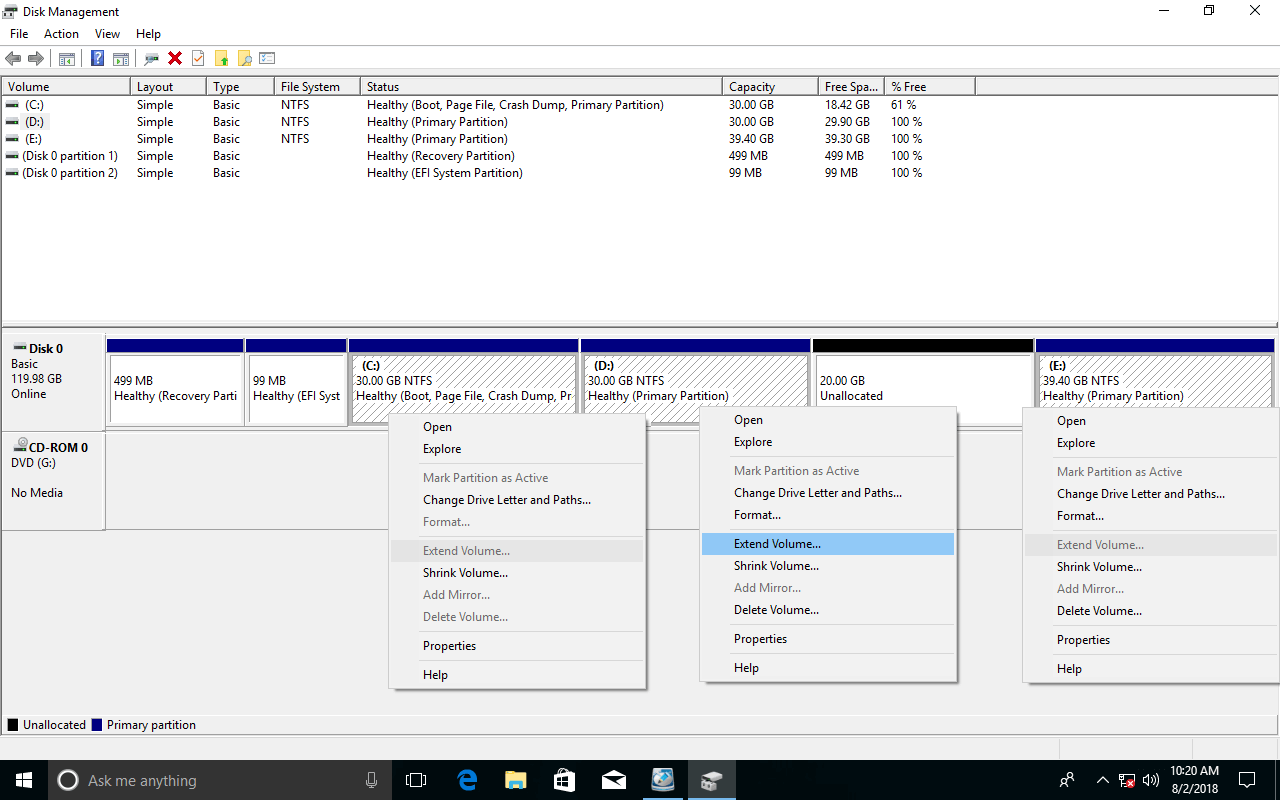
After shrinking the adjacent partition (D), Extend Volume is disabled for all other partitions.
If programs are installed on drive D, deleting this drive to enable Extend Volume for the C drive is a bad idea.
Instead, it is recommended to run professional partition software to shrink D and generate Unallocated space on the left side.
How to Extend the System Partition by Shrinking D
In fact, this can be easily achieved in two steps by dragging and dropping on the disk map. First, download the software, and the initial disk partition sizes and configurations will be displayed in the main window.
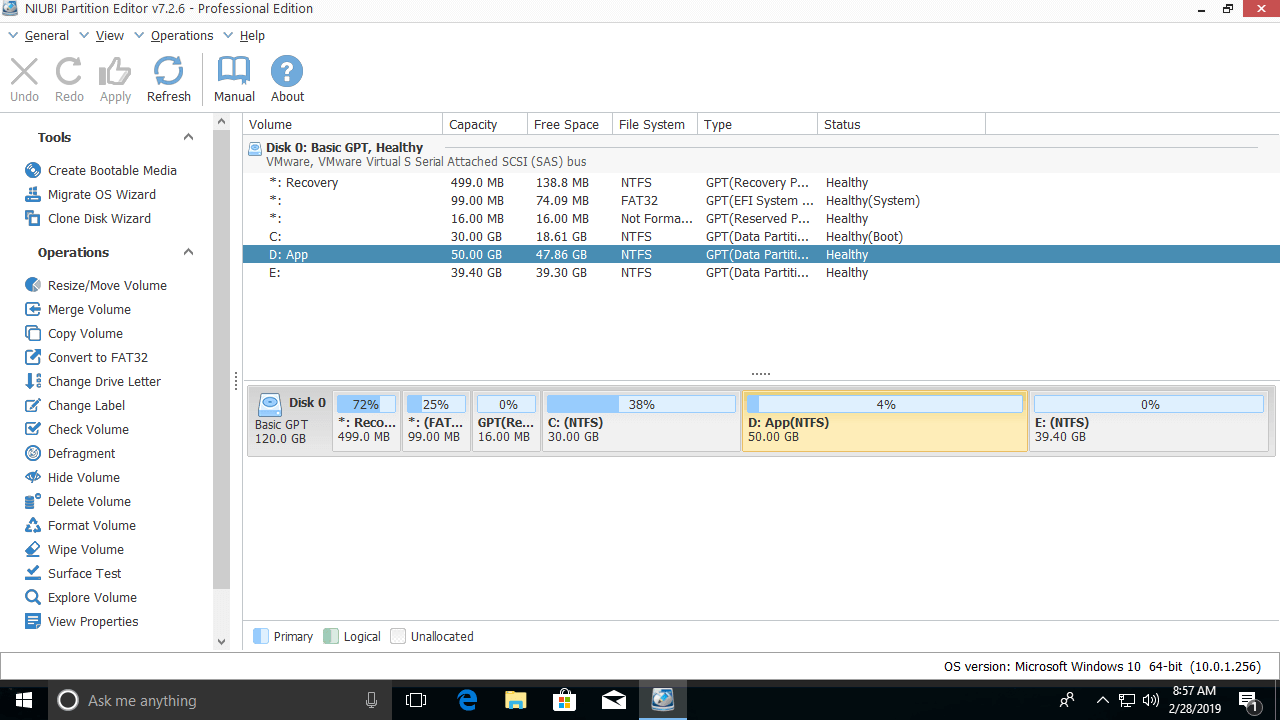
Steps to extend system partition C on Windows 10:
Step 1: Right-click the adjacent drive D and select "Resize/Move Volume", then drag the left border to the right in the pop-up window.
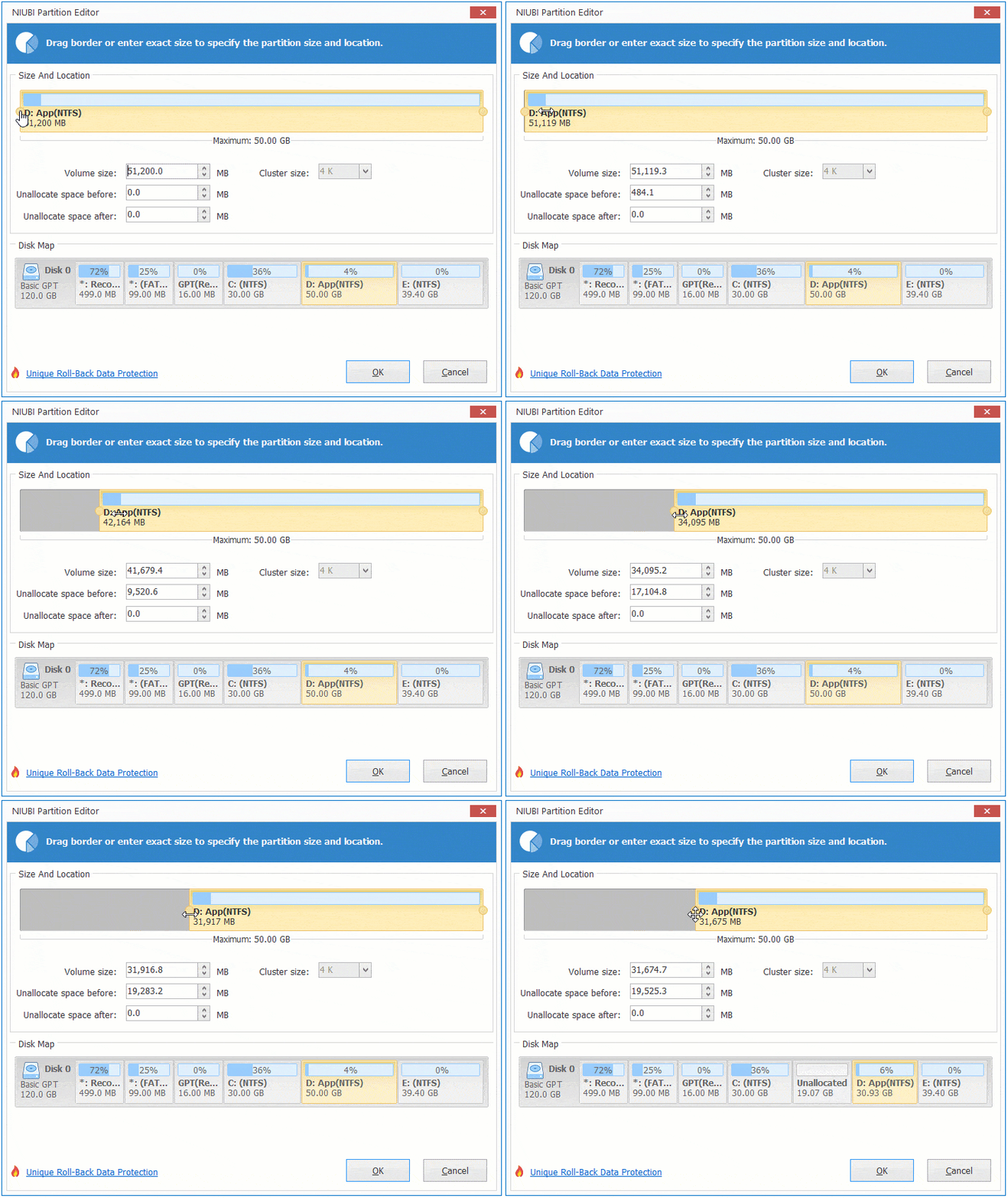
This shrinks drive D and generates Unallocated space on its left side.
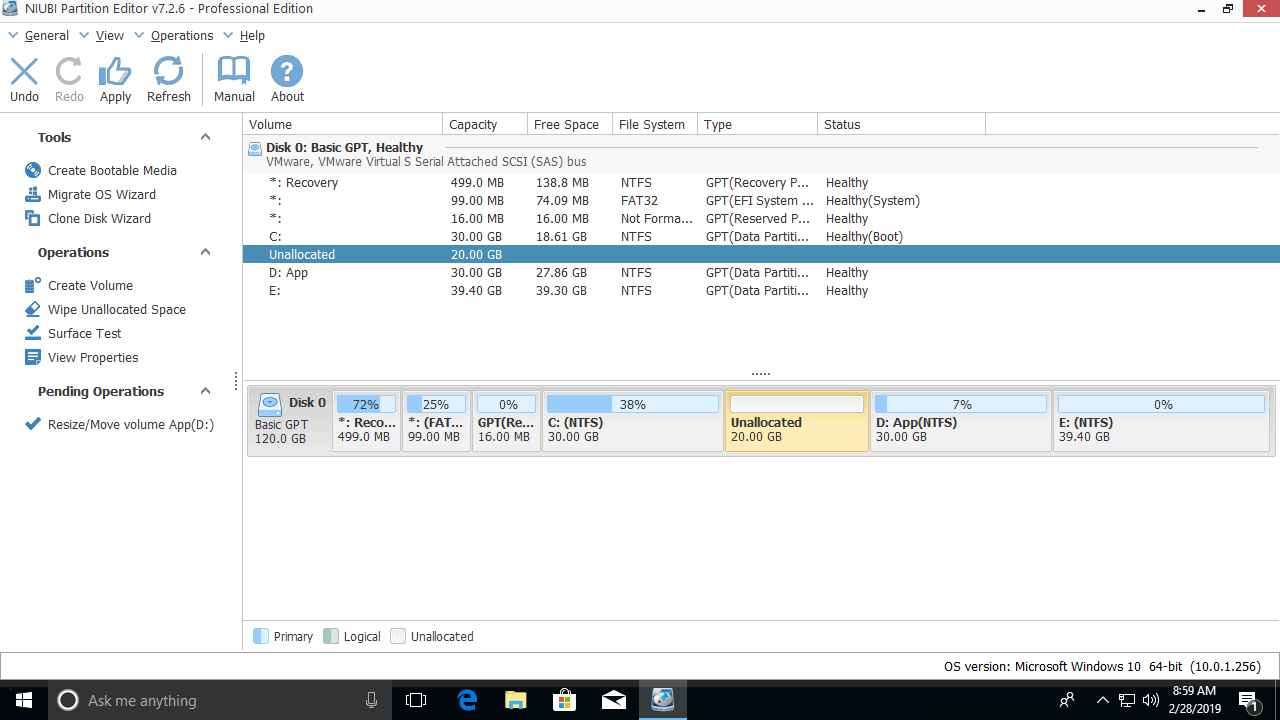
Step 2: Right-click the system partition C and select "Resize/Move Volume" again, then drag the right border to the right.
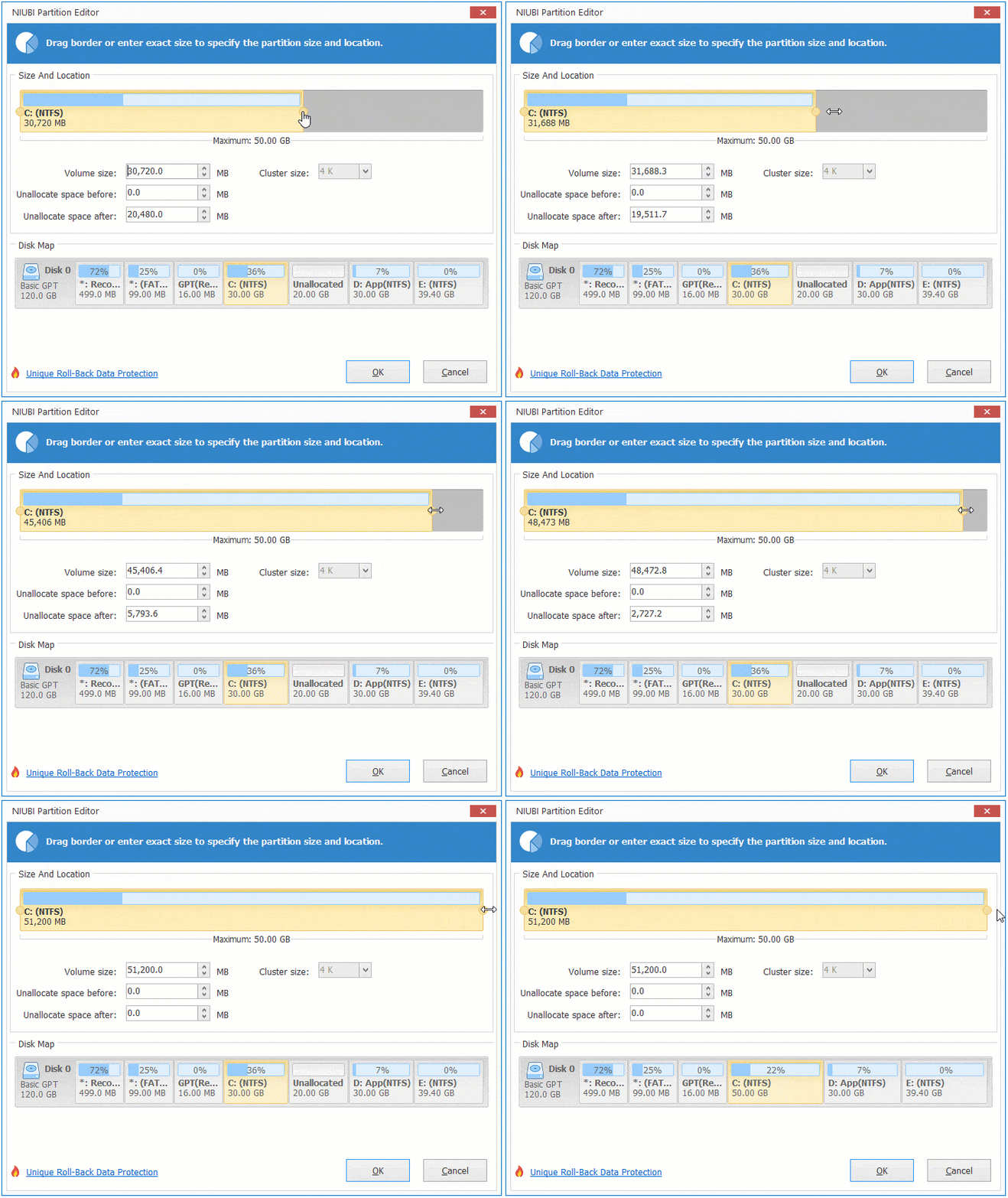
The system partition is then extended by merging the Unallocated space.
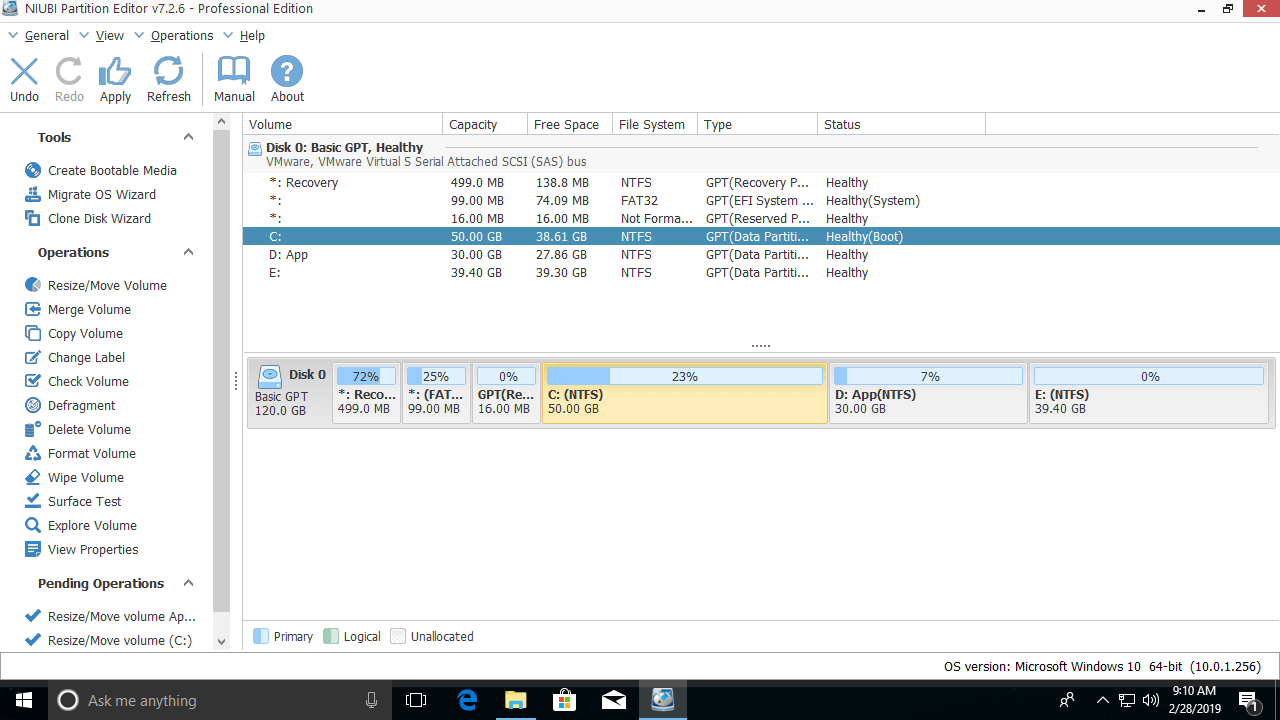
NIUBI operates in virtual mode by default, and all operations will be listed as pending on the bottom left. Click the Apply button on the top left to confirm and execute. Otherwise, real disk partitions will not be resized.
How to Extend the System Volume With a Non-Adjacent Partition
If there is not enough free space in the adjacent partition (D:), any non-adjacent data partition can be shrunk to generate Unallocated space. Compared with the method above, an additional step is required to move the Unallocated space before extending the system partition C. Steps:
Step 1: Right-click the non-adjacent partition (E:) and follow Step 1 above to generate Unallocated space on its left side.
Step 2: Right-click the adjacent partition (D:) and select "Resize/Move Volume", then drag the middle of this partition to the right. The Unallocated space will then be moved next to the C drive.

Step 3: Follow Step 2 above to extend the system partition C.
How to Expand the System Partition to Another Disk
First, it is important to note that no partitioning software can extend a partition using free or Unallocated space from a separate hard disk. However, NIUBI Partition Editor features a "Clone Disk Wizard" to copy the disk to a larger one. The system partition and any data volumes can be extended with the extra space during the cloning process.
 © 2009 - NIUBI Technology All Rights Reserved. |