
On most Windows computers, volume D is used for programs. If it was not allocated enough space initially and many programs are installed on it, the drive may become full. In this situation, recreating partitions and reinstalling the Operating System and programs is not an ideal solution. This article introduces how to increase the free space of the D drive in Windows 10/11 without starting over.
How to Increase D Drive Space by Shrinking C
To shrink a partition, Windows 10 has a built-in Shrink Volume function in Disk Management. It can shrink the C drive to release free space quickly and easily. It has another Extend Volume function to expand a partition by merging Unallocated space; however, the D drive cannot be extended by shrinking C.
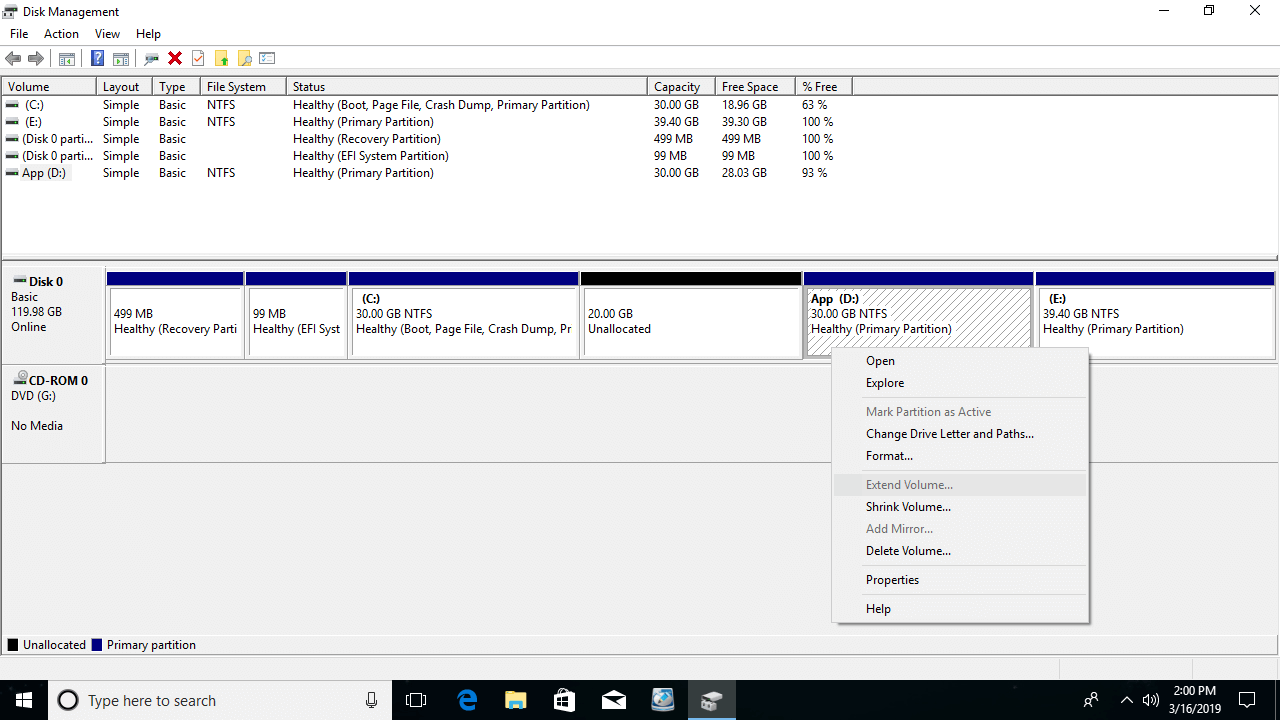
As illustrated, 20GB of Unallocated space is generated on the right side after shrinking C. When right-clicking volume D, Extend Volume is disabled.
This is because Extend Volume can only extend a partition when there is contiguous Unallocated space on its right side.
In this situation, it is necessary to run professional partition manager software.
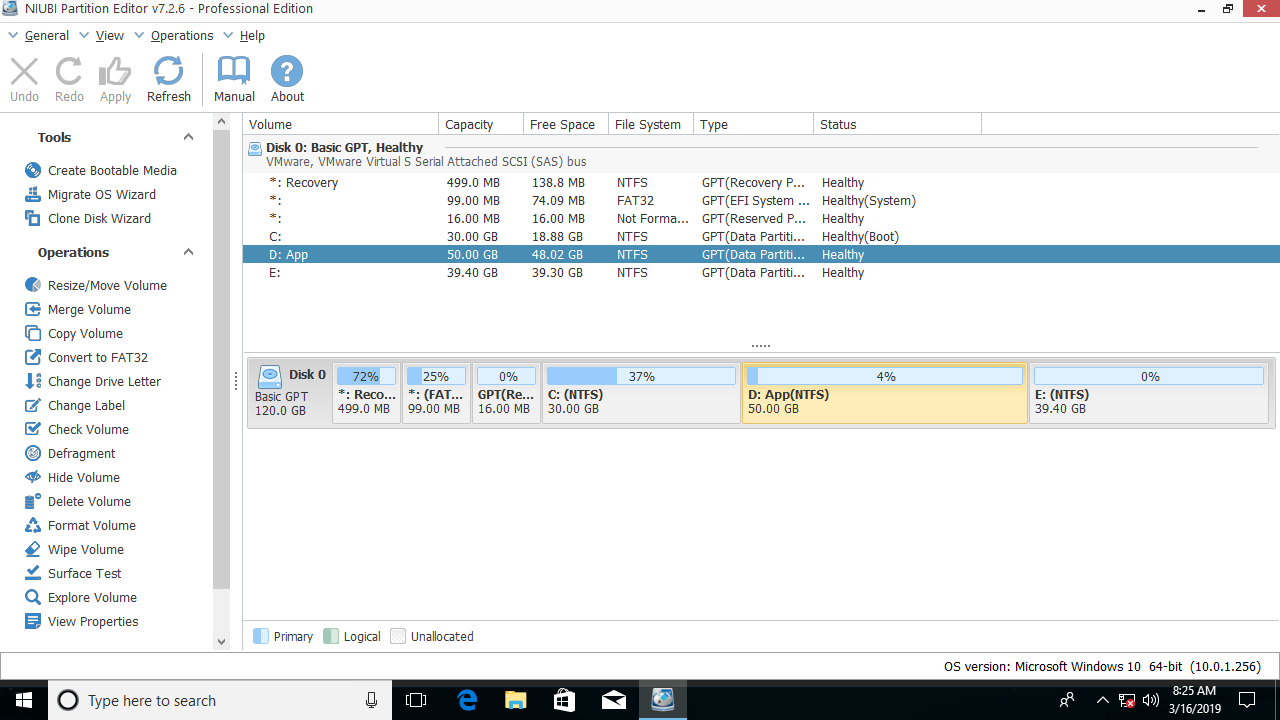
Download the software, right-click drive D and select "Resize/Move Volume", then drag the left border to the left to merge the Unallocated space:

Volume D is increased from 30GB to 50GB.
How to Increase D Drive Free Space From E
If there is another data volume E, the D drive can be increased by taking free space from it. This requires two drag-and-drop steps on the disk map.
Steps to increase D drive free space on Windows 10:
Step 1: Right-click drive E and select "Resize/Move Volume", then drag the left border to the right to shrink it.

20GB of Unallocated space is generated on the left side of E.
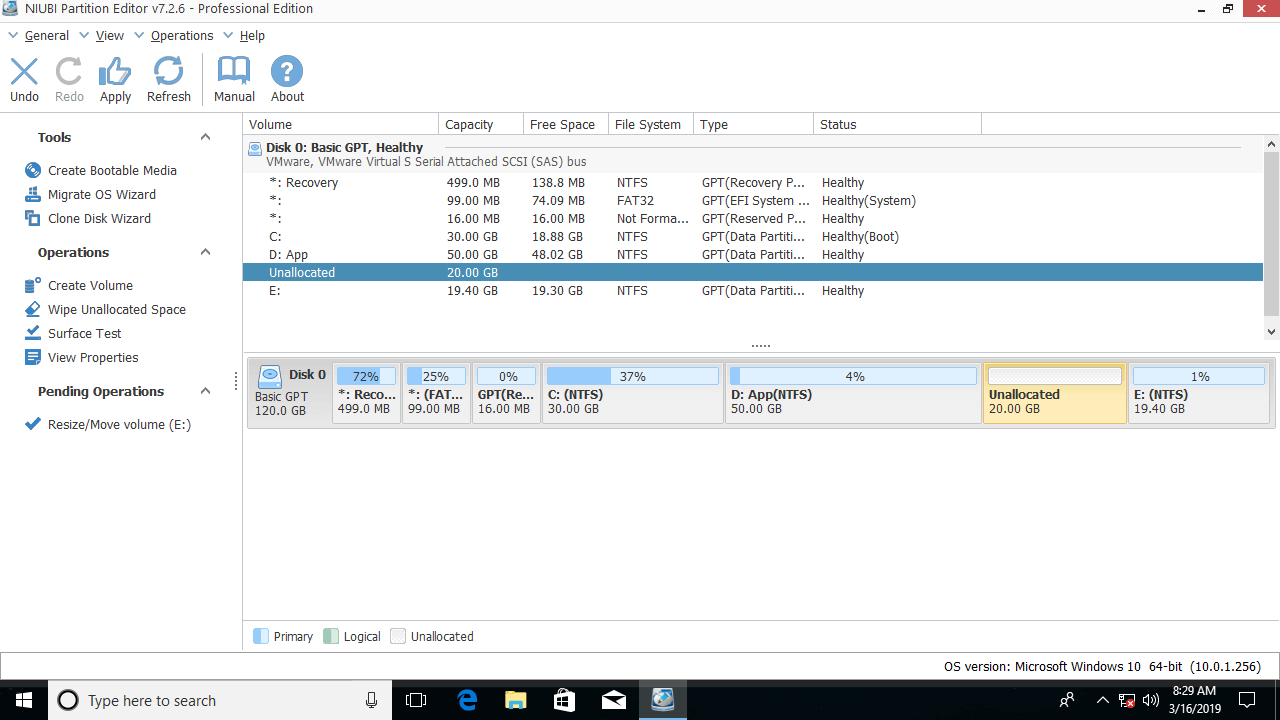
Step 2: Right-click drive D and select "Resize/Move Volume" again, then drag the right border to the right to merge the Unallocated space.

Volume D is increased to 70GB.
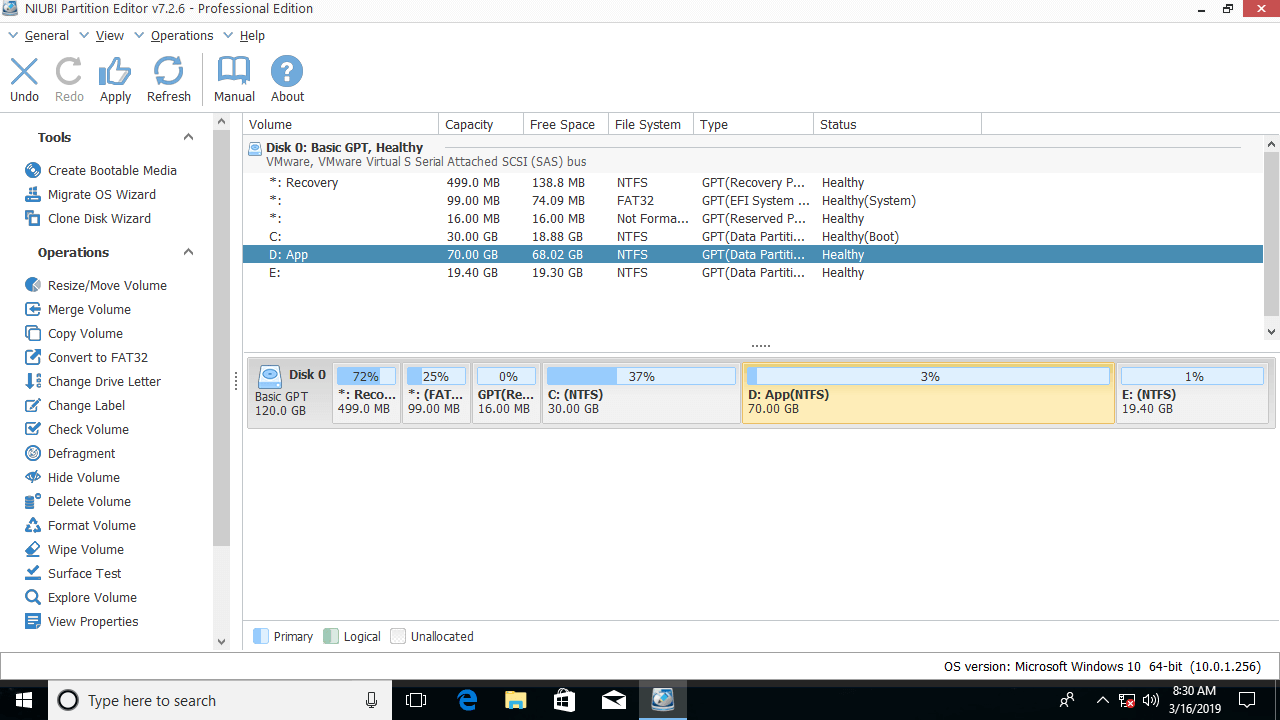
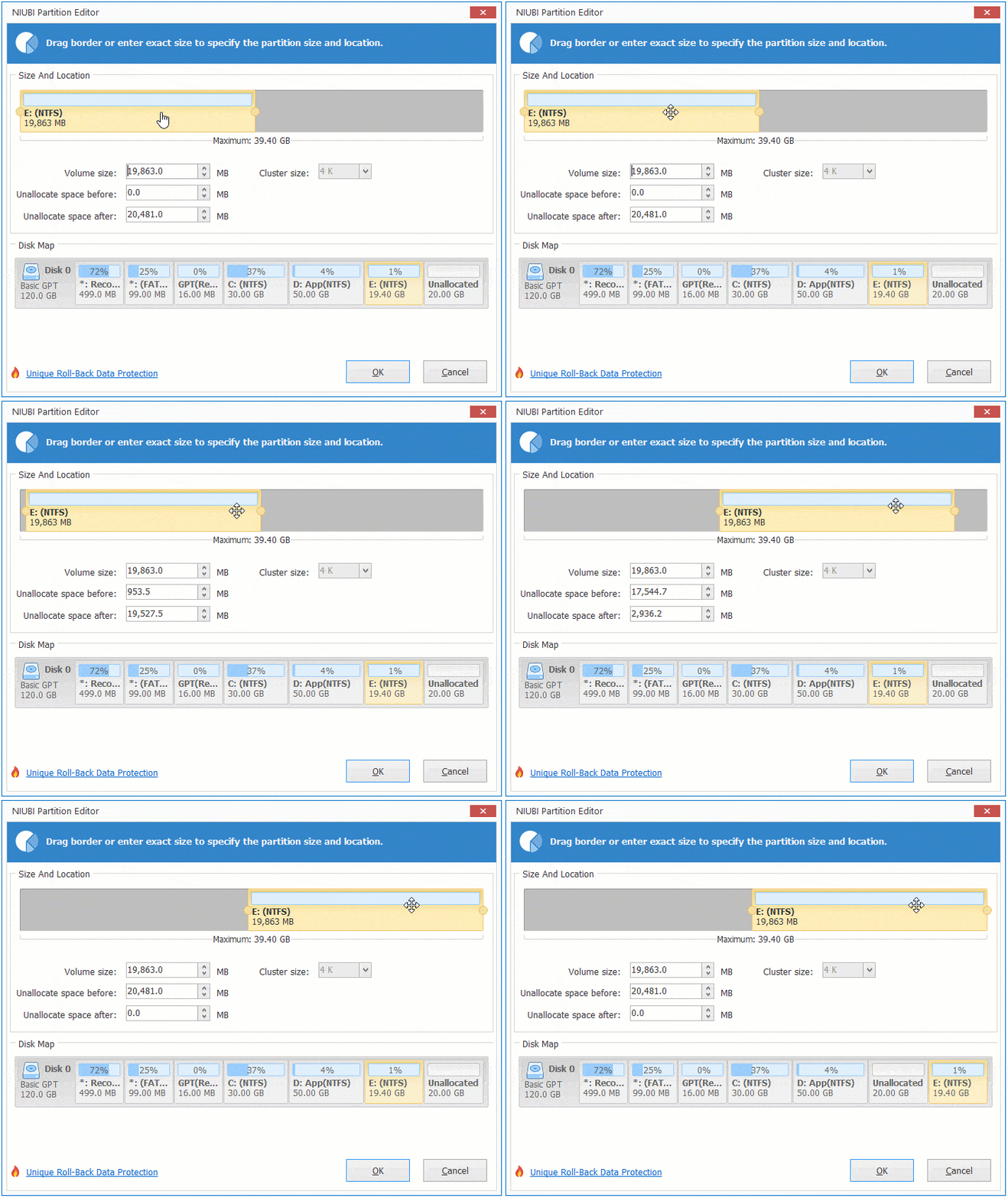
If drive E was shrunk using Windows 10 Disk Management, the Unallocated space must be moved from the right side to the left before following Step 2 above to increase the D drive space.
To move the Unallocated space, right-click drive E and select "Resize/Move Volume", then drag the middle of this partition to the right.
How to Increase D Volume Space With Another Disk
No partitioning software can increase the D drive space by utilizing free space from a separate disk. If the C drive cannot be shrunk and there are no other data volumes, the disk can be cloned to a larger one. During the cloning process, any volume can be increased with the extra disk space.
Compared with other tools, NIUBI Partition Editor features Hot Clone, Virtual Mode, Cancel-at-Will, and 1-Second Rollback technologies to protect your system and data. Furthermore, it is much faster because of its advanced file-moving algorithm.
 © 2009 - NIUBI Technology All Rights Reserved. |