
The disk space of all partitions is allocated while installing Windows or by OEM manufacturers, but the free space may be exhausted, especially for the system C: drive. In this situation, the best solution is to increase the disk space of the C: drive with free space from other partitions, allowing you to solve this problem without reinstalling the operating system and tons of programs. This article introduces how to increase disk space in a Windows 10/8/7 laptop/desktop with detailed steps. Select the corresponding method according to your own disk partition configuration.
Content:
- How to Increase the Disk Space of a Partition
- How to Increase Space of Entire Hard Disk
How to Increase the Disk Space of a Partition Without Software
Windows 10/8/7 native Disk Management has Shrink Volume and Extend Volume functions to help change the size of an allocated partition without losing data on the fly. However, it cannot extend a partition by shrinking another one, because it has limitations:
- When you shrink a partition (such as D:) with Disk Management, unallocated space can only be generated on the right side, but to increase the C: drive space with Disk Management, the unallocated space must be on the left side of D (next to the C: drive). That is to say, you cannot extend the C: drive by shrinking D.
- Disk Management can only shrink and extend partitions that are formatted with the NTFS file system.
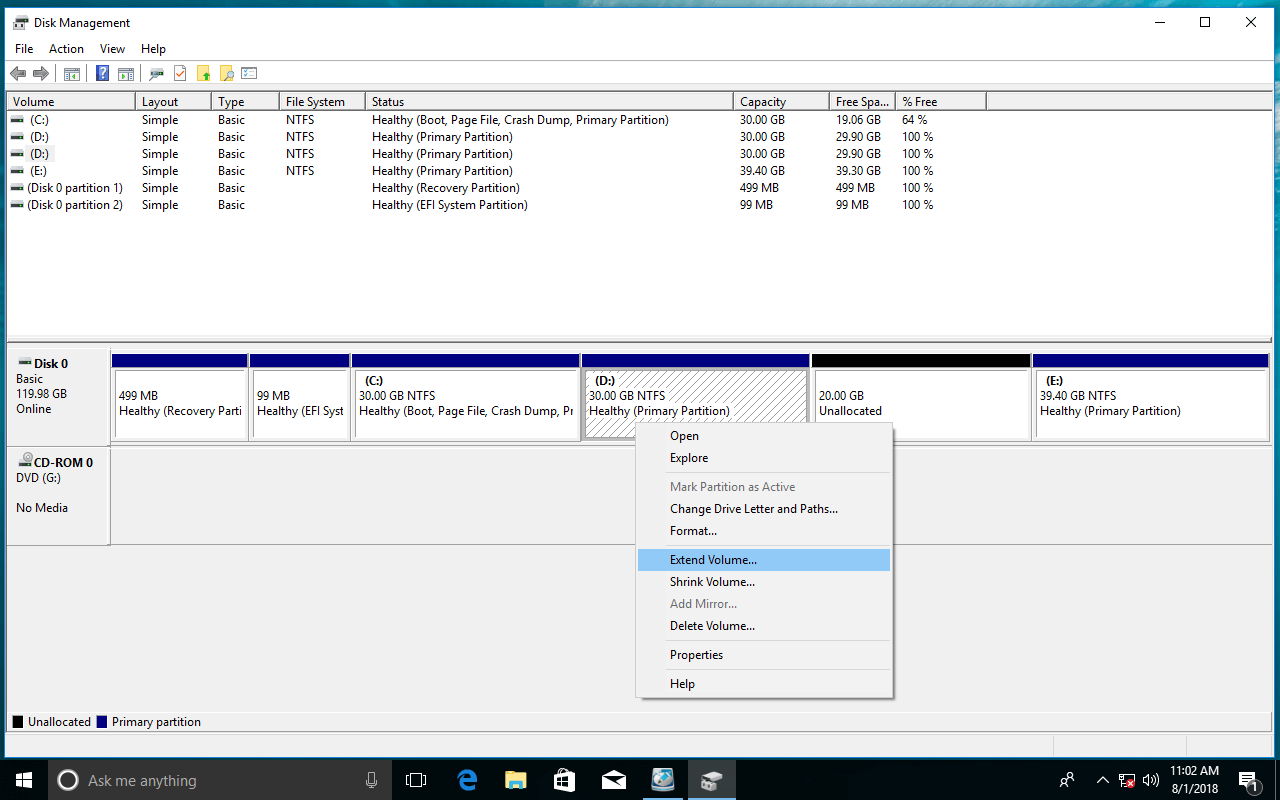
So the only way to increase the disk space of a partition in Windows 10/8/7 Disk Management is by deleting the adjacent partition on the right. For example, how to increase the D: drive space:
- Transfer all files in the E: drive to another partition.
- Press the Windows + X hot-keys on the keyboard and then click Disk Management.
- Right-click the E: drive and select Delete Volume.
- Right-click the D: drive and select Extend Volume.
- Click Next to complete the Extend Volume Wizard.
If you installed programs in the D: drive, do not delete it to expand the C: drive.
If you cannot or do not want to delete any partition, you have to run third-party software.
How to Increase the Disk Space of the C Drive with Another Partition
With NIUBI Partition Editor, you can increase the disk space of a drive in Windows 10/8/7 with free space from another partition without losing data. Compared with Disk Management, it has many advantages such as:
- It is much easier; you just need to drag and drop on the disk map to repartition hard drives.
- It can shrink and extend both NTFS and FAT32 partitions.
- It can generate unallocated space on either the left or right side when shrinking a partition.
- It can merge unallocated space into any contiguous and non-adjacent partition on the same disk.
- Besides resizing partitions to optimize disk space, it helps you perform many other operations.
Compared with other disk partition software, NIUBI has innovative 1-Second Rollback, Virtual Mode, and Cancel-at-Will technologies to protect your system and data. It has a free edition for Windows 10/8/7/Vista/XP home computer users.
Download this program and you will see all storage devices with the partition layout and detailed parameters on the right.
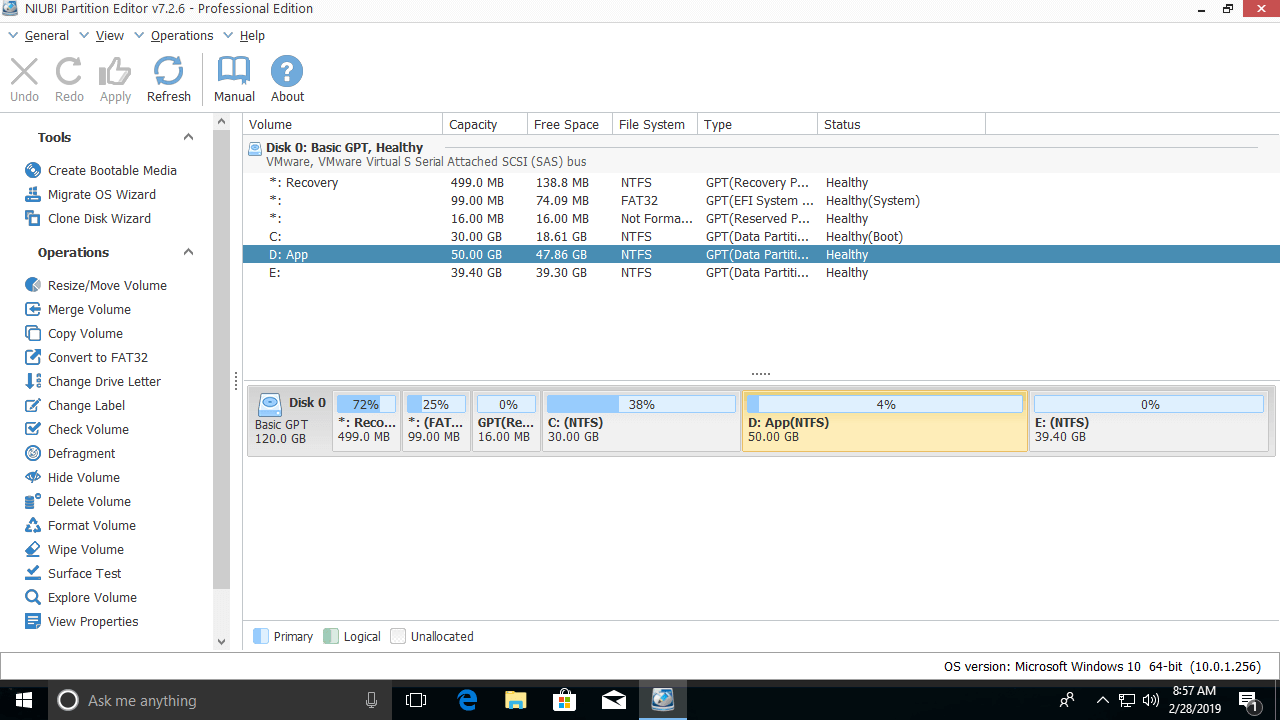
How to increase the disk space of the C: drive in a Windows 10/8/7 laptop/desktop:
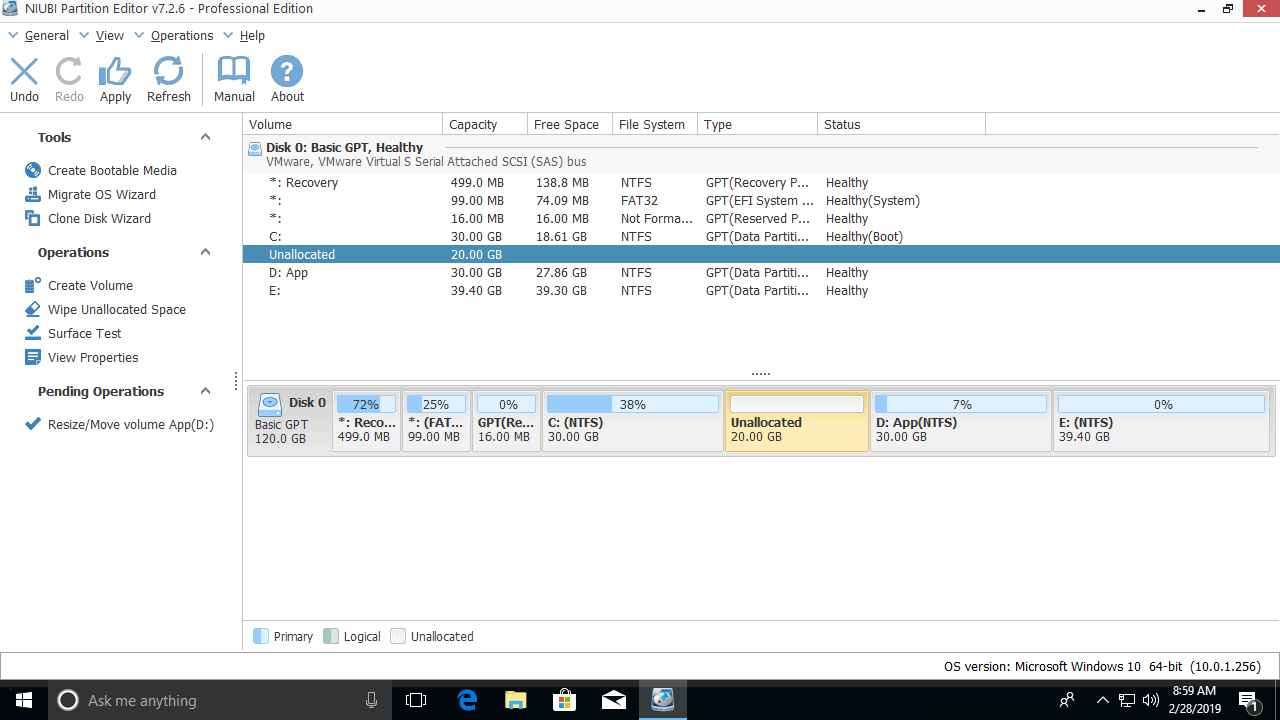
Step 1: Right-click the D: drive (the contiguous partition on the right of C) and select "Resize/Move Volume", then drag the left border to the right in the pop-up window.
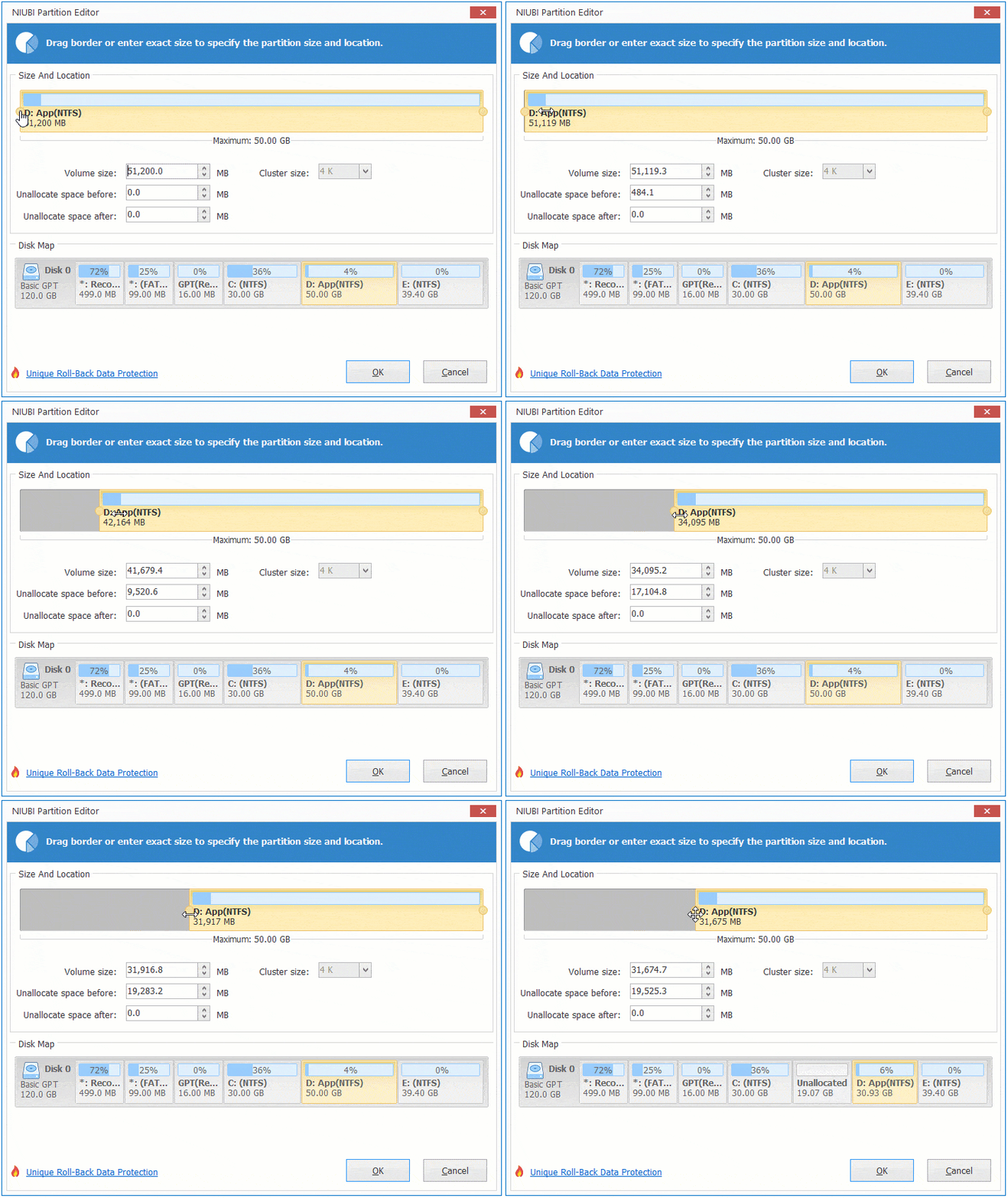
Then, a portion of the free space in the D: drive is converted into unallocated space on the left side.
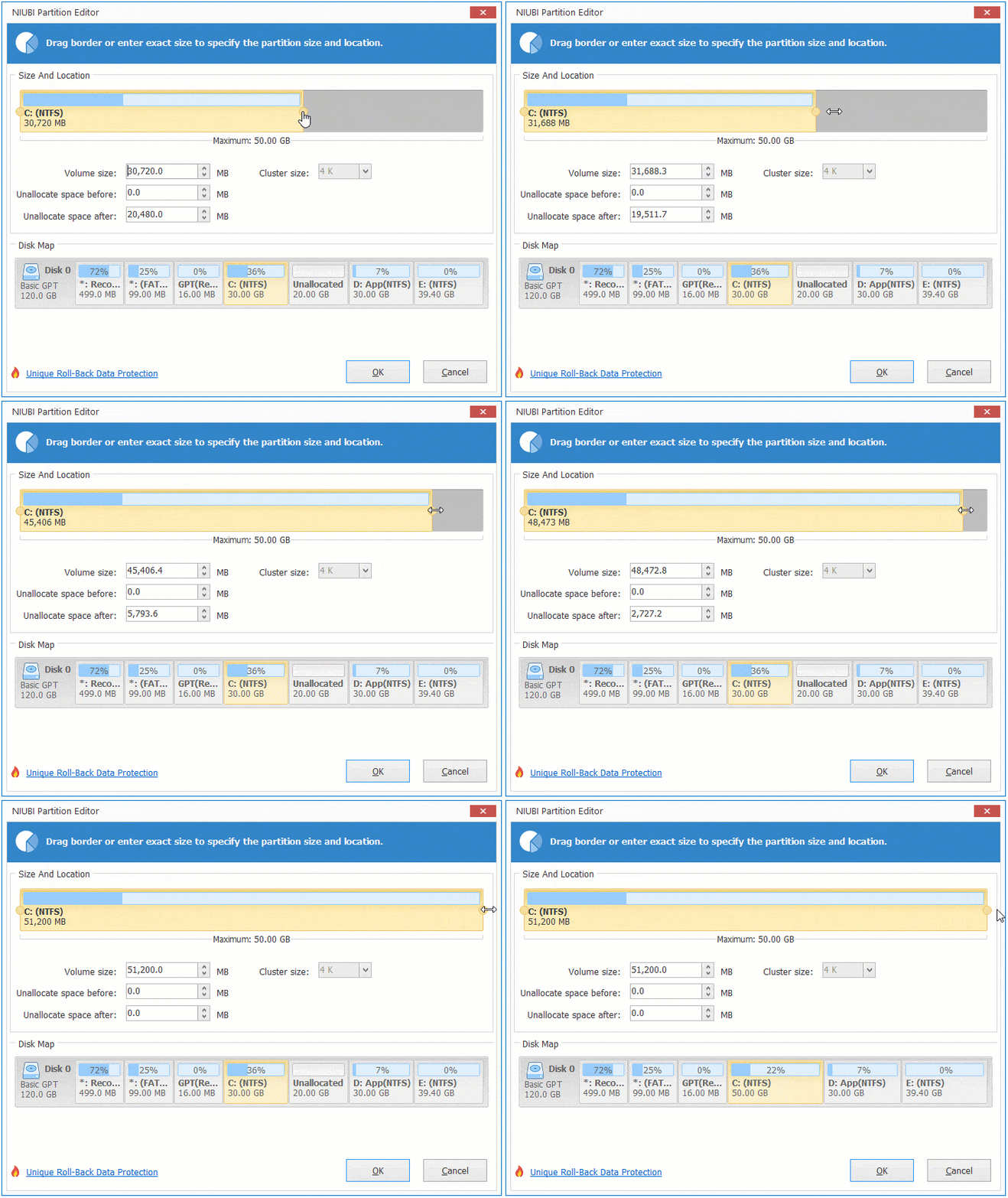
Step 2: Right-click the C: drive and select "Resize/Move Volume" again, then drag the right border to the right to merge this unallocated space in the pop-up window.
Then, the C: drive disk space is increased.
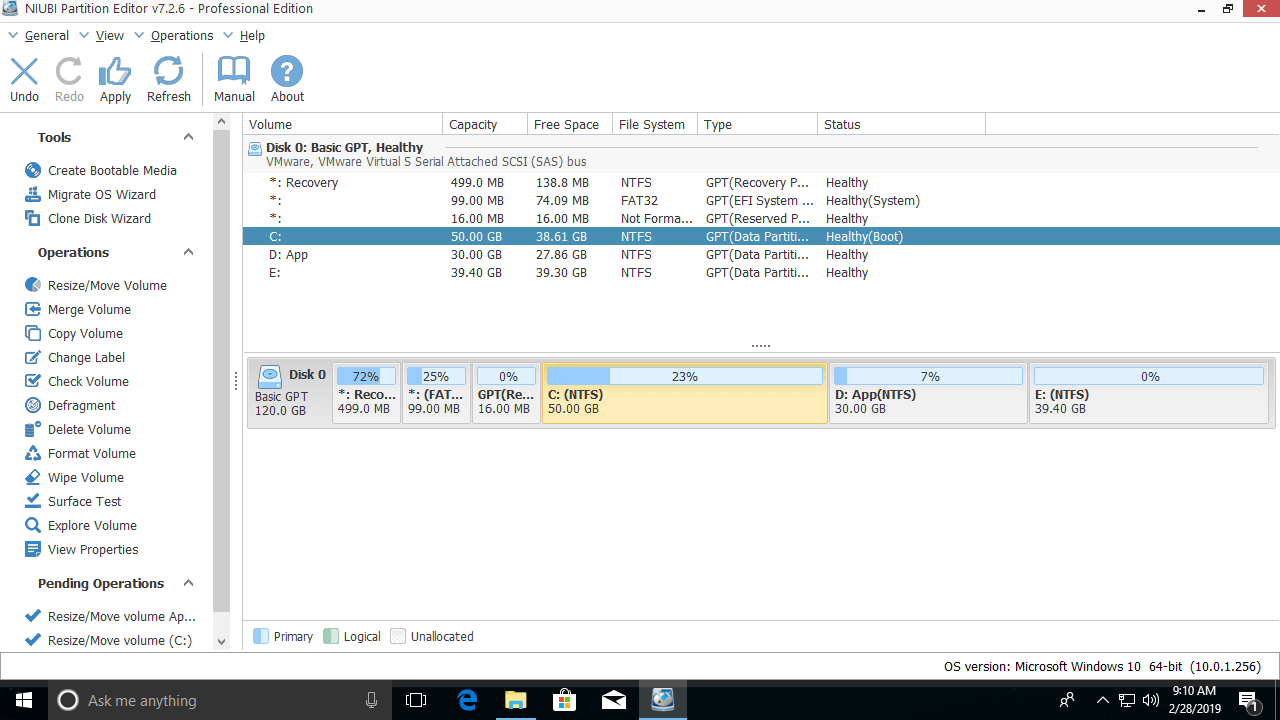
To avoid wrong operations, this software is designed to work in virtual mode. To change real disk partitions, click Apply on the top left to take effect.
How to Increase Partition Space with a Larger Disk
If you want to increase a 256GB physical disk to 512GB, it is impossible, because the size of a physical hard disk is fixed. If the entire disk becomes full, you can copy this disk to a larger one. While cloning a disk, all partitions inside of it can be extended with the extra disk space.
Watch the video on how to increase the disk space of a partition in Windows 10/8/7 with a larger disk:
How to Increase the VM Disk Space of a Virtual Machine
If you use a VMware/Hyper-V virtual machine, it is much easier to increase partition/disk space. When there is available free space on a disk, follow the steps in the video to shrink and extend a partition. When the entire virtual disk is full, follow the steps to increase virtual disk size in VMware or Hyper-V. Besides changing disk space in Windows 10/8/7/Vista/XP, NIUBI Partition Editor helps you perform many other operations.
 © 2009 - NIUBI Technology All Rights Reserved. |