
When a drive is running out of space, its partition size can be increased by utilizing unused space from another partition. This solves the problem quickly. However, because there is a potential risk of system damage and data loss, it is highly recommended to back up data and run a safe partition tool. Compared with other tools, NIUBI Partition Editor features Hot Clone, Virtual Mode, Cancel-at-Will, and 1-Second Rollback technologies to protect your system and data. Furthermore, it is much faster because of its advanced file-moving algorithm. This article introduces 3 methods to increase volume size in Windows 10 without losing data. Determine the current disk partition configuration and use the corresponding method.
Increase Partition Size by Merging Another Drive
By merging two contiguous partitions, all unused space and files from one partition will be seamlessly transferred to the other. Simply select the drives to be merged, and everything will be processed automatically.
However, there is a disadvantage to this method: one of the partitions will be deleted. Therefore, do NOT merge a partition where programs are installed into another one. This method is ideal for data volumes.
How to increase partition space by merging another volume:
Download the software, and all disk partitions will be displayed in the main window upon launching.
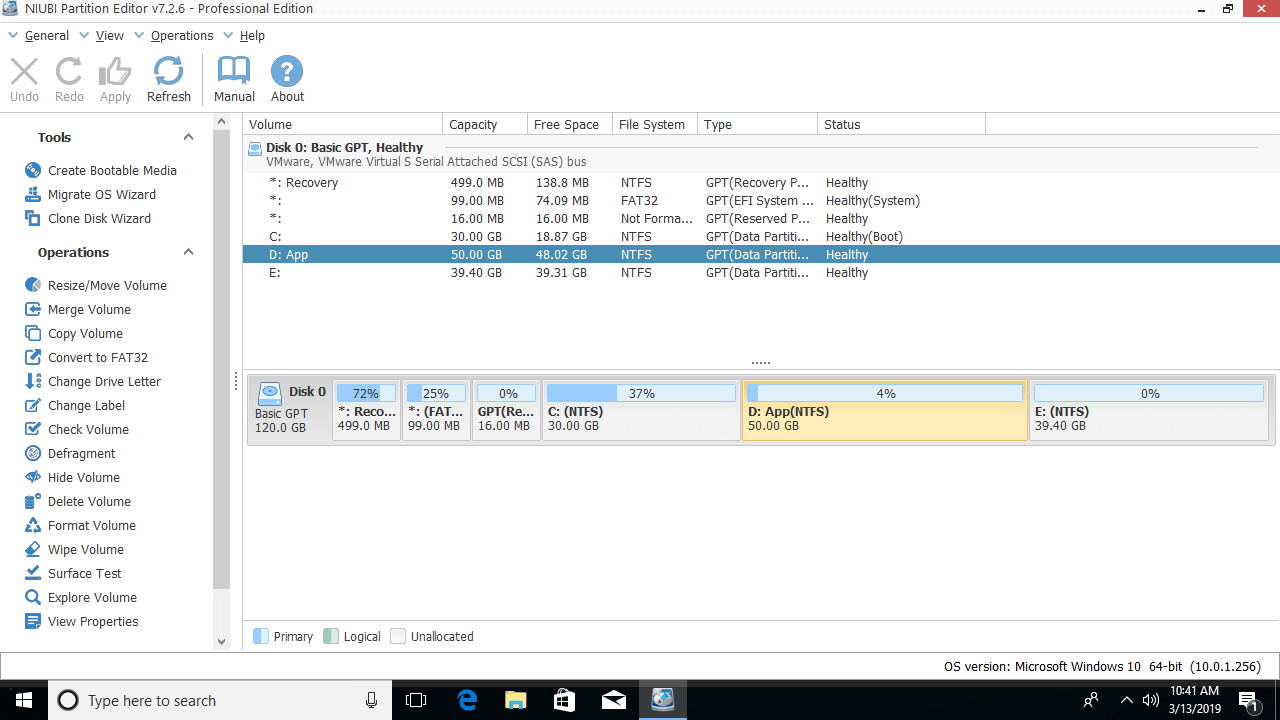
Right-click drive D or E and select "Merge Volume", then select both drives in the pop-up window.
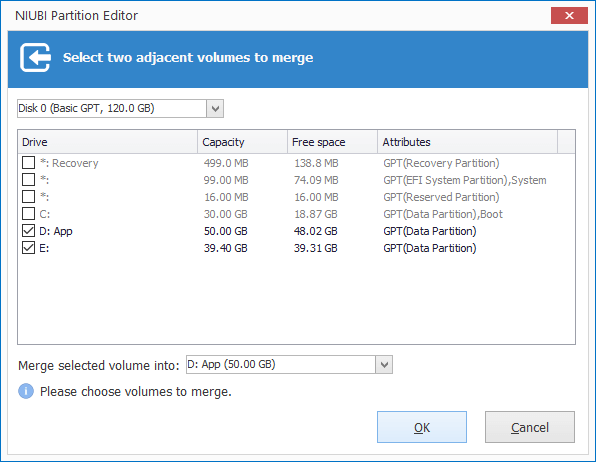
In the drop-down box at the bottom, the target volume can be selected. If D is selected, volume E will be merged into D.
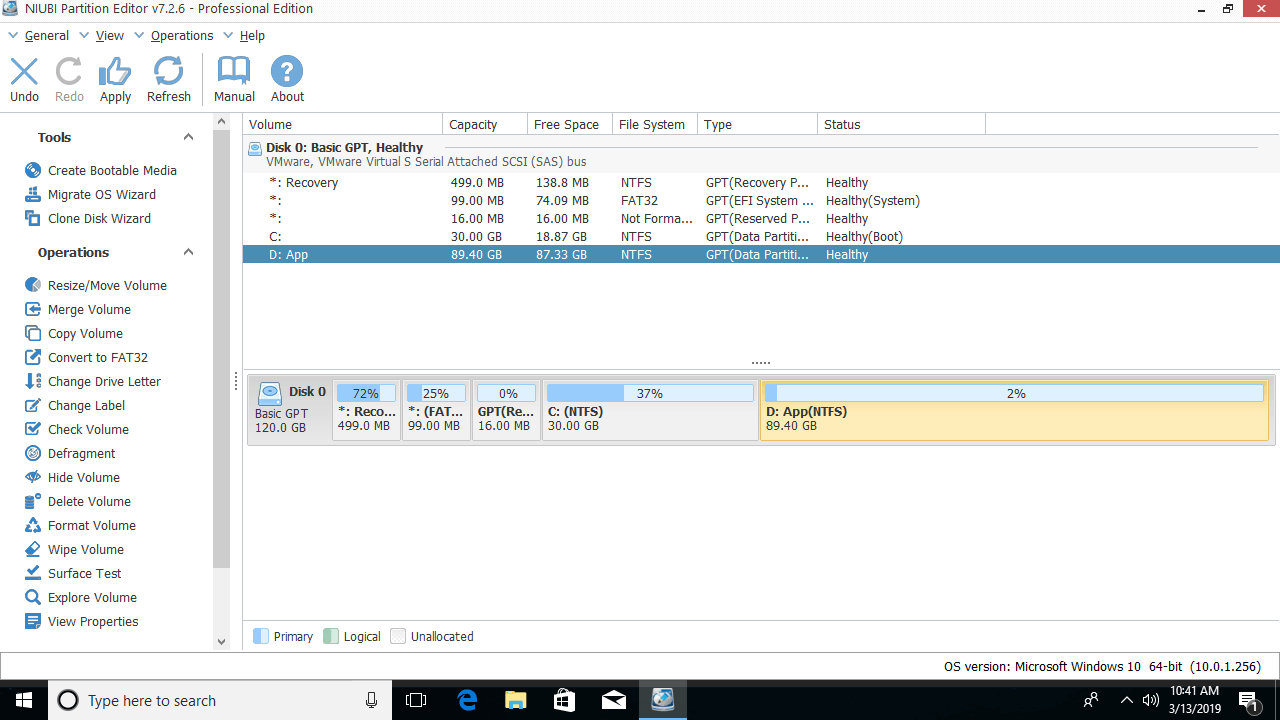
NIUBI operates in virtual mode. To modify real disk partitions, click Apply on the top left to confirm and execute.
Increase Partition Space by Shrinking Another Drive
To avoid losing any partitions, they can be shrunk instead. Using this method, part of the unused space in a partition is converted to Unallocated space, while all files and settings remain intact. This Unallocated space can then be merged into another volume to increase its partition size.
Steps to increase the size of a hard drive in Windows 10 by shrinking:
Step 1: Right-click a volume (such as D:) and select "Resize/Move Volume", then drag either border towards the other side to shrink it.
Option 1: Drag the left border to the right in the pop-up window.
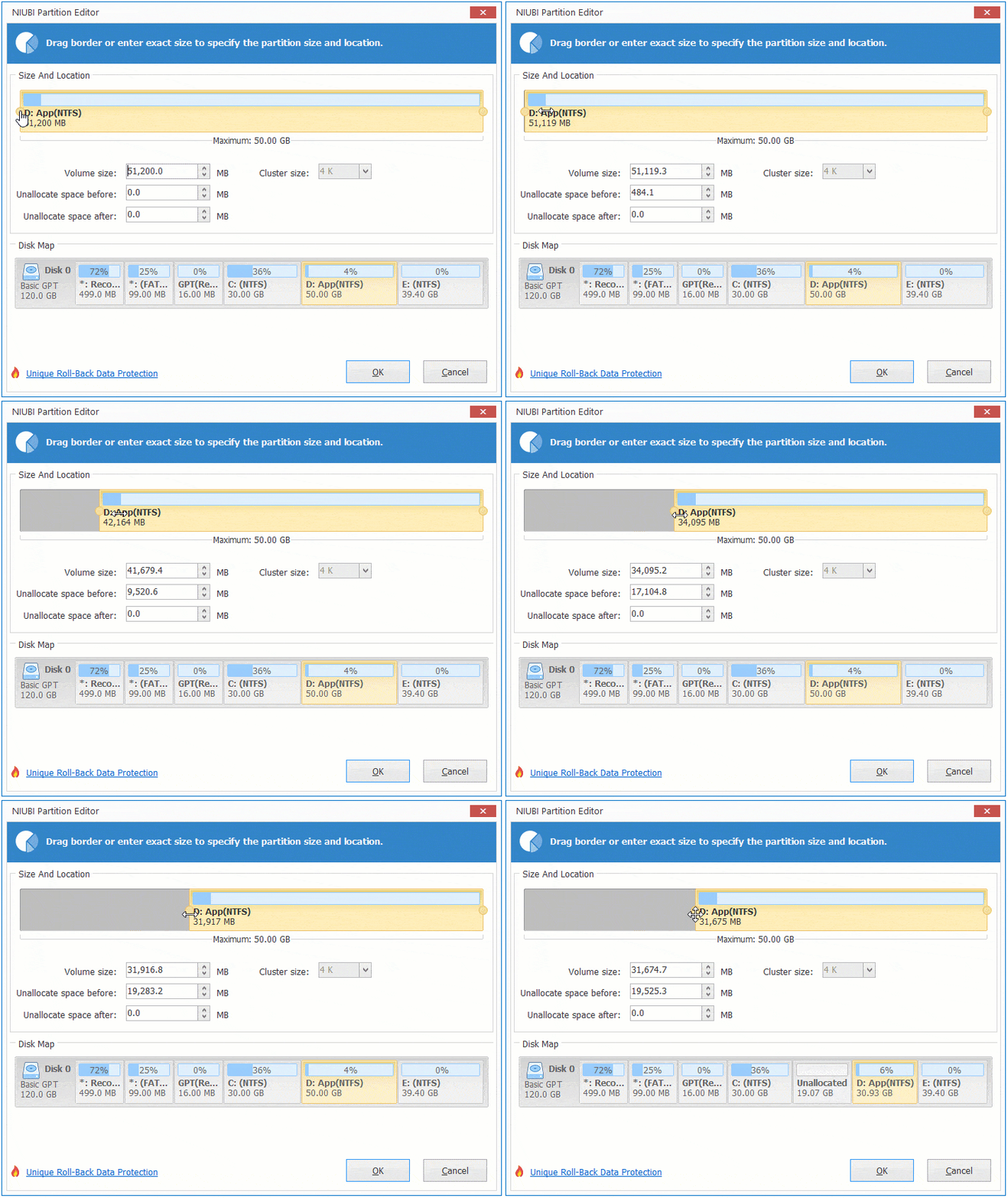
Then Unallocated space is generated on the left side.
Option 2: Drag the right border to the left in the pop-up window.

Then Unallocated space is generated on the right side.
Step 2: Right-click drive C or E and select "Resize/Move Volume" again, then drag the border towards the other side to merge the Unallocated space.
Option 1: Drag the right border to the right.
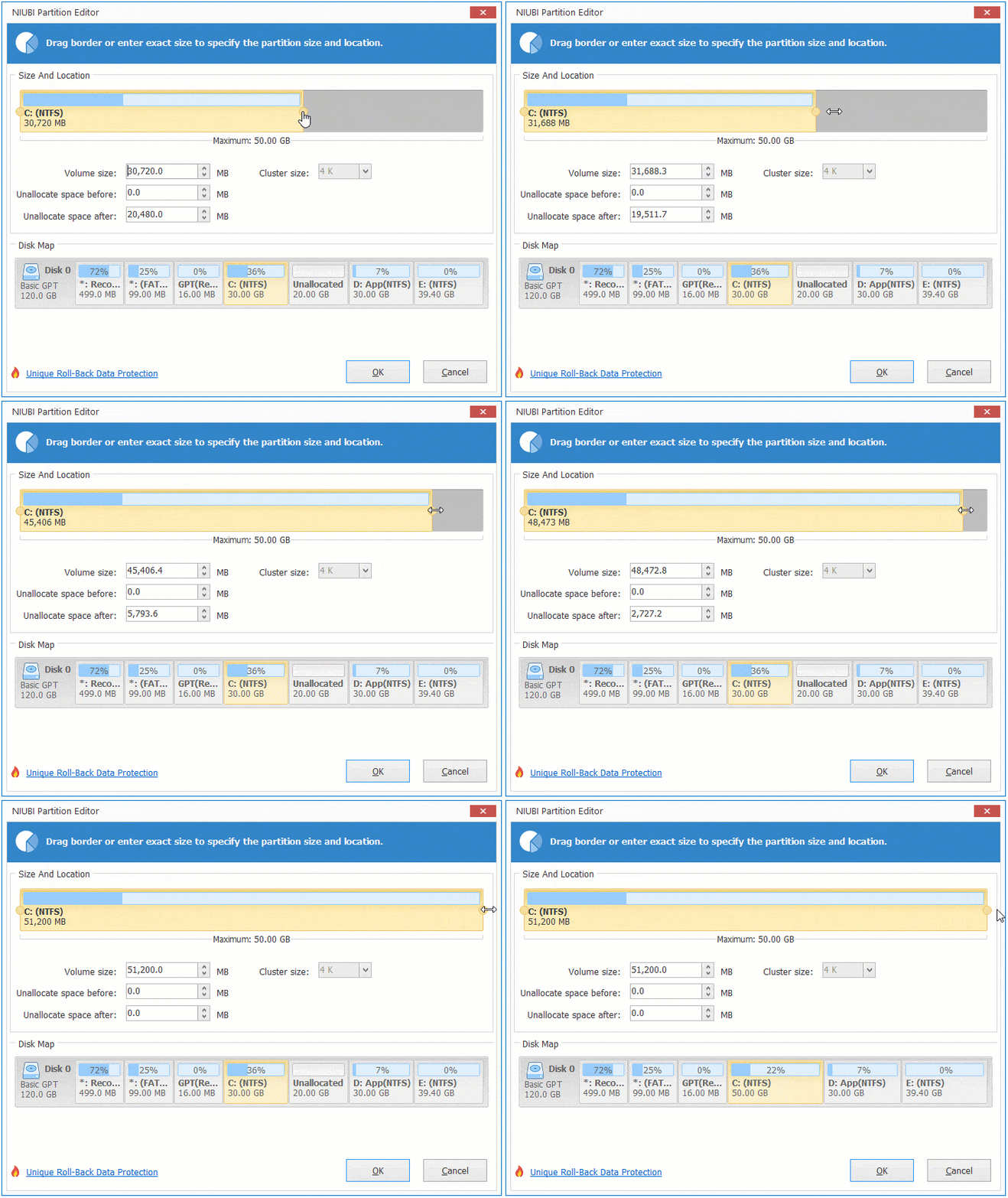
Then the C drive will be increased.
Option 2: Drag the left border to the left.

Then the E drive will be increased.
To increase C drive space by shrinking E, follow these steps:
- Shrink E with "Resize/Move Volume" to generate Unallocated space on its left side.
- Move the Unallocated space from the right side of D to the left.
- Extend C by merging the Unallocated space.
To move the Unallocated space, right-click drive D and select "Resize/Move Volume", then drag the middle of this partition to the right in the pop-up window.

Increase Volume Size by Cloning to Another Disk
No partitioning software can increase partition size by utilizing unused or Unallocated space from another separate disk. If there are no other volumes or not enough unused space on the same disk, it can be cloned to another disk with NIUBI Partition Editor. There are two options depending on which drive is to be extended.
To increase system partition C:
- Insert another larger disk. If it is not blank, transfer its files to another location.
- Run the Clone Disk Wizard and copy to this larger disk. During the cloning process, the C drive can be extended with the extra disk space.
- Boot from the larger disk.
To increase a data volume:
- Shrink a volume to generate Unallocated space on another disk.
- Right-click D (or another data volume) and select Copy Volume.
- Right-click D and select Change Drive Letter, then change D to any other available letter.
- Repeat the process to change the drive letter of the new partition to D.
Besides decreasing and increasing partition sizes in Windows 10, NIUBI Partition Editor helps convert, defrag, check, hide, and wipe partitions, among other operations.
 © 2009 - NIUBI Technology All Rights Reserved. |