
As with previous versions, the C: drive runs out of space in Windows 10/11 computers. When this happens, nobody wants to reinstall the operating system and all programs. It also takes a long time to recreate partitions and restore from a backup. In most cases, there is another D: drive with plenty of free space. Many users ask whether it is possible to shrink the D: drive and transfer free space to the C: drive. The answer is yes, but third-party software is required because the Windows built-in Disk Management and diskpart command cannot help you. This article introduces how to shrink the D: drive to extend the C: drive in Windows 10/11 with free but safe disk partition software.
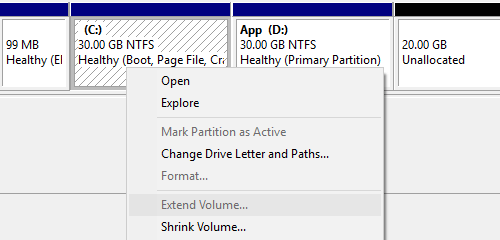
Cannot Shrink D to Extend the C Drive in Windows 10 with Native Tools
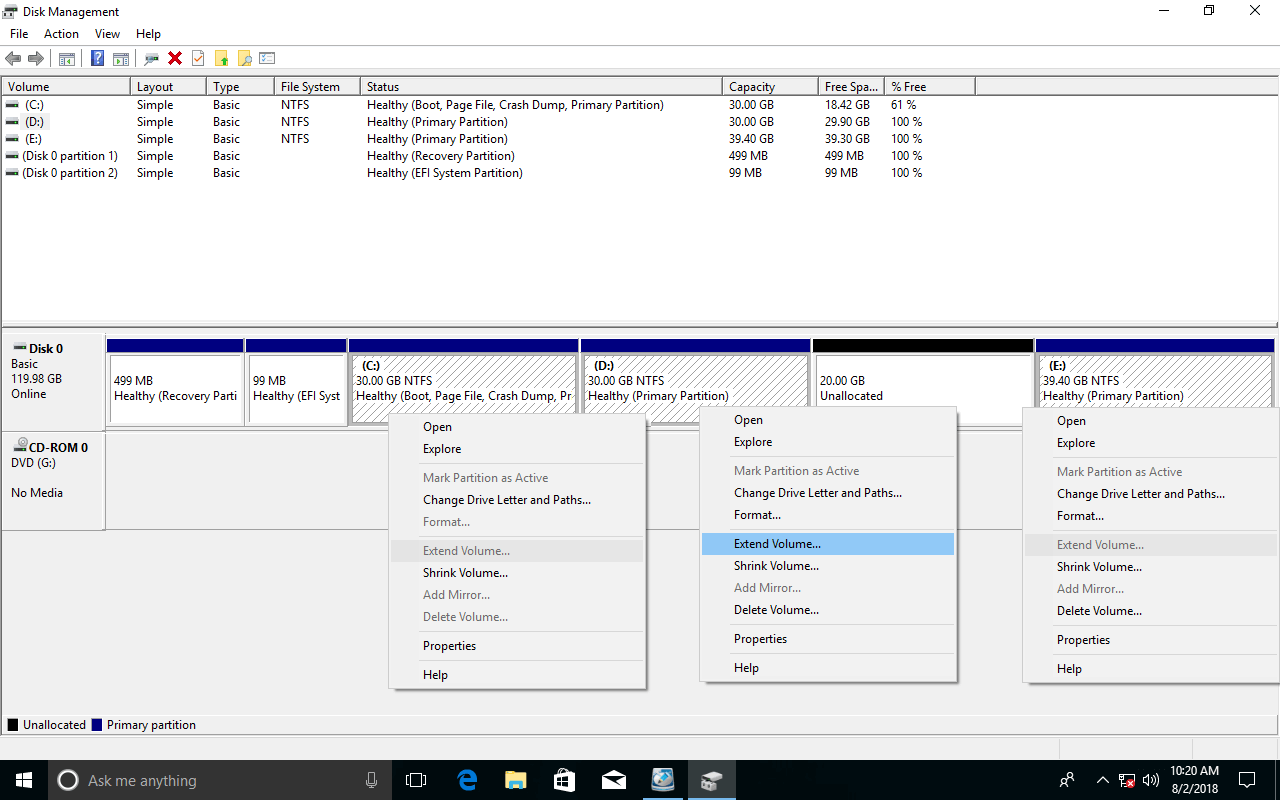
Since Windows Vista, Microsoft has added the advanced Shrink Volume and Extend Volume features to the Disk Management tool. When the C: drive is full, some people try to extend it with this native tool, thinking this problem can be solved without reinstalling the operating system. Windows 10 inherited these two features without any improvement, so many users report that they cannot extend the C: drive after shrinking D via Disk Management because Extend Volume is always greyed out.
If you have tried to shrink a partition, you will find that the only option is entering an amount, then Shrink Volume will decrease this partition and generate unallocated space on the right side. There is no option to generate it on the left side.
Another "Extend Volume" feature can only expand the partition with adjacent unallocated space on the right. Therefore, after shrinking the D: drive, Extend Volume is only available for D; all other partitions cannot be used.
In this situation, you need partition editor software to move the unallocated space from the right side of D to the left.
If you did not shrink D in Disk Management, you can shrink it with NIUBI Partition Editor and generate unallocated space on the left side directly.
How to Shrink D and Extend the C Drive in Windows 10/11
To accomplish this task, NIUBI Partition Editor has a free edition for Windows 11/10/8/7/Vista/XP home computer users. You just need to drag and drop on the disk map.
Download the free partition editor, and you will see the main window with detailed disk partition information and available operations.
Step 1: Shrink partition D and generate unallocated space on the left side.
Right-click the D: drive and select "Resize/Move Volume", then drag the left border to the right in the pop-up window.
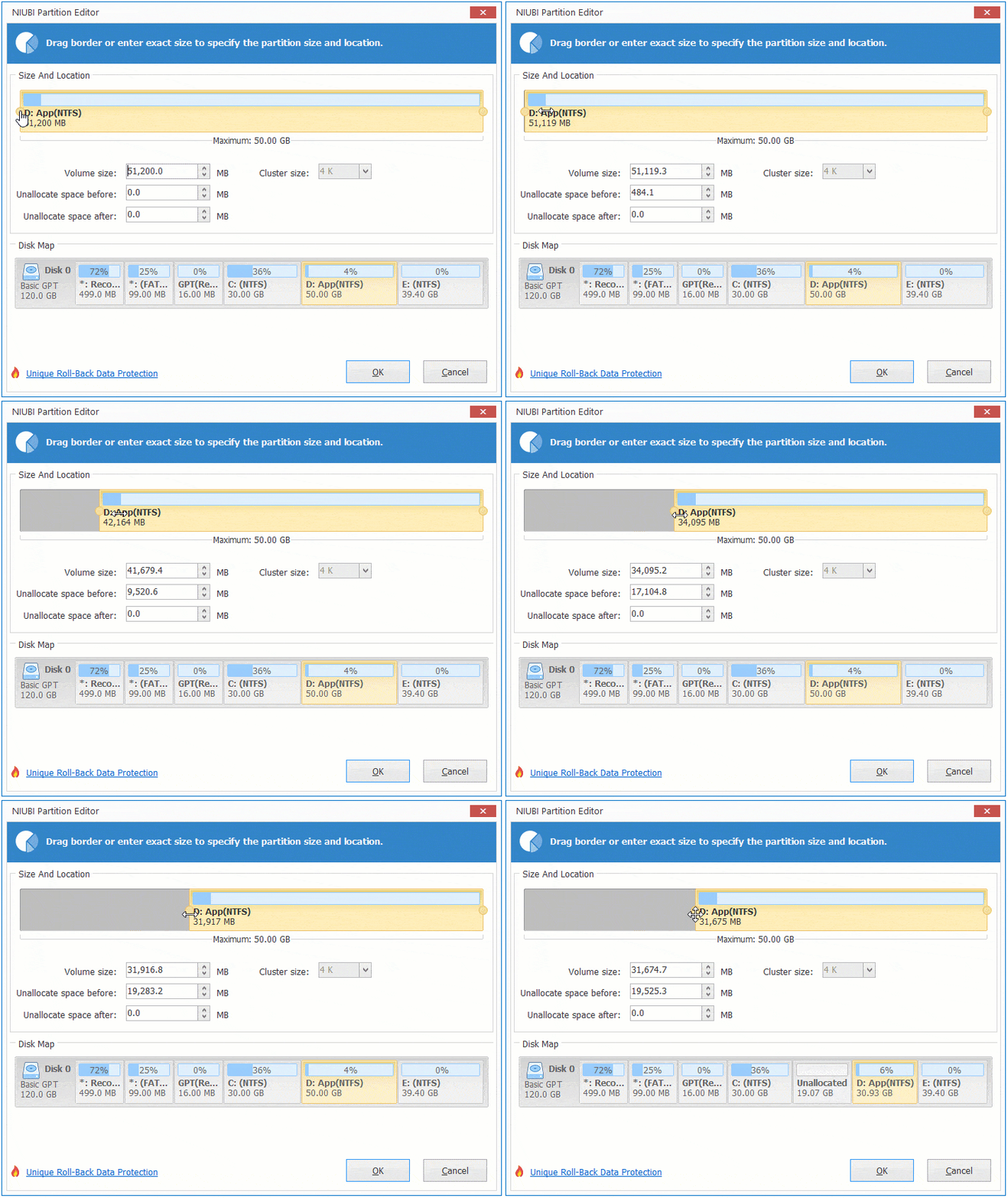
As you can see, unallocated space is generated on the left side of D.
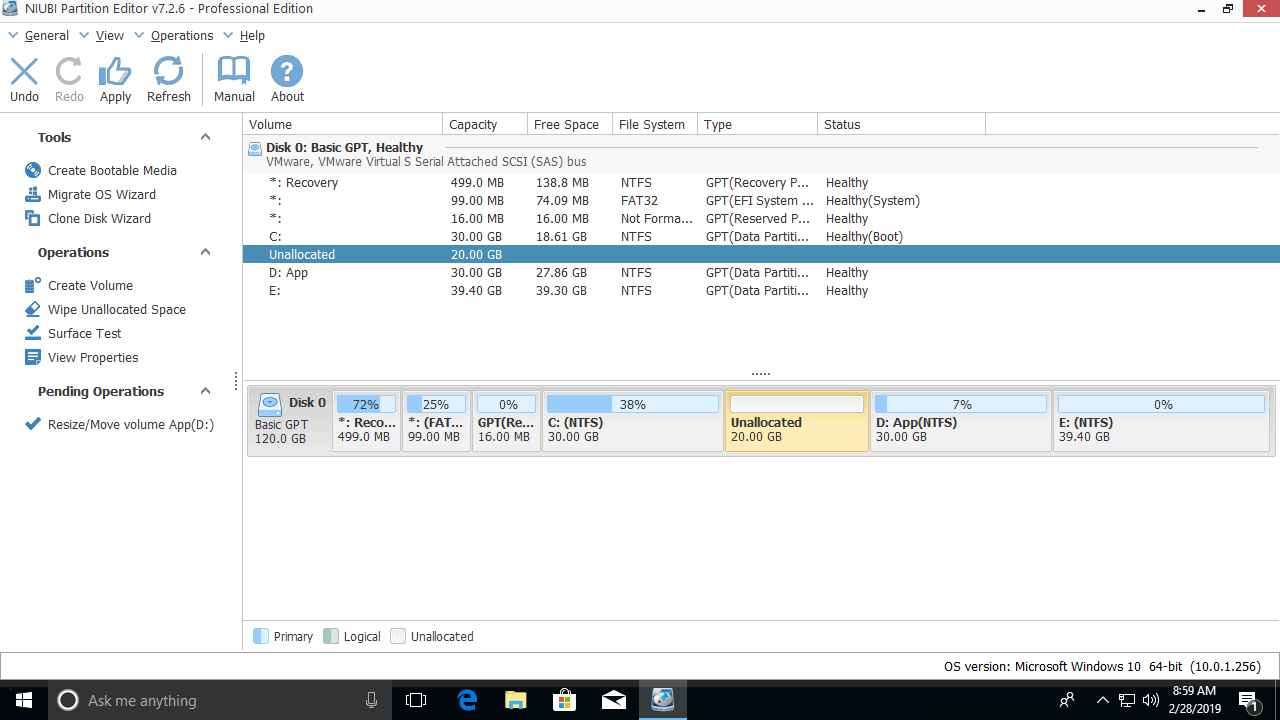
Step 2: Extend the C: drive with this unallocated space.
Right-click the C: drive and select "Resize/Move Volume" again, then drag the right border to the right in the pop-up window.
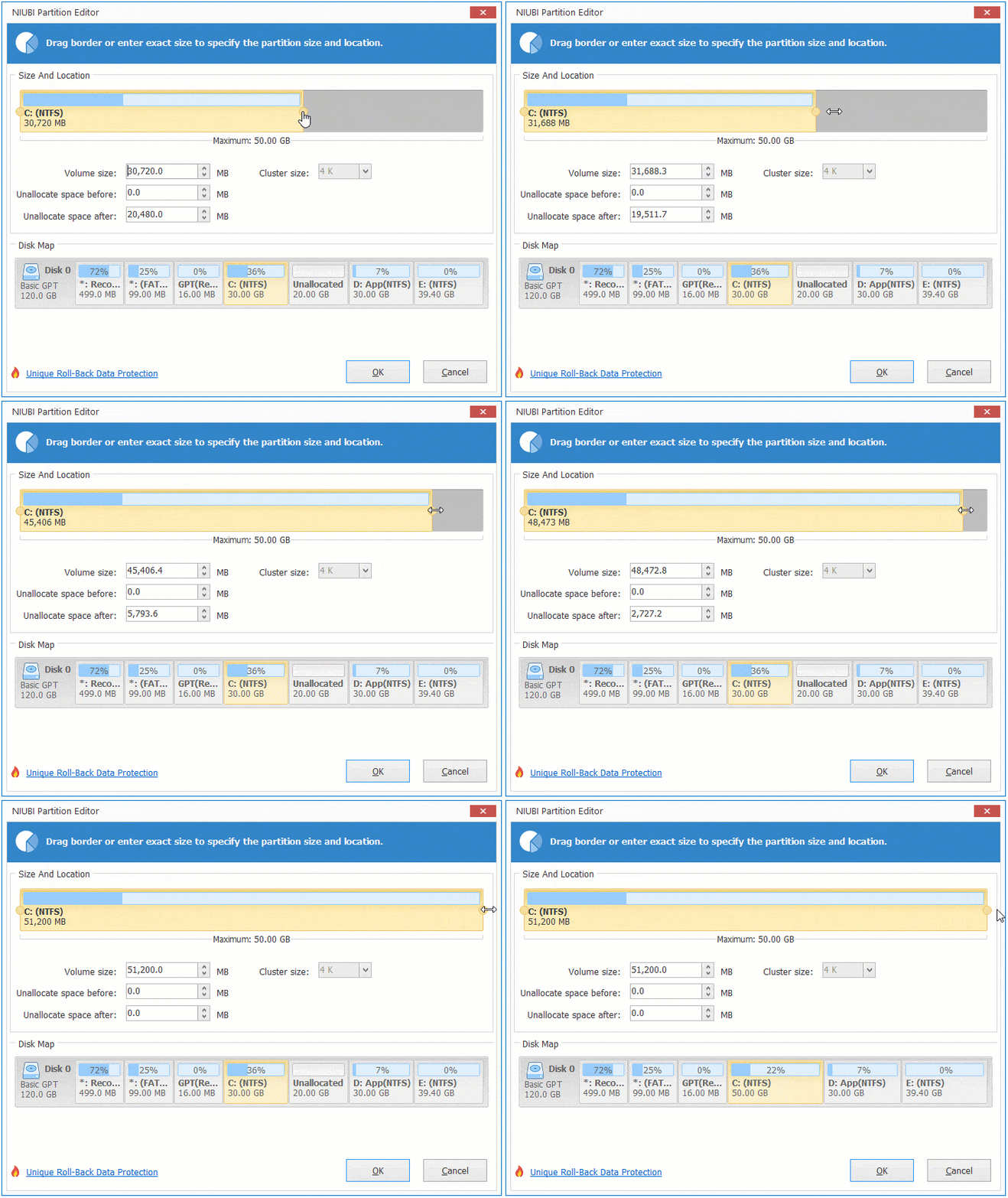
As you can see, the C: drive is extended by merging the unallocated space.
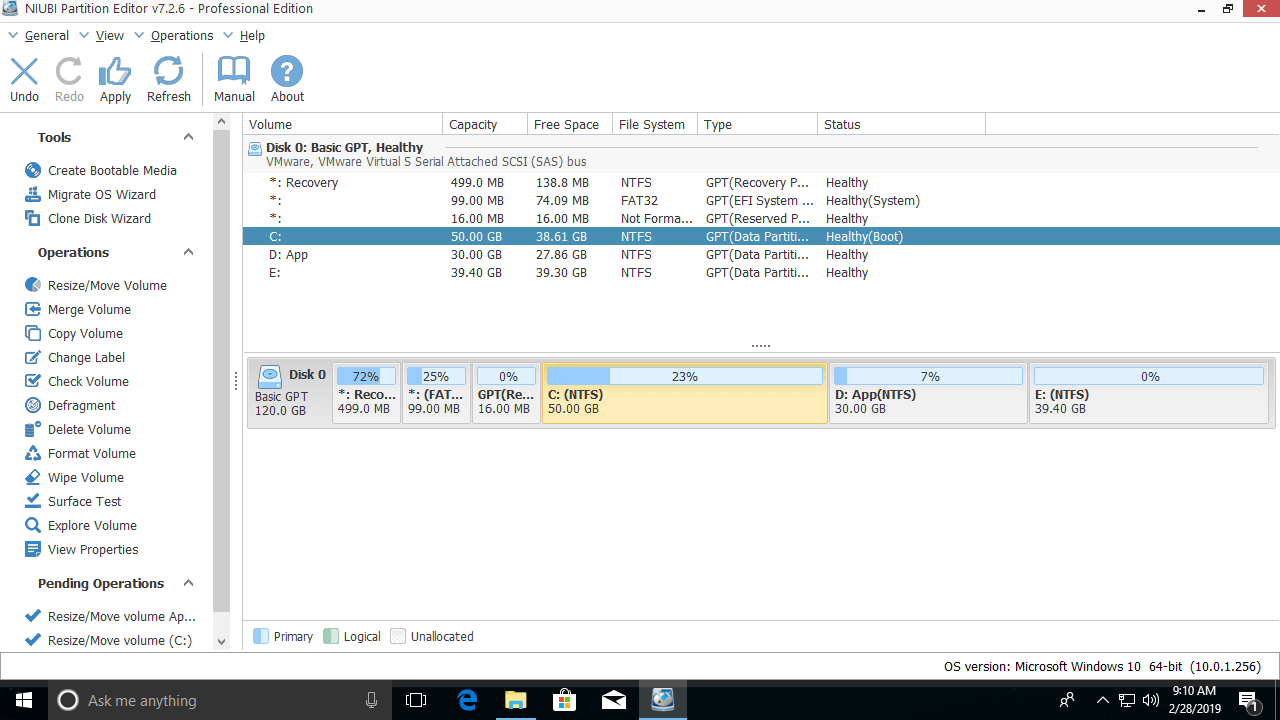
This software is designed to work in virtual mode first; real disk partitions will not be modified until you click Apply to confirm. Before this, you can preview, undo, and redo the pending operations.
How to Shrink E to Extend the C Drive in Windows 10/11
If you want to get free space from the non-adjacent volume E, right-click it and follow Step 1 to shrink it and generate unallocated space on the left side. Then you need to move partition D before extending the C: drive:
Right-click D: and select "Resize/Move Volume", then drag the middle of the partition to the right in the pop-up window.

Then follow Step 2 above to expand the C: drive.
If you have shrunk partition D with Disk Management, use the same method to move the partition to the right; the unallocated space will be moved to the left at the same time.
Besides shrinking, moving, and extending partitions, NIUBI Partition Editor helps you perform many other disk partition management operations, such as cloning, converting, defragging, wiping, checking, scanning, and hiding partitions, etc.
 © 2009 - NIUBI Technology All Rights Reserved. |