
Most Windows 10 users need to adjust partition sizes after running their computers for a period of time. When the system C drive gets full, free space can be transferred from other data volumes. This provides plenty of free space in the C drive again without the need to recreate partitions or reinstall the Operating System. To change partition sizes in Windows 10, Microsoft provides a built-in Disk Management utility. However, due to several limitations, it is not the best tool for resizing disk partitions.
Limitations of Changing Partition Size with Windows 10 Disk Management
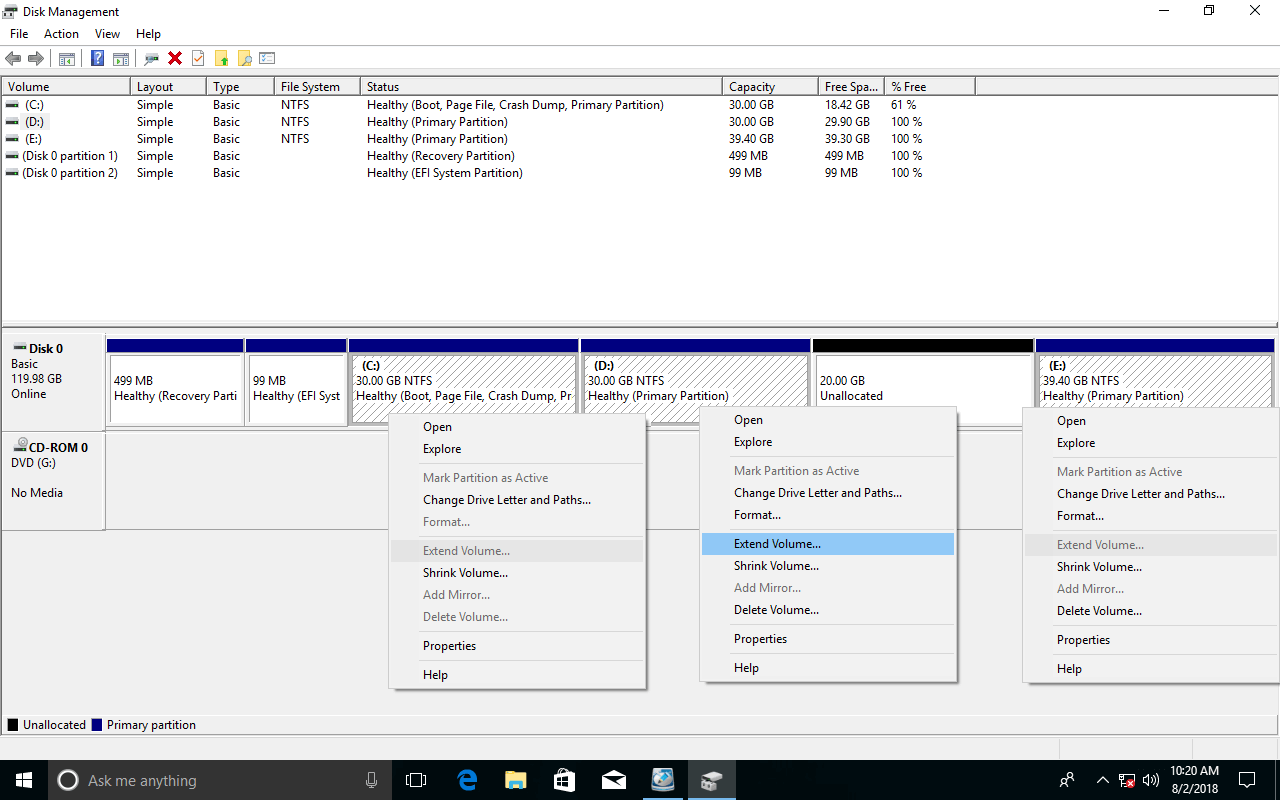
By pressing the Windows and X keys and selecting Disk Management from the list, the Shrink Volume and Extend Volume options become visible when right-clicking a partition. Available options for a partition are displayed in black text, while unavailable options are grayed out.
When repartitioning a hard drive with Disk Management:
- Only partitions formatted as NTFS or without a file system (RAW) are supported.
- Unallocated space can only be generated on the right side when shrinking a partition.
- Extend Volume is valid only when there is contiguous Unallocated space on the right side.
- Unallocated space cannot be merged into the right or any non-adjacent partitions.
- To expand a non-adjacent partition, Unallocated space must be moved to either side of it, but Disk Management lacks this capability.
Disk Management can only adjust partition sizes in the following ways:
- Shrink a partition to the left to generate Unallocated space for creating a new volume.
- Extend a partition by deleting the contiguous partition on its right.
Learn more about the reasons and solutions for when a volume cannot be extended in Windows 10.
Change Volume Size with Free Partition Editor Software
Compared with Disk Management, NIUBI Partition Editor offers several advantages:
- Both NTFS and FAT16/32 partitions are supported for shrinking and extending.
- Unallocated space can be generated on either side when shrinking a partition.
- Unallocated space can be merged directly into either adjacent partition.
- Unallocated space can be moved and then merged into any non-adjacent partitions.
- Two contiguous partitions can be merged directly.
There is other partition software available to adjust partition sizes in Windows 10, but compared with these tools, NIUBI provides unique benefits:
- Hot Clone - Clone disk partitions in Windows for backup, migration, and fast disk swapping.
- Virtual Mode - All operations are listed as pending for preview, and real disk partitions won't be modified until you click "Apply" to confirm.
- Cancel-at-Will - If you applied incorrect operations, you can safely cancel the ongoing operations at any stage before completion.
- 1 Second Rollback - If any error is detected while resizing partitions, it can immediately and automatically revert the disk partitions to their previous state.
- Advanced file-moving algorithm: Resize and move partitions 30% to 300% faster, saving significant time, especially when handling a large number of files.
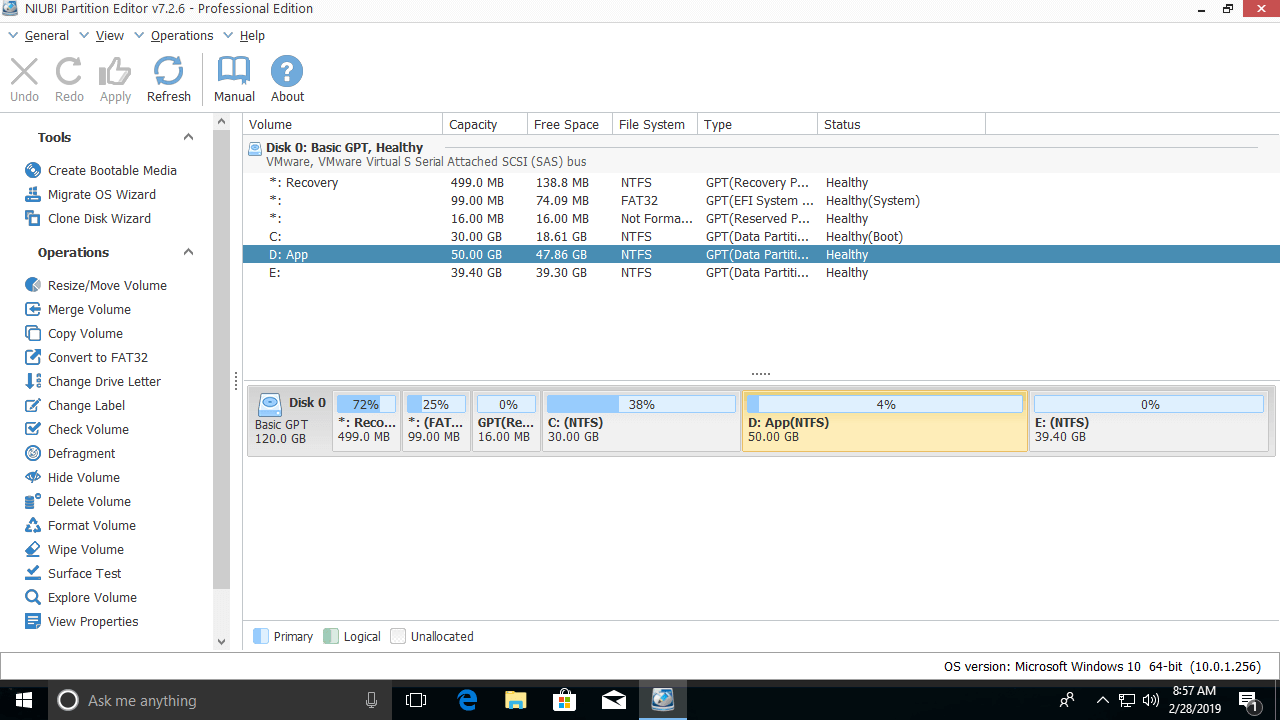
NIUBI Partition Editor provides a free edition for home computers running Windows 11, 10, 8, 7, Vista, and XP. Download the software, and all disk partitions will be displayed in the main window upon launching.
2 Common Methods to Adjust Partition Size in Windows 10
Method 1: Shrink one volume to expand another (for example: shrink D to extend volume C)
1. Right-click drive D and select "Resize/Move Volume", then drag the left border to the right in the pop-up window.
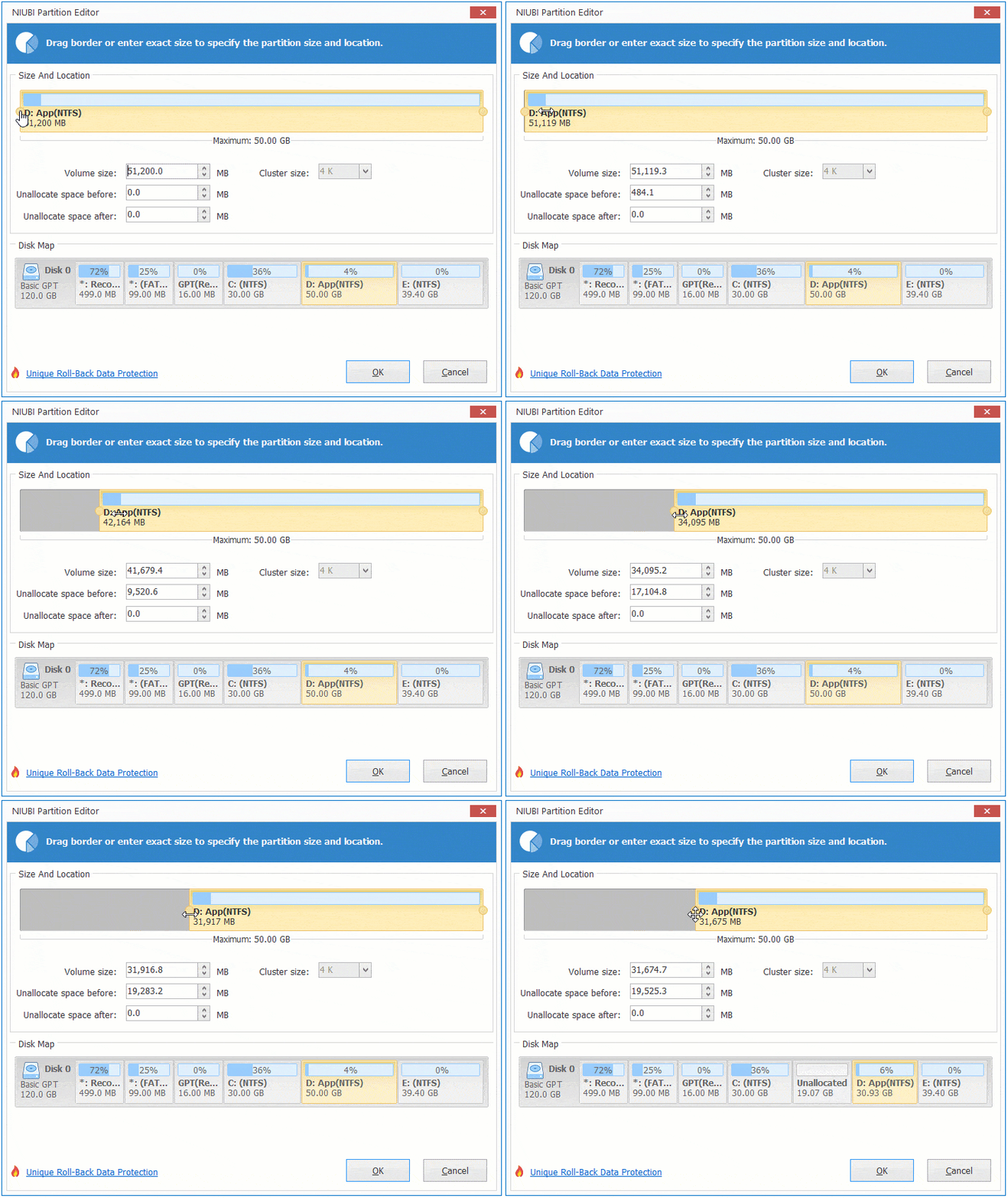
Then, Unallocated space is generated on the left side.
2. Right-click drive C and select "Resize/Move Volume" again, then drag the right border to the right.
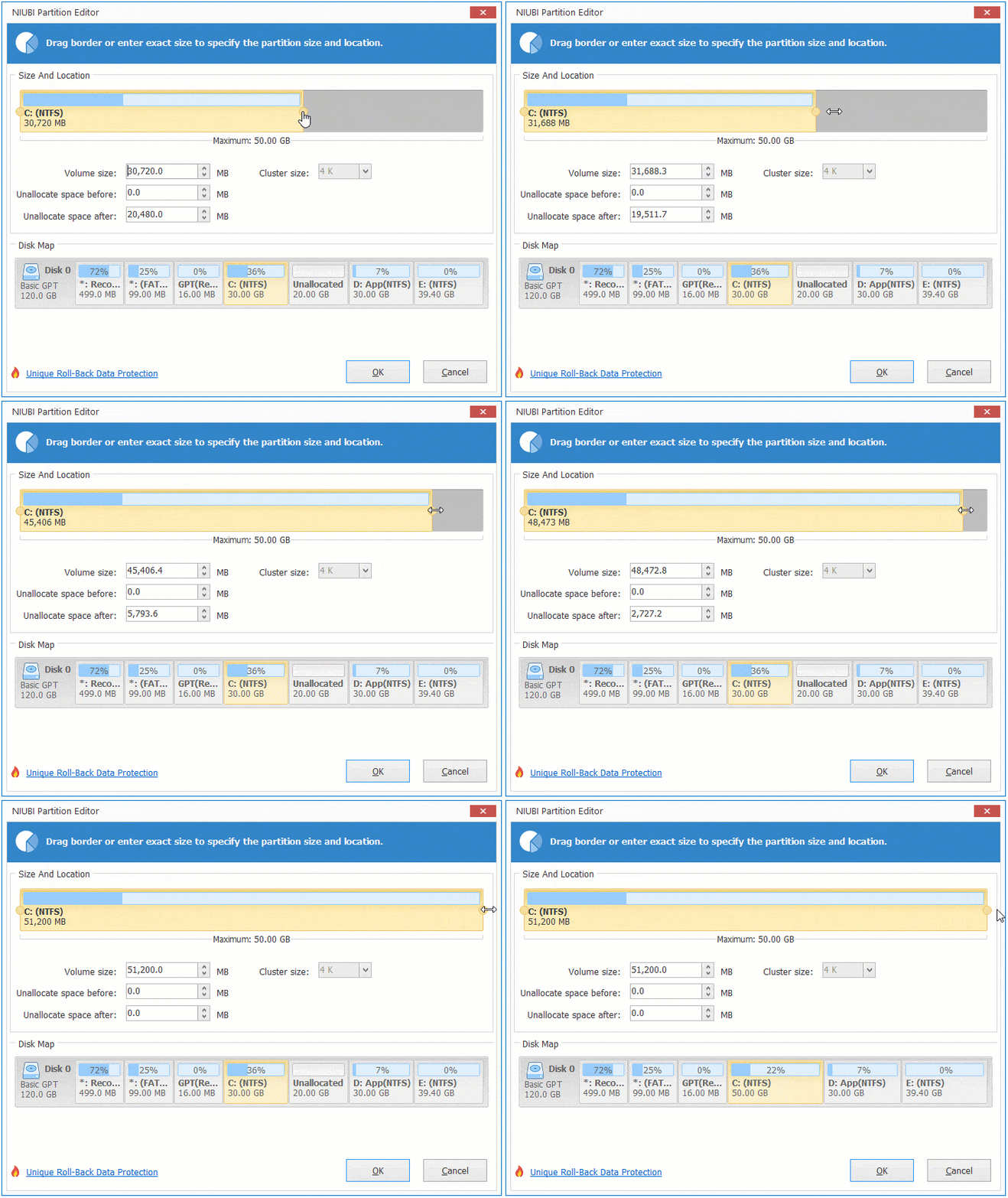
The Unallocated space is then merged into the C drive.
Follow the detailed steps to reallocate more space to the C drive in Windows 10.
Method 2: Merge two partitions
Two contiguous partitions can be merged directly with just a few clicks. All unused space and files from one partition will then be seamlessly transferred to the other.
Follow the detailed steps to merge volumes in Windows 10.
Besides shrinking, moving, extending, and merging partitions, NIUBI Partition Editor helps copy, convert, defrag, wipe, hide partitions, and more.
 © 2009 - NIUBI Technology All Rights Reserved. |